
1. Introduction
The AGSHOME E-Camera is a smart WiFi security camera designed for indoor monitoring. It provides 1080p HD video, motion detection, and two-way audio communication, allowing you to monitor your home, communicate with family or pets, and receive alerts directly on your smartphone. This manual provides detailed instructions for setup, operation, and maintenance of your E-Camera.

Image 1.1: The AGSHOME E-Camera, a compact white security camera with a black lens, positioned on a wooden surface.
Key Features:
- 1080p HD Video: Clear and detailed video monitoring.
- Motion Detection: Receive alerts for detected activity.
- Two-Way Audio: Speak and listen through the camera via your smartphone.
- Infrared Night Vision: Monitor in low-light conditions.
- 2.4 GHz Wi-Fi Connectivity: Easy wireless connection to your home network.
- Local & Cloud Storage: Options for video backup (USB flash drive with Sync module or cloud subscription).

Image 1.2: Visual representation of the camera's core features including 1080p resolution, motion detection, and night vision.
2. Package Contents
Please check the package contents upon unboxing. If any items are missing or damaged, contact customer support.
- AGSHOME E-Camera (1 unit)
- Power Adapter / Charger (1 unit)
- User Manual (This document)
3. Product Overview
Familiarize yourself with the components of your AGSHOME E-Camera.

Image 3.1: Front view of the AGSHOME E-Camera, highlighting its main components.
- Camera Lens: Captures 1080p HD video.
- Microphone: For audio input and two-way communication.
- Speaker: For audio output and two-way communication.
- Status Indicator Light: Indicates camera status (e.g., power, network connection).
- Power Port: Connects to the power adapter.
- Reset Button: Used for resetting the camera to factory settings.
- MicroSD Card Slot: For local video storage (card not included).
4. Setup Guide
4.1 Download the App
The AGSHOME E-Camera operates with the Smart Life application. Download the app from your smartphone's app store (App Store for iOS or Google Play Store for Android).
- Search for "Smart Life" in your app store.
- Download and install the application.
- Register for a new account or log in if you already have one.
4.2 Power On the Camera
- Connect the provided power adapter to the camera's power port.
- Plug the adapter into a standard electrical outlet.
- The camera's status indicator light will turn on, indicating it is powered. Wait for the light to flash, indicating it's ready for pairing.
4.3 Connect to Wi-Fi and Pair with App
Ensure your smartphone is connected to a 2.4 GHz Wi-Fi network. The camera does not support 5 GHz Wi-Fi.
- Open the Smart Life app.
- Tap "Add Device" or the "+" icon in the top right corner.
- Select "Security & Video Surveillance" and then "Smart Camera" (or similar option).
- Follow the on-screen instructions in the app to connect the camera to your Wi-Fi network. This usually involves scanning a QR code displayed on your phone with the camera lens or entering Wi-Fi credentials.
- Once connected, the status indicator light will change (e.g., solid blue), and the camera will appear in your app's device list.
5. Operating Instructions
5.1 Live View
Access real-time video feed from your camera anytime, anywhere.
- Open the Smart Life app and select your E-Camera from the device list.
- The live video feed will appear on your screen.
- Use the controls within the app to pan, tilt (if applicable), zoom, or switch to night vision mode.

Image 5.1: Demonstrating 1080p Full HD real-time video transmission to a smartphone.
5.2 Two-Way Audio
Communicate with individuals or pets near the camera.
- While in Live View, tap the microphone icon in the app.
- Speak into your smartphone's microphone. Your voice will be transmitted through the camera's speaker.
- Release the microphone icon to listen for responses.
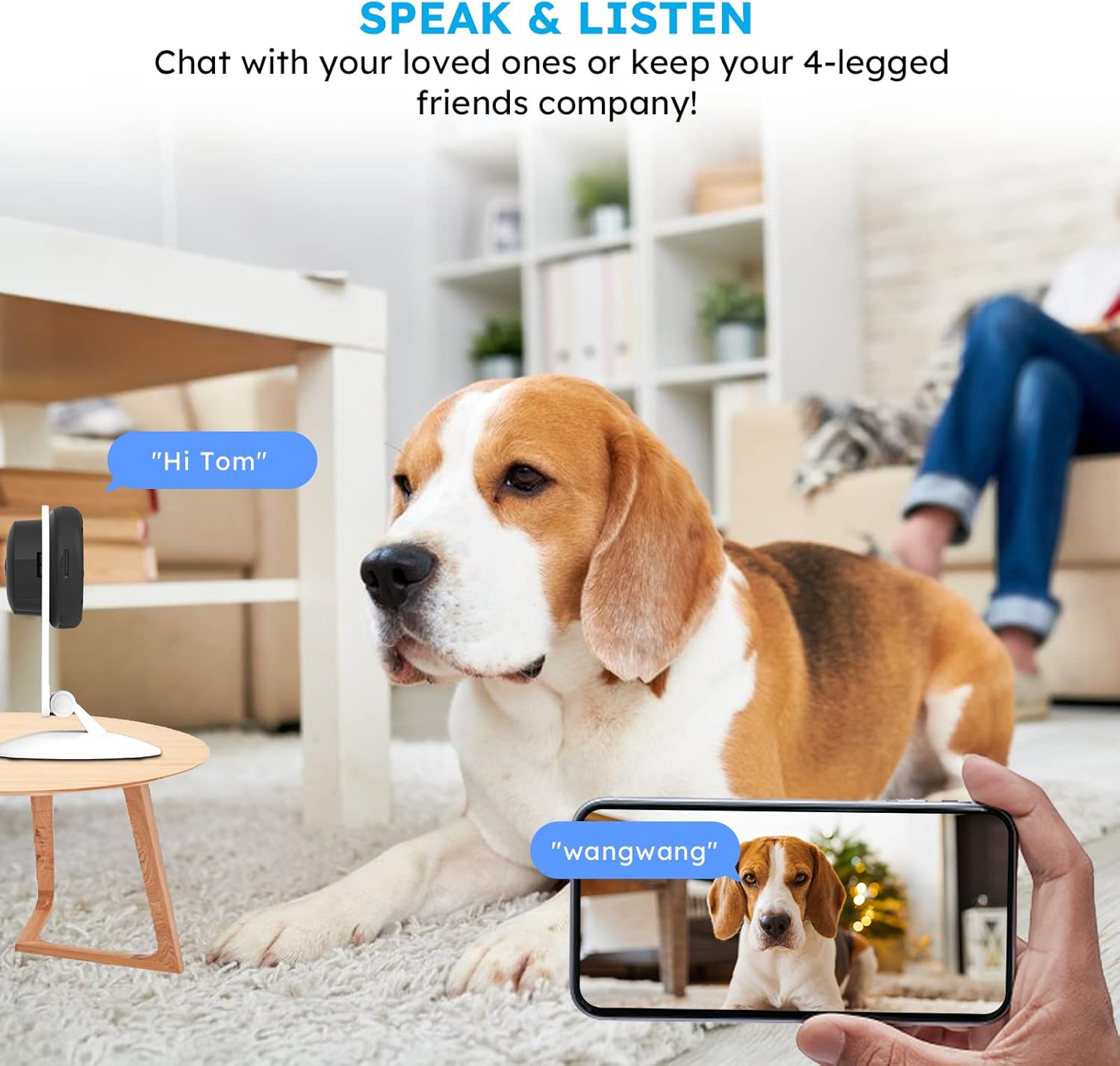
Image 5.2: Using the two-way audio feature to communicate through the camera.
5.3 Motion Detection & Alerts
Receive instant notifications when motion is detected in the camera's field of view.
- In the Smart Life app, navigate to your camera's settings.
- Enable "Motion Detection" and adjust sensitivity levels as needed.
- You can also set up activity zones to focus detection on specific areas.
- When motion is detected, you will receive a push notification on your smartphone.

Image 5.3: Activity alerts detection feature in action, notifying users of movement.
5.4 Video Recording & Storage
Record and store video footage for later review.
- Local Storage: Insert a MicroSD card (up to specified capacity, not included) into the camera's slot for continuous or event-based recording.
- Cloud Storage: Subscribe to the Smart Life cloud service for secure, off-site video storage. This typically offers event-based recording and historical playback.
- Manual Recording: You can manually record video clips directly from the Live View screen in the app.
5.5 Sharing Access
Share camera access with family and friends.
- In the Smart Life app, go to your camera's settings and look for the "Share Device" option.
- You can invite other Smart Life users by entering their account details.
- Shared users will have access to the live feed and other designated features.

Image 5.4: Sharing camera access with family and friends for collaborative monitoring.
6. Maintenance
Proper maintenance ensures the longevity and optimal performance of your AGSHOME E-Camera.
- Cleaning: Gently wipe the camera lens and body with a soft, dry cloth. Avoid using liquid cleaners or abrasive materials that could damage the lens or finish.
- Placement: Place the camera in a stable location, away from direct sunlight, heat sources, and excessive moisture. Ensure it has a clear line of sight to the area you wish to monitor.
- Software Updates: Regularly check the Smart Life app for firmware updates for your camera. Keeping the firmware updated ensures the latest features and security patches.
- Power Cycle: If the camera becomes unresponsive, try unplugging it from the power source for 10 seconds and then plugging it back in.
7. Troubleshooting
If you encounter issues with your camera, refer to the following common problems and solutions.
| Problem | Solution |
|---|---|
| Camera fails to connect to Wi-Fi. |
|
| No live video feed. |
|
| Poor video quality. |
|
| Two-way audio not working. |
|
| Motion alerts not received. |
|
8. Specifications
| Brand | AGSHOME |
| Model Name | E-Camera |
| Video Resolution | 1080p HD (1080 Pixels Effective) |
| Connectivity Technology | Wired (Power), Wireless (Wi-Fi) |
| Wi-Fi Protocol | 2.4 GHz |
| Special Features | HD Resolution, Motion Sensor, Infrared Night Vision |
| Indoor/Outdoor Use | Indoor |
| Compatible Devices | Smartphone |
| Power Source | Plug-in (Wired Power) |
| Controller Type | Amazon Alexa (Compatibility) |
| Mounting Type | Wall Mount (Option) |
| Form Factor | Dome |
| Material Type | Plastic |
| Alert Type | Audio and Motion, Motion Only |
| Lamp Type | Infrared |
| Control Method | Application (Smart Life App) |
| Viewing Angle | 360 Degrees |
| Included Elements | Charger |
| Item Dimensions | 16 x 9 x 9 centimeters |
9. Warranty and Support
AGSHOME products are designed for reliability and performance. For specific warranty information, please refer to the warranty card included with your product or visit the official AGSHOME website.
If you require technical assistance, have questions about your product, or need to report an issue, please contact AGSHOME customer support through the following channels:
- Online Support: Visit the AGSHOME official website for FAQs, troubleshooting guides, and contact forms.
- Email Support: Refer to your product packaging or the AGSHOME website for the customer service email address.
- In-App Support: Some issues can be resolved directly through the Smart Life app's support section.
Please have your product model (E-Camera) and purchase details ready when contacting support.