
RUPA android tv box 11.0
RUPA Android TV Box 11.0 User Manual
Model: android tv box 11.0 | Brand: RUPA
Product Overview
The RUPA Android TV Box 11.0 is a high-performance streaming media player designed to deliver an immersive entertainment experience. Featuring the advanced RK3566 chipset, it supports stunning 8K Ultra HD video playback at 60 frames per second and 4K HDR10+ content, ensuring crisp visuals and vibrant colors.
Equipped with 8GB RAM and 64GB ROM (expandable up to 1TB), this device handles demanding applications and high-resolution content with ease. It supports modern video codecs like VP9 and AV1 for next-generation streaming. Connectivity options include Wi-Fi 6, Bluetooth 5.0, and Gigabit Ethernet, providing stable and fast network access.
Running on Android 11.0, the TV box offers access to a vast library of applications through the App Store, along with features like IR remote control, screen mirroring, and a customizable home screen for user-friendly navigation.

Image: The RUPA Android TV Box, a compact black square device, shown alongside its accompanying black remote control. The box features the 'RUPA Ultra HD 8K' logo on its top surface and a digital clock display on the front.
Package Contents
Before proceeding with the setup, please ensure all items listed below are present in your package.
- RUPA Android TV Box
- Remote Control
- HD Data Cable (HDMI Cable)
- Power Supply Adapter
- User Manual

Image: A visual representation of the RUPA Android TV Box package contents, including the TV box, remote control, HDMI cable, power adapter, and a user manual booklet.
Setup Guide
1. Connecting to Your TV
- Connect one end of the provided HD Data Cable (HDMI cable) to the HDMI port on the RUPA Android TV Box.
- Connect the other end of the HDMI cable to an available HDMI input port on your television. Note the HDMI input number (e.g., HDMI 1, HDMI 2) for later selection.
2. Powering On the Device
- Connect the power supply adapter to the DC IN port on the RUPA Android TV Box.
- Plug the power adapter into a wall outlet. The power indicator light on the TV box should illuminate (blue for power on, red for standby).
- Turn on your television and select the correct HDMI input source using your TV's remote control.
3. Network Connection
The RUPA Android TV Box supports both wired (Ethernet) and wireless (Wi-Fi) connections.
Wired Connection (Ethernet)
- Connect an Ethernet cable from your router or modem to the LAN port on the TV Box. The device will automatically detect and connect to the wired network.
Wireless Connection (Wi-Fi)
- Once the TV Box is powered on, navigate to the "Settings" menu on the screen.
- Select "Network & Internet" or "Wi-Fi".
- Turn on Wi-Fi and select your desired network from the list of available networks.
- Enter the Wi-Fi password if prompted and select "Connect".

Image: Diagram illustrating the stable network connection capabilities of the RUPA Android TV Box, highlighting LAN 1000M (Ethernet) and 2.4G/5G dual-band Wi-Fi. Icons for Bluetooth, Headset, Speaker, Mouse, Game Handle, Keyboard, and Remote Control are also shown, indicating peripheral compatibility.
Operating Instructions
Navigating the Interface
Use the provided remote control to navigate the Android TV interface. The directional pad (up, down, left, right) is used to move between icons and options, and the "OK" button confirms selections.
- Home Screen: Displays your installed applications, recommended content, and system settings.
- Apps: Access all installed applications.
- Settings: Configure network, display, sound, storage, and other system preferences.

Image: A screenshot of the Android 11.0 OS interface on a TV screen, showing various app icons like YouTube, Google Play, and a clock displaying 9:31 AM. This illustrates the user interface for navigation.
Installing and Managing Applications
The RUPA Android TV Box comes with Android 11.0, providing access to a wide range of applications.
- Google Play Store: Use the pre-installed Google Play Store to browse, download, and install applications. A Google account is required.
- Sideloading: For applications not available on the Play Store, you may be able to sideload APK files. Ensure sources are trusted to prevent security risks.
- Uninstalling Apps: Go to Settings > Apps, select the app you wish to uninstall, and choose "Uninstall".

Image: A visual demonstrating the RUPA Android TV Box running Android 11.0 OS, with a TV screen displaying various streaming and social media app icons such as Netflix, Google Play, YouTube, Prime Video, Facebook, and Twitter. Text indicates smooth gaming, HD movie watching, and use for education and fitness.
Media Playback and Streaming
The device supports various high-resolution video formats, including 8K, 6K, 4K, and 3D content.
- 8K Ultra HD: Enjoy content in stunning 8K resolution (7680*4320 pixels) for unparalleled clarity.
- HDR Support: High Dynamic Range (HDR) provides brighter, more realistic colors and greater detail in both bright and dark scenes.
- H.265 Decoding: Efficient H.265 (HEVC) video decoding reduces bandwidth usage by 50% compared to H.264, allowing for smoother streaming and less storage space for media files.
- USB/TF Card Playback: Insert a USB drive or TF card into the respective ports to play local media files.

Image: A comparison showing the benefits of H.265 decoding and HDR. One side depicts "H.265 Decoding + HDR" with a smooth, vibrant image of a puppy, while the other shows "Ordinary Decoding + No HDR" with a duller, potentially freezing image, illustrating improved playback and visual quality.

Image: A split image comparing 4K (3840*2160) and 8K (7680*4320) resolutions, showcasing a scenic view with a waterfall and sunset. Below, icons for Android 11.0, 8K, and HDR are displayed, emphasizing the device's capabilities for an 8K virtual video experience.
Screen Mirroring
The RUPA Android TV Box supports various screen mirroring technologies like Airplay, DLNA, and Miracast, allowing you to cast content from your smartphone, tablet, or computer to your TV screen.
- Access the screen mirroring feature from the device's main menu or settings.
- Follow the on-screen instructions to connect your mobile device.
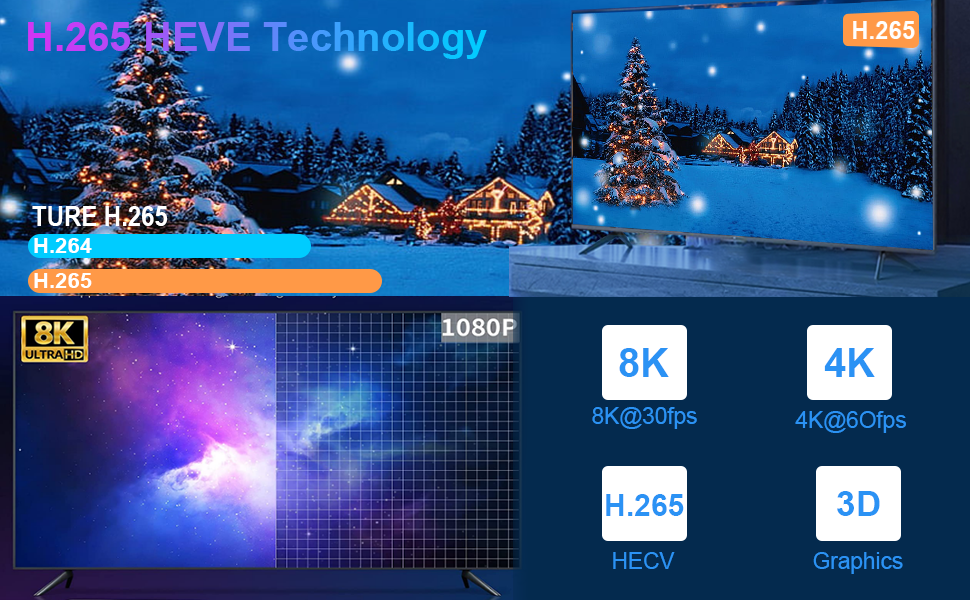
Image: A graphic illustrating the "Newest Android 11.0 OS" with a bar chart comparing Android 9, 10, and 11. An astronaut floats in space on a TV screen, with a "SCREEN MIRRORING SHARE" section showing icons for Airplay, DLNA, Miracast, Game, Movie, and Music, indicating content sharing capabilities.
Maintenance
Cleaning the Device
- Ensure the device is powered off and unplugged before cleaning.
- Use a soft, dry, lint-free cloth to wipe the exterior of the TV box and remote control.
- Do not use liquid cleaners, aerosols, or abrasive materials, as they may damage the device.
Software Updates
Periodically check for system updates to ensure optimal performance and access to the latest features and security patches. Updates can usually be found in the "Settings" menu under "About Device" or "System Update".
Storage Management
While the device offers 64GB of internal storage, managing it effectively can prevent performance issues. Regularly clear cache from applications and uninstall unused apps to free up space. External storage (TF card up to 1TB) can be used for additional media storage.
Troubleshooting
This section addresses common issues you might encounter with your RUPA Android TV Box.
No Power / Device Not Turning On
- Ensure the power adapter is securely connected to the TV box and a working power outlet.
- Verify the power outlet is functional by plugging in another device.
- Check if the power indicator light on the TV box is illuminated.
No Signal on TV Screen
- Confirm the HDMI cable is securely connected to both the TV box and the TV.
- Ensure your TV is set to the correct HDMI input source (e.g., HDMI 1, HDMI 2) that the TV box is connected to.
- Try a different HDMI cable or a different HDMI port on your TV.
Network Connection Issues
- Wi-Fi: Check if your Wi-Fi router is on and functioning. Re-enter the Wi-Fi password in the TV box settings. Try restarting your router.
- Ethernet: Ensure the Ethernet cable is properly connected to both the TV box and your router/modem. Check the status lights on your router.
Applications Freezing or Crashing
- Close and restart the application.
- Clear the app's cache: Go to Settings > Apps, select the problematic app, and choose "Clear Cache".
- If the issue persists, try uninstalling and reinstalling the app.
- Ensure the device has sufficient free storage space.
- Some applications may not be fully optimized for Android TV OS or rooted devices.
Remote Control Not Responding
- Check and replace the batteries in the remote control.
- Ensure there are no obstructions between the remote and the TV box.
- If the remote is Bluetooth, ensure it is properly paired with the device.
Specifications
Detailed technical specifications for the RUPA Android TV Box 11.0.

Image: A detailed table outlining the technical specifications of the RUPA Android TV Box, including chipset, GPU, flash memory, RAM, USB ports, LAN, wireless connectivity, Bluetooth, display port, power indicator, remote type, power supply, operating temperature, OS, supported decoder formats, media formats, music formats, photo formats, HDD file system, subtitle support, high definition video output, OSD languages, and mouse/keyboard support.
| Feature | Detail |
|---|---|
| Brand Name | RUPA |
| Model Name | android tv box 11.0 |
| Operating System | Android 11.0 |
| Processor | RK3566 Quad-Core 64bit Cortex-A55 @1.8GHz |
| GPU | Mali-G52EE |
| RAM | 8GB DDR4 |
| Internal Storage | 64GB ROM (expandable up to 1TB via TF card) |
| Connectivity | Bluetooth 5.0, Wi-Fi (2.4G/5.8G Dual Band), Ethernet (10/100/1000M LAN) |
| USB Ports | 1x USB 3.0, 1x USB 2.0 |
| Video Output | HDMI 2.1 (supports 8K@60fps, 4K@60fps) |
| Supported Resolutions | 8K Ultra HD, 6K, 4K, 3D |
| Special Features | 8K Ultra HD, 3D Movies, H.265 Video Decoding, HDR10+, Screen Mirroring |
| Dimensions | 7 x 3 x 2 inches |
| Item Weight | 11.2 ounces |
Warranty and Support
Warranty Information
This product may be eligible for extended protection plans. Please refer to your purchase documentation or the seller's website for specific warranty terms and conditions. Standard protection plans of 2-Year and 3-Year durations may be available for purchase.
Customer Support
For technical assistance, troubleshooting, or product inquiries, please contact the seller directly. The seller for this product is GUANGSHIDA. You can typically find their contact information on the platform where you purchased the device or by visiting their official website.
For general information about RUPA products, you may visit the RUPA Store online.
Related documentsandroid tv box 11.0


Ask a question about this manual
Ask about setup, troubleshooting, compatibility, parts, safety, or missing instructions. Manuals+ will review the question and use this page’s manual context to help answer it.