
1. Introduction
This manual provides detailed instructions for the safe and efficient operation of your WiMiUS P61 Mini Projector. Please read this manual thoroughly before using the product and retain it for future reference.

Image 1.1: The WiMiUS P61 Mini Projector, a compact and portable device with a handle.
2. Safety Instructions
- Do not look directly into the projector lens when the lamp is on.
- Ensure proper ventilation around the projector to prevent overheating.
- Avoid placing the projector in unstable locations or near water.
- Use only the power adapter supplied with the projector.
- Do not attempt to disassemble or repair the projector yourself. Contact qualified service personnel.
- Keep the projector away from extreme temperatures, dust, and humidity.
3. Package Contents
Please check that all items are present:
- WiMiUS P61 Mini Projector
- Remote Control
- Power Adapter
- HDMI Cable
- User Manual
4. Product Overview
4.1. Projector Components

Image 4.1: Overview of the WiMiUS P61 Projector highlighting its key features such as 1080P support, 8500 Lumens, Bluetooth 5.2, and 5G/2.4G WiFi.
The WiMiUS P61 is a compact and portable projector designed for ease of use. It features a lens, ventilation grilles, and various input/output ports.

Image 4.2: The WiMiUS P61 Projector being held, illustrating its portable design and compact size.
4.3. Input/Output Ports

Image 4.3: The projector's connectivity options, including HDMI, USB, AV, and 3.5mm audio, compatible with various devices like smartphones, laptops, TV sticks, and gaming consoles.
- HDMI Port: Connect to laptops, gaming consoles (PS4/PS5, Switch), TV sticks, and other HDMI-enabled devices.
- USB Port: Connect USB drives for media playback.
- AV Port: Connect to older devices using an AV cable.
- 3.5mm Audio Jack: Connect external headphones or speakers.
- Power Input: Connect the power adapter.
5. Setup
5.1. Power Connection
- Connect the power adapter to the projector's power input port.
- Plug the power adapter into a wall outlet.
- The power indicator light on the projector will illuminate.
5.2. Placement
Position the projector on a stable, flat surface. For optimal image quality, ensure the projector is placed directly in front of the projection screen or wall. The projector includes a standard tripod screw mount for flexible positioning.

Image 5.1: Illustration of projection distance for a 100-inch screen, showing the WiMiUS P61 requires approximately 2.5 meters.
The projector supports various projection methods: front, rear, front ceiling, and rear ceiling. Adjust the projection mode in the settings menu according to your installation.
5.3. Focus Adjustment
The WiMiUS P61 features electric focus for precise image clarity.
- Turn on the projector.
- Use the focus buttons on the remote control to adjust the image sharpness.
- Adjust until the projected image is clear and crisp.
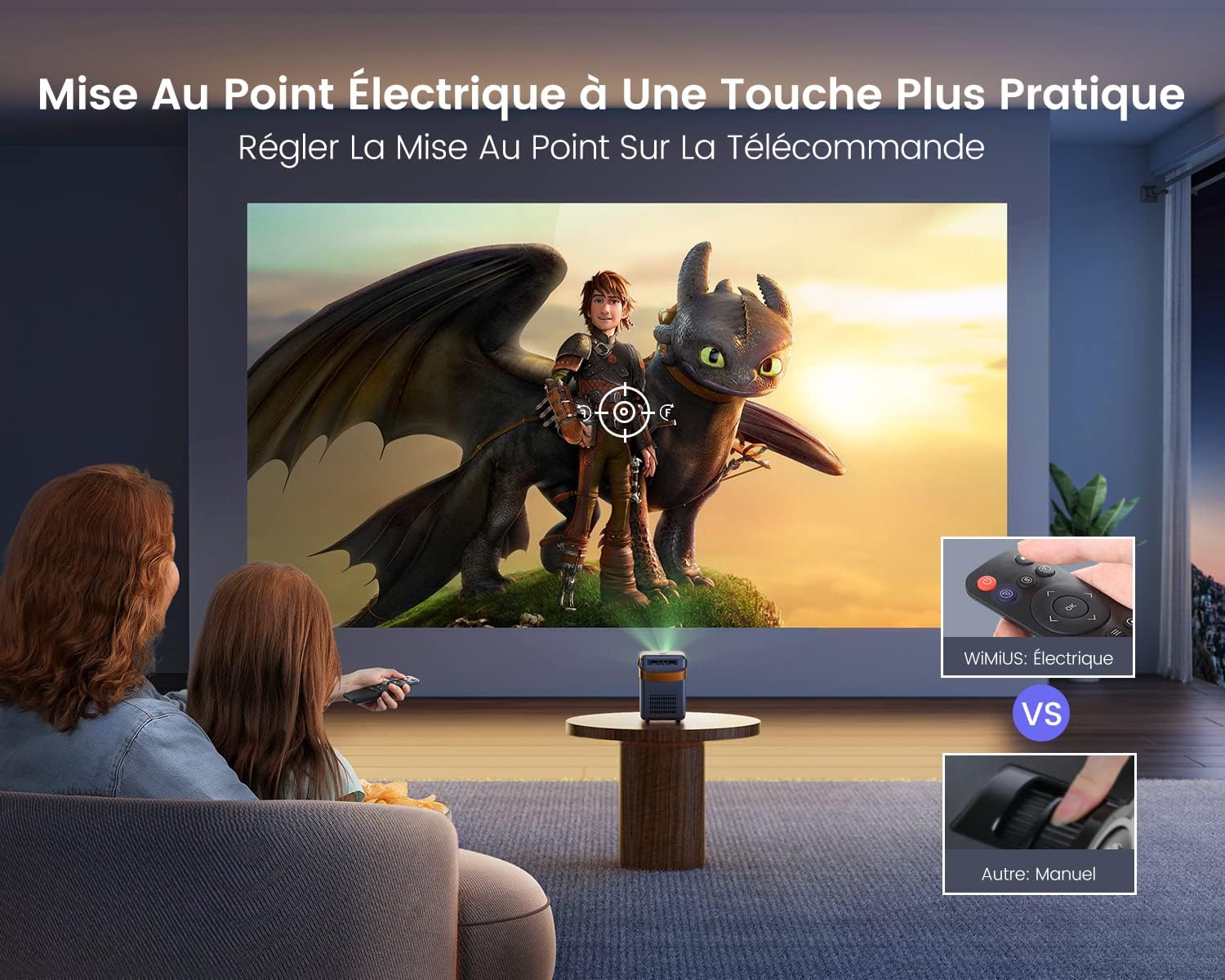
Image 5.2: The remote control allows for convenient electric focus adjustment, providing a clearer image compared to manual focus.

Image 5.3: Demonstrates the rapid 0.1-second electric focus adjustment feature of the WiMiUS P61 Projector.
6. Operating Instructions
6.1. Turning On/Off
- To Turn On: Press the power button on the projector or the remote control.
- To Turn Off: Press the power button again. The projector will enter standby mode.
6.2. Input Source Selection
Use the "Source" button on the remote control to cycle through available input sources (HDMI, USB, AV, Screen Mirroring).
6.3. Wireless Connectivity (WiFi & Bluetooth)
6.3.1. WiFi Connection
The projector supports dual-band 2.4G and 5G WiFi for stable and fast connections.

Image 6.1: The projector supports both 2.4G and 5G WiFi for ultra-fast wireless connectivity.

Image 6.2: Demonstrates the high-speed 5G WiFi connection for smooth content streaming.
- Navigate to the WiFi settings in the projector's menu.
- Select your desired WiFi network and enter the password.
- Once connected, you can use screen mirroring or access network features.
6.3.2. Bluetooth Connection
The projector features integrated Bluetooth 5.2 for connecting external audio devices.

Image 6.3: The projector's Bluetooth 5.2 allows connection to various audio devices like Bluetooth speakers, headphones, and earbuds for enhanced sound.

Image 6.4: The projector connected via Bluetooth 5.2 to a soundbar for immersive audio.
- Go to the Bluetooth settings in the projector's menu.
- Enable Bluetooth and search for available devices.
- Select your Bluetooth speaker or headphones to pair.
Note on Audio Output: If you connect external audio devices via Bluetooth or the 3.5mm audio jack, the projector's internal speakers will typically be muted. If you wish to use the projector's speakers while an external device is connected, you may need to adjust the volume settings or disconnect the external device.
6.4. Screen Mirroring
The WiMiUS P61 supports screen mirroring for both Android and iOS devices.
- For Android Devices: Use the Miracast function. Ensure your Android device and the projector are connected to the same WiFi network, or connect directly via the projector's Miracast feature without a router.
- For iOS Devices (iPhone/iPad): Connect your iOS device and the projector to the same WiFi network. Then, use the screen mirroring function on your iOS device to project the screen.
6.5. Connecting External Devices
- HDMI: Connect an HDMI cable from your device (e.g., laptop, game console, TV stick) to the projector's HDMI port. Select HDMI as the input source.
- USB: Insert a USB drive into the USB port. The projector will typically prompt you to select media files for playback.
- AV: Connect an AV cable from your device to the projector's AV port. Select AV as the input source.

Image 6.5: The WiMiUS P61 Projector displaying content from various streaming applications, suitable for home entertainment.
7. Settings Menu
Access the settings menu using the remote control to adjust various parameters:
- Image Settings: Adjust brightness, contrast, color temperature, and aspect ratio (16:9 or 4:3).
- Sound Settings: Adjust volume, bass, treble, and balance.
- Network Settings: Configure WiFi connections and check network information.
- Projection Mode: Select front, rear, front ceiling, or rear ceiling projection.
- Language: Change the system language.
- Software Update: Update the projector's firmware via network or USB.
- Sleep Timer: Set a timer for automatic shutdown.
Settings are typically saved automatically after adjustment.
8. Maintenance
8.1. Cleaning
- Lens: Use a soft, lint-free cloth specifically designed for optical lenses. Do not use abrasive cleaners.
- Casing: Wipe the projector's exterior with a soft, dry cloth. Do not use liquid or aerosol cleaners.
- Ventilation: Periodically check and clean the ventilation grilles to ensure proper airflow and prevent dust buildup.
8.2. Storage
When not in use for extended periods, store the projector in a cool, dry place, away from direct sunlight and excessive dust. Use the original packaging or a protective case if available.
9. Troubleshooting
| Problem | Possible Cause | Solution |
|---|---|---|
| No image displayed | Power not connected; Incorrect input source; Device not connected properly. | Check power cable; Select correct input source; Ensure HDMI/USB/AV cables are securely connected. |
| Image is blurry | Focus not adjusted; Projector too far/close to screen. | Adjust focus using the remote control; Reposition the projector. |
| No sound | Volume too low; Muted; Incorrect audio output selected; External device volume low. | Increase projector volume; Unmute; Check audio settings; Increase volume on connected device. |
| WiFi connection unstable | Distance from router; Interference; Incorrect password. | Move projector closer to router; Reduce interference; Re-enter WiFi password. |
| Screen mirroring not working | Not on same WiFi network; Device compatibility; Network issues. | Ensure both devices are on the same WiFi; Check device's screen mirroring function; Restart devices. |
| Dust spots on image | Dust between lens components. | This issue may require professional cleaning. Contact customer support. |
10. Specifications
| Feature | Detail |
|---|---|
| Brand | WiMiUS |
| Model Number | P61 Projector |
| Color | Black |
| Display Resolution (Native) | 1280 x 720p |
| Max Display Resolution Supported | 1920 x 1080p (Full HD) |
| Brightness | 8500 Lumens |
| Contrast Ratio | 10000:1 |
| Connectivity Technology | HDMI, USB, AV, 3.5mm Audio, Wi-Fi (2.4G/5G), Bluetooth 5.2 |
| Max Screen Size | 300 Inches |
| Dimensions (L x W x H) | 14 cm x 10.2 cm x 15.5 cm |
| Special Features | Portable, Electric Focus |

Image 10.1: Detailed dimensions of the WiMiUS P61 Projector, highlighting its compact and portable design.
11. Warranty and Support
Information regarding warranty coverage and customer support was not available in the provided product details. Please refer to the product packaging or contact the retailer/manufacturer directly for warranty terms and technical assistance.


