
1. Introduction
This manual provides comprehensive instructions for the ORICO 12-in-1 USB C Hub Docking Station (Model X11 Grey). It covers product features, setup procedures, operational guidelines, maintenance tips, troubleshooting solutions, and detailed specifications. Please read this manual thoroughly before using the device to ensure optimal performance and longevity.
2. Product Overview
The ORICO 12-in-1 USB C Hub Docking Station expands your device's connectivity with a variety of ports, designed to enhance productivity and multimedia experiences. It features a durable aluminum alloy casing for efficient heat dissipation.
Port Layout

Image Description: This image displays the ORICO 12-in-1 USB C Hub from two angles, highlighting and labeling each of its 12 ports. On one side, the labels include VGA (1080P), RJ45 Ethernet (10/100/1000Mbps), 3.5mm Audio, SD3.0/TF3.0 Card Slot (5Gbps), Type-C 3.1 (5Gbps), and two USB-A 3.1 ports (5Gbps). On the other side, the labels include two HDMI 2.0 ports (up to 4K/60Hz), a USB-A 2.0 port (480Mbps), and a USB-C PD3.0 port (100W).
Key Features:
- 100W Power Delivery (PD): Charge your laptop while using the hub.
- Dual 4K HDMI Output: Connect up to two external displays at 4K@60Hz.
- VGA Output: Connect an additional display at 1080P.
- Gigabit Ethernet: Provides stable and fast wired network connectivity (10/100/1000Mbps).
- High-Speed Data Transfer: Two USB-A 3.1 ports and one Type-C 3.1 port offer up to 5Gbps data transfer.
- USB 2.0 Port: One USB-A 2.0 port for peripherals like keyboards and mice.
- SD/TF Card Reader: Supports simultaneous reading of SD and TF cards, up to 2TB.
- 3.5mm Audio Jack: For headphones or speakers.
3. Setup Instructions
The ORICO 12-in-1 USB C Hub is designed for plug-and-play operation, requiring no driver installation for Windows and Mac OS systems.
- Connect to Host Device: Plug the integrated USB-C cable from the docking station into a compatible USB-C port on your laptop, tablet, or smartphone. Ensure your device's USB-C port supports video output (DisplayPort Alternate Mode) and power delivery for full functionality.
- Power Connection (Optional but Recommended): For stable operation and to charge your host device, connect your laptop's original power adapter to the PD (Power Delivery) USB-C input port on the docking station.
- Connect Peripherals: Connect your external monitors to the HDMI and/or VGA ports. Plug in USB devices (e.g., mouse, keyboard, external drives) into the USB-A and data Type-C ports. Insert SD/TF cards as needed. Connect an Ethernet cable for wired network access.
- Audio Connection: If desired, connect headphones or speakers to the 3.5mm audio jack.
Compatibility
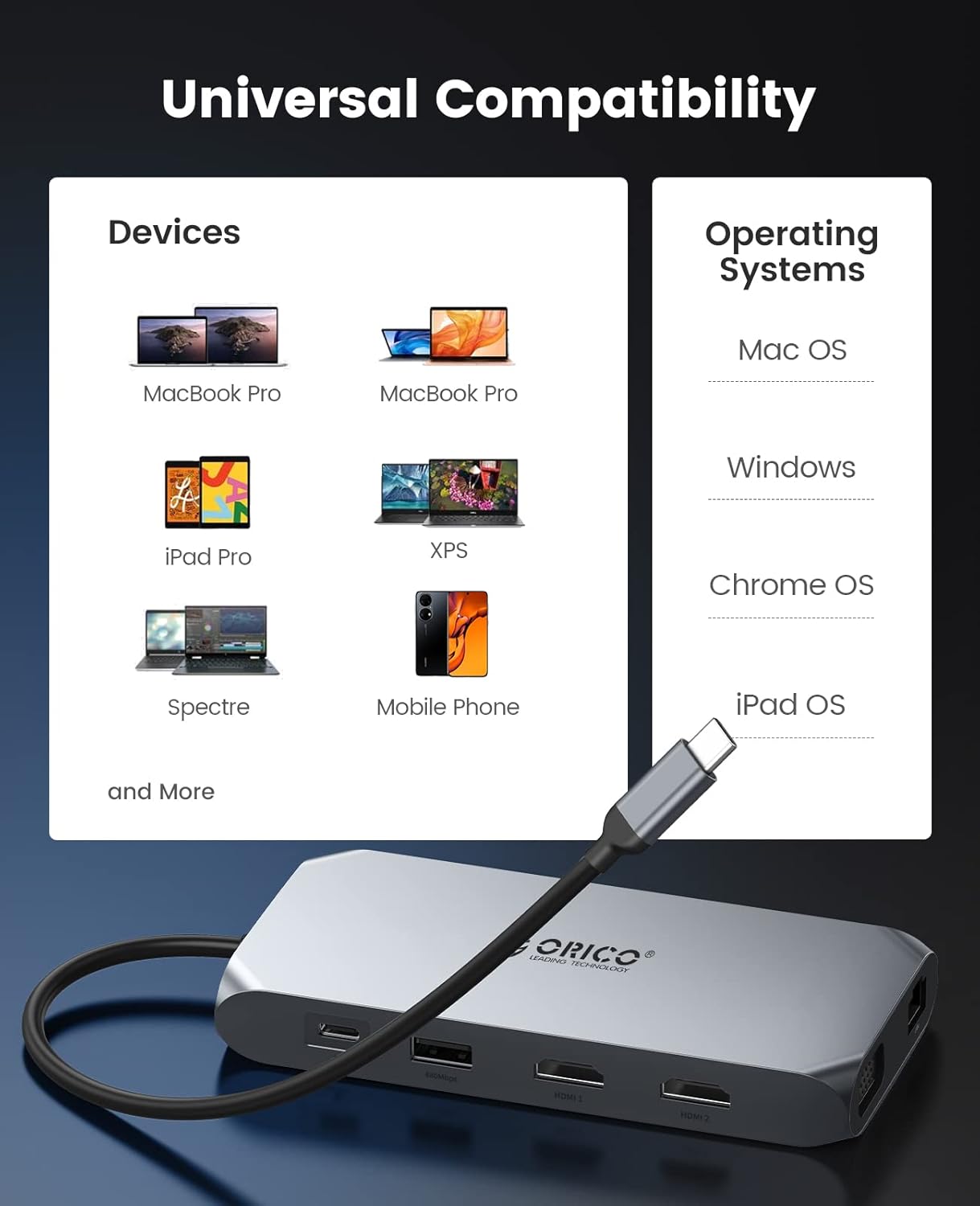
Image Description: This image illustrates the broad compatibility of the ORICO USB C Hub. It shows various compatible devices such as MacBook Pro, MacBook Air, iPad Pro, XPS laptops, Spectre laptops, and mobile phones. It also lists supported operating systems: Mac OS, Windows, Chrome OS, and iPad OS. The hub connects via a USB-C cable.
The docking station is compatible with devices featuring a USB-C port that supports DisplayPort Alternate Mode (DP Alt Mode) and Power Delivery. Supported operating systems include Windows, Mac OS, Chrome OS, and iPad OS.
4. Operating Instructions
Display Modes
The ORICO 12-in-1 USB C Hub supports various display configurations for external monitors.

Image Description: This image presents two tables outlining display configurations for USB-C DP Alt Mode (DPI1.4) MST and USB-C DP Alt Mode (DP1.2) MST. Each table lists items with corresponding resolutions for HDMI 1, HDMI 2, and VGA ports, along with remarks for single, dual, and triple video output. Resolutions range from 3840x2160@60Hz to 800x600@60Hz, indicating various combinations for mirroring or extending displays.

Image Description: This diagram shows two common multiple display modes for Windows systems. The 'A-A-A-A Mirror Mode' depicts a laptop screen mirrored across three external monitors. The 'A-B-C-D Extend Mode' shows the laptop screen (A) extended across three distinct external monitors (B, C, D), creating a large, continuous workspace.

Image Description: This diagram illustrates two multiple display modes for Mac OS. The 'A-A-A-A Mirror Mode' shows a laptop screen mirrored across three external monitors. The 'A-B-B-B Extend Mode' shows the laptop screen (A) extended to three external monitors (B), where all three external monitors display the same extended content.
- Windows System: Supports triple display mode (AAAA for mirror, ABCD for extend).
- Mac OS System: Supports mirror or extend mode (AAAA for mirror, ABBB for extend).
Data Transfer
Utilize the high-speed USB ports for quick file transfers.

Image Description: This image highlights the data transfer capabilities of the hub, showing a comparison between USB 2.0 (480Mbps) and USB 3.0 (5Gbps). The graphic emphasizes that the hub's USB 3.1 ports enable file transfers at speeds up to 5Gbps, allowing large files to be moved in seconds.
- USB 3.1 Ports (2x USB-A, 1x Type-C): Achieve data transfer speeds of up to 5Gbps.
- USB 2.0 Port (1x USB-A): Suitable for connecting standard peripherals with speeds up to 480Mbps.
- SD/TF Card Reader: Supports simultaneous reading of both SD and TF cards, with a maximum capacity of 2TB.
Power Delivery (PD)

Image Description: This image depicts a laptop connected to the ORICO USB C Hub, which is in turn connected to a wall charger. The text 'Input 100W' indicates that the hub supports 100W Power Delivery, allowing the laptop to charge efficiently while connected to the docking station.
The dedicated USB-C PD3.0 port supports up to 100W power input, allowing you to charge your host device rapidly while using the hub's other functions. This eliminates concerns about power depletion during extended use.
Gigabit Ethernet

Image Description: This image shows a close-up of the ORICO USB C Hub with an Ethernet cable plugged into its RJ45 port. A blue glow around the Ethernet port and the text '1000Mbps' emphasize the high-performance Gigabit Ethernet capability, providing a stable and fast wired network connection to a laptop.
The RJ45 Ethernet port provides a stable and reliable wired network connection, automatically adapting to 10/100/1000Mbps speeds. This is ideal for situations where Wi-Fi is unstable or unavailable.
5. Maintenance
- Cleaning: Use a soft, dry cloth to clean the exterior of the docking station. Avoid liquid cleaners or abrasive materials.
- Heat Dissipation: The aluminum alloy casing is designed for efficient heat dissipation. Ensure the device is placed in a well-ventilated area and not covered to prevent overheating.
- Storage: When not in use, store the docking station in a cool, dry place away from direct sunlight and extreme temperatures.
- Handling: Avoid dropping or subjecting the device to strong impacts. Do not attempt to disassemble the unit.
6. Troubleshooting
- No Display Output:
- Ensure your host device's USB-C port supports DisplayPort Alternate Mode.
- Check all cable connections (USB-C to host, HDMI/VGA to monitor).
- Verify monitor input settings are correctly selected (e.g., HDMI 1, HDMI 2, VGA).
- Try connecting one monitor at a time to isolate the issue.
- If using multiple displays, ensure your operating system display settings are configured correctly (mirror or extend).
- Display Flickering or Disconnection:
- This can sometimes occur with specific HDMI ports or cables. Try a different HDMI cable or port on the docking station/monitor.
- Ensure your host device's USB-C port is fully capable of handling the bandwidth required for multiple high-resolution displays. The final performance depends on your computer's Type C port capabilities.
- Reduce the resolution or refresh rate of the external display(s) to see if the issue persists.
- USB Devices Not Recognized:
- Reconnect the USB device.
- Try a different USB port on the docking station.
- Ensure the docking station is receiving adequate power, especially if multiple power-hungry devices are connected. Connect a PD charger to the hub.
- No Network Connection:
- Check the Ethernet cable connection to both the hub and your router/modem.
- Verify network settings on your host device.
- Ensure your router/modem is functioning correctly.
- Charging Issue:
- Ensure your power adapter is connected to the PD USB-C port on the hub.
- Verify your power adapter is capable of delivering sufficient wattage (e.g., 100W) for your laptop.
- Confirm your host device's USB-C port supports Power Delivery.
7. Specifications
| Brand | ORICO |
| Model Number | ORICO-XCR-X11-GY-BP-US (X11 Grey) |
| Item Weight | 8.5 ounces |
| Hardware Interface | HDMI, USB Type C, VGA, RJ45, SD/TF, 3.5mm Audio |
| Ports | 2x HDMI (4K@60Hz), 1x VGA (1080P), 1x USB-C PD (100W), 2x USB-A 3.1 (5Gbps), 1x USB-A 2.0 (480Mbps), 1x Type-C 3.1 (5Gbps), 1x Gigabit Ethernet (10/100/1000Mbps), 1x SD Card Reader, 1x TF Card Reader, 1x 3.5mm Audio |
| Power Delivery | Up to 100W |
| Data Transfer Speed | USB 3.1: 5Gbps, USB 2.0: 480Mbps |
| Card Reader Support | SD/TF cards, up to 2TB, simultaneous reading |
| Compatible Devices | MacBook Air, MacBook Pro, iPad Pro, XPS, Spectre, Mobile Phones (with compatible USB-C port) |
| Operating Systems | Windows, Mac OS, Chrome OS, iPad OS |
8. Warranty and Support
For warranty information and technical support, please refer to the official ORICO website or contact ORICO customer service directly. Keep your purchase receipt for warranty claims.
If you encounter any issues not covered in this manual, please reach out to ORICO support for assistance. The performance of the docking station can be influenced by the capabilities of your computer's USB-C port.


