
1. Introduction
Thank you for choosing the Amysen Smart Plug. This device allows you to control your home appliances remotely, set schedules, and use voice commands through Amazon Alexa. This manual provides detailed instructions for setup, operation, and troubleshooting to ensure optimal use of your smart plug.

Image 1.1: Four Amysen Smart Plugs. These plugs are designed for seamless integration with Amazon Alexa.
2. Important Safety Information
- For indoor use only.
- Do not exceed the maximum load rating of 15A/1875W.
- Do not immerse in water or expose to wet conditions.
- Do not attempt to disassemble or repair the device.
- Keep out of reach of children.
- Ensure the plug is fully inserted into the outlet.
3. Package Contents
Your package should contain the following items:
- Amysen Smart Plug(s) (quantity as purchased, e.g., 4-pack)
- Instruction Manual
4. Product Overview
The Amysen Smart Plug is a compact device designed to fit standard wall outlets. It features a power button for manual control and an LED indicator light to show its status.
- Power Button: Press to manually turn the connected appliance on or off. Press and hold for 5 seconds to reset the plug for pairing.
- LED Indicator: Indicates the plug's status (e.g., solid blue for on, blinking for pairing mode).

Image 4.1: Amysen Smart Plug dimensions, highlighting its compact design.
5. Setup Guide
The Amysen Smart Plug is designed for simple setup with Amazon Alexa devices.
5.1. Compatibility
This smart plug is compatible with Amazon Alexa devices only. Compatible Alexa devices include:
- Echo 2nd Gen, Echo 3rd Gen
- Echo Dot 2nd Gen, Echo Dot 3rd Gen, Echo Dot 3rd Gen with clock
- Echo Plus 1st Gen, Echo Plus 2nd Gen
- Echo Show 1st Gen, Echo Show 5, Echo Show 8, Echo Show 10
- Echo Spot, Echo Input, Echo Flex, Echo Studio
5.2. Initial Setup with Alexa
- Plug the Amysen Smart Plug into a standard wall outlet.
- Ensure your Alexa device is powered on and connected to your Wi-Fi network.
- Say to your Alexa device: "Alexa, discover devices."
- Alexa will automatically search for and connect to the smart plug. This process typically takes a few seconds.
- Once discovered, Alexa will confirm the connection. You can then control the plug using voice commands.

Image 5.1: Visual guide for plugging in the smart plug and Alexa discovering the device.
5.3. Alexa App Control
You can also manage your smart plug using the Alexa app on your mobile phone from anywhere with an internet connection.
- Download and open the Amazon Alexa app on your smartphone or tablet.
- Navigate to the 'Devices' section. Your newly discovered smart plug should be listed there.
- You can rename the plug, add it to groups, and control it directly from the app.
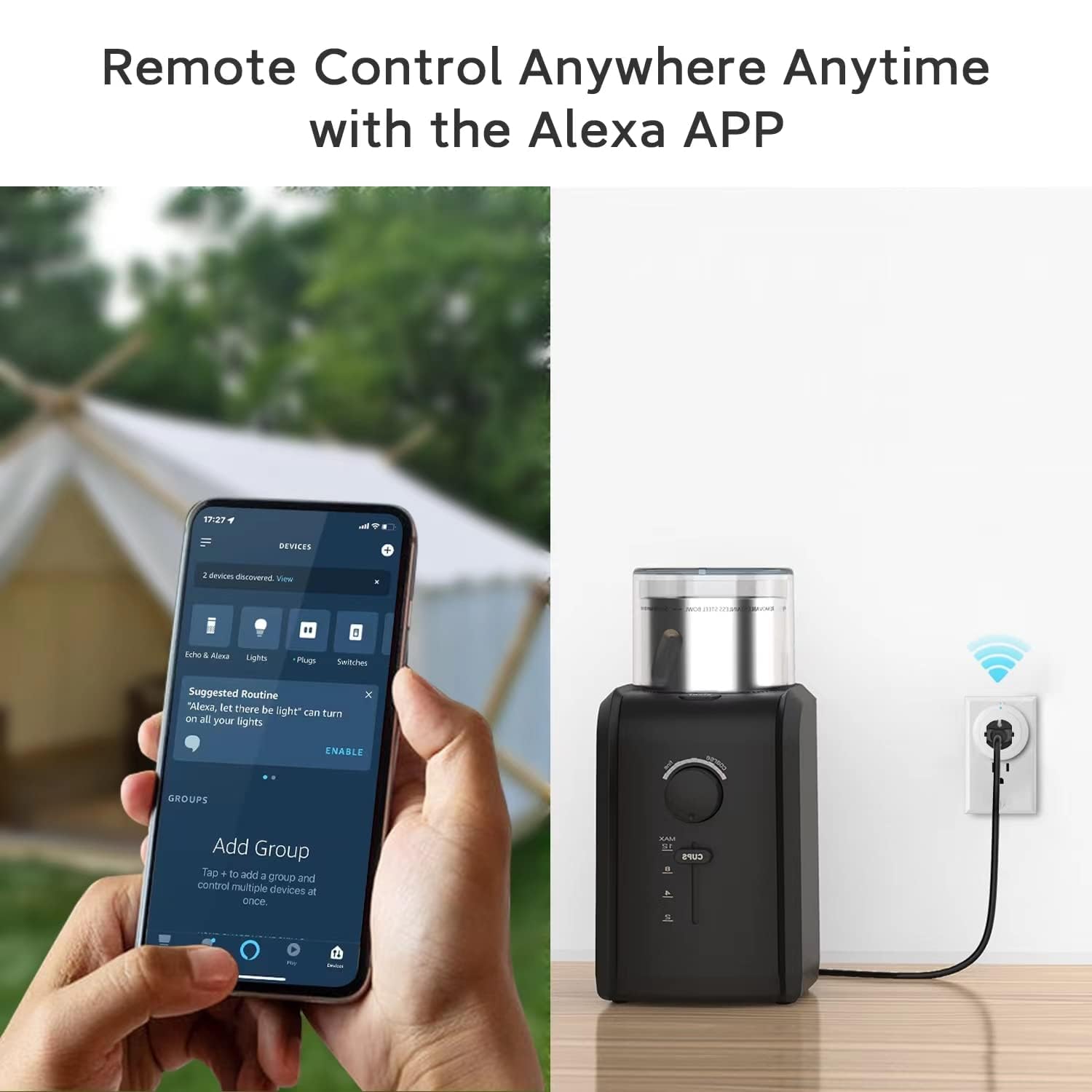
Image 5.2: Remote control of the smart plug via the Alexa app on a mobile device.
6. Operating the Smart Plug
6.1. Voice Control
Once connected, you can use voice commands with your Alexa device to control the smart plug. Ensure your Alexa device is within hearing range.
- To turn on: "Alexa, turn on [plug name]." (e.g., "Alexa, turn on the lamp.")
- To turn off: "Alexa, turn off [plug name]." (e.g., "Alexa, turn off the fan.")

Image 6.1: Voice control of the smart plug using an Alexa device. Note: This product is compatible with Alexa only.
6.2. Manual Control
You can manually turn the connected appliance on or off by pressing the power button located on the side of the smart plug.
6.3. Scheduling and Timers
Use the Alexa app to set schedules and timers for your smart plug. This allows you to automate your appliances, such as turning lights on at sunset or turning off a fan after a set period.
- Open the Alexa app.
- Go to the 'Devices' section and select your smart plug.
- Look for options to create routines, schedules, or timers.
- Follow the in-app instructions to customize your automation.

Image 6.2: Examples of how to use scheduling features for various appliances with the smart plug.
7. Bluetooth Mesh Network
The Amysen Smart Plug utilizes Bluetooth 5.0 to form a mesh network. This technology allows multiple smart plugs to communicate with each other and with your Alexa Echo device via Bluetooth, rather than solely relying on your Wi-Fi network for direct connection to each plug. This can enhance connectivity and reduce potential strain on your Wi-Fi network.

Image 7.1: Diagram explaining the Bluetooth Mesh network functionality of the Amysen Smart Plug.
8. Care and Maintenance
To maintain your Amysen Smart Plug, follow these guidelines:
- Wipe the exterior with a soft, dry cloth.
- Do not use harsh chemicals or abrasive cleaners.
- Ensure the plug is disconnected from power before cleaning.
9. Troubleshooting
If you encounter issues with your Amysen Smart Plug, refer to the following common problems and solutions:
9.1. Plug Not Responding or Offline
- Check Power: Ensure the smart plug is securely plugged into a working outlet and the connected appliance is powered on.
- Alexa Device Proximity: Ensure your Alexa Echo device is within a reasonable range of the smart plug for Bluetooth communication.
- Restart Devices: Unplug the smart plug for 10 seconds, then plug it back in. Restart your Alexa Echo device.
- Wi-Fi Network (for Alexa Echo): Confirm your Alexa Echo device is connected to a stable 2.4GHz or 5GHz Wi-Fi network. While the plugs use Bluetooth Mesh, the Alexa Echo needs a stable Wi-Fi connection to communicate with the internet and the Alexa app.
- Router Channel Interference: In some cases, router channel settings can affect connectivity. If your router's Wi-Fi channel is set to 'Auto', it might occasionally switch to a channel that causes interference. Consider manually setting your router's 2.4GHz channel to a less congested one (e.g., 1, 6, or 11) if you experience persistent 'offline' issues.
- Re-discover Devices: If the issue persists, try saying "Alexa, discover devices" again.
9.2. Alexa Not Discovering the Plug
- Reset the Plug: Press and hold the power button on the smart plug for approximately 5 seconds until the LED indicator blinks rapidly. This puts the plug into pairing mode. Then, ask Alexa to discover devices again.
- Alexa App: Ensure the Alexa app is updated to the latest version.
- Compatibility: Double-check that your Alexa device is one of the compatible models listed in Section 5.1.
9.3. Scheduling or Timer Issues in Alexa App
- App Update: Ensure your Alexa app is up to date.
- Internet Connection: Verify your mobile device has a stable internet connection when setting up schedules.
- Correct Plug Selected: Make sure you are applying schedules to the correct smart plug within the app.
10. Specifications
| Feature | Detail |
|---|---|
| Model Number | SMART PLUG |
| Product Dimensions | 4.21 x 4.13 x 2.18 inches |
| Weight | 9.59 ounces |
| Brand | Amysen |
| Color | White |
| Material | Plastic |
| Voltage | 125 Volts |
| Connector Type | Snap Plug (US Standard) |
| Connectivity | Bluetooth 5.0 Mesh (Alexa Echo requires Wi-Fi) |
| Certifications | ETL & FCC Certified |
11. Warranty and Support
For warranty information or technical support, please contact Amysen customer service through the retailer's platform or the official Amysen website. Please have your product model number (SMART PLUG) and purchase details available when contacting support.


