
Volcora 500211
Volcora Thermal Receipt Printer User Manual
Model: 500211
Brand: Volcora
Introduction
This user manual provides comprehensive instructions for the installation, operation, and maintenance of your Volcora Thermal Receipt Printer. Designed for efficiency and reliability, this 80mm POS printer features an auto cutter and versatile USB/Ethernet connectivity, making it suitable for various business environments. Please read this manual thoroughly before using the printer to ensure proper function and longevity.

Figure 1: Volcora Thermal Receipt Printer (White model)
Safety Information
- Ensure the printer is connected to a grounded power outlet.
- Do not expose the printer to water or excessive humidity.
- Avoid placing the printer in direct sunlight or near heat sources.
- Do not attempt to disassemble or repair the printer yourself. Contact qualified service personnel.
- Use only specified thermal paper rolls.
Package Contents
Verify that all items are present in the package:
- Volcora Thermal Receipt Printer
- Power Adapter and Cable
- USB Cable
- Sample Thermal Paper Roll
- User Manual (this document)
- CD Driver
- Paper Roll Holder/Spacer (if applicable)
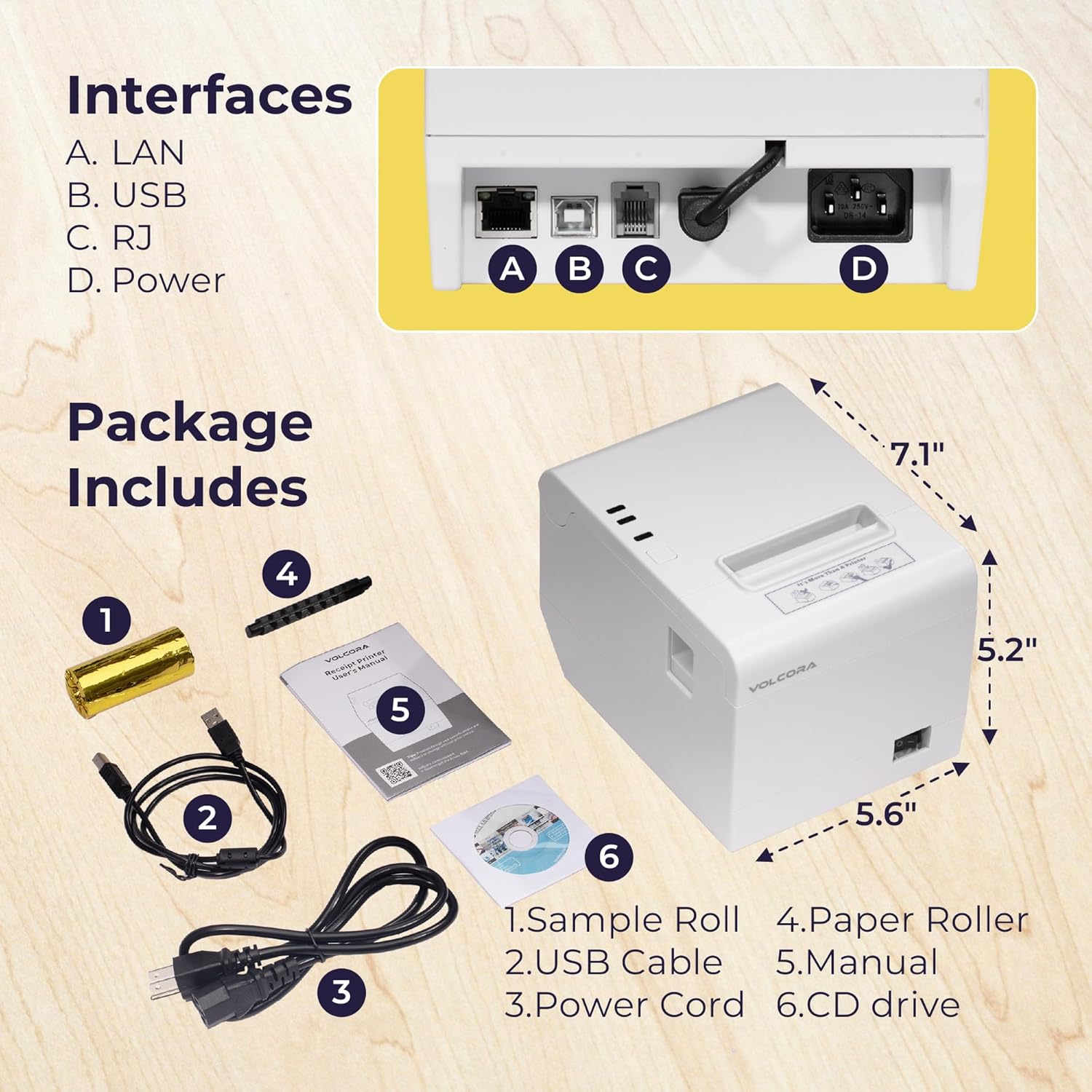
Figure 2: Package Contents and Printer Dimensions
Product Overview
Familiarize yourself with the printer's components and interfaces.
Front Panel Indicators:
- Power Indicator: Lights up when the printer is powered on.
- Error Indicator: Flashes or lights up to indicate an error (e.g., paper out, cover open, cutter jam).
- Paper Indicator: Lights up when paper is low or out.
- FEED Button: Press to advance paper manually.
Rear Panel Interfaces:
- LAN (Ethernet) Port: For network connectivity.
- USB Port: For direct connection to a computer.
- RJ11 Cash Drawer Port: For connecting a cash drawer.
- Power Port: For connecting the power adapter.
Figure 3: Printer Interfaces (A. LAN, B. USB, C. RJ11, D. Power)
Setup
1. Loading Thermal Paper:
- Open the printer cover by pressing the cover release button.
- Insert the thermal paper roll with the printing side facing up. Ensure the roll is seated correctly in the paper compartment.
- Pull a small amount of paper out past the cutter.
- Close the printer cover firmly until it clicks into place.

Figure 4: Direct Thermal Print Mechanism and Paper Loading
2. Connecting the Printer:
- Power Connection: Connect the power adapter to the printer's power port and then plug it into a wall outlet. Turn on the printer using the power switch.
- USB Connection: Connect one end of the USB cable to the printer's USB port and the other end to your computer.
- Ethernet Connection: Connect an Ethernet cable from the printer's LAN port to your network router or switch.
- Cash Drawer Connection: Connect the RJ11 cable from your cash drawer to the printer's RJ11 port.
3. Driver Installation:
The printer requires a driver for proper communication with your operating system. The included CD contains the necessary drivers. Alternatively, drivers can be downloaded from the Volcora support website.
- Windows/Mac OS/Linux: Use the provided CD or download the appropriate driver from the Volcora support center. Follow the on-screen instructions for installation.
- Android/iOS/Raspberry Pi: For these systems, an SDK (Software Development Kit) is typically required to develop custom applications for printing. The Ethernet interface supports these operating systems with SDK integration.

Figure 5: Operating System and Interface Compatibility
Important Compatibility Note: This printer does not support direct integration with Ubereats, Grubhub, Doordash, Postmates, Clover, or Shopify POS software. For Square support, please contact Volcora customer support.
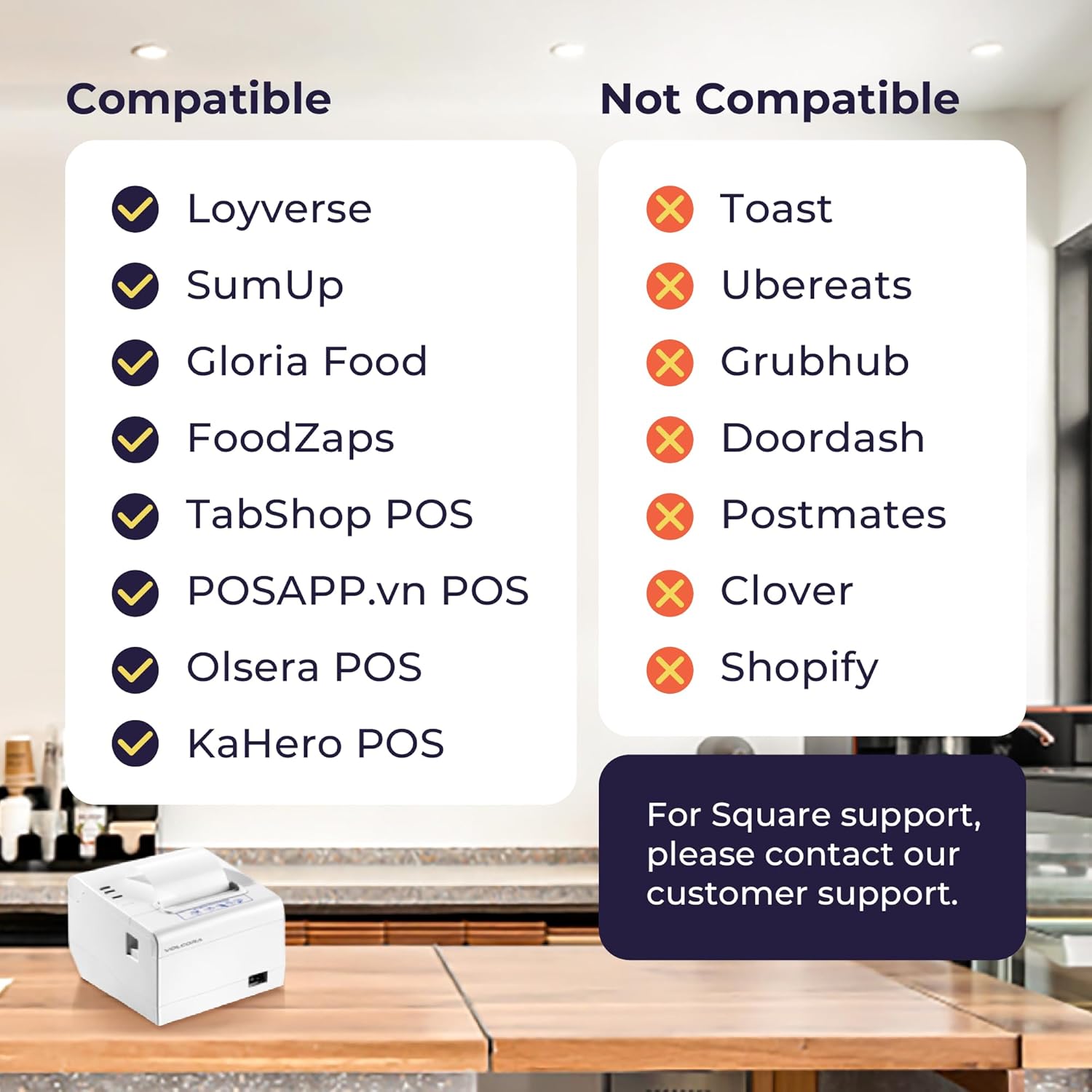
Figure 6: POS System Compatibility Overview
Operating the Printer
Basic Printing:
Once the printer is connected and drivers are installed, you can initiate print jobs from your POS software or application. The printer will automatically feed and cut the receipt after printing.
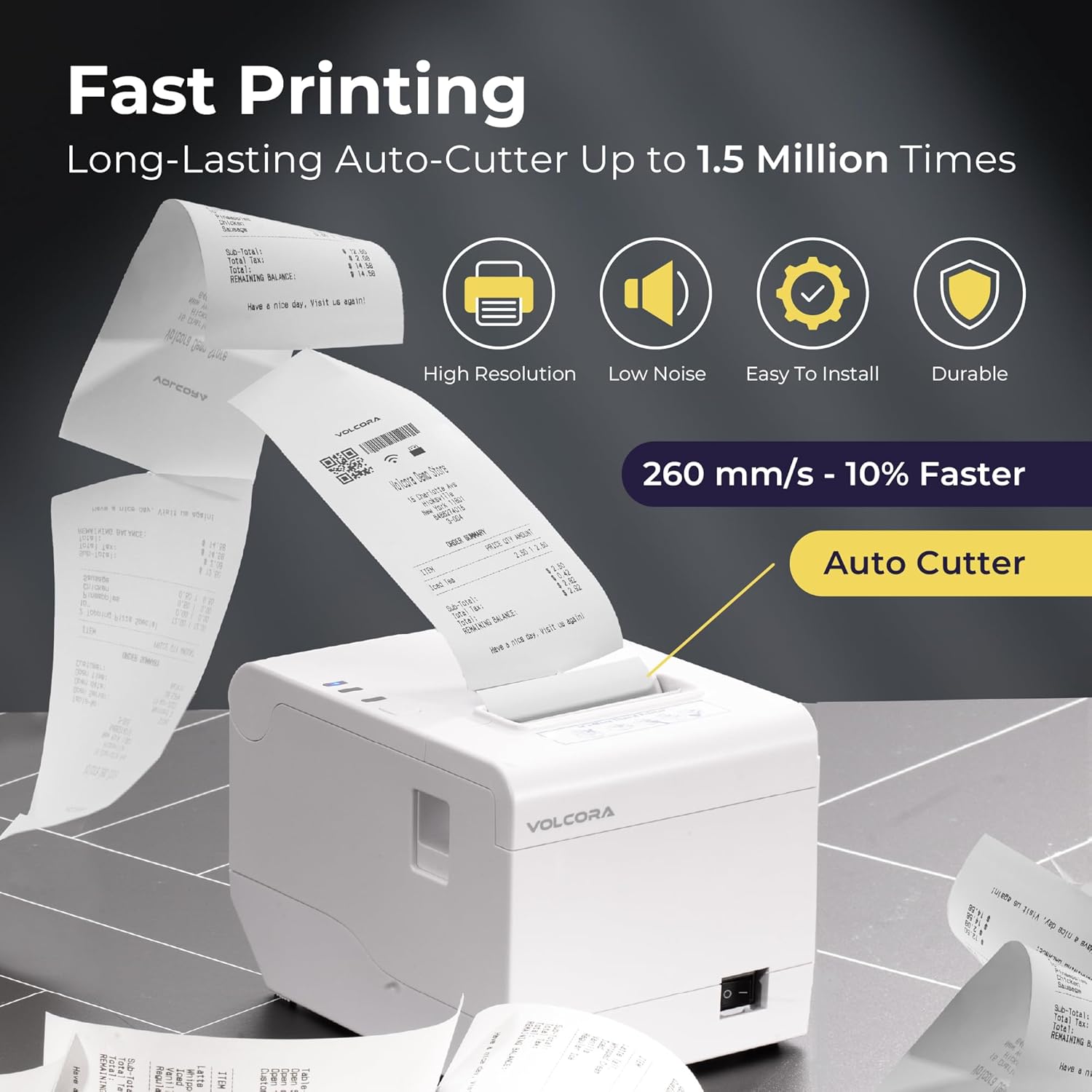
Figure 7: High-Speed Printing and Auto Cutter Function
The printer boasts a maximum printing speed of 260mm/s and features an automatic cutter designed for heavy usage, capable of up to 1.5 million cuts.
Wall Mount Option:
The printer includes two hanging holes at the bottom, allowing for convenient wall mounting in environments such as kitchens or service areas.

Figure 8: Wall Mount and Desktop Usage Options
Maintenance
Cleaning the Printer:
- Turn off the printer and unplug the power cord before cleaning.
- Use a soft, lint-free cloth lightly dampened with water or isopropyl alcohol to clean the exterior.
- To clean the thermal print head, use a thermal printer cleaning pen or a cotton swab lightly dampened with isopropyl alcohol. Gently wipe the print head surface. Allow it to dry completely before use.
- Regularly remove paper dust and debris from the paper path.
Paper Replacement:
When the paper indicator lights up or printing becomes faint, replace the paper roll as described in the "Loading Thermal Paper" section.
Troubleshooting
| Problem | Possible Cause | Solution |
|---|---|---|
| Printer not powering on | Power cable loose or not connected; power outlet issue. | Check power connections; try a different outlet. |
| No printing | Paper out; printer offline; incorrect driver/settings; cable disconnected. | Load paper; check printer status; verify driver installation and settings; reconnect USB/Ethernet cable. |
| Faint or blank print | Paper loaded incorrectly (non-thermal side up); thermal head dirty or damaged. | Reload paper with thermal side up; clean thermal print head. |
| Paper jam | Paper not loaded correctly; foreign object in paper path. | Open cover, remove jammed paper, ensure clear path, reload paper. |
| Cash drawer not opening | RJ11 cable loose; software not sending open command. | Check RJ11 connection; verify POS software settings for cash drawer. |
| Network printing issues | Incorrect IP address; network configuration problem. | Verify printer's IP address and network settings. Consult your network administrator if needed. |
If you encounter issues not listed here or require further assistance, please contact Volcora customer support.
Specifications
| Feature | Detail |
|---|---|
| Brand | Volcora |
| Model Name | Perf Receipt Printer White - USB+Ethernet (Model 500211) |
| Printing Technology | Direct Thermal |
| Print Speed | Up to 260mm/s |
| Resolution | 203 x 203 DPI (576 dots/line) |
| Maximum Media Size | 80mm (3 inches) |
| Auto Cutter Life | Up to 1.5 million cuts |
| Interfaces | USB, Ethernet, RJ11 Cash Drawer Port |
| Compatible OS | Windows, Mac OS, Linux, VirtualCom, Android, RaspberryPi, iOS (with SDK) |
| Product Dimensions | 16 x 4 x 16 inches (approx.) |
| Item Weight | 3.48 pounds |
| Color | White |
| UPC | 810041567369 |
Warranty and Support
All Volcora products are backed by a limited lifetime warranty, ensuring your peace of mind. For any assistance with setup, connection, compatibility, or other product-related issues, please do not hesitate to reach out to our customer support team based in the United States.
You can find support resources and contact information on the official Volcora website: volcora.com/pages/support-center
Related documents500211


Ask a question about this manual
Ask about setup, troubleshooting, compatibility, parts, safety, or missing instructions. Manuals+ will review the question and use this page’s manual context to help answer it.