
Introduction
Thank you for choosing the Cyber Acoustics DS-1000 USB-C Laptop Docking Station. This manual provides detailed instructions for setting up, operating, and maintaining your docking station to optimize your workspace and connectivity.
What's Included
- CA Essential Laptop Docking Station (DS-1000)
- 130-Watt Dual Voltage (120/230V) AC Power Adapter
- User Guide
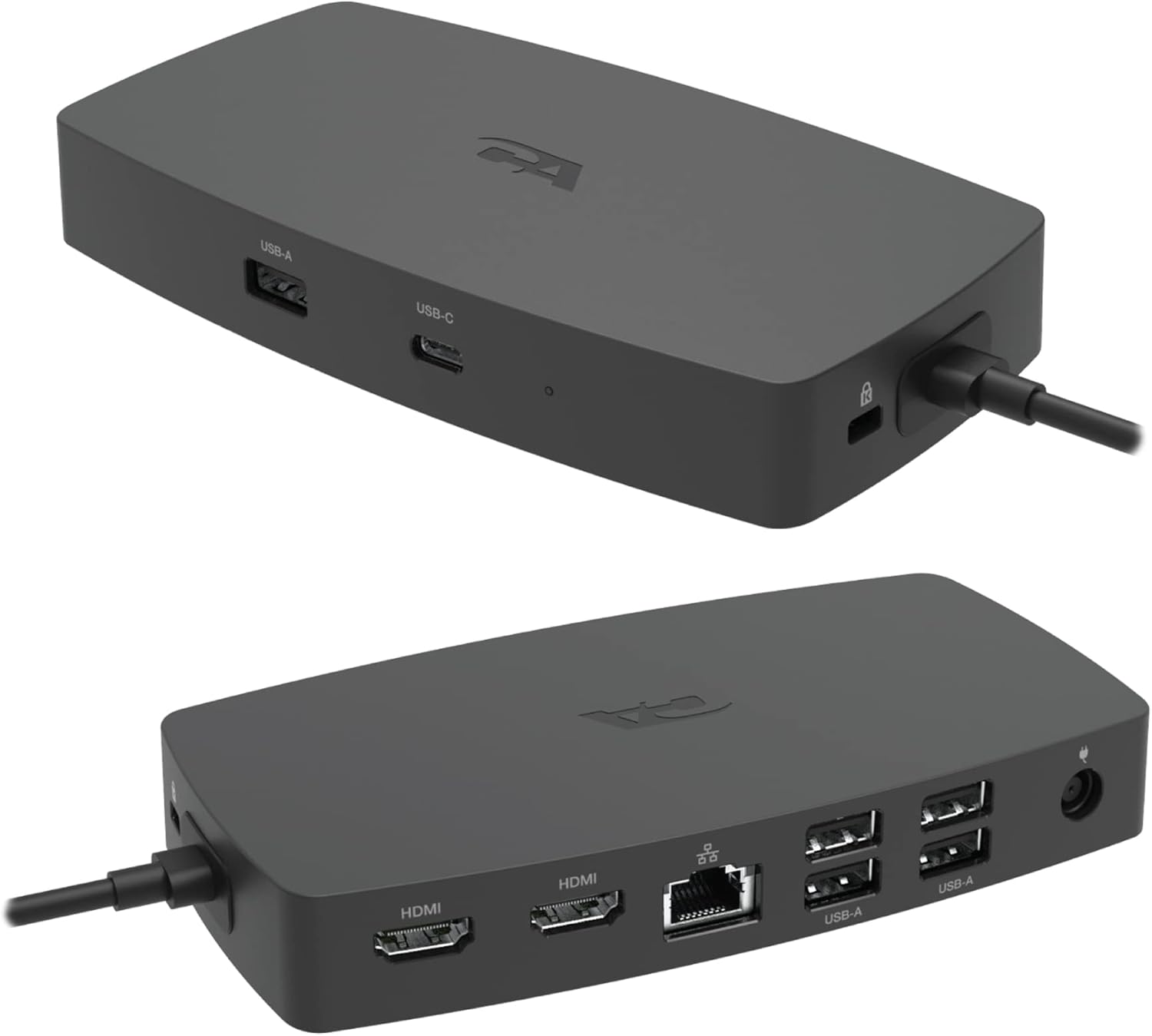
Image: The Cyber Acoustics DS-1000 Laptop Docking Station, a compact black device designed to expand laptop connectivity.
Product Overview
The Cyber Acoustics DS-1000 is designed to streamline your workspace by providing comprehensive connectivity through a single USB-C cable. It features a variety of ports for peripherals, external displays, and network access, while also delivering power to your laptop.
Front Panel Features
- 1x USB-A 3.2 Gen 2 Port: For connecting USB-A devices.
- 1x USB-C 3.2 Gen 2 Port: For connecting USB-C devices.
Rear Panel Features
- 2x HDMI Ports: Supports dual 4K@60Hz displays.
- 1x RJ-45 Gigabit Ethernet Port: For stable wired network connection.
- 4x USB-A 3.2 Gen 2 Ports: For connecting additional USB-A devices.
- Power Input: For connecting the 130-Watt AC power adapter.
- Integrated Security K-Slot: For securing the docking station (lock cable not included).

Image: A diagram illustrating the comprehensive connectivity of the docking station, showing 2x HDMI connections, 5x USB-A 3.2 ports, 1x USB-C 3.2 port, and a 10/100/1000 GbE Ethernet port.

Image: A detailed view of the rear panel of the docking station, highlighting the HDMI connections, RJ-45 Ethernet port, USB-A Gen 2 ports, and the connection for the AC power adapter.

Image: A visual representation of various cable types, including USB-C Gen 2, USB-A Gen 2, HDMI, and Network Ethernet RJ-45 plugs, indicating compatibility with the docking station.
Setup Guide
Connecting the Docking Station
- Connect the 130-Watt AC Power Adapter to the power input port on the rear of the docking station, then plug the adapter into a wall outlet.
- Connect the integrated USB-C cable from the docking station to your laptop's USB-C or Thunderbolt 3 port.
- Connect your external monitors to the HDMI ports on the rear of the docking station using HDMI cables.
- Connect any USB peripherals (keyboard, mouse, external drives) to the available USB-A or USB-C ports on the docking station.
- For a wired network connection, connect an Ethernet cable from your router or network switch to the RJ-45 Gigabit Ethernet port on the rear of the docking station.
Video: An overview of the CA Essential Laptop Docking Station DS-1000, demonstrating its features and connectivity options.

Image: The Cyber Acoustics DS-1000 docking station connected to a laptop and various peripherals, illustrating a typical setup.
Operating Instructions
Dual Display Configuration
- Windows 10 or 11: The docking station supports extended displays for both connected monitors, allowing you to expand your desktop across multiple screens.
- Mac OS: Supports extended display on one monitor and mirroring on the other.

Image: A workstation featuring a laptop connected to two external monitors via the docking station, demonstrating dual 4K HDMI display capabilities.
Power Delivery
When connected to your laptop via the USB-C cable, the CA Essential Laptop Docking Station charges your laptop with up to 90-Watt power delivery. The included 130-Watt dual voltage power adapter ensures sufficient power for both the docking station and your laptop.

Image: A laptop connected to the docking station, with an icon indicating 96W power delivery to charge the laptop.
Maintenance
- Keep the docking station in a clean, dry environment.
- Avoid exposing the device to extreme temperatures or humidity.
- Clean the exterior with a soft, dry cloth. Do not use liquid cleaners or aerosols.
- Ensure proper ventilation around the docking station to prevent overheating.
Troubleshooting
| Issue | Possible Solution |
|---|---|
| No display on external monitors. | Ensure all HDMI cables are securely connected. Verify your laptop's display settings are configured for external monitors (extended or mirrored). Check that the docking station is powered on. |
| Laptop is not charging. | Confirm the 130-Watt AC Power Adapter is correctly connected to the docking station and a working power outlet. Ensure the USB-C cable from the docking station is securely connected to your laptop's USB-C port that supports power delivery. |
| USB devices are not recognized. | Try connecting the USB device to a different port on the docking station. Ensure the docking station is powered. Restart your laptop. |
| No internet connection via Ethernet. | Check the Ethernet cable connection between the docking station and your router/switch. Verify network settings on your laptop. Restart your router/modem. |
Specifications
| Feature | Detail |
|---|---|
| Model Number | DS-1000 |
| Product Dimensions | 6.3"L x 3.3"W x 0.9"H (15.88 x 8.26 x 2.29 cm) |
| Item Weight | 2.3 pounds (1.04 kg) |
| Total USB Ports | 6 (5x USB-A 3.2 Gen 2, 1x USB-C 3.2 Gen 2) |
| Total HDMI Ports | 2 (Dual 4K@60Hz support) |
| Ethernet Port | 1x RJ-45 Gigabit Ethernet |
| Power Delivery | Up to 90 Watts to laptop |
| Power Adapter | 130-Watt Dual Voltage (120/230V) AC |
| Hardware Interface | Thunderbolt, USB |
| Compatible Devices | USB-C with DisplayPort (DP Alt Mode) enabled laptops |
| Compliance | TAA Compliant |
Warranty and Support
Cyber Acoustics products are designed for reliability and performance. For warranty information and customer support, please refer to the official Cyber Acoustics website or contact our US-based customer service team through Amazon.
- Customer Service: Contact us through Amazon.
- Online Resources: Visit the Cyber Acoustics Store on Amazon for additional product information and support.


