Introduction
Thank you for choosing the AUSDOM Wireless Headset A2302. This manual provides detailed instructions for setting up, operating, maintaining, and troubleshooting your new headset. Please read this manual thoroughly before use to ensure optimal performance and longevity of your device.
Package Contents

Image showing all items included in the AUSDOM A2302 headset package: the mono wireless headset, charging station, USB receiver dongle, Type-C charging cable, and a USB-A to USB-C converter.
- 1 x Mono Wireless Headset
- 1 x Charging Station
- 1 x USB Receiver Dongle
- 1 x Type C Charging Cable
- 1 x USB-A to USB-C Converter
Product Overview
Headset Components
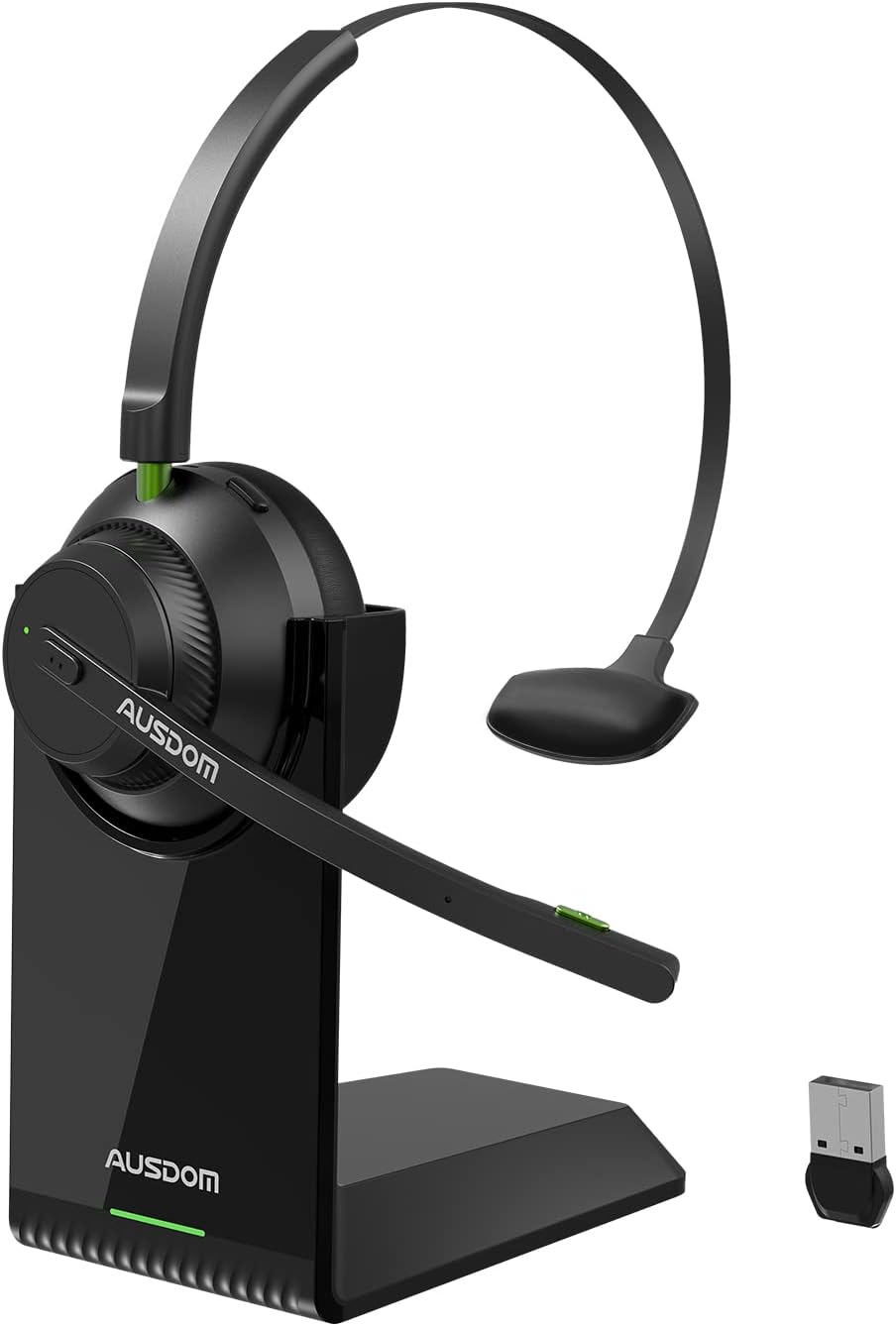
A detailed view of the AUSDOM A2302 wireless headset, showcasing its mono earcup, adjustable headband, boom microphone, charging stand, and the compact USB dongle.
The AUSDOM A2302 headset features a single earcup design for comfort and situational awareness, an adjustable headband, and a flexible boom microphone. The included charging stand provides a convenient docking solution, and the USB dongle enables wireless connectivity with devices lacking built-in Bluetooth.
Key Features
- AI-Powered Noise Cancelling Microphone: Detects and eliminates up to 99% of ambient background noise for clear calls.
- Bluetooth 5.1 & USB Dongle Connection: Offers stable, low-latency wireless connectivity via Bluetooth 5.1 or the included USB dongle for broader compatibility.
- Long Battery Life & Charging Base: Provides over 32 hours of talk time and 50 hours of music playtime, with a convenient magnetic charging base.
- Compact Lightweight & All-Day Comfort: Weighs only 2.65oz (75g) with soft protein memory-foam padding and an ergonomic design for extended wear.
- Multipoint Connectivity: Connects to two Bluetooth devices simultaneously, allowing seamless switching between them.
Setup
Charging the Headset
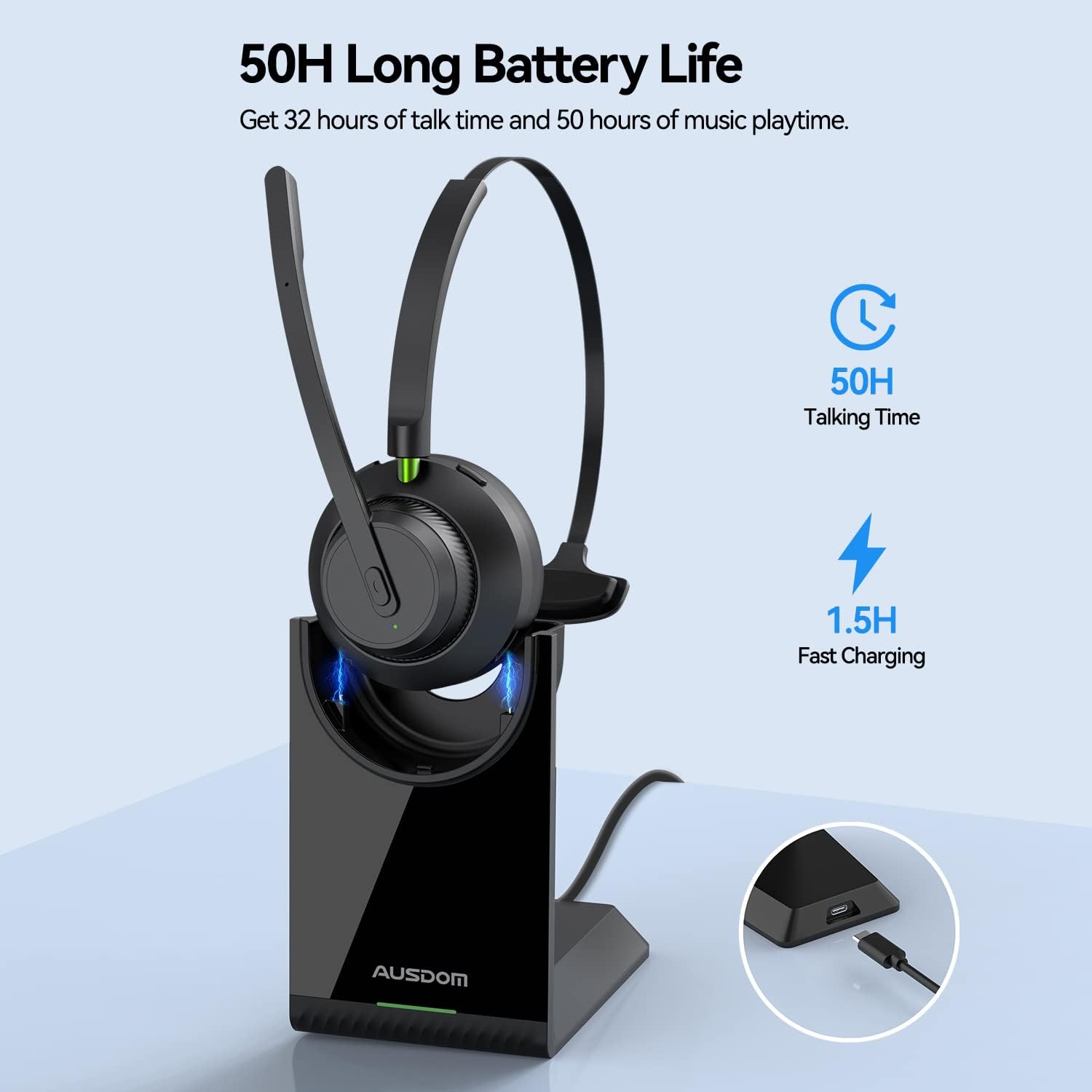
The AUSDOM A2302 headset docked on its charging stand, illustrating the USB-C charging port location. The image also highlights the 50 hours of music playtime and 1.5 hours fast charging capability.
- Connect the Type-C charging cable to the charging station and a power source (e.g., computer USB port, USB wall adapter).
- Place the headset onto the charging station. The headset will magnetically align and begin charging.
- The LED indicator on the headset will show charging status (e.g., red for charging, blue for fully charged). A full charge takes approximately 1.5 hours.
Connecting to Devices
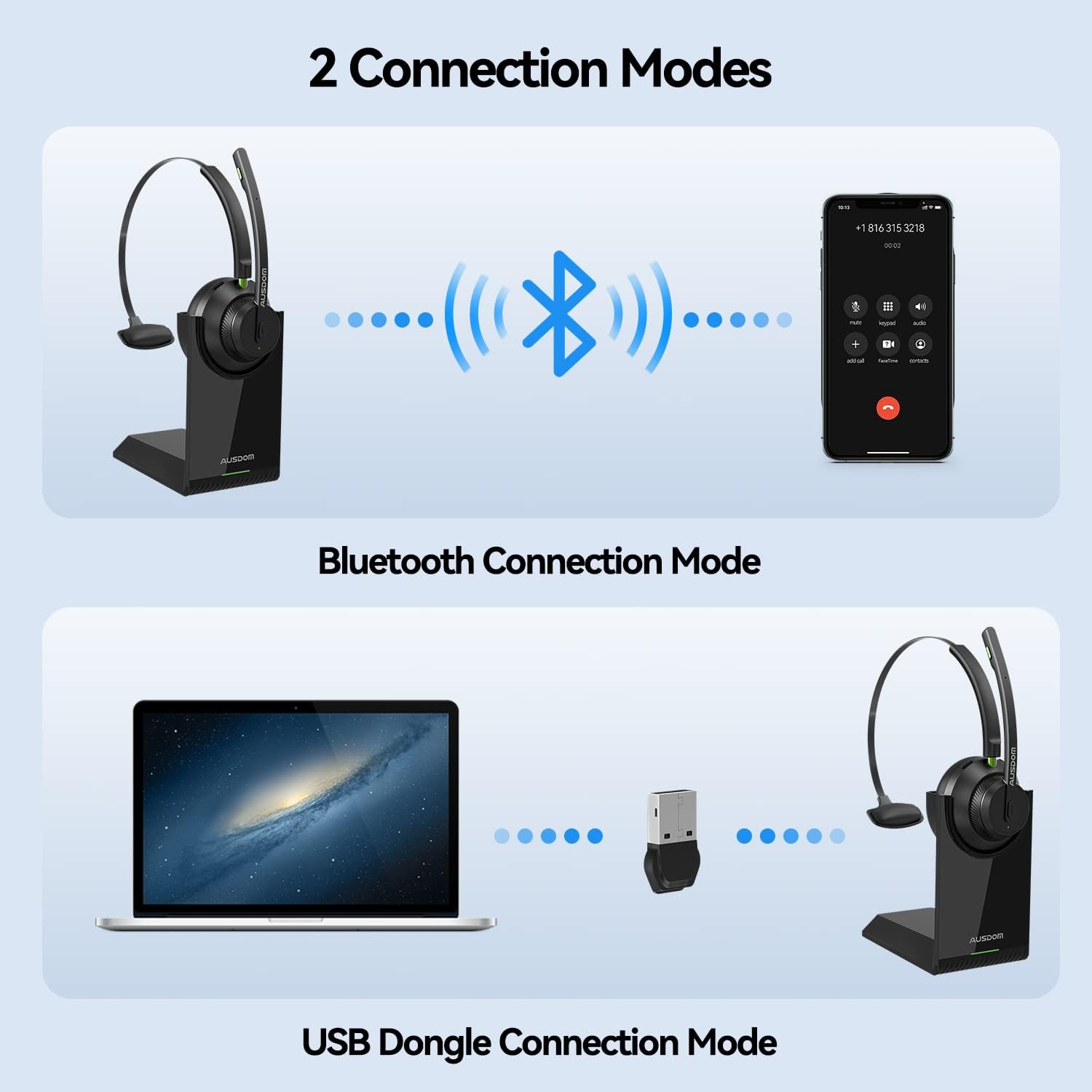
An illustration demonstrating the two primary connection methods for the AUSDOM A2302 headset: direct Bluetooth connection to a smartphone and USB dongle connection to a laptop, highlighting the versatility of the headset.
Bluetooth Connection Mode
- Ensure the headset is charged and powered on.
- Activate Bluetooth on your device (smartphone, tablet, laptop).
- Put the headset into pairing mode (refer to the headset's specific button combination for pairing, usually holding the power button until the LED flashes blue/red).
- On your device, search for Bluetooth devices and select "AUSDOM A2302" from the list.
- Once connected, the headset's LED will typically show a solid blue light.
USB Dongle Connection Mode
- Plug the USB Receiver Dongle into an available USB port on your computer (PC or Mac).
- The dongle is plug-and-play and should automatically install necessary drivers.
- Ensure the headset is powered on. It will automatically attempt to connect to the dongle.
- Once connected, the LED indicator on both the headset and the dongle will show a stable light, indicating a successful connection.
Multipoint Connectivity
The headset supports connecting to two Bluetooth devices simultaneously. After connecting to the first device, put the headset back into pairing mode and connect to the second device. The headset will intelligently manage audio from both connected devices, allowing you to switch between them seamlessly.
Operating Instructions
Power On/Off
- Power On: Press and hold the Power button for approximately 3 seconds until the LED indicator lights up.
- Power Off: Press and hold the Power button for approximately 5 seconds until the LED indicator turns off.
Call Management
- Answer/End Call: Press the Multi-function button once.
- Reject Call: Press and hold the Multi-function button for 2 seconds.
- Mute/Unmute Microphone: Press the dedicated Mute button on the microphone boom.
Audio Playback
- Play/Pause: Press the Multi-function button once.
- Volume Up: Press the Volume Up button.
- Volume Down: Press the Volume Down button.
- Next Track: Press and hold the Volume Up button.
- Previous Track: Press and hold the Volume Down button.
Microphone Usage

The AUSDOM A2302 headset demonstrating its 270-degree rotatable microphone, allowing it to be worn on either the left or right ear for user preference and comfort.
The boom microphone features AI-powered noise cancellation to ensure your voice is clear even in noisy environments. The microphone boom is 270° rotatable, allowing you to wear the headset on either your left or right ear. Adjust the microphone position so it is close to your mouth for optimal voice pickup.

A user wearing the AUSDOM A2302 headset in a home office setting, illustrating the effectiveness of the AI Noise Cancellation Technology in reducing background noise for clear communication.
Maintenance
Cleaning
- Use a soft, dry cloth to clean the headset and charging station.
- Do not use abrasive cleaners, solvents, or strong chemicals.
- Avoid getting moisture into any openings.
Storage
- Store the headset in a cool, dry place away from direct sunlight and extreme temperatures.
- When not in use for extended periods, store the headset on its charging station or in a protective case.
Troubleshooting
Common Issues and Solutions
| Problem | Solution |
|---|---|
| Headset does not power on. | Ensure the headset is fully charged. Connect it to the charging station and check the LED indicator. |
| Cannot connect via Bluetooth. | Ensure the headset is in pairing mode. Turn off and on Bluetooth on your device. Forget the device from your Bluetooth list and try pairing again. Ensure no other devices are connected. |
| USB dongle not connecting. | Try plugging the dongle into a different USB port. Ensure the headset is powered on. Restart your computer. |
| No audio or poor audio quality. | Check volume levels on both the headset and your connected device. Ensure the headset is selected as the default audio output device in your system settings. Move closer to the connected device to avoid interference. |
| Microphone not working or unclear. | Ensure the microphone is not muted. Check that the headset is selected as the default input device in your system settings. Adjust the microphone boom closer to your mouth. |
Specifications
Technical Specifications
| Feature | Detail |
|---|---|
| Model Name | AUSDOM Voipfocus Connect UC |
| Model Number | A2302 |
| Connectivity Technology | Wireless (Bluetooth 5.1) |
| Wireless Communication Technology | Bluetooth |
| Microphone | AI-Powered Noise Cancelling Boom Mic |
| Battery Life (Talk Time) | 32+ Hours |
| Battery Life (Music Playtime) | 50 Hours |
| Charging Time | 1.5 Hours |
| Charging Port | USB-C (on charging station) |
| Weight | 2.65 oz (75 grams) |
| Control Type | Call Control, Touch |
| Form Factor | On Ear (Mono) |
| Included Components | Headset, Charging Station, USB Dongle, Type C Cable, USB-A to USB-C Converter |
Warranty and Support
Warranty Information
AUSDOM products typically come with a limited warranty. Please refer to the warranty card included in your product packaging or visit the official AUSDOM website for detailed warranty terms and conditions specific to your region and purchase date.
Customer Support
For technical assistance, troubleshooting, or any inquiries regarding your AUSDOM A2302 Wireless Headset, please contact AUSDOM customer support. Contact information can usually be found on the official AUSDOM website or within your product documentation.


