
MARVUE C10
MARVUE Digital Photo Frame User Manual
Model: C10
Introduction
The MARVUE Digital Photo Frame provides a modern way to display your cherished memories. With its 10.1-inch HD IPS touchscreen and Wi-Fi connectivity, you can easily share photos and videos with family and friends from anywhere using the secure Frameo app. This manual will guide you through the setup, operation, and maintenance of your digital photo frame.
Package Contents
Before you begin, please ensure all items are present in the package:
- MARVUE Digital Photo Frame (Model C10)
- Power Adapter
- User Manual (this document)
Setup Guide
Follow these steps to set up your MARVUE Digital Photo Frame for the first time:
- Power Connection: Connect the power adapter to the frame and plug it into a power outlet. The frame will automatically power on.
- Initial Setup: Follow the on-screen prompts to select your language, time zone, and connect to a 2.4 GHz Wi-Fi network.
- Download Frameo App: On your smartphone, download and install the "Frameo" app from the Google Play Store or Apple App Store.
- Connect Frame to App: Open the Frameo app on your smartphone. On your digital photo frame, navigate to the "Add Friend" section to obtain a unique code. Enter this code into the Frameo app on your phone to link the devices.
- Invite Friends/Family: Share the unique code from your frame with friends and family. They can use this code in their Frameo app to send photos and videos directly to your frame.

Image: Connecting the frame to the Frameo app for easy sharing.

Image: Visual guide for app download and connection process.
Operating Instructions
Displaying Photos and Videos
The frame automatically displays photos and videos sent to it. You can navigate through them using the touchscreen.
- Touchscreen Navigation: Swipe left or right to move between photos and videos. Tap the screen to reveal playback controls for videos.
- Slideshow Mode: The frame supports various slideshow modes. These can be customized in the settings menu.
- Auto-Rotate Function: The frame features an auto-rotate function, allowing it to automatically adjust the display orientation whether placed horizontally or vertically.

Image: Interacting with video playback on the touchscreen.
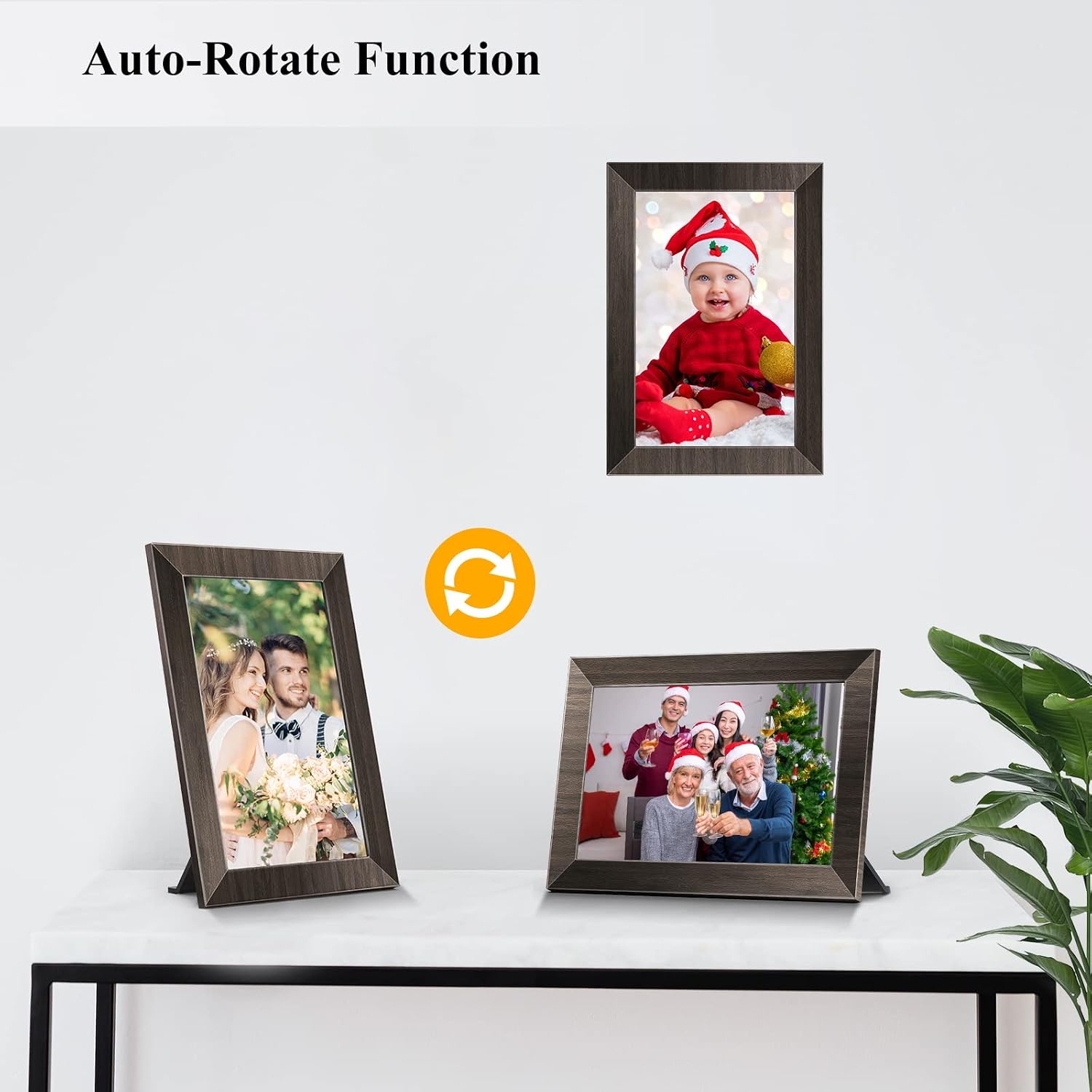
Image: The frame's auto-rotate feature adapting to orientation changes.
Sharing Photos and Videos
The primary method for sharing content is through the Frameo app:
- From Smartphone: Use the Frameo app to select photos or short videos (MP4 format) from your phone's gallery and send them to the linked frame(s).
- Real-time Interaction: The Frameo app allows for "Reactions" to photos and videos. Choose a reaction on your frame, and the sender will receive a notification in their app.
- Local Storage: The frame has 16GB of built-in storage. It also supports Micro SD cards (up to 32GB, not included) and USB sticks (Micro USB Port) for additional storage and direct media transfer. Supported formats include JPEG/PNG for photos and MP4 for videos.

Image: Demonstrating the "Reactions" feature for real-time interaction.

Image: Multiple users sharing content to the frame simultaneously.
Customizing Settings
Access the frame's settings menu to customize various options:
- Time Zone: Adjust the time zone to your local region.
- Slideshow Mode: Configure the display order, transition effects, and duration of photos.
- Autoplay: Enable or disable automatic playback of content.
- Sleep Mode: Set a schedule for the frame to automatically turn off and on.
- Brightness and Volume: Adjust display brightness and audio volume.
- Backup and Restore: Create backups of your frame's content and settings, or restore from a previous backup.
Maintenance
To ensure the longevity and optimal performance of your digital photo frame, follow these maintenance guidelines:
- Cleaning the Screen: Use a soft, lint-free cloth to gently wipe the touchscreen. For stubborn smudges, slightly dampen the cloth with water or a screen-safe cleaning solution. Avoid harsh chemicals or abrasive materials.
- Cleaning the Frame: Wipe the frame's exterior with a dry, soft cloth.
- Ventilation: Ensure the frame is placed in an area with adequate ventilation to prevent overheating. Do not block any ventilation openings.
- Environmental Conditions: Avoid exposing the frame to extreme temperatures, direct sunlight, high humidity, or dusty environments.
- Power Off: If the frame will not be used for an extended period, unplug it from the power outlet.
Troubleshooting
If you encounter issues with your MARVUE Digital Photo Frame, refer to the following common problems and solutions:
| Problem | Possible Cause / Solution |
|---|---|
| Frame does not power on. |
|
| Cannot connect to Wi-Fi. |
|
| Photos/Videos are not appearing on the frame. |
|
| Screen is unresponsive. |
|
Specifications
| Feature | Detail |
|---|---|
| Model Number | C10 |
| Screen Size | 10.1 Inches |
| Resolution | 1280x800 IPS HD Display |
| Aspect Ratio | 16:10 |
| Internal Storage | 16 GB (approx. 40,000 photos at 300 KB/PC) |
| External Storage Support | Micro SD (up to 32GB, not included), USB Stick (Micro USB Port) |
| Connectivity | Wi-Fi (2.4 GHz only) |
| Supported Photo Formats | JPEG, PNG |
| Supported Video Formats | MP4 |
| Dimensions | 10.4 x 7.2 x 0.87 inches |
| Weight | 2.35 pounds |
| Visible Screen Diagonal | 11" / 26 cm |

Image: Key display specifications of the MARVUE Digital Photo Frame.
Warranty and Support
MARVUE provides a one-year warranty for this smart digital photo frame. For any inquiries or assistance, please contact MARVUE customer support. The Frameo app, developed by Danish engineers, is a secure and professional photo management application widely used globally, and can be found in Google Play or the App Store.
For further support, please refer to the contact information provided with your product packaging or visit the official MARVUE website.
Related documentsC10

Ask a question about this manual
Ask about setup, troubleshooting, compatibility, parts, safety, or missing instructions. Manuals+ will review the question and use this page’s manual context to help answer it.