1. Introduction
This manual provides detailed instructions for the Sumicor 1D Barcode Scanner, Model 1D 2.4G Wireless. This device is designed for efficient and accurate scanning of 1D barcodes, including those displayed on digital screens. It offers versatile connectivity options and robust performance for various applications.
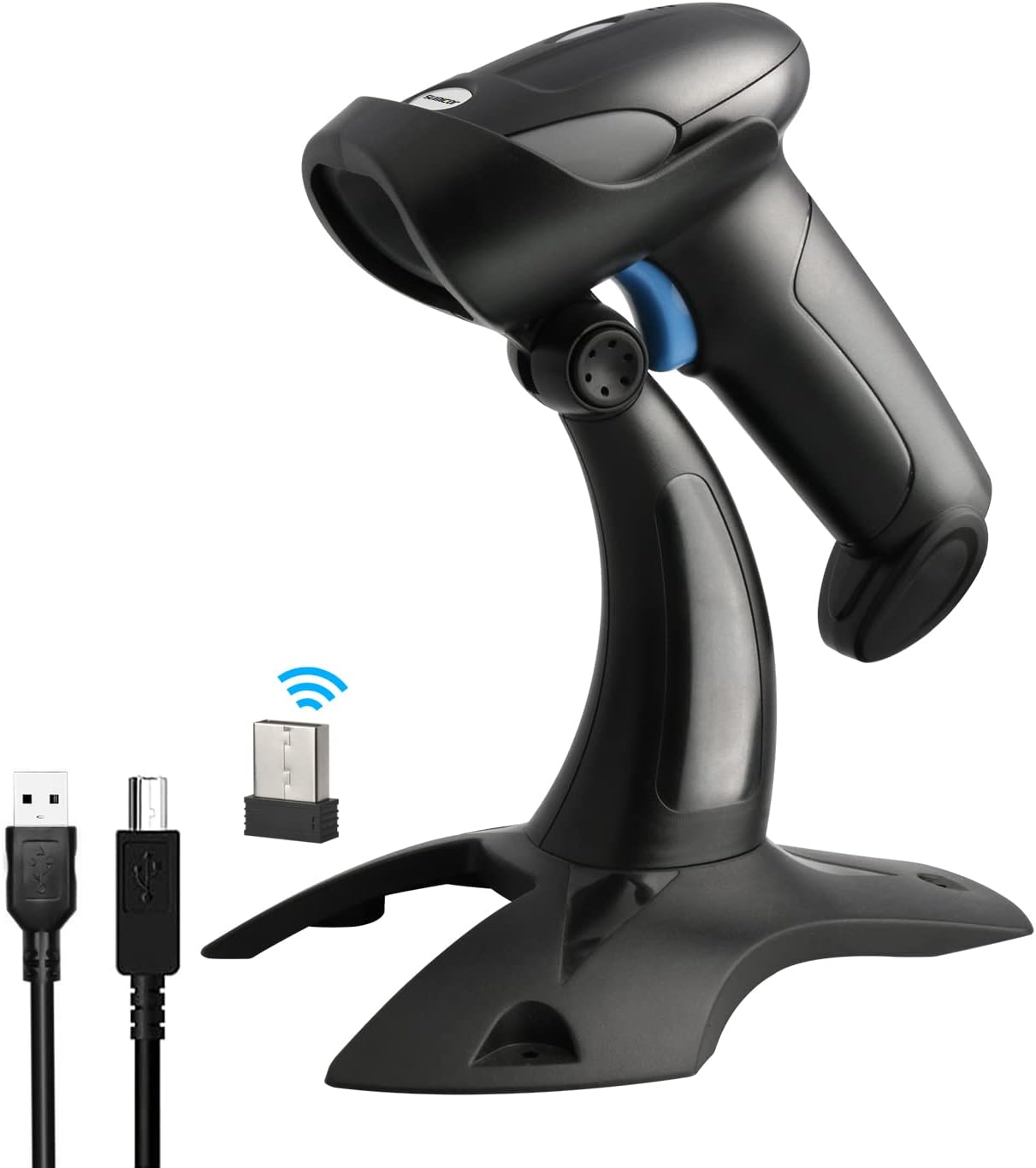
Figure 1: Sumicor 1D Barcode Scanner with included accessories.
2. Package Contents
Please verify that all items listed below are included in your package:
- 1 x Barcode Scanner
- 1 x Scanner Stand
- 1 x USB Cable (for charging and wired connection)
- 1 x 2.4G Wireless Dongle
- 1 x User Manual (this document)

Figure 2: Visual representation of the package contents.
3. Setup
3.1. Connecting the Scanner
The Sumicor 1D Barcode Scanner supports two primary connection methods: 2.4G Wireless and USB Wired. No additional drivers are required for either connection type.
3.1.1. 2.4G Wireless Connection
- Insert the 2.4G wireless dongle into an available USB port on your computer (PC, laptop, etc.).
- Turn on the barcode scanner. It will automatically pair with the dongle.
- A successful connection is indicated by a specific sound or light indicator on the scanner.

Figure 3: Wireless transmission capabilities of the scanner. The scanner offers a long wireless transmission distance of up to 100m (330ft) in a barrier-free environment and 20m (66ft) under obstacles.
3.1.2. USB Wired Connection
- Connect one end of the provided USB cable to the scanner's charging port.
- Connect the other end of the USB cable to an available USB port on your computer.
- The scanner will be recognized as a keyboard input device, and you can begin scanning immediately.
3.2. Assembling the Scanner Stand
The included stand allows for hands-free operation and adjustable scanning angles.
- Attach the scanner holder to the stand base using the provided screw.
- Place the scanner into the holder. The stand is adjustable by 45 degrees to optimize scanning angles.

Figure 4: The scanner securely placed on its adjustable stand.
3.3. Initial Charging
Before first use, it is recommended to fully charge the scanner. The 2000mAh rechargeable battery provides extended operation.
- Connect the scanner to a USB power source using the provided USB cable.
- Charging typically takes 5-6 hours for a full charge.
- A full charge supports up to 20 hours of continuous scanning or 70 days of standby time.
Figure 5: Battery life and charging indicators.
4. Operating Modes
The scanner offers various operating modes to suit different scanning needs.
4.1. Data Upload Modes
4.1.1. Instant Upload Mode
In this mode, scanned barcodes are immediately transmitted to your connected device.
4.1.2. Storage Mode (Offline Mode)
The scanner can store up to 20,000 barcodes internally when out of range or not connected. Data can be uploaded to your device later when a connection is established.

Figure 6: Instant and Storage Data Upload Modes.
4.2. Scanning Activation Modes
4.2.1. Manual Mode
Press the trigger button to activate the scan beam and read a barcode. This mode is ideal for precise, on-demand scanning.
4.2.2. Auto-induction Scan Mode
When placed on its stand, the scanner can automatically detect a barcode presented in its scanning area and activate the beam without needing to press the trigger. This is useful for high-volume scanning environments.

Figure 7: Manual and Auto-induction Scanning Modes.
5. Scanning Capabilities
The Sumicor 1D Barcode Scanner features a high-pixel CCD optical lens, enabling fast and accurate decoding.
5.1. Supported Barcode Types
This scanner is capable of decoding almost all standard 1D barcodes, including:
- Code 11, Code93, MSI, Codabar, Code 128, EAN-128, Code 39, EAN-8, EAN-13, UPC-A, ISBN, Industrial 25, Interleaved 25, Standard 25, Matrix.
5.2. Digital Screen Scanning
The CCD sensor allows for easy scanning of 1D codes directly from digital screens, such as phone screens, tablet screens, and other glass or plastic surfaces.
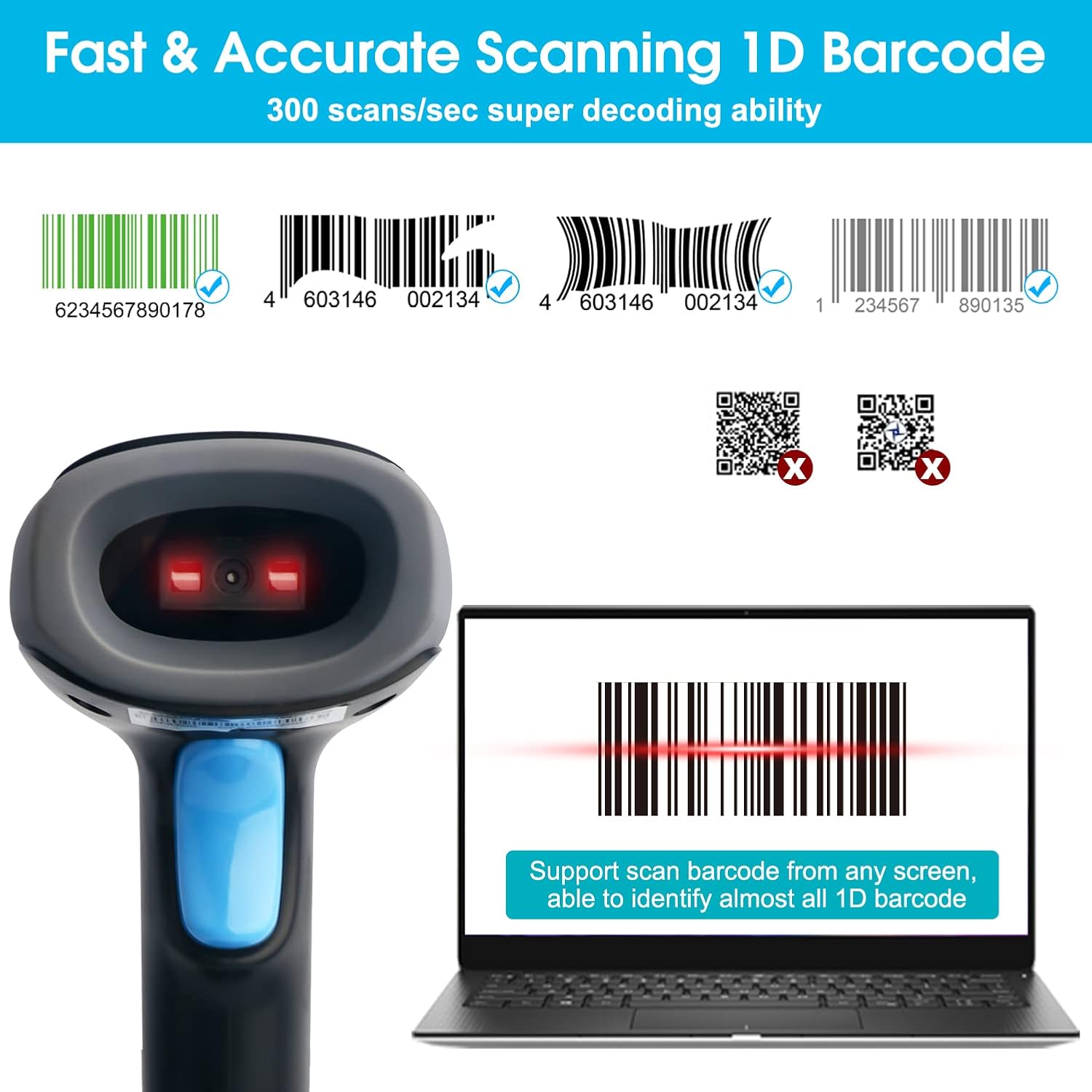
Figure 8: Fast and accurate 1D barcode scanning, including from digital displays.
6. Compatibility
The Sumicor 1D Barcode Scanner offers wide compatibility with various operating systems and devices.
- Supported Systems: Windows XP / 7 / 8 / 10 / 11, Linux.
- Compatible Devices: PCs, Laptops, and other devices that support USB or 2.4G wireless input.

Figure 9: Wide compatibility with different systems and devices.
7. Maintenance
Proper maintenance ensures the longevity and optimal performance of your barcode scanner.
- Cleaning: Use a soft, dry cloth to clean the scanner's exterior. For the scanning window, use a lint-free cloth lightly dampened with a mild, non-abrasive cleaner. Avoid harsh chemicals or abrasive materials.
- Storage: Store the scanner in a cool, dry place away from direct sunlight and extreme temperatures.
- Handling: The scanner is made of shockproof TPU material for durability, but avoid dropping it from excessive heights or subjecting it to severe impacts.
8. Troubleshooting
If you encounter issues with your Sumicor barcode scanner, refer to the following common problems and solutions:
- Scanner not connecting/pairing:
- Ensure the 2.4G dongle is securely inserted into a working USB port.
- Verify the scanner is powered on and fully charged.
- Try re-pairing the scanner by scanning the appropriate configuration barcode in the included quick start guide.
- Difficulty reading barcodes:
- Ensure the barcode is clean, clear, and not damaged.
- Adjust the distance and angle between the scanner and the barcode.
- For digital screens, ensure screen brightness is adequate.
- Confirm the barcode type is supported by the scanner (1D codes only).
- If using auto-induction mode, ensure the scanner is properly positioned on its stand and the barcode is within the detection area.
- No output after scanning:
- Check if the scanner is in Instant Upload Mode. If in Storage Mode, you need to manually upload the data.
- Verify the connection to your computer (wired or wireless).
- Ensure the cursor is active in the target application (e.g., Notepad, Word, Excel) where you expect the scanned data to appear.
- Short battery life:
- Ensure the scanner is fully charged (5-6 hours).
- Reduce continuous scanning time if possible, or charge more frequently.
9. Specifications
| Feature | Specification |
|---|---|
| Model | 1D 2.4G Wireless |
| Sensor Type | CCD Optical Lens |
| Connectivity | 2.4G Wireless, USB Wired |
| Wireless Range | Up to 100m (330ft) in open air, 20m (66ft) indoors |
| Battery Capacity | 2000mAh Lithium Ion |
| Continuous Scanning Time | Up to 20 hours |
| Standby Time | Up to 70 days |
| Charging Time | Approx. 5-6 hours |
| Offline Storage | Up to 20,000 barcodes |
| Supported Barcodes | Code 11, Code93, MSI, Codabar, Code 128, EAN-128, Code 39, EAN-8, EAN-13, UPC-A, ISBN, Industrial 25, Interleaved 25, Standard 25, Matrix |
| Compatible OS | Windows XP / 7 / 8 / 10 / 11, Linux |
| Material | Shockproof TPU |
| Item Weight | 15.5 ounces |
| Package Dimensions | 9.02 x 5 x 3.31 inches |
10. Official Product Videos
Watch the official product video for a visual guide on the Sumicor 1D Barcode Scanner's features and operation.
Video 1: 1D Wireless Barcode Scanner with Stand Hand Free. This video demonstrates the scanner's wireless capabilities, ease of setup with the stand, and various scanning modes, including auto-induction.
11. Warranty and Support
Sumicor products are designed for reliability and performance. For any product-related inquiries, technical support, or warranty information, please contact Sumicor customer service or visit the official Sumicor store.
You can find more information and support resources by visiting the Sumicor Store on Amazon.
A detailed user manual in PDF format is also available for download: User Manual (PDF).


