
1. Introduction
This manual provides comprehensive instructions for the DCOLOR DQ96 32GB Voice Recorder Pen. Please read this manual carefully before using the device to ensure proper operation and to maximize its functionality. Keep this manual for future reference.
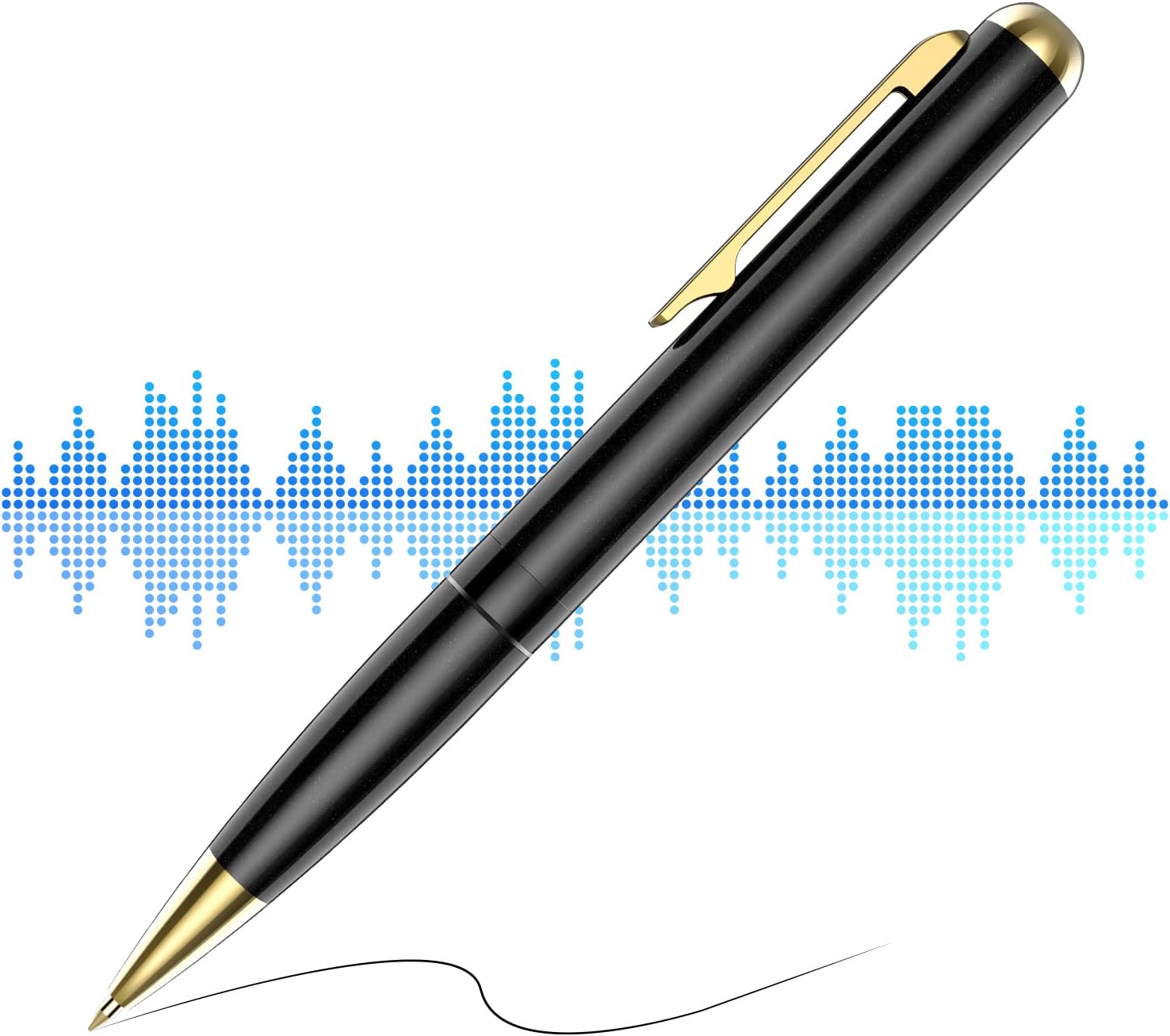
Image 1.1: The DCOLOR DQ96 Voice Recorder Pen, designed for discreet audio recording.
2. Product Overview
2.1 Key Features
- 32GB Internal Storage: Provides ample space for up to 400 hours of audio recordings.
- Long Battery Life: Up to 20 hours of continuous recording on a full charge.
- Noise Cancelling Technology: Enhances human voice clarity by reducing ambient noise.
- Simple One-Button Operation: Easy to start and save recordings without visual indicators.
- WAV Format Recording: Compatible with both PC and Mac for easy playback and file management.
- Plug and Play: Connects via USB for charging, data transfer, and direct playback with headphones.
- Integrated Microphone: Built-in for convenient audio capture.

Image 2.1: Visual summary of the DCOLOR DQ96's main features.
2.2 Package Contents
The standard package includes:
- DCOLOR DQ96 Voice Recorder Pen
- USB Charging/Data Cable
- Wired Earphones
- Instruction Manual (this document)
3. Setup
3.1 Charging the Device
Before first use, fully charge the voice recorder pen. Connect the included USB cable to the 3.5mm headphone jack on the pen and the other end to a USB power adapter (not included) or a computer's USB port.
- A full charge typically takes approximately 2-3 hours.
- The device will indicate charging status (e.g., an LED light, if present, will change color or blink). Refer to the device's specific LED behavior for charging status.
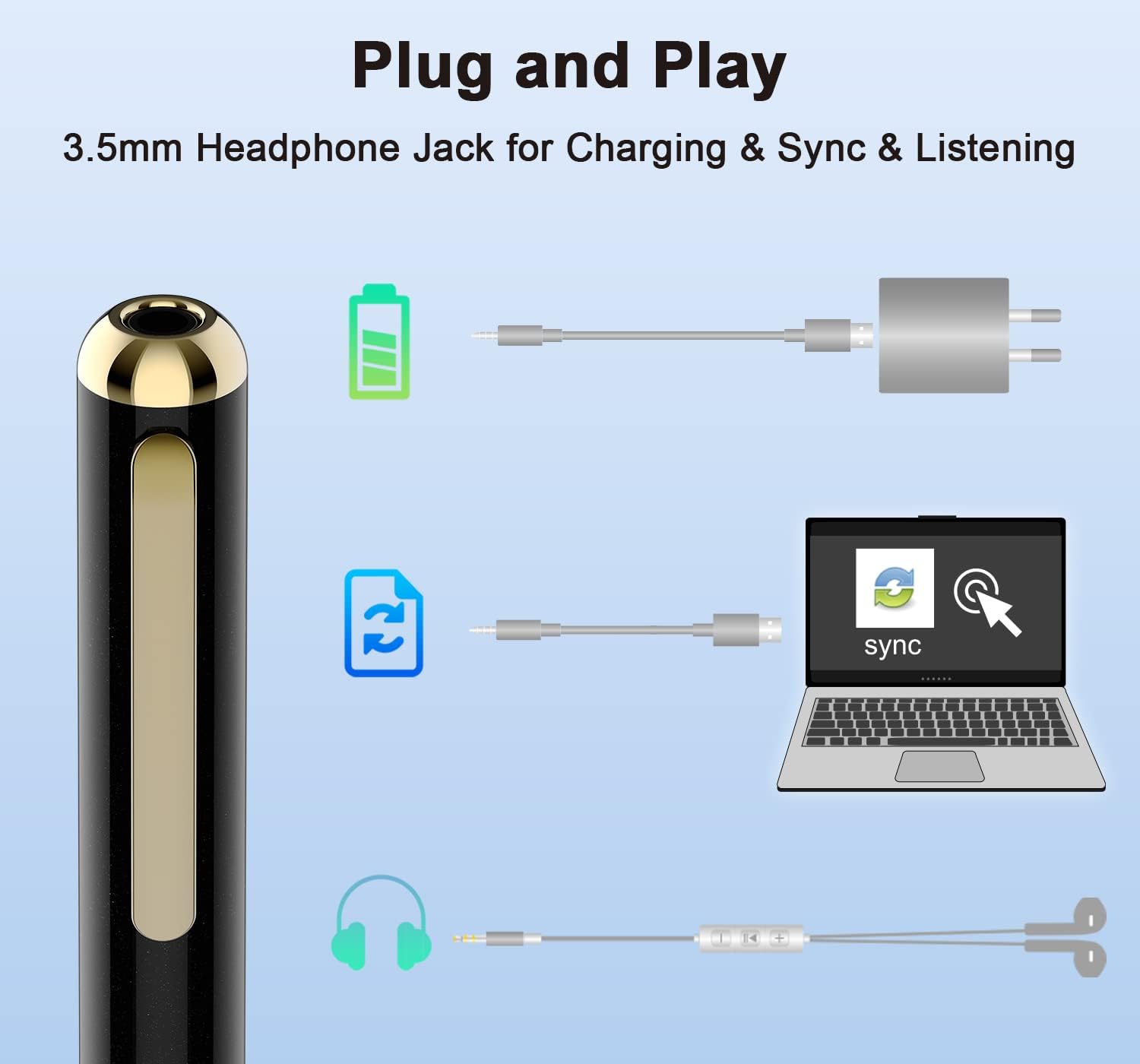
Image 3.1: The 3.5mm jack serves multiple functions: charging, data transfer, and audio output.
3.2 Setting Date and Time (Synchronization)
The device automatically records the date and time of each recording when connected to a computer. To ensure accurate timestamps:
- Connect the voice recorder pen to your computer using the USB cable.
- The device will appear as a removable disk.
- The system time will automatically synchronize with your computer's time.
4. Operating Instructions
4.1 Power On/Off and Recording
The DCOLOR DQ96 features a simple slide switch for operation.
- To Start Recording: Slide the switch to the "REC" position. The device will vibrate briefly (if enabled) or show a subtle indicator (no light flash during recording) to confirm recording has started.
- To Stop and Save Recording: Slide the switch to the "OFF/SAVE" position. The device will vibrate briefly (if enabled) or show a subtle indicator to confirm the recording has been saved and the device is powered off.
Note: The device is designed for discreet recording, so there are no bright flashing lights during operation.
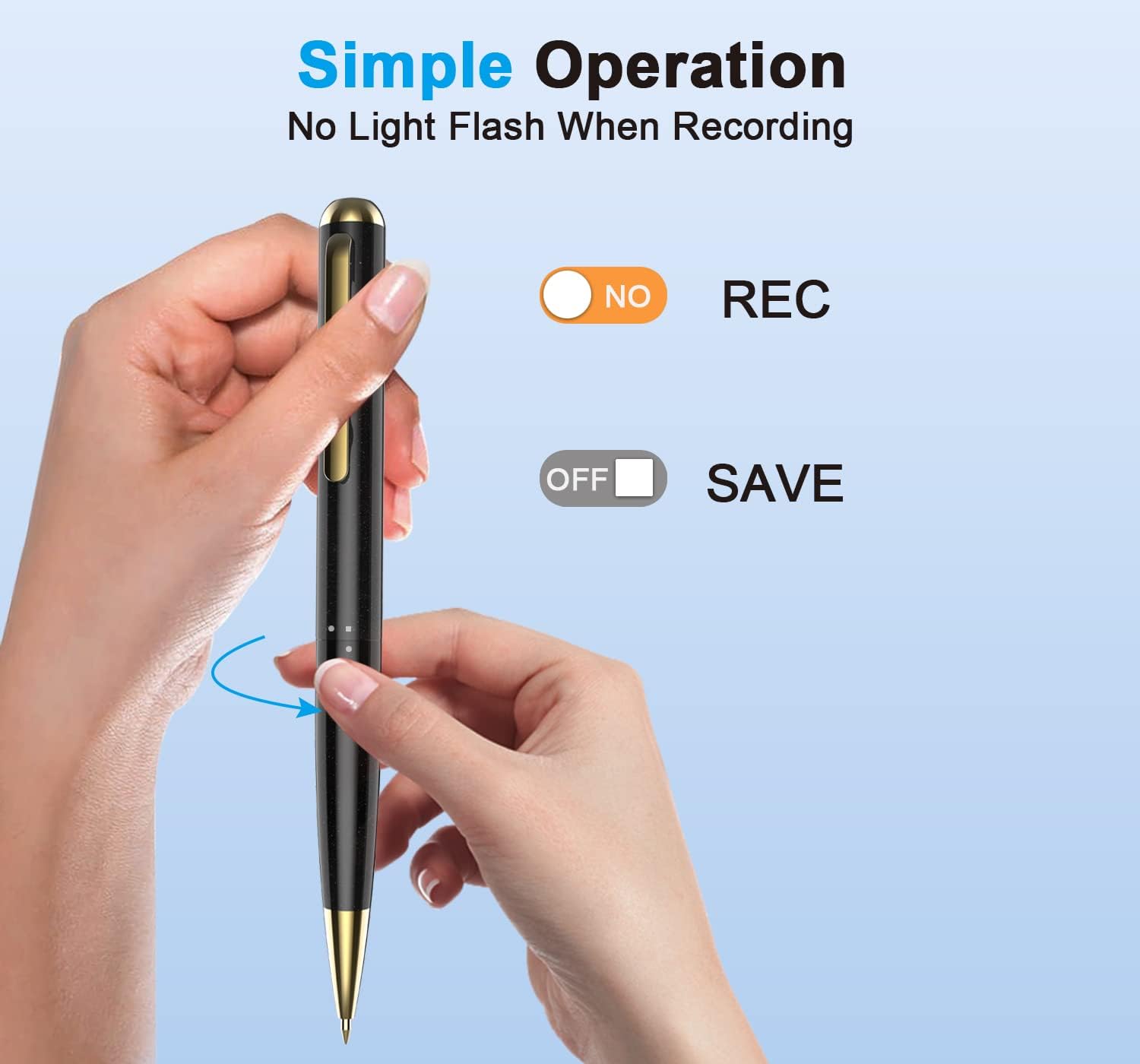
Image 4.1: The intuitive slide switch for starting and saving recordings.
4.2 Playback Recordings
Recordings can be played back directly from the device using the included earphones or by connecting the device to a computer.
4.2.1 Direct Playback (with Earphones)
- Ensure the device is powered off.
- Plug the included earphones into the 3.5mm jack on the pen.
- Slide the switch to the "REC" position. The device will automatically enter playback mode and begin playing the most recent recording.
- Use the controls on the earphone remote (if available) to navigate between tracks or adjust volume.
- To stop playback, slide the switch to "OFF/SAVE".
4.2.2 Playback on Computer
- Connect the voice recorder pen to your computer using the USB cable.
- The device will appear as a removable disk (e.g., "VOICE_REC").
- Open the disk and navigate to the folder containing your recordings (usually named "RECORD" or similar).
- Recordings are saved in WAV format. Double-click the desired file to play it using your computer's default media player.
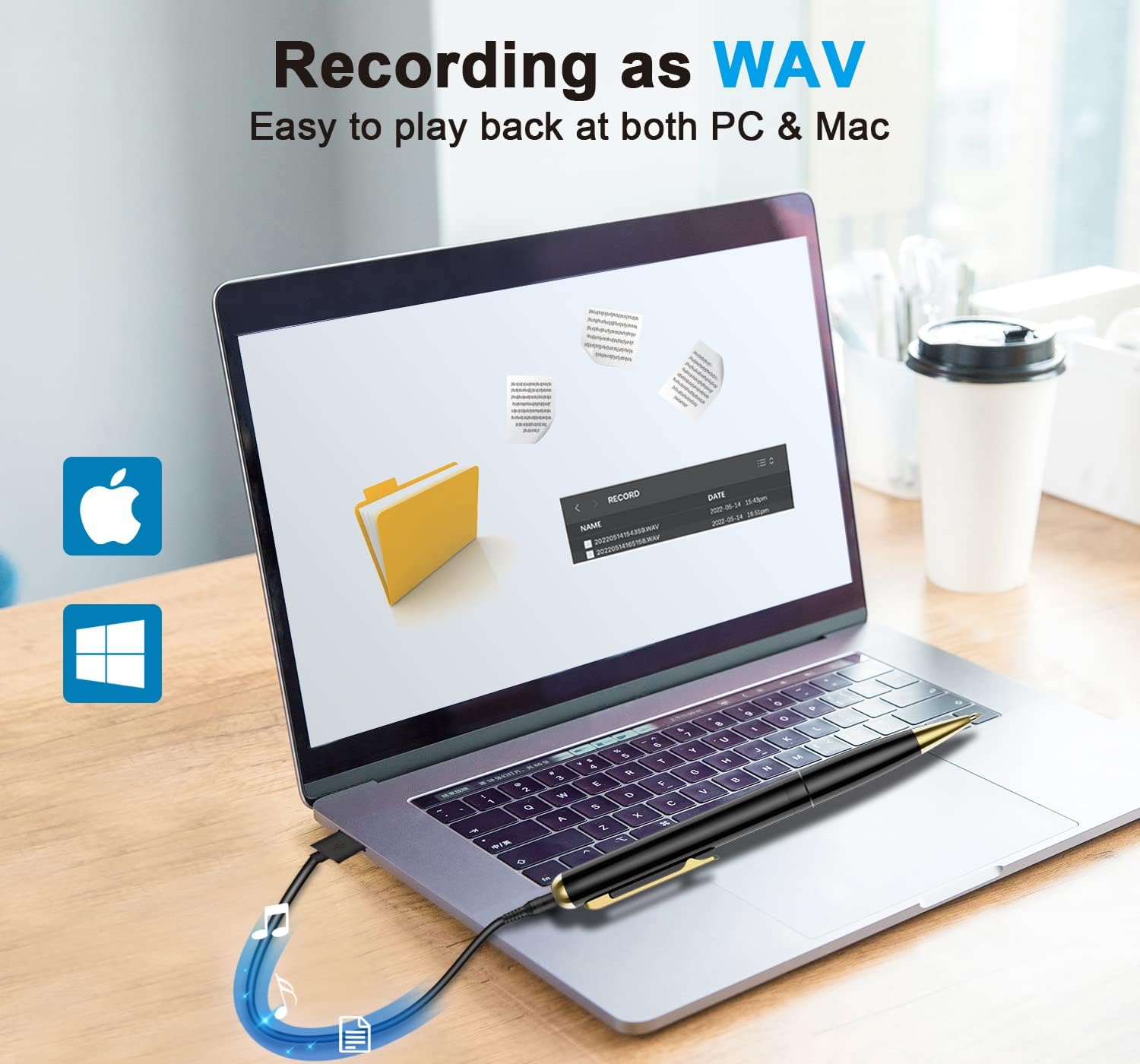
Image 4.2: Accessing and playing WAV recording files on a computer.
4.3 Transferring and Managing Files
To transfer recordings to your computer or manage files:
- Connect the pen to your computer via USB.
- Access the device as a removable drive.
- You can copy, paste, delete, or rename recording files (.WAV) just like any other file on your computer.
- Always safely eject the device from your computer before disconnecting the USB cable to prevent data corruption.
5. Maintenance
- Cleaning: Use a soft, dry cloth to clean the exterior of the pen. Do not use liquid cleaners or solvents.
- Storage: Store the device in a cool, dry place away from direct sunlight, extreme temperatures, and humidity.
- Battery Care: To prolong battery life, avoid fully discharging the device frequently. Charge it regularly, even if not in use for extended periods.
- Avoid Impact: Protect the device from drops and impacts, which can damage internal components.
6. Troubleshooting
| Problem | Possible Cause | Solution |
|---|---|---|
| Device does not power on. | Low battery. | Charge the device fully. |
| Cannot record. | Insufficient storage space. | Delete old recordings to free up space. |
| Poor recording quality. | Microphone obstructed; too far from sound source; excessive background noise. | Ensure microphone is clear. Position closer to the sound source. Minimize background noise. |
| Device not recognized by computer. | Faulty USB cable; loose connection; computer port issue. | Try a different USB cable or port. Ensure the cable is securely connected. Restart computer. |
| Cannot play back recordings. | Incorrect playback mode; corrupted files; earphones not connected properly. | Ensure earphones are fully inserted for direct playback. Try playing files on a computer. |
7. Specifications
| Feature | Detail |
|---|---|
| Model | DQ96 |
| Brand | DCOLOR |
| Storage Capacity | 32 GB (approx. 400 hours recording) |
| Recording Format | WAV |
| Recording Bitrate | 256 Kbps |
| Battery Life | Up to 20 hours (continuous recording) |
| Charging Interface | 3.5mm jack (via USB cable) |
| Hardware Interface | USB |
| Microphone | Built-In |
| Product Dimensions | 5.91 x 0.47 x 0.47 inches |
| Item Weight | 3.52 ounces |

Image 7.1: Visual representation of the device's storage and battery capabilities.

Image 7.2: The noise cancelling technology and 256 Kbps recording bitrate for enhanced audio quality.
8. Warranty and Support
Specific warranty information for the DCOLOR DQ96 Voice Recorder Pen is not provided in this document. Please refer to the product packaging or the retailer's website for details regarding warranty coverage and return policies.
For technical support or further assistance, please contact DCOLOR customer service through their official channels, typically found on their website or the platform where the product was purchased.
