
Thermaltake PS-TPD-1200FNFAGE-4
Thermaltake Toughpower GF3 1200W Power Supply User Manual
Model: PS-TPD-1200FNFAGE-4
Introduction
This manual provides comprehensive instructions for the installation, operation, maintenance, and troubleshooting of your Thermaltake Toughpower GF3 1200W Full Modular Power Supply. Please read this manual thoroughly before installation and retain it for future reference.
The Thermaltake Toughpower GF3 series is designed to meet the demands of next-generation computing, featuring native PCIe 12+4pin modular connectors for PCIe 5.0 graphics cards and compatibility with Intel ATX 3.0 specifications. This 1200W model delivers 80 PLUS Gold efficiency, ensuring stable and reliable power delivery for high-performance systems.
Safety Information
- Always disconnect the power supply from the AC outlet before installation or maintenance.
- Do not open the power supply unit. High voltages are present inside, which can cause serious injury or death.
- Ensure proper grounding of the power supply.
- Install the power supply in a well-ventilated area.
- Use only the modular cables provided with this power supply. Using incompatible cables may damage the PSU or connected components.
- Avoid exposing the power supply to moisture or extreme temperatures.
Product Overview
The Thermaltake Toughpower GF3 1200W is a fully modular power supply designed for high-performance PC builds. It features a native 12VHPWR connector for PCIe 5.0 GPUs and adheres to the ATX 3.0 standard.

Figure 1: Thermaltake Toughpower GF3 1200W Power Supply and its retail packaging.

Figure 2: Side view of the power supply unit, showing the model name and wattage.

Figure 3: Angled view of the power supply, highlighting the power input and the Smart Zero Fan switch.

Figure 4: Detailed view of the fully modular cable connection ports on the power supply, including the 12VHPWR connector.
Setup and Installation
Pre-Installation Checklist:
- Ensure your PC case has adequate space for the power supply (dimensions: 19.69 x 19.69 x 11.02 inches).
- Verify that your motherboard and graphics card are compatible with the power supply's connectors (ATX 3.0, PCIe 5.0).
- Gather all necessary tools: screwdriver, zip ties (optional for cable management).
Installation Steps:
- Mounting the PSU:
Carefully slide the power supply into the designated PSU bay in your PC case. Secure it with screws from the rear of the case.
- Connecting Main Power Cables:
- Connect the 24-pin ATX cable from the PSU to the motherboard's 24-pin connector.
- Connect the 8-pin (4+4) CPU power cable(s) to the motherboard's CPU power connector(s).
- Connecting PCIe Cables:
- For PCIe 5.0 graphics cards, connect the native 12VHPWR (12+4pin) cable directly from the PSU to your graphics card. This cable can deliver up to 600W.
- For older graphics cards or additional power, use the standard 6+2 pin PCIe cables as needed.
- Connecting SATA and Peripheral Cables:
Connect SATA power cables to your storage drives (SSDs, HDDs) and peripheral cables to other components like fans or RGB controllers as required.
- Cable Management:
Route cables neatly to ensure optimal airflow within the case. Use zip ties or Velcro straps for organization.
- Final Checks:
Double-check all connections to ensure they are secure. Ensure no loose cables are obstructing fans.
Operating Instructions
Powering On:
- After installation, connect the AC power cord to the power supply and then to a wall outlet.
- Flip the main power switch on the back of the power supply to the 'ON' position.
- Press the power button on your computer case to start the system.
Smart Zero Fan Feature:
The Toughpower GF3 1200W features a Smart Zero Fan mode. When enabled (switch on the PSU set to 'ON'), the fan will remain off until the load exceeds approximately 30% of the PSU's maximum wattage, minimizing noise during low-load operations. When disabled (switch set to 'OFF'), the fan will spin continuously.

Figure 5: Diagram illustrating the Smart Zero Fan feature, which minimizes noise by keeping the fan off at low loads.

Figure 6: Top view of the power supply, showing the fan grille and Thermaltake logo.
Maintenance
- Dust Cleaning: Periodically clean dust from the power supply's fan grille and vents using compressed air. Ensure the system is powered off and unplugged before cleaning.
- Cable Inspection: Regularly inspect all modular cables for any signs of wear, damage, or loose connections.
- Environmental Conditions: Ensure the operating environment remains within recommended temperature and humidity ranges to prolong the life of the power supply.
Troubleshooting
| Problem | Possible Cause | Solution |
|---|---|---|
| System does not power on. |
|
|
| System powers on but no display. |
|
|
| System shuts down unexpectedly. |
|
|
| Fan is not spinning (Smart Zero Fan enabled). |
|
|
Specifications
| Feature | Detail |
|---|---|
| Model Number | PS-TPD-1200FNFAGE-4 |
| Wattage | 1200W |
| Efficiency | 80 PLUS Gold Certified |
| Form Factor | ATX |
| Modularity | Fully Modular |
| PFC | Active PFC |
| Capacitors | 100% High Quality Japanese Capacitors |
| Fan Type | 135mm Fluid Dynamic Bearing Fan |
| Fan Control | Smart Zero Fan Mode (Switchable) |
| ATX Version | ATX 3.0 Compatible |
| PCIe Connector | Native 12+4pin (12VHPWR) for PCIe 5.0 GPUs |
| Ripple Noise | <30mV (low ripple noise design) |
| Voltage Regulation | <±3% (extremely strict) |
| Hold Up Time | >17ms |
| Dimensions (L x W x H) | 19.69 x 19.69 x 11.02 inches (approx.) |
| Operating Temperature | 0°C to 50°C |
| Safety Approvals | CE, FCC, EAC, UKCA, RCM, CCC, BSMI, KC, CB |

Figure 7: Chart comparing the voltage regulation of the Toughpower GF3 series against Intel specifications, showing superior performance.
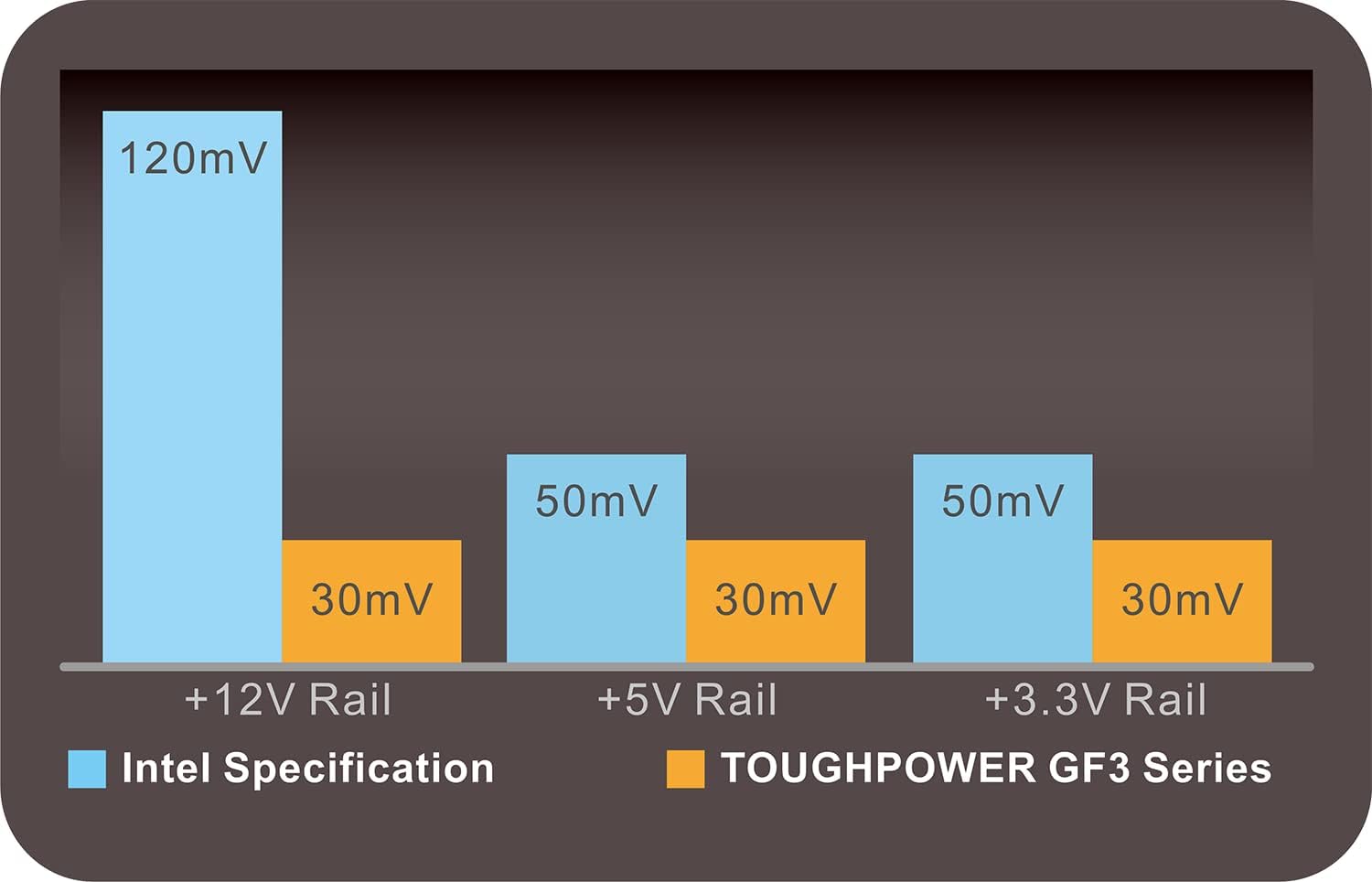
Figure 8: Chart illustrating the low ripple noise performance of the Toughpower GF3 series compared to Intel specifications.

Figure 9: Internal view of the power supply, showcasing the high-quality Japanese capacitors and other premium components.
Warranty Information
Thermaltake Toughpower GF3 series power supplies typically come with a 10-year warranty. This warranty covers defects in material and workmanship under normal use. Please refer to the official Thermaltake website or your product packaging for the most current and detailed warranty terms and conditions.
Proof of purchase is required for all warranty claims.
Support
For technical support, troubleshooting assistance, or warranty inquiries, please visit the official Thermaltake support website:
You may also find helpful resources, FAQs, and driver downloads on their website.
Related documentsPS-TPD-1200FNFAGE-4


Ask a question about this manual
Ask about setup, troubleshooting, compatibility, parts, safety, or missing instructions. Manuals+ will review the question and use this page’s manual context to help answer it.