
RAPIQUE R118
RAPIQUE R118 Bluetooth Wireless Mouse User Manual
Model: R118
1. Product Overview
The RAPIQUE R118 Bluetooth Wireless Mouse offers versatile connectivity and ergonomic design for enhanced productivity. It features tri-mode connectivity (Bluetooth 5.1 BT1, Bluetooth 5.1 BT2, and 2.4G wireless), allowing seamless switching between up to three devices. The mouse is rechargeable via USB-C and designed for silent operation, making it suitable for various environments.

Image 1: RAPIQUE R118 Bluetooth Wireless Mouse (Purple)
2. Setup Instructions
2.1 Initial Charging
Before first use, fully charge the mouse for 2-3 hours using the provided USB-C cable. The charging indicator light is blue; it will turn off when fully charged.

Image 2: Charging the RAPIQUE R118 Mouse
2.2 2.4G Wireless Connection
- Locate the USB receiver stored in the compartment on the underside of the mouse.
- Insert the USB receiver into an available USB port on your computer or device.
- Slide the mode switch button on the bottom of the mouse to the "2.4G" position (red indicator light).
- The mouse should automatically connect.
2.3 Bluetooth Connection (BT1 / BT2)
The RAPIQUE R118 mouse supports two independent Bluetooth connections (BT1 and BT2).
- Slide the mode switch button on the bottom of the mouse to either "BT1" (green indicator light) or "BT2" (blue indicator light).
- Press and hold the mode switch button for 3-5 seconds until the corresponding indicator light (green for BT1, blue for BT2) starts blinking rapidly, indicating pairing mode.
- On your device (e.g., laptop, tablet, smartphone):
- Go to Settings > Bluetooth.
- Ensure Bluetooth is enabled.
- Look for "BT MOUSE-1" or "BT MOUSE-2" in the list of available devices and select it to pair.
- Confirm the pairing request if prompted.
- Once connected, the indicator light on the mouse will stop blinking and remain solid for a few seconds before turning off.
To switch between connected Bluetooth devices or the 2.4G mode, simply press the mode switch button on the bottom of the mouse to cycle through BT1 (green), BT2 (blue), and 2.4G (red).

Image 3: Underside of the Mouse with Mode Switch and USB Receiver

Image 4: Multi-Device Connectivity of the RAPIQUE R118 Mouse
3. Operating Instructions
3.1 DPI Adjustment
The mouse features a DPI button located on the top surface, allowing you to adjust the cursor speed. Press the DPI button to cycle through three speed settings (800, 1200, and 1600 DPI) to match your preference and task requirements.
3.2 Silent Click Feature
The RAPIQUE R118 mouse is designed with silent click buttons, reducing clicking noise by up to 90%. This feature ensures a quiet working environment without disturbing others.
3.3 One-Click Desktop Button
A dedicated one-click desktop button is available for quickly minimizing all open windows and returning to your desktop. Note: This feature is not available for Mac OS.
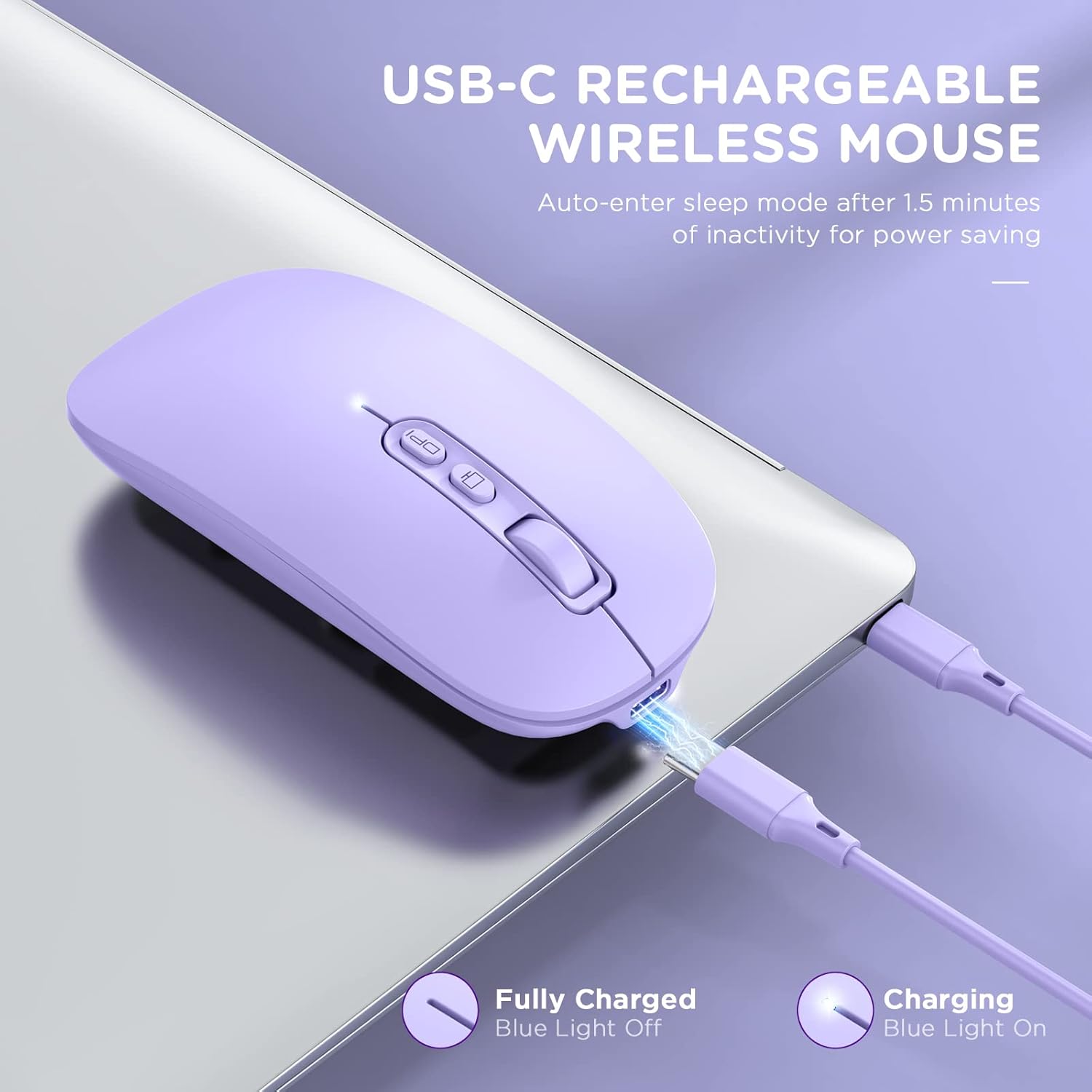
Image 5: Silent Click and Desktop Button Features
4. Maintenance
4.1 Recharging the Mouse
When the battery is low, connect the mouse to a power source using the USB-C charging cable. The blue indicator light signifies charging. The light will turn off once the mouse is fully charged.
4.2 Auto-Sleep Function
To conserve power, the mouse will enter sleep mode after 1.5 minutes of inactivity. To wake it up, simply click any button or move the mouse.
4.3 Cleaning
Wipe the mouse with a soft, dry cloth. Avoid using harsh chemicals or abrasive materials.
5. Troubleshooting
- Mouse not responding:
- Ensure the mouse is charged.
- Verify the mode switch is set correctly (2.4G, BT1, or BT2).
- For 2.4G mode, ensure the USB receiver is securely plugged in.
- For Bluetooth mode, check your device's Bluetooth settings to confirm it's paired and connected.
- Try restarting the mouse and your device.
- Bluetooth connection issues with iPad/iPhone (iOS 13/14+):
- First, slide the button at the bottom of the mouse to the Bluetooth position.
- On your iPad/iPhone: Go to Settings > Accessibility > Touch > AssistiveTouch > Enable AssistiveTouch.
- Return to Settings > Bluetooth > Enable Bluetooth.
- Select "BT MOUSE-1" or "BT MOUSE-2" and confirm pairing.
- Note: Bluetooth 5.0 supports iOS systems for both iPad and iPhones, but the iOS system must be iOS 14 or a later version.
- Cursor movement is erratic or slow:
- Adjust the DPI setting using the DPI button on the mouse.
- Ensure the mouse is used on a clean, non-reflective surface.
- Charging indicator light not working:
- Ensure the USB-C cable is properly connected to both the mouse and the power source.
- Try a different USB-C cable or power adapter.
6. Specifications
| Model Number | R118 |
| Connectivity Technology | Bluetooth 5.1 (BT1, BT2), 2.4G Wireless (USB Receiver) |
| Movement Detection | Optical |
| DPI Settings | 800, 1200, 1600 |
| Power Source | Rechargeable Lithium Polymer Battery (included) |
| Product Dimensions | 4.37 x 2.13 x 1.06 inches |
| Item Weight | 1.98 ounces |
| Compatibility | Windows 8/10/11 (not Windows 7 or XP), Android, Mac OS, iOS 14+ |
7. Compatibility
The RAPIQUE R118 mouse offers broad compatibility with various operating systems and devices:
- 2.4G USB Mode: Supports any device with a USB port, including iMacs, laptops, Surface Pros, Macbooks, Chromebooks, and tablets.
- Bluetooth 5.1 Mode: Compatible with Windows 8/10/11 (not Windows 7 or XP), Android, and Mac OS systems. For iPad and iPhones, iOS 14 or later is required.

Image 6: Wide Compatibility with Multiple Devices
8. Warranty and Support
RAPIQUE provides lifetime reliable service and lifetime technical support for this product. For any questions or assistance, please refer to the product packaging for contact information or visit the RAPIQUE official website.
Ask a question about this manual
Ask about setup, troubleshooting, compatibility, parts, safety, or missing instructions. Manuals+ will review the question and use this page’s manual context to help answer it.