
Product Overview
The Tapo T110 Smart Contact Sensor is designed to enhance your home security and automation. It detects the opening and closing of doors, windows, or other entry points, providing instant notifications and enabling smart actions within your Tapo ecosystem.
Key features include:
- Real-Time Monitoring: Check the status of your doors/windows from anywhere.
- Instant Notifications: Receive push alerts on your smartphone when the sensor is triggered.
- Smart Automation: Automatically control other connected devices (e.g., lights, smart plugs) based on sensor activity.
- Easy Installation: Simple mounting on various surfaces.
- Long Battery Life: Powered by a CR2032 battery with over 1 year of life.
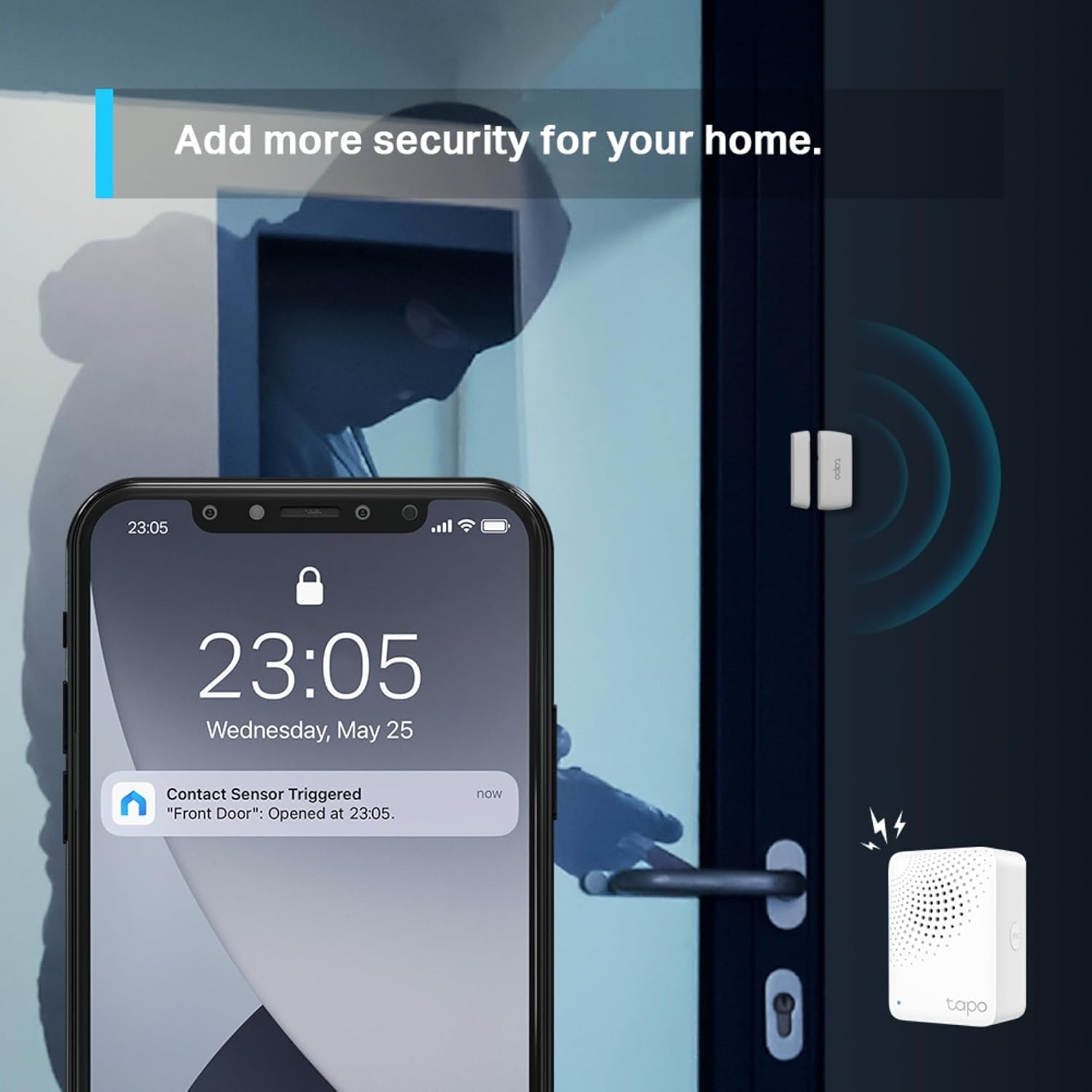
Image: The Tapo T110 sensor highlighting its core functionalities.
Setup Guide
What's Required
The Tapo T110 Smart Contact Sensor requires a Tapo Hub (e.g., Tapo H100) to function. The sensor communicates with the hub, which then connects to your home network and the Tapo app.
Battery Installation
The sensor is powered by a CR2032 lithium-ion battery. To install or replace the battery:
- Gently pry open the sensor's main unit to reveal the battery compartment.
- Insert the CR2032 battery with the positive (+) side facing up.
- Close the sensor unit securely.

Image: Internal view of the Tapo T110 sensor showing the battery placement.
Mounting the Sensor
The Tapo T110 sensor consists of two parts: a main unit and a magnet. For optimal performance, mount them on a clean, dry surface using the provided adhesive pads. Ensure the two parts are aligned and within 1 cm of each other when the door/window is closed.
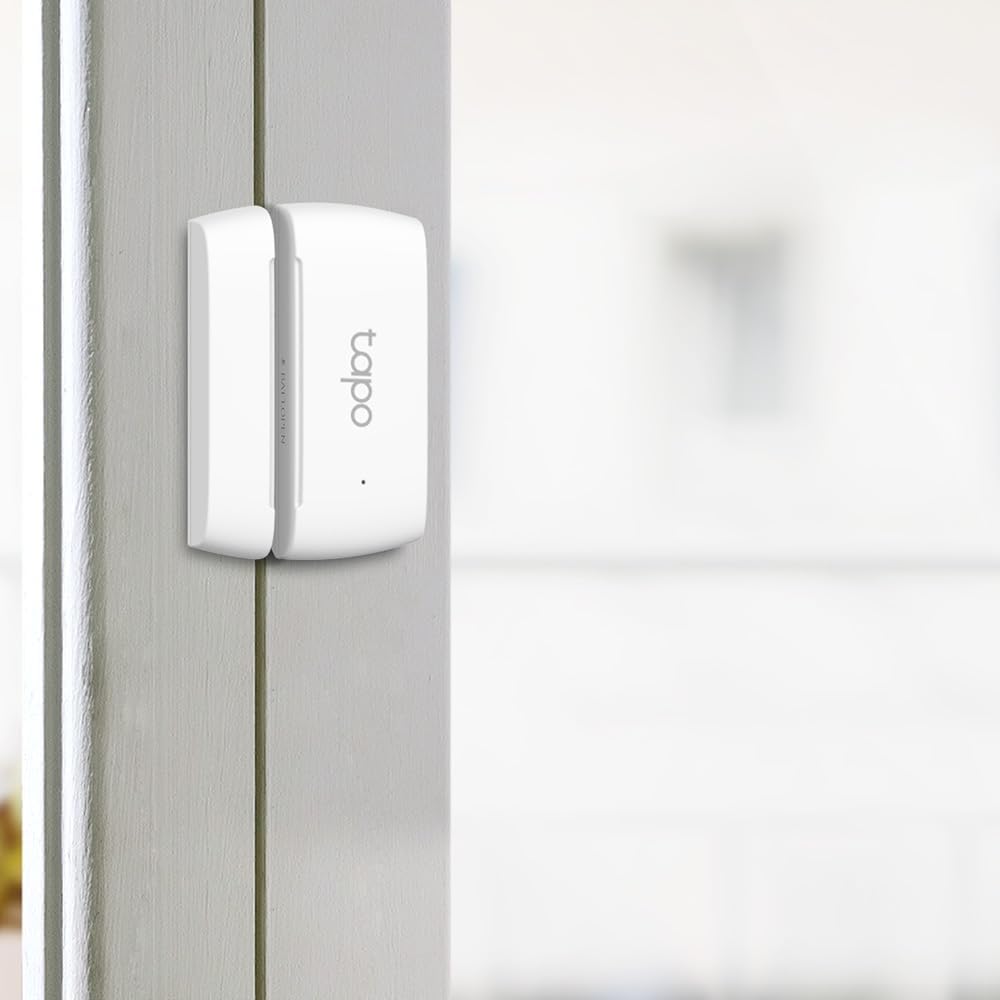
Image: The Tapo T110 sensor mounted on a door frame.

Image: The Tapo T110 sensor acting as a safeguard for windows and doors.
Operating the Tapo T110
Real-Time Monitoring and Notifications
Once installed and connected to your Tapo Hub, the T110 sensor will monitor the open/closed status of your chosen entry point. You will receive instant push notifications on your smartphone via the Tapo app whenever the status changes, providing immediate awareness of activity.
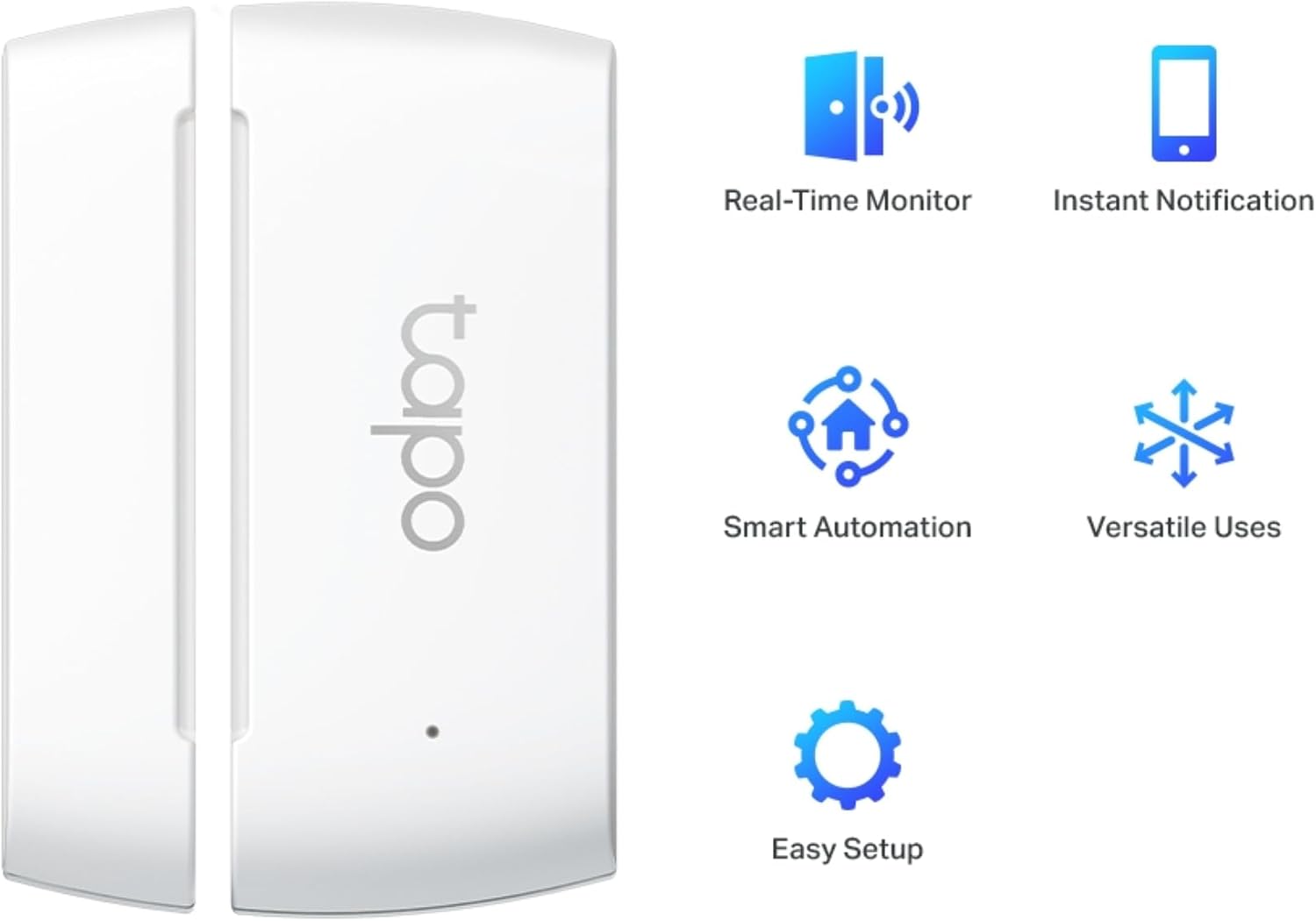
Image: A smartphone screen showing an instant notification from the Tapo app after the sensor is triggered.
Smart Automation
Leverage the Tapo app to create smart actions and link your T110 sensor with other Tapo devices. For example, you can set up an automation to automatically turn on a smart light bulb when a door opens, or trigger an alarm on your Tapo Hub if a window is opened unexpectedly.

Image: Illustration of a smart action where opening a door (detected by the sensor) triggers a Tapo Smart Bulb.
Maintenance
Battery Replacement
The Tapo T110 sensor is designed for long-lasting battery life, typically over one year. When the battery level is low, you will receive a notification via the Tapo app. Replace the CR2032 battery as described in the 'Battery Installation' section.
Cleaning
To maintain the sensor's appearance and functionality, wipe it periodically with a soft, dry cloth. Avoid using abrasive cleaners or solvents, as these can damage the device.
Troubleshooting
Sensor Not Connecting to Hub
- Ensure your Tapo Hub is powered on and connected to your network.
- Verify that the sensor is within range of the Tapo Hub.
- Check the sensor's battery. Replace if necessary.
- Try re-pairing the sensor with the Tapo Hub through the Tapo app.
Inconsistent Notifications
- Ensure the two parts of the sensor are properly aligned and close enough (within 1 cm) when the door/window is closed.
- Check the battery level of the sensor.
- Verify your internet connection and Tapo app settings for notifications.
Technical Specifications
| Feature | Detail |
|---|---|
| Model Number | Tapo T110 |
| Dimensions (L x W x H) | 6.08 x 3.75 x 1.2 cm |
| Weight | 24 grams |
| Power Source | Battery Powered |
| Battery Type | 1 Lithium-ion (CR2032) |
| Operating Protocol | 868/922 MHz |
| Material | Plastic |
| Installation Type | Door Mounting (Adhesive) |
Warranty and Support
For warranty information and technical support, please refer to the documentation provided with your product or visit the official Tapo (TP-Link) website. Support resources typically include FAQs, troubleshooting guides, and contact options for customer service.


