
Introduction
This manual provides essential information for the proper setup, operation, and maintenance of your new jumper EZbook S5 14-inch laptop. Please read this guide thoroughly before using your device to ensure optimal performance and longevity. Keep this manual for future reference.
Initial Setup
Unpacking
Carefully remove all components from the packaging. Ensure the following items are present:
- jumper EZbook S5 Laptop
- Power Adapter/Charger
- Instruction Manual (this document)
Charging the Laptop
Before first use, fully charge the laptop battery. Connect the power adapter to the DC charging port on the laptop and then plug it into a power outlet. The charging indicator light will illuminate. Once fully charged, the indicator light may change color or turn off.
Powering On
Press and hold the power button located on the top right of the keyboard until the screen illuminates. Follow the on-screen instructions to complete the initial Windows 11 setup, including language selection, network connection, and user account creation.

Figure 1: jumper EZbook S5 Laptop displaying the Windows 11 interface.
Operating Your Laptop
Keyboard and Touchpad
The laptop features a full-size keyboard designed for comfortable typing. The integrated high-precision touchpad supports multi-touch gestures for intuitive navigation. Refer to Windows 11 settings for customizing touchpad gestures.
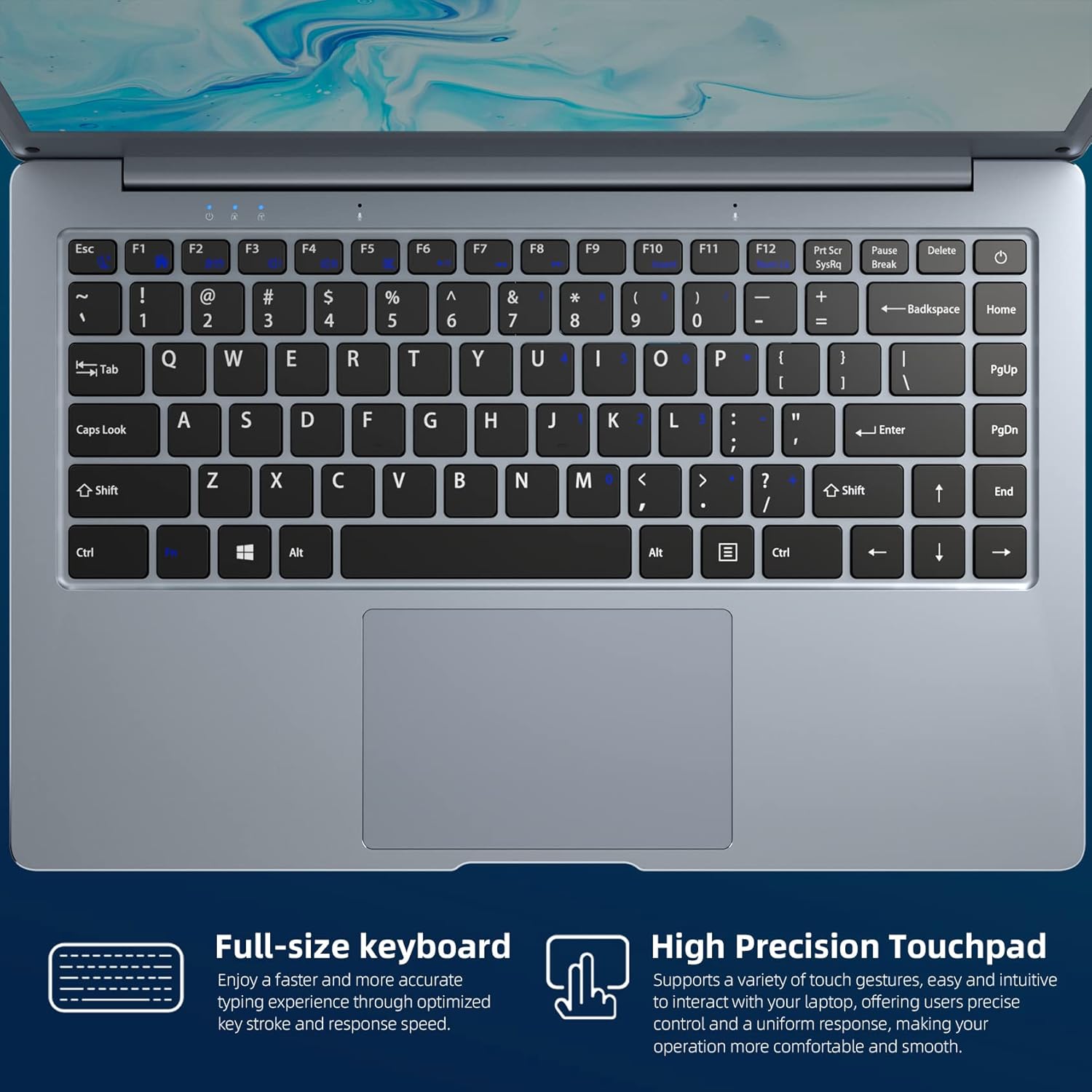
Figure 2: Close-up view of the full-size keyboard and high-precision touchpad.
Windows 11 Home
Your laptop comes pre-installed with Windows 11 Home, offering a modern interface, enhanced security features, and improved productivity tools. Regular updates are recommended to maintain system performance and security.
Connectivity
The EZbook S5 provides various connectivity options:
- USB 3.0 Port: For high-speed data transfer with compatible devices.
- USB 2.0 Port: For connecting peripherals like mice, keyboards, or older USB devices.
- Mini-HDMI Port: Connect to external displays or projectors.
- 3.5mm Audio Jack: For headphones or external speakers.
- MicroSD Card Slot: Expand storage up to 256GB.
- Wi-Fi: Supports 802.11b/g/n for wireless internet access.
- Bluetooth 4.2: For connecting wireless accessories.

Figure 3: Overview of the laptop's connectivity ports.
Display
The 14-inch Full HD (1920x1080) IPS display offers clear and vibrant visuals. Adjust display settings through Windows 11 to optimize brightness, resolution, and color profiles.
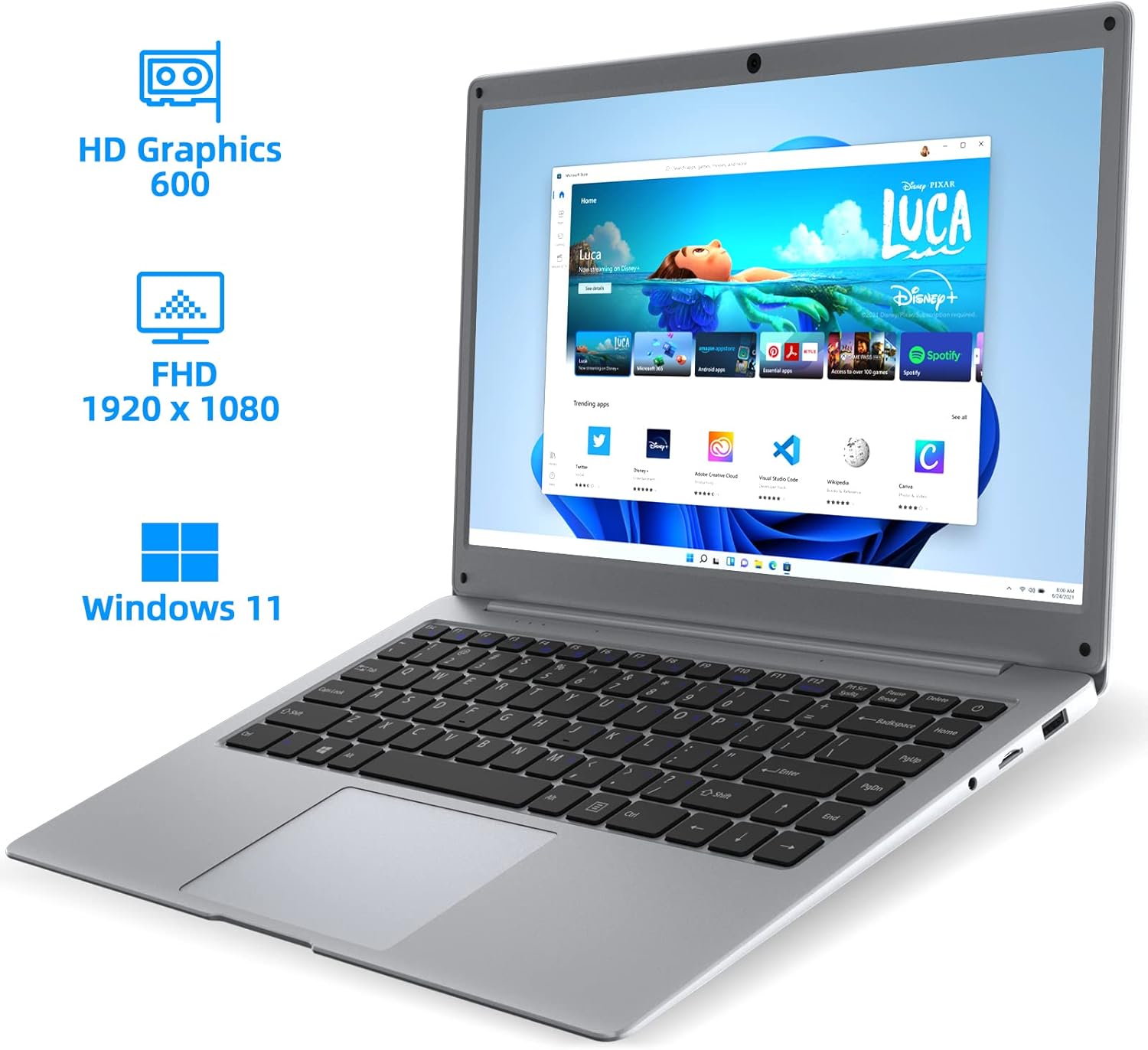
Figure 4: The 14-inch Full HD display of the EZbook S5.
Storage and Memory
The laptop is equipped with 12GB of RAM and a 256GB SSD, providing sufficient speed and storage for daily tasks, applications, and media. The SSD can be upgraded up to 1TB via an M.2 2242 slot.

Figure 5: Visual representation of the laptop's memory and storage capabilities.
Maintenance and Care
To ensure the longevity and optimal performance of your laptop, follow these maintenance guidelines:
- Cleaning: Use a soft, lint-free cloth to clean the screen and exterior. Avoid harsh chemicals or abrasive materials.
- Battery Care: Avoid fully discharging the battery frequently. For long-term storage, charge the battery to about 50-70%.
- Software Updates: Regularly install Windows updates and driver updates to ensure system stability and security.
- Ventilation: Ensure the laptop's ventilation openings are not blocked to prevent overheating.
- Environmental Conditions: Operate the laptop in a clean, dry environment, away from extreme temperatures and direct sunlight.
Troubleshooting Common Issues
This section addresses common problems you might encounter with your laptop.
- Laptop does not power on: Ensure the power adapter is securely connected and the battery has sufficient charge. Try a different power outlet.
- Screen is blank or flickering: Restart the laptop. If connected to an external monitor, ensure the cable is properly connected. Update graphics drivers.
- Wi-Fi or Bluetooth connectivity issues: Check if Wi-Fi/Bluetooth is enabled in Windows settings. Restart your router or Bluetooth device. Update network drivers.
- Slow performance: Close unnecessary applications. Check for background updates. Ensure sufficient free storage space.
Video 1: Overview of Jumper Laptop features, including display, RAM, and SSD. This video may assist in understanding device capabilities.
Technical Specifications
| Brand | jumper |
| Model Name | EZbook S5 |
| Screen Size | 14 Inches |
| Display Resolution | 1920x1080 Pixels (Full HD) |
| CPU Model | Intel Celeron N |
| Processor Speed | 2.4 GHz |
| RAM Memory Installed Size | 12 GB DDR3 SDRAM |
| Hard Disk Size | 256 GB SSD |
| Operating System | Windows 11 Home |
| Graphics Coprocessor | HD Graphics 500 (Integrated) |
| Connectivity Technology | Bluetooth, HDMI, USB, Wi-Fi (802.11b/g/n) |
| Total USB Ports | 2 (USB 3.0 Type A, USB 2.0 Type A) |
| Video Output | Mini-HDMI |
| Item Weight | 2.6 Pounds |
| Battery Life | Up to 8 Hours |
| Camera Description | Front (2MP webcam) |
Warranty and Support
Warranty Information
This product is covered by a one-year manufacturer's limited warranty. Please retain your proof of purchase for warranty claims. The warranty covers defects in materials and workmanship under normal use.
Customer Support
For technical assistance, troubleshooting, or warranty inquiries, please visit the official jumper store or contact customer service through the retailer where the product was purchased.
You can find more information and support resources at the jumper Store on Amazon.


