
1. Overview
This manual provides detailed instructions for the installation, operation, and maintenance of your Biorunn 10.1-inch Android Car Stereo Head Unit. This unit is specifically designed for Honda Accord 10th generation vehicles manufactured between 2018 and 2022 that do not have an original factory touch screen. It integrates advanced features such as wireless CarPlay, Android Auto, Bluetooth 5.0, FM/AM radio, and a Digital Sound Processor (DSP) for an enhanced in-car audio experience.
2. Compatibility
The Biorunn Car Stereo is compatible with Honda Accord 10th generation models from 2018, 2019, 2020, 2021, and 2022 that are not equipped with an original factory touch screen. If your vehicle has an original touch screen and no factory amplifier, a specific wire harness (B0C4TM75L7) may be required. Please verify your car's center console configuration before purchase.

Image: Compatibility check for Honda Accord 10th generation center console. Version A (without original touch screen) is compatible, while Version B (with original touch screen) is not compatible with this specific head unit.
3. What's in the Box
The package includes the following components:
- 1 Car Stereo Head Unit
- 1 Dash Mounting Frame
- 1 Wiring Harness with Canbus
- 2 USB Cables
- 1 User Manual & Cables
4. Setup and Installation
Installation of the Biorunn Car Stereo requires careful attention to wiring and mounting. Professional installation is recommended to ensure correct setup and avoid damage to your vehicle or the head unit. Always refer to the detailed wiring diagrams and instructions provided in the included user manual for your specific vehicle model.
4.1 General Installation Steps
- Preparation: Disconnect the vehicle's battery before beginning any electrical work.
- Remove Original Unit: Carefully remove the existing car stereo and trim panels.
- Wiring: Connect the provided wiring harness to the vehicle's existing harness. Ensure all connections, including the Canbus, are secure.
- Mounting: Attach the new head unit to the dash mounting frame. Secure the assembly into the dashboard. Note that some mounting screws may require sourcing alternatives for a perfect fit.
- Testing: Reconnect the battery and test the unit's functionality before fully reassembling the dashboard.
- Final Assembly: Reinstall all trim panels.

Image: Visual comparison of the car dashboard before and after the Biorunn car stereo installation.
5. Operating Instructions
5.1 CarPlay and Android Auto
The head unit supports wireless CarPlay and Android Auto. This allows you to integrate your smartphone's functions, such as navigation, calls, music, and messages, directly onto the car stereo display for safe use while driving.
- Wireless Connection: Enable Bluetooth on your phone and the head unit. Select 'Car Link' on the head unit and follow the prompts to connect.
- Wired Connection: Connect your smartphone to the head unit via a USB cable. Select 'Car Link' and wait for the connection to establish.

Image: Connection steps for both wireless CarPlay and wired Android Auto functionality.
5.2 Bluetooth Functionality
The car stereo features Bluetooth 5.0 for hands-free calling, phone book synchronization, and audio streaming.
- Pairing: Go to the Bluetooth settings on the head unit and your phone. Search for available devices and select the head unit to pair.
- Hands-Free Calls: Once paired, you can make and receive calls directly through the head unit. The phone book can be downloaded for easy access.
- Music Streaming: Play audio from your smartphone wirelessly through the car's speakers.

Image: Bluetooth interface displaying call functions and music playback options.
5.3 FM/AM Radio
The integrated FM/AM radio includes 19 preset stations and supports automatic and manual channel searching.
- Automatic Search: Select the auto-search function to scan and save available stations.
- Manual Tuning: Manually tune to desired frequencies using the on-screen controls.
- Presets: Save your favorite stations to the preset list for quick access.

Image: FM/AM radio interface showing current frequency and preset station list.
5.4 Android System and Apps
Running on an Android system with an 8-core processor, 4GB RAM, and 64GB ROM, the 10.1-inch IPS touch screen allows for app downloads via Wi-Fi and Bluetooth connectivity.
- Wi-Fi Connection: Connect to a Wi-Fi hotspot to access online features and download applications.
- App Installation: Download and install compatible Android applications from the pre-installed app store or other sources.
5.5 Digital Sound Processor (DSP)
The integrated DSP enhances audio quality, providing multi-dimensional surround sound effects for a high-definition audio-visual experience. Adjustments can be made through the equalizer settings.
- Equalizer Settings: Access the DSP settings to customize audio output, including bass, treble, and surround sound effects.

Image: Digital Sound Processor (DSP) interface showing various audio adjustment options.
5.6 Steering Wheel Control (SWC)
The unit supports original steering wheel remote control functions, allowing for safe and convenient operation of music and calls while driving. This head unit works with digital SWC.
- Configuration: Access the steering wheel control settings in the system menu to map your vehicle's steering wheel buttons to the head unit's functions.

Image: Steering wheel controls and their mapping interface on the head unit.
5.7 Reversing Video
The head unit supports reversing video input, though the camera itself is not included. This feature aids in safe parking and maneuvering.
- Camera Connection: Connect a compatible aftermarket reversing camera to the designated video input port.
- Automatic Display: The display will automatically switch to the camera view when the vehicle is put into reverse gear.

Image: Reversing video display with parking guidelines on the car stereo screen.
6. Maintenance
Proper maintenance ensures the longevity and optimal performance of your Biorunn Car Stereo.
- Screen Cleaning: Use a soft, dry, lint-free cloth to clean the touch screen. Avoid using abrasive cleaners, solvents, or chemical sprays, as these can damage the display.
- Connection Checks: Periodically inspect all wiring connections to ensure they remain secure and free from corrosion.
- Software Updates: Check for available software updates through the system settings to ensure you have the latest features and performance enhancements.
- Cooling: The unit is designed with a cooling fan to manage internal temperatures. Ensure proper ventilation around the unit.

Image: Internal cooling fan design and its effectiveness in maintaining optimal operating temperatures.
7. Troubleshooting
If you encounter issues with your Biorunn Car Stereo, refer to the following common solutions:
- Steering Wheel Controls Not Working:
Ensure the Canbus wiring harness is correctly connected and configured. Refer to the detailed wiring diagram in the included user manual. Some vehicles may require specific settings within the head unit's system menu to recognize steering wheel controls. - Poor Speaker or Microphone Quality:
Check all audio connections to ensure they are fully seated. Verify the microphone is properly installed and positioned. If using the phone's speaker for calls, ensure the Bluetooth connection settings are correct and the head unit is selected as the audio output device. - Mounting Screws Do Not Fit:
The provided screws for mounting the stereo to the frame and dash may not fit all vehicle variations. It may be necessary to source alternative screws of appropriate size and thread for a secure fit. - Adhesive Tape Not Strong Enough:
If any adhesive tape used during installation proves insufficient, replace it with stronger automotive-grade adhesive tape to ensure components remain securely in place. - Unit Not Powering On:
Check the vehicle's fuse box for any blown fuses related to the stereo. Verify all power connections to the head unit are secure. - No Sound:
Check speaker wire connections. Ensure the volume is not muted or set to zero. Verify audio output settings in the head unit's menu.
8. Specifications
| Brand | Biorunn |
| Model Name | for Honda Accord 10th 2018-2022 (Non-Touch Screen) |
| Screen Size | 10.1 inches |
| Operating System | Android |
| Memory Storage Capacity | 64 GB (ROM) |
| RAM | 4GB |
| Processor | 8 Core |
| Connectivity Technology | Bluetooth, USB, Wi-Fi |
| Bluetooth Version | 5.0 |
| Display Type | LED, Capacitive Touch Screen |
| Resolution | 720 x 1280 |
| Supported Navigation System | GLONASS, GPS |
| Audio Output Mode | Stereo |
| Special Features | Built-in CarPlay/Android Auto, DSP, FM/AM Radio, Steering Wheel Control |
9. Warranty Information
This Biorunn Car Stereo Head Unit comes with a 1-year warranty from the manufacturer, Shenzhen Rongnan International Electronics Co., Ltd. This warranty covers defects in materials and workmanship under normal use. Please retain your proof of purchase for warranty claims.
10. Customer Support
For technical assistance, installation queries, or any other questions regarding your Biorunn Car Stereo, please refer to the contact information provided in your included user manual. You may also reach out to the seller directly through the platform where the product was purchased. Biorunn is committed to providing excellent customer service and technical support.
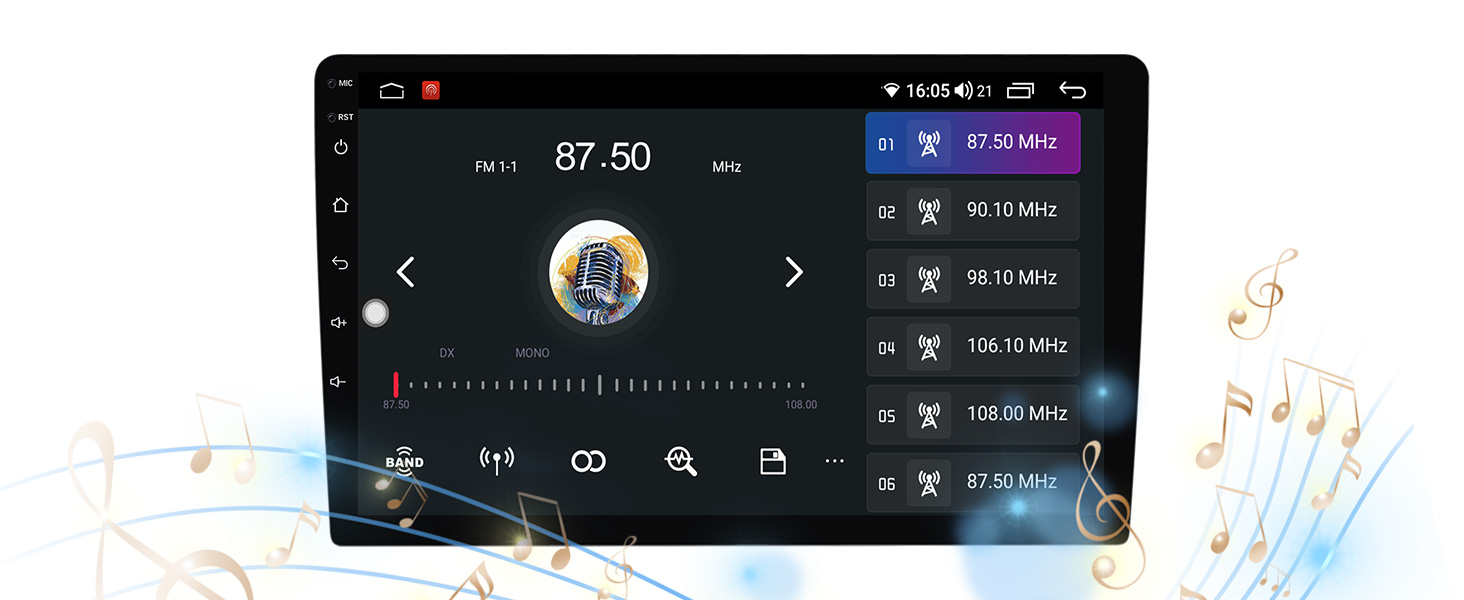
Image: Example of how to access customer support via the seller's page.