
1. Introduction
Thank you for choosing the ANTELA Smart Plug. This device allows you to control your electrical appliances remotely, monitor energy consumption, and integrate with smart home systems like Alexa and Google Home. Please read this manual carefully before use to ensure proper operation and safety.
2. Safety Information
- Do not exceed the maximum load of 16A / 3680W.
- Use only indoors in dry locations.
- Keep out of reach of children.
- Do not disassemble or modify the device.
- Ensure the plug is fully inserted into the wall socket.
- Disconnect power before cleaning.
3. Package Contents
- ANTELA Smart Plug (Type E)
- User Manual
Note: The number of smart plugs included may vary based on the purchased package (e.g., 2PC or 4PC).
4. Specifications
| Feature | Specification |
|---|---|
| Brand | ANTELA |
| Model Number | SPL-W-TY-PM-FR-RY |
| Color | White |
| Material | Flame-retardant Materials |
| Voltage | 240 Volts |
| Current Rating | 16 A |
| Power | 3680 Watts |
| Product Dimensions (L x W x H) | 4 x 4 x 6 cm (40 x 40 x 60 mm) |
| Wireless Connectivity | Wi-Fi 2.4 GHz (5G not supported) |
| Certifications | CE, RoHS, WEEE |
5. Setup
5.1 Download the App
Download the Smart Life or TUYA Smart app from your smartphone's app store (App Store for iOS, Google Play for Android).
5.2 Connect to Wi-Fi
- Plug the ANTELA Smart Plug into a wall socket.
- Open the Smart Life or TUYA Smart app and register/log in.
- Ensure your phone's Bluetooth is enabled for easier pairing.
- In the app, tap the "+" icon to add a device. The app should automatically discover the smart plug. If not, select "Electrical Outlet" or "Socket (Wi-Fi)" from the device list.
- Follow the in-app instructions to connect the plug to your 2.4 GHz Wi-Fi network. Note: 5G Wi-Fi networks are not supported.
- The LED indicator on the plug will flash during pairing and turn solid blue when successfully connected.

Image: Easy Connection via Smart Life or Tuya Smart App. The app interface shows the plug status and controls.

Image: Wi-Fi Compatibility. The smart plug supports 2.4 GHz Wi-Fi networks only.
6. Operating Instructions
6.1 Manual Control
Press the power button on the smart plug to manually turn the connected appliance on or off. The LED indicator will change from blue (off) to purple (on).
6.2 APP Remote Control
Once connected to the app, you can control the smart plug from anywhere using your smartphone. Open the Smart Life or TUYA Smart app, select your plug, and tap the power icon to toggle its state.
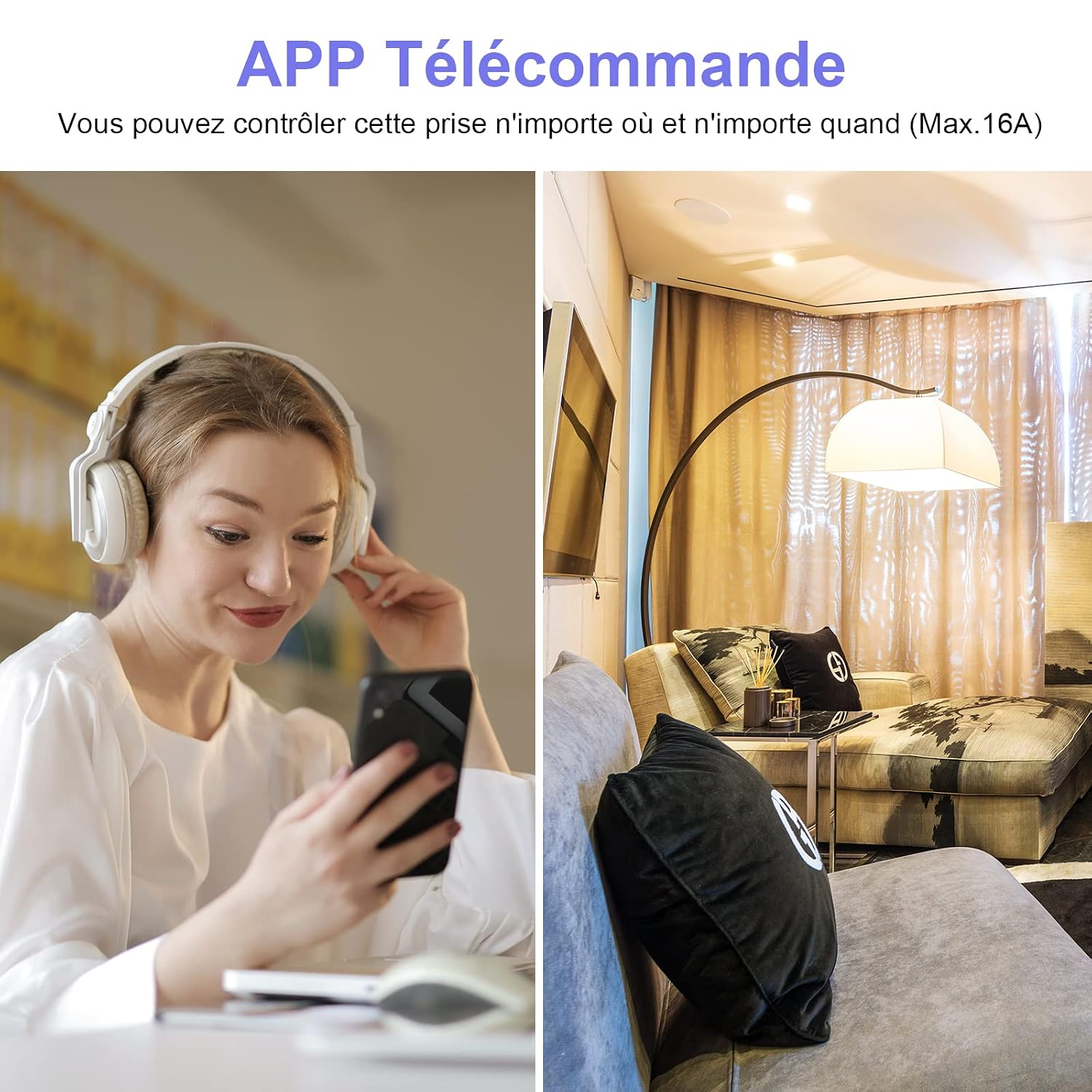
Image: Remote Control via App. Control your devices from anywhere using the dedicated smartphone application.
6.3 Voice Control
The ANTELA Smart Plug is compatible with Amazon Alexa and Google Assistant. To enable voice control:
- Link your Smart Life/TUYA Smart account to Alexa or Google Home app.
- Discover devices in your Alexa/Google Home app.
- Use voice commands such as: "Alexa, turn on the living room light" or "Hey Google, turn off the coffee machine."

Image: Voice Control. Easily manage your devices using voice commands with Alexa or Google Assistant.
6.4 Scheduling and Timer Functions
Set schedules and timers within the app to automate your appliances. This helps save energy by ensuring devices are only on when needed.
- Scheduling: Program specific times for the plug to turn on or off daily or on selected days.
- Timer: Set a countdown timer for the plug to turn off after a specified duration.

Image: Scheduling and Timer. Automate your devices with custom on/off schedules.
7. Energy Monitoring
The ANTELA Smart Plug includes an energy monitoring feature. Through the app, you can track the electricity consumption of connected devices by hour, day, or month. This data helps you identify energy-intensive appliances and manage your electricity usage more efficiently.

Image: Energy Monitoring. View detailed electricity consumption statistics directly in the app.
8. Family Sharing
You can share control of your smart plug with family members through the app. This allows multiple users to manage connected devices from their own smartphones.

Image: Family Sharing. Share device control with your family members for convenience.
9. Maintenance
- Clean the smart plug with a dry, soft cloth. Do not use liquid cleaners.
- Ensure the plug is disconnected from the power outlet before cleaning.
- Regularly check for any signs of damage or wear.
10. Troubleshooting
10.1 Plug not connecting to Wi-Fi
- Ensure your Wi-Fi network is 2.4 GHz. 5G networks are not supported.
- Check if your Wi-Fi password is correct.
- Make sure the smart plug is within range of your Wi-Fi router.
- Restart your router and try pairing again.
- Reset the plug: Long press the power button on the plug until the LED indicator starts flashing rapidly. Then, try the pairing process again.
10.2 Voice control not working
- Verify that your Smart Life/TUYA Smart account is correctly linked to your Alexa or Google Home app.
- Ensure the device name in the Alexa/Google Home app matches the name you are using in your voice commands.
- Check your internet connection.
10.3 LED indicator status
- Blue LED: Plug is off.
- Purple LED: Plug is on.
- Flashing LED: Plug is in pairing mode or has lost connection.
11. Warranty and Support
ANTELA products are designed for reliability and performance. For warranty information or technical support, please refer to the contact details provided with your purchase or visit the official ANTELA website. Please retain your proof of purchase for warranty claims.


