
1. Introduction
Thank you for purchasing the WiMiUS K5 Bluetooth WiFi Video Projector. This manual provides essential information for the safe and efficient operation of your device. Please read it thoroughly before use and retain it for future reference.
The WiMiUS K5 projector features 8500 lumens brightness, Full HD 1080P support, a 15000:1 contrast ratio, and integrated WiFi and Bluetooth 5.0 connectivity. It is designed for home theater use, offering a large screen experience from 50 to 250 inches.
2. Safety Instructions
- Do not look directly into the projector lens when the lamp is on.
- Ensure proper ventilation around the projector to prevent overheating.
- Do not expose the projector to rain or moisture to avoid electric shock or fire.
- Use only the power adapter supplied with the projector.
- Avoid placing the projector on unstable surfaces.
- Do not attempt to disassemble or repair the projector yourself. Contact qualified service personnel.
- Keep the projector away from heat sources and direct sunlight.
- This projector is not recommended for professional business presentations (e.g., PPT, Word, Excel).
3. Package Contents
Please check that all items are present upon unboxing:
- 1x WiMiUS K5 Bluetooth WiFi Video Projector
- 1x K5 Projector Carrying Bag
- 1x Lens Cap
- 1x Remote Control (batteries not included)
- 1x Power Cable
- 1x 3-in-1 AV Cable
- 1x HDMI Cable
- 1x Cleaning Cloth
- 1x User Manual
4. Setup
4.1 Projector Placement
Place the projector on a stable, flat surface or mount it to the ceiling. Ensure there is adequate space for ventilation around the unit. The recommended projection distance is 1.5 to 6 meters for a screen size of 50 to 250 inches.

Image: Projector placement and recommended projection distances for various screen sizes (50-200 inches).
The projector supports front, rear, and ceiling projection modes. You can flip the image in the settings if ceiling mounted.
4.2 Power Connection
Connect the power cable to the projector's power input and then plug it into a power outlet.
4.3 Focus and Keystone Correction
Adjust the focus ring on the projector lens until the image is clear. Use the manual keystone correction (±15°) to adjust the image shape if it appears trapezoidal.
4.4 Connectivity Options
The K5 projector offers multiple connectivity options:
- HDMI: Connect devices like TV sticks, laptops, gaming consoles (PS4/PS5, Xbox), DVD players, and TV boxes.
- USB: Connect USB flash drives for media playback.
- AV: Connect older devices using the included 3-in-1 AV cable.
- 3.5mm Audio Out: Connect external speakers or headphones.
- WiFi: Wireless screen mirroring for smartphones (iOS/Android) and Windows 10 laptops.
- Bluetooth 5.0: Connect Bluetooth speakers, headphones, or AirPods wirelessly.

Image: Overview of the projector's wide compatibility with various devices via multiple interfaces.
5. Operating Instructions
5.1 Power On/Off
Press the power button on the projector or the remote control to turn the unit on or off.
5.2 Menu Navigation
Use the arrow keys and OK button on the remote control or the projector's control panel to navigate through the on-screen menu. Adjust settings such as input source, picture mode, sound, and projection mode.
5.3 Wireless Screen Mirroring (WiFi)
To mirror your smartphone (iOS/Android) or Windows 10 laptop screen wirelessly:
- Select the "Screen Mirroring" or "WiFi Display" option from the projector's main menu.
- Ensure your smartphone or laptop is connected to the same WiFi network as the projector.
- On your device, enable screen mirroring (e.g., "Screen Mirroring" on iOS, "Smart View" on Android, "Connect" on Windows 10).
- Select the projector's name from the list of available devices.
- The device screen should now be mirrored on the projector.

Image: Demonstrates easy and fast wireless WiFi connection for screen mirroring from mobile devices.
Note: Some streaming services (e.g., Netflix, Amazon Prime Video) may restrict screen mirroring due to copyright protection. For these services, it is recommended to use an HDMI-connected device like a TV Stick.
5.4 Bluetooth Audio Connection
To connect external Bluetooth speakers or headphones:
- Enable Bluetooth on the projector from the settings menu.
- Put your Bluetooth audio device into pairing mode.
- Select your device from the list of available Bluetooth devices on the projector's screen.
- Once connected, audio will be routed through the external device.
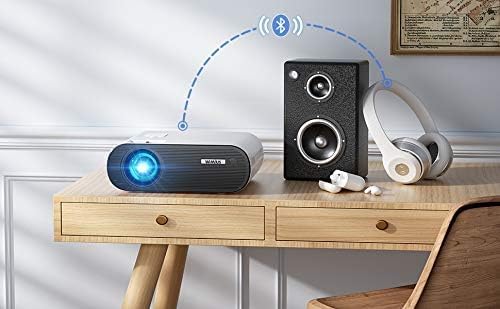
Image: The projector's Bluetooth connectivity feature, allowing connection to external audio devices.
Note: The projector may not support all JBL Bluetooth speakers.
5.5 Zoom Function
The projector features a zoom function that allows you to adjust the image size from 75% to 100% directly via the remote control without moving the projector.
6. Maintenance
6.1 Cleaning the Lens
Use the provided cleaning cloth or a soft, lint-free cloth to gently wipe the projector lens. Avoid using abrasive cleaners or solvents.
6.2 Cleaning the Projector Body
Wipe the projector's exterior with a soft, dry cloth. Do not use liquid cleaners.
6.3 Storage
When not in use, store the projector in a cool, dry place, preferably in its carrying bag, to protect it from dust and damage.
6.4 Lamp Life
The advanced LED light source has a lifespan of up to 90,000 hours, ensuring long-term use without frequent lamp replacement.
7. Troubleshooting
7.1 No Image or Distorted Image
- Check all cable connections (HDMI, AV).
- Adjust the focus ring for clarity.
- Use keystone correction to correct trapezoidal images.
- Ensure the correct input source is selected.
- Verify the projection distance is within the recommended range.
7.2 No Sound or Low Sound
- Adjust the volume on the projector and the connected source device.
- If using an external audio device, ensure it is properly connected via Bluetooth or the 3.5mm audio jack.
- Check if the projector's internal speakers are muted.
- For HDMI connections, ensure the audio output settings on the source device are correct.
7.3 WiFi Screen Mirroring Issues
- Ensure both the projector and your device are connected to the same WiFi network.
- Check for strong WiFi signal strength.
- Restart both the projector and your device.
- Some apps (e.g., Netflix) may block screen mirroring. Use an HDMI connection for these.
7.4 Bluetooth Connection Issues
- Ensure the Bluetooth device is in pairing mode and within range.
- Check if the Bluetooth device is already connected to another device.
- Restart both the projector and the Bluetooth audio device.
- Note that some JBL Bluetooth speakers may not be supported.
7.5 Remote Control Not Working
- Replace the batteries in the remote control.
- Ensure there are no obstructions between the remote and the projector's IR receiver.
8. Specifications
| Feature | Specification |
|---|---|
| Brand | WiMiUS |
| Model | K5 (KWS3320) |
| Brightness | 8500 Lumens |
| Native Resolution | 1920 x 1080 (Full HD) |
| Contrast Ratio | 15000:1 |
| Aspect Ratio | 16:9 |
| Projection Size | 50-250 inches (1.2-6 m distance) |
| Lamp Life | Up to 90,000 hours |
| Keystone Correction | Manual ±15° |
| Zoom Function | 75% to 100% |
| Audio Output Power | 10 Watts (Built-in Dual Speakers) |
| Connectivity | 2x USB, 1x HDMI, 1x AV, 1x 3.5mm Audio Out, WiFi, Bluetooth 5.0 |
| Compatible Devices | Smartphones, Laptops, TV Sticks, Gaming Consoles (PS4/PS5, Xbox), DVD Players, TV Boxes, USB Drives, Bluetooth Speakers/Headphones |
| Package Dimensions | 30.5 x 25.9 x 11.5 cm |
| Weight | 1.87 kg |

Image: Visual comparison highlighting the WiMiUS K5's higher contrast ratio (15000:1) and brightness (10000 Lumens) compared to other projectors.
9. Warranty & Support
9.1 Warranty Information
The WiMiUS K5 Bluetooth WiFi Video Projector comes with a 3-year warranty. This warranty covers manufacturing defects and ensures product reliability.
9.2 Customer Support
If you encounter any issues or have questions regarding your WiMiUS K5 projector, please contact our customer service team. Refer to the contact information provided in the original packaging or on the WiMiUS official website for prompt assistance.


