

1. Introduction
Thank you for choosing the Jadfezy 4K 30fps Sports Camera J-5000. This camera is designed to capture high-quality videos and photos of your adventures. It features 4K/30fps video recording, 20MP photo resolution, a 170° wide-angle lens, Wi-Fi connectivity, and a waterproof housing for underwater use up to 30 meters (98 feet). Please read this manual carefully to ensure proper operation and to maximize your camera's performance.

Image: The Jadfezy 4K 30fps Action Camera capturing a surfing moment.
2. What's in the Box
Verify that all items listed below are included in your package:
- 1 x Jadfezy 4K Action Camera
- 2 x Rechargeable Batteries (1350 mAh each)
- 1 x Remote Control
- 1 x USB Cable
- 1 x Instruction Manual (this document)
- 1 x Waterproof Case
- Various Mounting Accessories (e.g., helmet mounts, bicycle mount, straps)
- 1 x Dual Battery Charging Base
- 1 x External Microphone

Image: A complete view of the Jadfezy 4K Sports Camera and its included accessories.
3. Product Overview
3.1 Camera Components
Familiarize yourself with the main parts of your camera:
- Lens: 170° wide-angle lens for expansive shots.
- 2-inch HD Screen: For live view, playback, and menu navigation.
- Power/Mode Button: Turns the camera on/off and switches between modes.
- Shutter/OK Button: Starts/stops recording, takes photos, confirms selections.
- Up/Down Buttons: Navigates menu options.
- Microphone: Built-in for audio recording.
- Speaker: For audio playback.
- MicroSD Card Slot: For storage (supports up to 64GB, Class 10 or higher recommended).
- USB Port: For charging and data transfer.
- External Microphone Port: For connecting the included external microphone.
4. Setup
4.1 Battery Installation and Charging
- Open the battery compartment cover on the bottom of the camera.
- Insert a fully charged 1350 mAh battery, ensuring the contacts align correctly.
- Close the battery compartment cover securely.
- To charge, place the batteries in the dual charging base and connect the USB cable to a power source. The indicator light will show charging status.

Image: The dual battery charging base with two batteries inserted for charging.
4.2 MicroSD Card Installation
- Locate the microSD card slot on the side of the camera.
- Insert a Class 10 or higher microSD card (up to 64GB) with the gold contacts facing the back of the camera until it clicks into place.
- To remove, gently push the card until it springs out.
4.3 Waterproof Case Usage
The waterproof case allows the camera to be used underwater up to 30 meters (98 feet).
- Ensure the camera is dry and clean before placing it in the case.
- Open the latch on the waterproof case and carefully insert the camera.
- Close the latch firmly to create a watertight seal.
- Before first use, test the waterproof case without the camera by submerging it in water for a few minutes to check for leaks.

Image: The Jadfezy 4K Sports Camera enclosed in its waterproof housing, submerged in water.
4.4 Mounting Accessories
Various mounts are included to attach your camera to helmets, bicycles, wrists, and other surfaces. Refer to the accessory diagram for specific attachment methods. Ensure all mounts are securely fastened before use.
5. Operating the Camera
5.1 Power On/Off
- To Power On: Press and hold the Power/Mode button for a few seconds.
- To Power Off: Press and hold the Power/Mode button again until the screen turns off.
5.2 Basic Controls and Mode Switching
- Power/Mode Button: Short press to cycle through Video, Photo, Playback, and Settings modes.
- Shutter/OK Button: In Video mode, press to start/stop recording. In Photo mode, press to take a picture. In menu, press to confirm selection.
- Up/Down Buttons: Used for navigating menu options and zooming (if applicable).
5.3 Video Recording
- Ensure the camera is in Video mode (indicated by an icon on the screen).
- Press the Shutter/OK button to start recording. A red indicator light will flash, and a timer will appear on the screen.
- Press the Shutter/OK button again to stop recording.
5.4 Photo Capture
- Switch to Photo mode using the Power/Mode button.
- Frame your shot using the screen.
- Press the Shutter/OK button to take a photo.
5.5 Menu Navigation and Settings
From any mode, press the Power/Mode button repeatedly until you reach the Settings menu. Use the Up/Down buttons to navigate and the Shutter/OK button to select. Common settings include:
- Video Resolution (e.g., 4K/30fps, 1080P/60fps)
- Photo Resolution (e.g., 20MP)
- Loop Recording
- Time-Lapse
- Exposure
- White Balance
- Date/Time
5.6 Wi-Fi Connection (X-Sport Pro App)
Connect your camera to your smartphone via Wi-Fi using the 'X-Sport Pro' app.
- Download and install the 'X-Sport Pro' app from your mobile app store.
- On the camera, enable Wi-Fi (usually found in the settings menu or by a dedicated Wi-Fi button/shortcut). The camera screen will display the Wi-Fi name (SSID) and password.
- On your smartphone, go to Wi-Fi settings and connect to the camera's Wi-Fi network using the provided password.
- Open the 'X-Sport Pro' app. You should now be able to control the camera, view live footage, and download files.
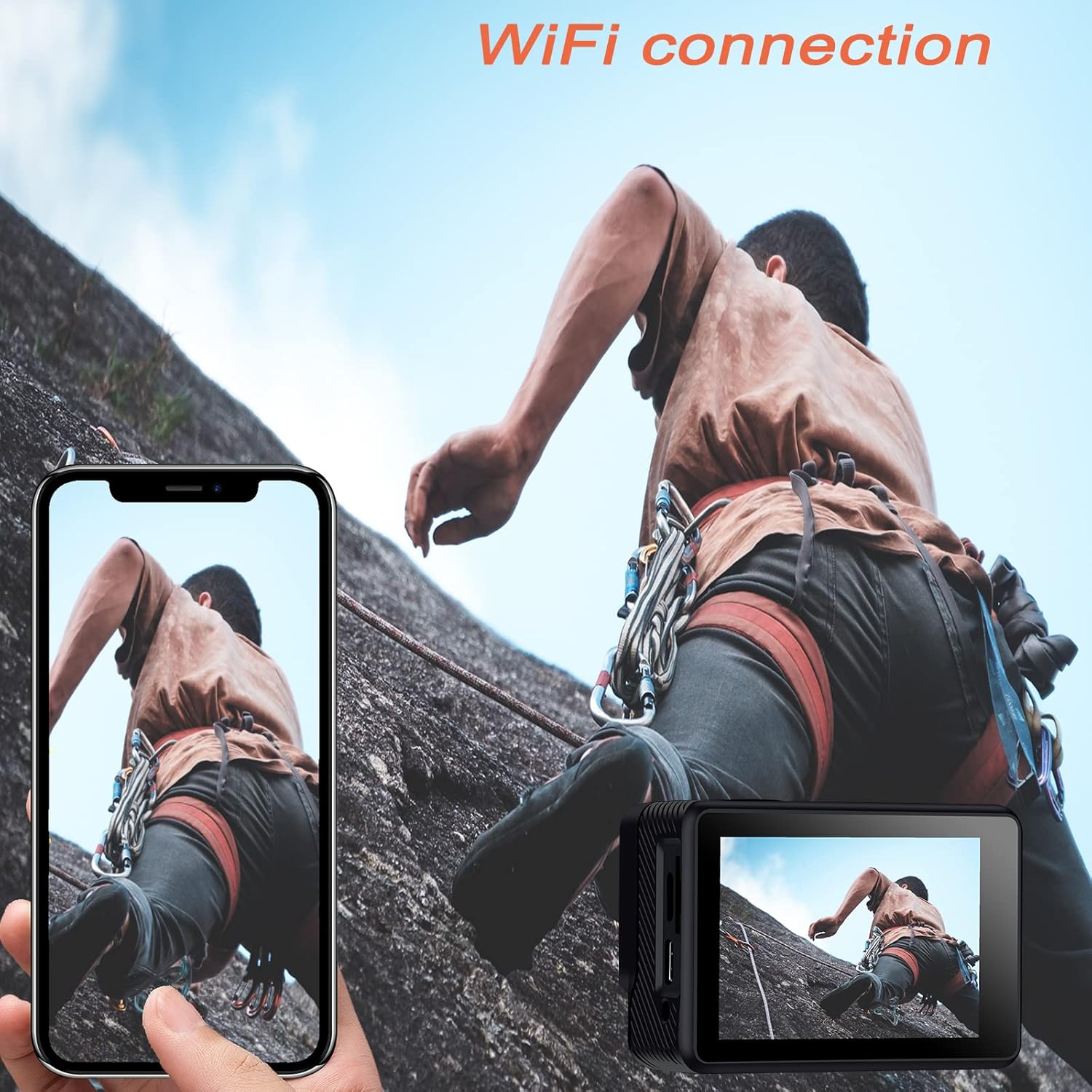
Image: The Jadfezy 4K Sports Camera displaying its screen, with a smartphone showing a live view via Wi-Fi connection.
5.7 Remote Control Usage
The 2.4G wireless remote control allows for convenient operation from a distance.
- Video Button: Press to start/stop video recording.
- Photo Button: Press to take a photo.

Image: A person wearing the remote control on their wrist, operating the Jadfezy 4K Sports Camera from a distance.
5.8 Wide-Angle Lens
The 170° wide-angle lens captures a broader field of view, ideal for landscapes and action shots. This setting is fixed and provides a comprehensive perspective.

Image: A visual comparison demonstrating the expansive view captured by the 170° wide-angle lens compared to a narrower 140° view.
5.9 External Microphone
For enhanced audio quality, connect the included external microphone to the camera's external microphone port. This is particularly useful in noisy environments or when clearer voice recording is desired.

Image: The Jadfezy 4K Sports Camera with the external microphone plugged into its port.
5.10 Special Recording Modes
The camera offers several specialized modes:
- Time-Lapse Video: Captures a series of photos at set intervals and stitches them into a video.
- Slow Motion: Records video at a higher frame rate for slow-motion playback.
- Loop Video: Records video continuously, overwriting the oldest footage when the memory card is full.
- Self-Timer: Delays photo capture for group shots or self-portraits.

Image: The Jadfezy 4K Sports Camera capturing a skateboarder performing a trick, demonstrating its use in action sports.
6. Maintenance
6.1 Cleaning
- Use a soft, lint-free cloth to clean the camera body and screen.
- For the lens, use a specialized lens cleaning cloth and solution. Avoid touching the lens with your fingers.
- After using the waterproof case, rinse it with fresh water and allow it to air dry. Ensure no debris is caught in the seal.
6.2 Storage
- Store the camera in a cool, dry place away from direct sunlight and extreme temperatures.
- Remove batteries if the camera will not be used for an extended period.
6.3 Battery Care
- Fully charge batteries before each use.
- Avoid completely draining the batteries to prolong their lifespan.
- Dispose of old batteries according to local regulations.
7. Troubleshooting
| Problem | Possible Cause | Solution |
|---|---|---|
| Camera does not power on | Low battery; Battery incorrectly installed; Faulty battery | Charge battery; Reinstall battery; Try a different battery |
| Cannot record video/take photos | No microSD card; MicroSD card full; MicroSD card error | Insert microSD card; Delete files or use new card; Format microSD card (backup data first) |
| Wi-Fi connection fails | Incorrect password; Camera Wi-Fi not enabled; App issue | Re-enter password; Enable Wi-Fi on camera; Restart app/phone/camera |
| Remote control not working | Remote battery low; Not paired; Out of range | Replace remote battery; Re-pair remote (refer to camera settings); Operate within range |
| Poor audio quality | Built-in mic obstructed; No external mic connected; Environmental noise | Ensure mic is clear; Connect external mic; Reduce ambient noise |
8. Specifications
| Feature | Detail |
|---|---|
| Model Number | J-5000 |
| Video Resolution | 4K/30fps |
| Photo Resolution | 20 MP |
| Lens | 170° Wide-Angle |
| Screen Size | 2 Inches HD |
| Waterproof Depth | Up to 30m (98ft) with waterproof case |
| Battery Capacity | 2 x 1350 mAh rechargeable batteries |
| Storage | MicroSD card (up to 64GB, Class 10+) |
| Connectivity | Wi-Fi (X-Sport Pro App), USB |
| Special Features | Remote Control, Anti-vibration, Time-lapse, Slow Motion, Loop Video, Self-timer |
| Dimensions | 6 x 3 x 3.9 cm |
| Weight | 420 g |
9. Warranty and Support
For warranty information and technical support, please refer to the contact details provided on the product packaging or the official Jadfezy website. Keep your purchase receipt as proof of purchase for any warranty claims.