
Sharp 32FG6EA
Sharp 32FG6EA 32-inch HD Android TV User Manual
Model: 32FG6EA
1. Introduction
This manual provides essential information for the proper setup, operation, and maintenance of your Sharp 32FG6EA 32-inch HD Android TV. The Sharp 32FG6EA offers a wide range of connection options and features the Android TV operating system, providing a modern and intuitive television experience. It functions as an all-in-one entertainment hub, integrating Google Assistant for a smarter viewing experience. Users can quickly access entertainment, control smart devices, and obtain on-screen information using voice commands.
2. Safety Information
Please read all safety instructions carefully before using the television. Keep this manual for future reference.
- Power Supply: Ensure the TV is connected to a power source with the correct voltage. Do not overload power outlets.
- Ventilation: Do not block ventilation openings. Allow adequate space around the TV for proper airflow to prevent overheating.
- Water and Moisture: Do not expose the TV to rain, moisture, or excessive humidity. Avoid placing objects filled with liquids on or near the TV.
- Cleaning: Unplug the TV before cleaning. Use a soft, dry cloth. Do not use liquid cleaners or aerosol sprays.
- Placement: Place the TV on a stable, level surface. If wall-mounting, ensure the mount is securely installed and can support the TV's weight.
- Servicing: Do not attempt to service the TV yourself. Refer all servicing to qualified service personnel.
3. Package Contents
Verify that all items are present in the packaging:
- Sharp 32FG6EA 32-inch HD Android TV
- Remote Control (with 2 AAA batteries)
- Stand Type Base
- Instruction Manual
- Power Cable
4. Setup
4.1 Unpacking
Carefully remove the TV and all accessories from the packaging. Retain the packaging materials for future transport or servicing.
4.2 Attaching the Stand
If you are not wall-mounting the TV, attach the included stand base:
- Place the TV screen-down on a soft, flat surface to prevent damage.
- Align the stand base with the mounting holes on the bottom of the TV.
- Secure the stand using the provided screws. Ensure the stand is firmly attached.
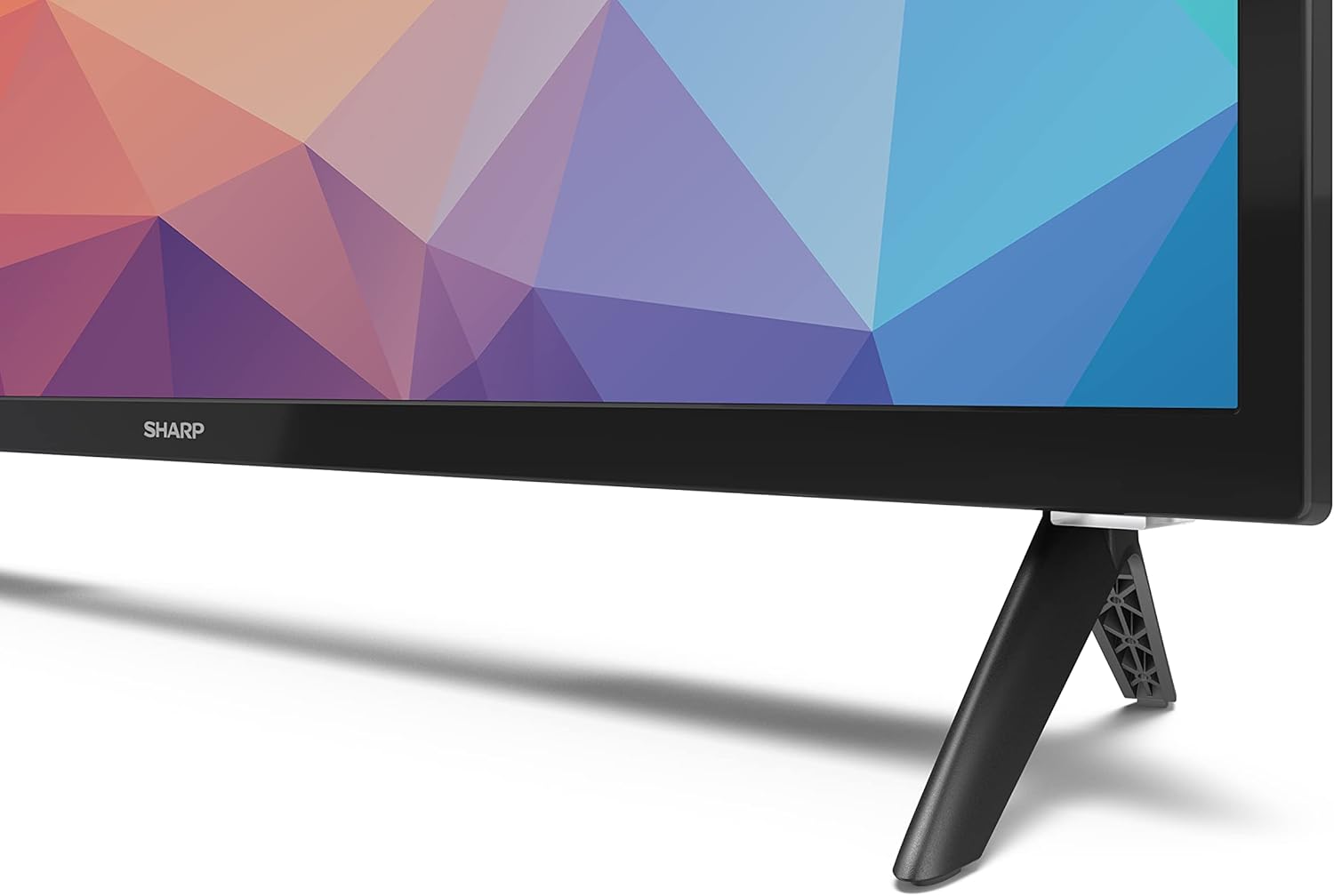
Image: Close-up of the TV stand attachment.
4.3 Wall Mounting
The Sharp 32FG6EA supports VESA wall mounts with dimensions of 75 x 75 mm. Wall mount hardware is not included. Follow the instructions provided with your wall mount kit.
4.4 Connecting External Devices
Your TV features multiple ports for connecting various devices:
- HDMI: Connect Blu-ray players, game consoles, or set-top boxes to the 2 HDMI ports.
- USB: Connect USB storage devices for media playback to the 2 USB ports.
- Antenna/Cable: Connect an antenna or cable TV source for broadcast channels.
- Ethernet: For a wired internet connection.
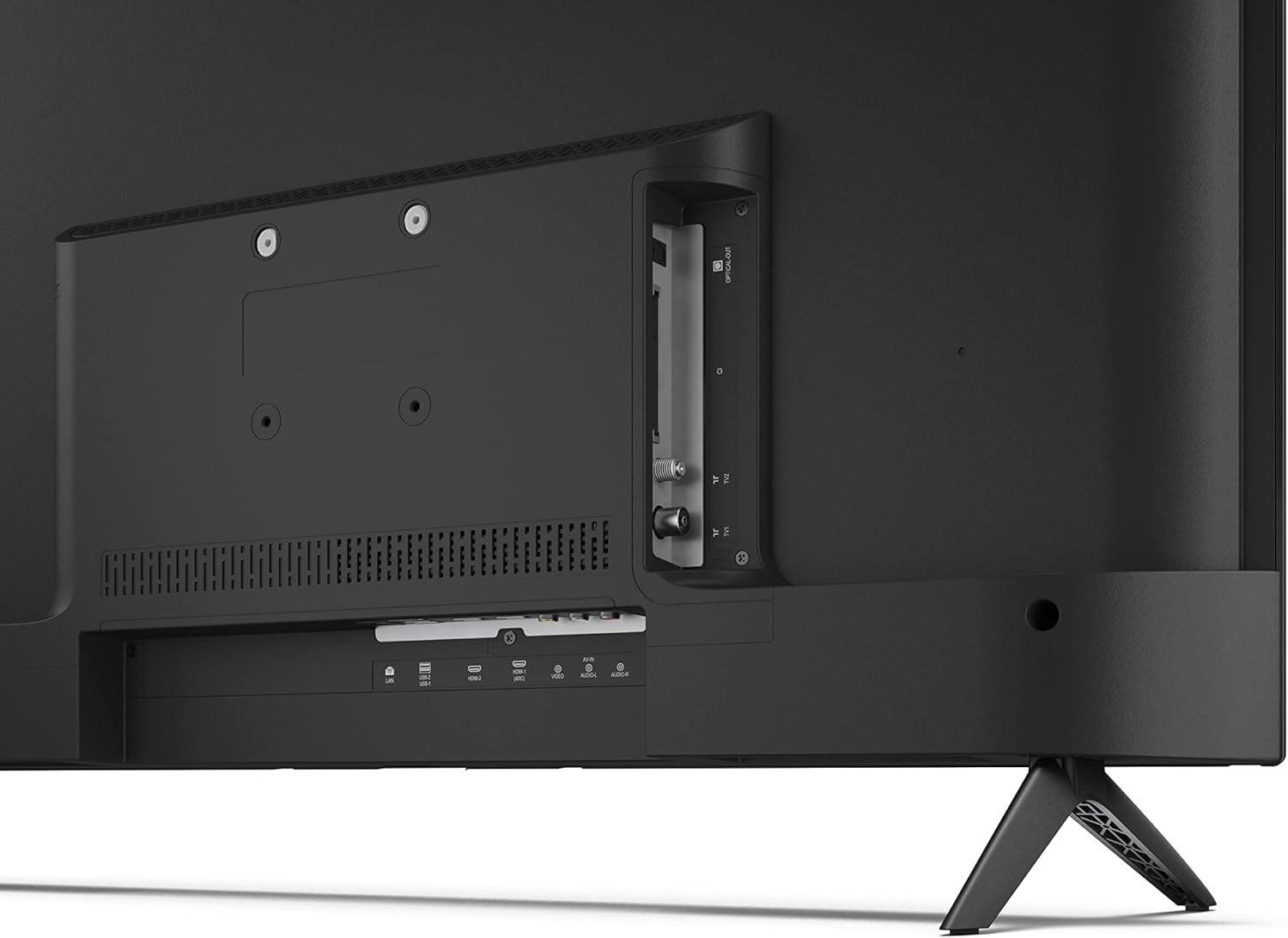
Image: Rear view of the TV with connection ports.
4.5 Power Connection
After connecting all necessary devices, plug the power cable into the TV and then into a wall outlet.
4.6 Initial Setup Wizard
Upon first power-on, the TV will guide you through an initial setup process. This includes:
- Language selection.
- Network connection (Wi-Fi or Ethernet).
- Google account sign-in (required for full Android TV features).
- Channel scanning.
5. Operating
5.1 Remote Control Overview
The included remote control allows you to navigate the TV's features. Insert the 2 AAA batteries into the remote control before use.
- Power Button: Turns the TV on or off.
- Directional Pad (D-Pad) & OK Button: Navigate menus and confirm selections.
- Back Button: Returns to the previous screen.
- Home Button: Accesses the Android TV home screen.
- Volume Up/Down: Adjusts the audio volume.
- Channel Up/Down: Changes TV channels.
- Google Assistant Button: Activates voice control.
- App Shortcut Buttons: Dedicated buttons for popular streaming services like Netflix, Prime Video, and YouTube.
5.2 Android TV Interface Navigation
The Android TV home screen provides access to your installed apps, recommended content, and settings. Use the directional pad on your remote to navigate through the interface.
5.3 Google Assistant
Press the Google Assistant button on your remote and speak into the microphone to:
- Search for movies, shows, or information.
- Control smart home devices.
- Open applications.
- Adjust TV settings.
5.4 Chromecast Built-in
The TV includes Chromecast built-in, allowing you to cast content from compatible apps on your smartphone, tablet, or computer directly to the TV screen.
5.5 Bluetooth Connectivity
Connect Bluetooth devices such as headphones or speakers to your TV for a personalized audio experience. Navigate to the TV's settings menu to pair new Bluetooth devices.
5.6 Audio Settings
The TV supports Dolby Audio with 2 x 6 W RMS speakers. You can adjust audio settings, including sound modes and equalizer, through the TV's settings menu.
6. Maintenance
6.1 Cleaning the TV
To clean the TV screen and cabinet:
- Unplug the power cord from the wall outlet.
- Use a soft, lint-free cloth to gently wipe the screen and surfaces.
- For stubborn marks, slightly dampen the cloth with water or a specialized screen cleaner (apply to cloth, not directly to screen).
- Do not use abrasive cleaners, waxes, or solvents.
6.2 Software Updates
Your Android TV may receive periodic software updates to improve performance and add new features. Ensure your TV is connected to the internet to receive these updates. You can check for updates manually in the TV's settings menu.
7. Troubleshooting
If you encounter issues with your TV, refer to the following common problems and solutions:
- No Power: Ensure the power cable is securely plugged into both the TV and a working wall outlet. Try a different outlet.
- No Picture/Sound: Check that the correct input source is selected. Verify all cables (HDMI, antenna) are properly connected.
- Remote Control Not Working: Check the batteries and ensure they are inserted correctly. Point the remote directly at the TV's IR sensor.
- Poor Picture Quality: Check antenna/cable connections. Adjust picture settings in the TV menu. For streaming content, ensure a stable internet connection.
- No Internet Connection: Verify Wi-Fi password or Ethernet cable connection. Restart your router and the TV.
- Apps Not Working: Ensure the TV's software is up to date. Try clearing the app's cache or reinstalling the app.
If problems persist, consult the Sharp support website or contact customer service.
8. Specifications
| Feature | Specification |
|---|---|
| Model Number | 32FG6EA |
| Brand | Sharp |
| Screen Size | 32 Inches (81 cm diagonal) |
| Display Technology | LED |
| Resolution | 720p (1366 x 768 pixels) |
| Aspect Ratio | 16:9 |
| Refresh Rate | 50 Hz |
| Operating System | Android TV 11 |
| Special Features | Android TV, Google Assistant, Chromecast built-in |
| Audio Output | 2 x 6 W RMS, Dolby Audio |
| HDMI Ports | 2 |
| USB Ports | 2 |
| Connectivity | Wi-Fi, Bluetooth, Ethernet |
| VESA Wall Mount | 75 x 75 mm |
| Dimensions with Stand (W x H x D) | 731 x 486 x 177 mm |
| Dimensions without Stand (W x H x D) | 731 x 433 x 68 mm |
| Product Dimensions (D x W x H) | 16 x 73 x 46.4 cm (approximate, with stand) |
| Weight | 3.9 kg |
| Energy Efficiency Class | E |

Image: TV dimensions diagram.

Image: Energy Label. For more details, visit EPREL Database.
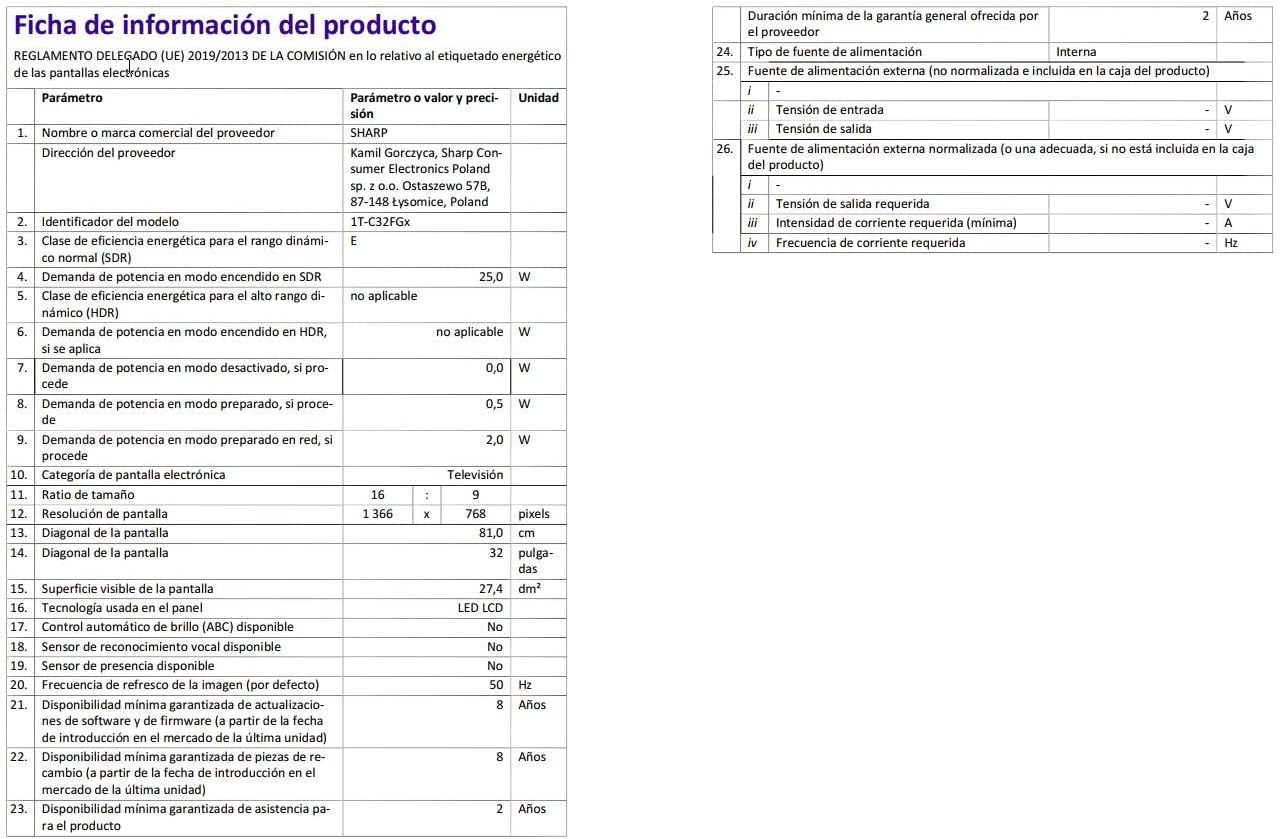
Image: Detailed product information sheet.
9. Warranty and Support
The Sharp 32FG6EA television comes with a minimum general warranty duration of 2 years from the provider.
For technical support, warranty claims, or further assistance, please refer to the contact information provided with your purchase documentation or visit the official Sharp support website for your region.
Related documents32FG6EA


Ask a question about this manual
Ask about setup, troubleshooting, compatibility, parts, safety, or missing instructions. Manuals+ will review the question and use this page’s manual context to help answer it.