
1. Introduction
The Cisco Bang & Olufsen Cisco 980 is a premium over-ear wireless headset designed for business communication, hybrid work, and entertainment. It integrates Cisco's communication expertise with Bang & Olufsen's audio quality and design. This manual provides instructions for setting up, operating, maintaining, and troubleshooting your headset.

Image 1.1: The Cisco Bang & Olufsen Cisco 980 headset in First Light color.
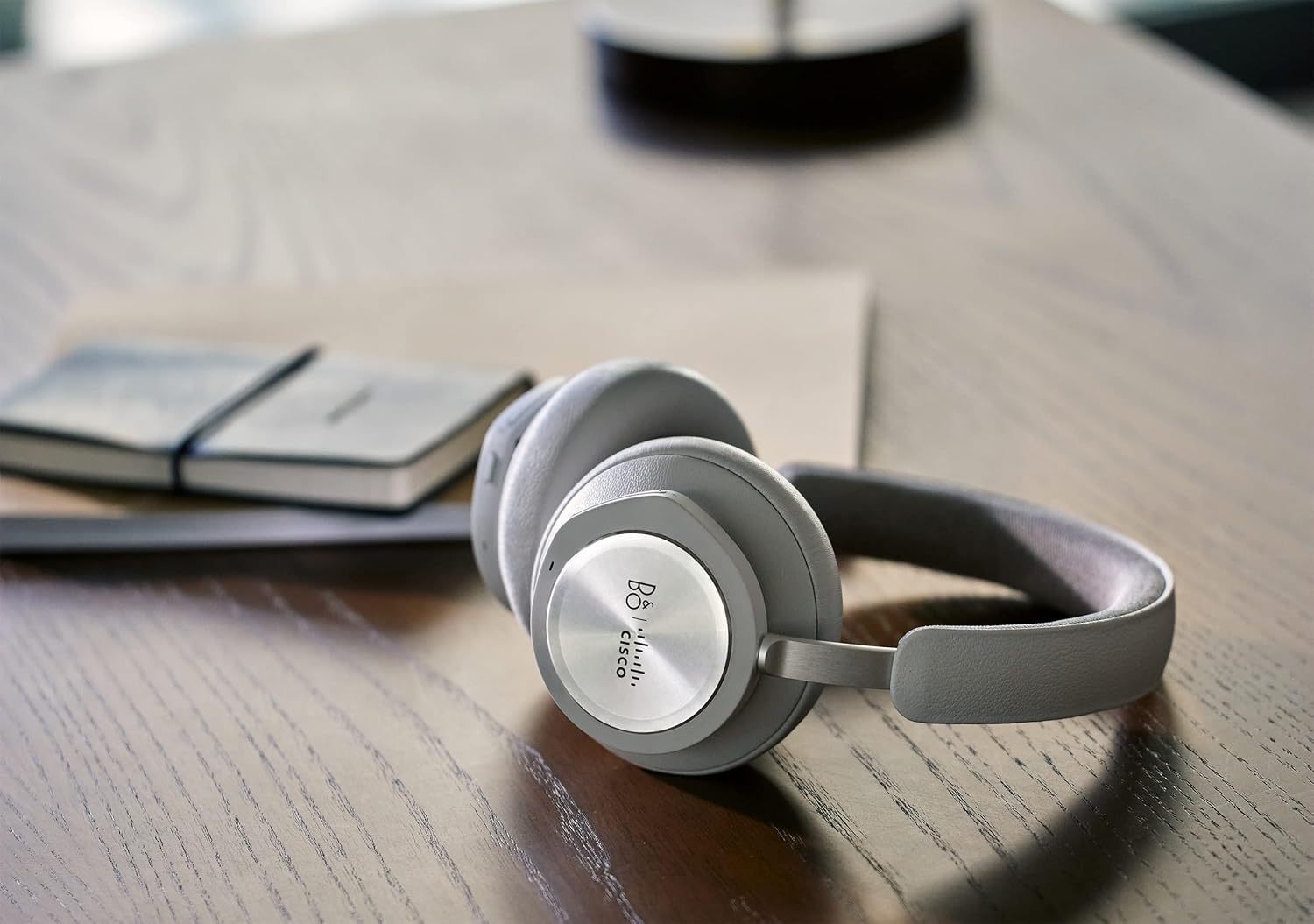
Image 1.2: The Cisco Bang & Olufsen Cisco 980 headset positioned on a wooden desk, showcasing its design.
2. What's in the Box
Verify that all components are present in your product packaging:
- Cisco Bang & Olufsen Cisco 980 Headset
- Headband
- Ear Cushions (pre-installed or spare)
- USB-A HD Adapter
- USB-A to USB-C Cable
- 3.5mm Audio Cable
- Protective Case
3. Setup
3.1. Charging the Headset
Before first use, fully charge your headset. The headset is powered by a Lithium Ion battery. Connect the USB-A to USB-C cable to the headset's charging port and to a compatible USB power source. The charging time is approximately 4.4 Watt Hours.
3.2. Connectivity Options
The Cisco 980 headset offers versatile connectivity:
- Bluetooth 5.1: For wireless pairing with Bluetooth-capable devices such as cellphones, laptops, and tablets.
- USB-A HD Adapter: Included for enhanced wireless connectivity, especially with desktops and Cisco devices.
- USB-A to USB-C Cable: For wired connection and charging.
- 3.5mm Audio Cable: For wired audio connection to devices with a 3.5mm jack.
The headset supports simultaneous connection to up to 3 devices (two wireless and one wired).
3.3. Mobile App Configuration
Download the Bang & Olufsen mobile app to easily configure and customize your headset settings, troubleshoot issues, and access Cisco support.

Image 3.1: The Bang & Olufsen mobile app interface for customizing sound settings.
3.4. Cisco Application Integration
The headset is optimized for Webex and other Cisco applications and devices, providing an intuitive user experience and intelligent IT headset management within the Cisco ecosystem.
4. Operating Instructions
4.1. Power On/Off
Refer to the headset's physical controls for power on/off functionality. Typically, this involves pressing and holding a designated button.
4.2. On-Ear Controls
The headset features on-ear controls for quick access to various functions:
- Call Control: Answer, end, or reject calls.
- Media Playback: Play, pause, skip tracks.
- Volume Adjustment: Increase or decrease audio volume.
- Active Noise Cancellation (ANC) Control: Toggle ANC modes.
4.3. Active Noise Cancellation (ANC)
The Adaptive Active Noise Cancellation feature allows you to block out surrounding noise or adjust to hear more of your environment as needed. This helps maintain focus in various work settings.

Image 4.1: A user demonstrating the headset's ability to provide focus in a busy outdoor environment with ANC.
4.4. Audio Quality and Microphones
The headset features 40mm electro-dynamic Neodymium speakers and leverages advanced audio codecs like aptX™ Adaptive and AAC for Bang & Olufsen's Signature Sound. Six integrated beamforming microphones ensure clear voice pickup, with a specialized sound mode for meetings. You can also design your own sound mode using Bang & Olufsen Beosonic via the mobile app.

Image 4.2: A close-up view of the headset on a user, emphasizing the immersive audio experience.
5. Maintenance
5.1. Cleaning and Care
The headset is constructed with premium materials such as pearl-blasted aluminum, natural leather, and memory foam. To maintain its appearance and functionality:
- Wipe surfaces gently with a soft, dry cloth.
- Avoid using harsh chemicals or abrasive materials.
- Keep the headset dry; it has a water resistance level but is not fully waterproof.
5.2. Storage
When not in use, store the headset in its protective case to prevent damage and keep it clean.
5.3. Ear Cushions
Spare ear cushions are available for replacement to ensure continued comfort and hygiene.

Image 5.1: The headset's earcups, emphasizing the memory foam for highest comfort.

Image 5.2: The headset in black, illustrating its minimalist design and use of treated leather, stainless steel, and anodized aluminum.
6. Troubleshooting
If you encounter issues with your Cisco 980 headset, consider the following:
- No Power: Ensure the headset is fully charged.
- No Audio/Poor Audio Quality: Check Bluetooth connection, ensure correct audio output device is selected on your computer/phone. For wired connections, ensure cables are securely plugged in.
- Microphone Issues: Verify microphone is not muted. Check privacy settings on your device.
- Connectivity Problems: Try re-pairing Bluetooth devices. Ensure the USB-A HD Adapter is correctly installed and recognized.
- App Issues: Ensure the Bang & Olufsen mobile app is updated to the latest version.
For more detailed troubleshooting, refer to the Bang & Olufsen mobile app or contact Cisco support.
7. Specifications
| Feature | Specification |
|---|---|
| Model Name | Bang & Olufsen Cisco 980 |
| Item Model Number | Cisco HS-WL-980-BUNA-L |
| Connectivity Technology | Wireless (Bluetooth 5.1), Wired (USB-A, 3.5mm Jack) |
| Noise Control | Adaptive Active Noise Cancellation |
| Sensitivity | 95 dB |
| Impedance | 24 Ohm |
| Item Weight | 9.9 ounces (0.62 Pounds) |
| Product Dimensions | 21.27 x 10.05 x 13.39 inches |
| Power Source | Battery-Powered (1 Lithium Ion battery included) |
| Charging Time | 4.4 Watt Hours |
| Material | Aluminum, Leather, Plastic |
| Water Resistance Level | Water Resistant |
| Special Features | Fast Charging, Microphone Included, Sweatproof |
| UPC | 889728468060 |
8. Warranty Information
The Cisco Bang & Olufsen Cisco 980 headset comes with a 1-year limited liability warranty. This warranty covers manufacturing defects and ensures peace of mind regarding your product's quality and performance.
9. Support
For further assistance, technical support, or warranty claims, please utilize the following resources:
- Bang & Olufsen Mobile App: Access troubleshooting guides and support contacts directly through the app.
- Webex Support: For issues related to Webex integration and general support.
- Cisco's TAC Team: For advanced technical assistance.


