
1. Introduction
Thank you for choosing the JCL 43-inch Ultra HD 4K Smart TV. This manual provides essential information for the safe and efficient use of your television. Please read it thoroughly before operating the device and retain it for future reference.
2. Safety Information
Always follow basic safety precautions when using this television to reduce the risk of fire, electric shock, and injury.
- Power Source: Ensure the TV is connected to an AC 100-240V, 50/60Hz power supply.
- Ventilation: Do not block ventilation openings. Allow adequate space around the TV for proper airflow.
- Water and Moisture: Do not expose the TV to rain or moisture. Do not place objects filled with liquids, such as vases, on the TV.
- Cleaning: Unplug the TV before cleaning. Use a soft, dry cloth. Do not use liquid cleaners or aerosol cleaners.
- Placement: Place the TV on a stable, level surface. Avoid placing it in direct sunlight or near heat sources.
- Children: Supervise children to prevent them from climbing on or playing with the TV.
3. Package Contents
Verify that all items are present in the package:
- JCL 43-inch Ultra HD 4K Smart TV
- Remote Control (with batteries)
- Power Cord
- TV Stand (2 pieces) and Screws
- User Manual (this document)
4. Setup
4.1 Attaching the Stand
If you are not wall-mounting the TV, attach the included stands:
- Carefully place the TV face-down on a soft, clean surface to prevent screen damage.
- Align each stand with the corresponding slots on the bottom of the TV.
- Secure each stand with the provided screws. Ensure they are tightened firmly.
4.2 Wall Mounting
The TV supports VESA standard wall mounts (200 x 200 mm). Wall mount brackets are not included. Please refer to the wall mount manufacturer's instructions for installation. Ensure the wall can support the weight of the TV.
4.3 Connecting Peripherals
Connect your external devices to the TV using the appropriate ports. Refer to the images below for port locations.

Figure 1: Rear view of the JCL 43-inch 4K Smart TV, illustrating the back panel layout and VESA mounting points.

Figure 2: Close-up view of the right-side connectivity ports, featuring Coaxial Out, Earphone Out, DVB-C/T2 antenna input, RJ45 Ethernet port, and one HDMI input.

Figure 3: Close-up view of the left-side connectivity ports, showing two USB ports, a CI Card Slot, and two additional HDMI inputs.
- HDMI: Connect Blu-ray players, game consoles, or other HDMI-enabled devices to the HDMI ports (3 available).
- USB: Insert USB drives for media playback or software updates (2 available).
- Antenna RF (DVB-T2): Connect your terrestrial antenna cable for digital TV channels.
- Audio Headphone Out: Connect headphones for private listening.
- Coaxial Audio Out: Connect to an external audio receiver for digital audio output.
- CI Card Slot: Insert a Common Interface (CI) module with a smart card for encrypted digital TV services.
- RJ45 (LAN): Connect an Ethernet cable for a wired internet connection.
4.4 Initial Power On and Setup Wizard
- Connect the power cord to the TV and then to a power outlet.
- Press the power button on the TV or the remote control to turn it on.
- The initial setup wizard will guide you through language selection, network connection (Wi-Fi or Ethernet), channel scanning, and Google account setup for Android TV features.
5. Operating
5.1 Remote Control Overview
The remote control allows you to navigate the TV's functions. Familiarize yourself with the buttons for power, volume, channel, input selection, and smart TV navigation.
5.2 Basic Functions
- Power: Press to turn the TV on or off (standby mode).
- Volume: Use the Volume Up/Down buttons to adjust the sound level.
- Channel: Use the Channel Up/Down buttons to change TV channels.
- Input Source: Press the 'Input' or 'Source' button to select between HDMI, TV, USB, etc.
5.3 Smart TV Features (Android TV 9.0)
Your JCL TV runs on Android TV 9.0, providing access to a wide range of applications and services. The home screen displays recommended content and installed apps.
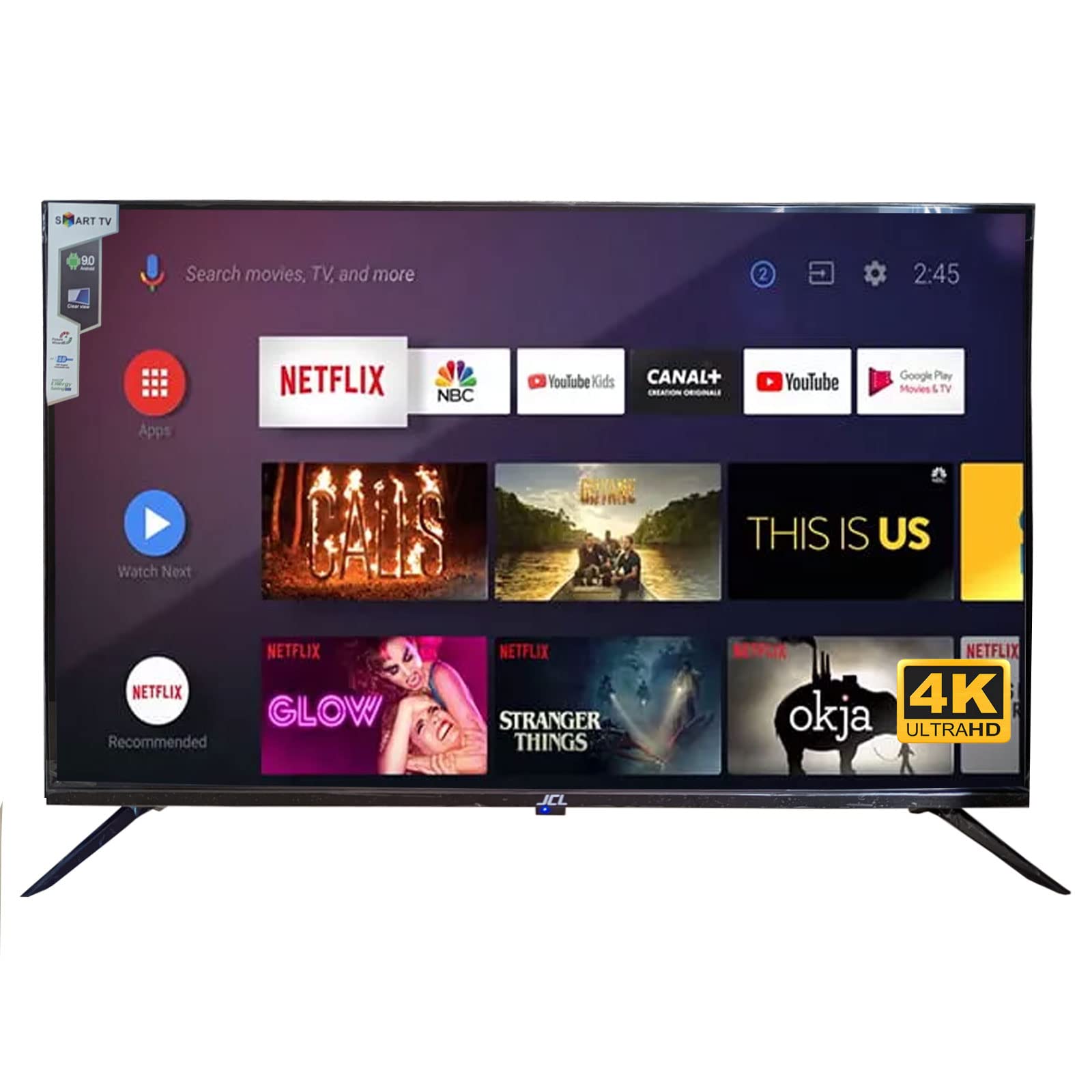
Figure 4: Front view of the JCL 43-inch 4K Smart TV, showing the Android TV home screen with various streaming applications.
- Pre-installed Apps: Access Netflix, YouTube, Prime Video, and DAZN directly from the home screen.
- Google Play Store: Download additional apps, games, and content from the Google Play Store.
- Google Assistant: Use voice commands via the remote control (if equipped) to search for content, control smart home devices, and more.
5.4 Network Connection
- Wi-Fi: Connect to your home wireless network during the initial setup or via the 'Settings' menu.
- Ethernet (RJ45): For a stable wired connection, plug an Ethernet cable from your router into the RJ45 port on the TV.
6. Maintenance
6.1 Cleaning the Screen
Gently wipe the screen with a soft, lint-free cloth. For stubborn marks, slightly dampen the cloth with water or a specialized screen cleaner (ensure it's safe for LCD/LED screens) and wipe gently. Do not spray liquid directly onto the screen.
6.2 General Care
- Keep the TV free from dust by regularly wiping the cabinet with a soft, dry cloth.
- Avoid placing heavy objects on top of the TV.
- Unplug the TV from the power outlet during lightning storms or when it will be left unattended for long periods.
7. Troubleshooting
If you encounter issues with your TV, refer to the following common problems and solutions:
| Problem | Possible Solution |
|---|---|
| No power | Check if the power cord is securely connected. Ensure the power outlet is working. Try pressing the power button on the TV itself. |
| No picture, but sound is present | Check the input source. Ensure external devices are powered on and connected correctly. Try restarting the TV. |
| No sound, but picture is present | Check the volume level. Ensure 'Mute' is not activated. Check audio cables for external devices. |
| Cannot connect to Wi-Fi | Ensure your router is on and working. Re-enter the Wi-Fi password. Try restarting both the TV and the router. |
| Remote control not working | Check and replace batteries. Ensure there are no obstructions between the remote and the TV's IR sensor. |
If the problem persists after trying these solutions, please contact customer support.
8. Specifications
| Feature | Detail |
|---|---|
| Model Number | JCL43UHDS |
| Screen Size | 43 inches |
| Display Resolution | 3840 x 2160 (4K Ultra HD) |
| Aspect Ratio | 16:9 |
| Operating System | Android TV 9.0 |
| Tuner | DVB-T / DVB-T2 (HEVC Main 10) |
| Power Requirements | AC 100-240V / 50-60Hz |
| Power Consumption | 80 W |
| Energy Class | F |
| HDMI Ports | 3 |
| USB Ports | 2 |
| Other Connectivity | RF Antenna (DVB-T2), Audio Headphone Out, Coaxial Audio Out, CI Card Slot, RJ45 (LAN), Wi-Fi |
| VESA Compatibility | 200 x 200 mm |
| Operating Temperature | 0 °C - 45 °C |
| Operating Humidity | 20% - 80% non-condensing |
| Dimensions with Stand (H x L x D) | 61 cm x 96 cm x 20 cm |
| Dimensions without Stand (H x L x D) | 57 cm x 96 cm x 7.5 cm |
9. Warranty and Support
For warranty information and customer support, please refer to the warranty card included with your product or visit the official JCL website. Keep your purchase receipt as proof of purchase for any warranty claims.