
ROCAM CR1023
ROCAM CR1023 7-Inch Digital Alarm Clock User Manual
Model: CR1023
Introduction
Thank you for choosing the ROCAM CR1023 7-Inch Digital Alarm Clock. This manual provides detailed instructions for setting up, operating, and maintaining your new alarm clock. Please read this manual thoroughly before use to ensure optimal performance and longevity of your device.

The ROCAM CR1023 digital alarm clock features a large blue LED display, with a smartphone and wireless earbuds charging via its integrated USB ports.
Package Contents
Please check the package for the following items:
- 1 x ROCAM CR1023 Digital Alarm Clock
- 1 x Power Adapter with Cable (AC 100-240V compatible)
- 1 x User Manual

The package includes the ROCAM CR1023 digital alarm clock, a power adapter with cable, and a user manual.
Product Features
- 7-Inch Large LED Display: Clear and bold digital time display.
- Dual Alarms: Set two independent alarms for different wake-up times.
- Snooze Function: Provides an additional 9 minutes of sleep.
- Adjustable Brightness (Dimmer): 0-100% dimming for display.
- Touch Control Night Light: Integrated night light with adjustable brightness.
- USB & Type-C Charging Ports: Conveniently charge your mobile devices (5V, 1A output).
- 7-Level Volume Adjustment: Customize alarm volume.
- 12/24 Hour & DST Mode: Switch between time formats and activate Daylight Saving Time.
- Battery Backup: Retains time and alarm settings during power outages (requires 2 x AAA batteries, not included).
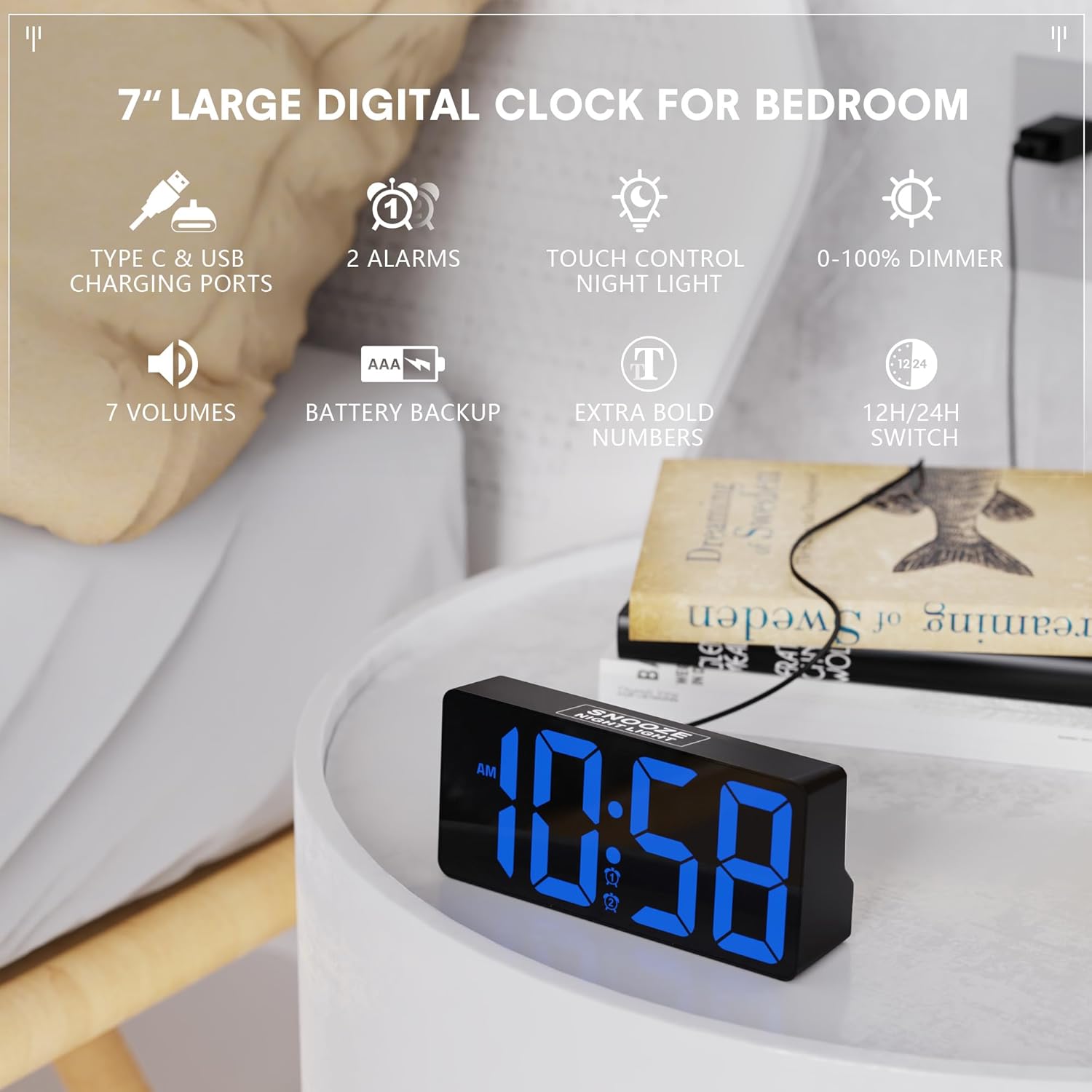
This image illustrates the ROCAM CR1023 digital alarm clock's main features, including its 7-inch display, dual alarms, touch-controlled night light, and USB charging capabilities.
Setup
1. Power Connection
- Unpack the alarm clock and all accessories.
- Connect the provided power adapter cable to the DC IN port on the back of the clock.
- Plug the power adapter into a standard AC 100-240V wall outlet. The clock display will light up.
2. Battery Backup Installation (Optional but Recommended)
The battery backup function is designed to save your time and alarm settings during a power outage. The display will not remain on when operating on battery backup alone.
- Locate the battery compartment on the bottom of the clock.
- Open the battery compartment cover.
- Insert 2 x 1.5V AAA batteries (not included) according to the polarity markings (+/-).
- Close the battery compartment cover securely.
Operating Instructions
1. Setting the Time
- Press and hold the TIME/DST button on the back of the clock until the hour digits flash.
- Use the + or - buttons to adjust the hour.
- Press the TIME/DST button again to confirm the hour and move to minute setting. The minute digits will flash.
- Use the + or - buttons to adjust the minutes.
- Press the TIME/DST button one more time to confirm and exit time setting mode.
2. Setting Alarms (Alarm 1 and Alarm 2)
The clock supports two independent alarms.
- Press and hold the ALARM 1 button (for Alarm 1) or ALARM 2 button (for Alarm 2) on the back until the alarm hour digits flash.
- Use the + or - buttons to adjust the alarm hour.
- Press the respective alarm button again to confirm the hour and move to minute setting. The alarm minute digits will flash.
- Use the + or - buttons to adjust the alarm minutes.
- Press the respective alarm button one more time to confirm and exit alarm setting mode.
3. Activating/Deactivating Alarms
- Briefly press the ALARM 1 or ALARM 2 button to toggle the alarm on or off.
- An alarm icon will appear on the display when the alarm is active.

The dual alarm feature allows for two separate wake-up times, and the snooze function provides an additional 9 minutes of sleep.
4. Snooze Function
When an alarm sounds, touch the SNOOZE/NIGHT LIGHT area on the top of the clock to activate the snooze function. The alarm will pause for 9 minutes and then sound again.
5. Display Brightness Adjustment (Dimmer)
Rotate the DIMMER knob on the back of the clock to adjust the display brightness from 0% (off) to 100% (brightest).

The clock offers a 0-100% adjustable dimming feature, allowing users to set the display brightness from completely off to high, suitable for any environment.
6. Night Light Function
Touch the SNOOZE/NIGHT LIGHT area on the top of the clock to turn the night light on or off. Hold the touch area to adjust the brightness of the night light.
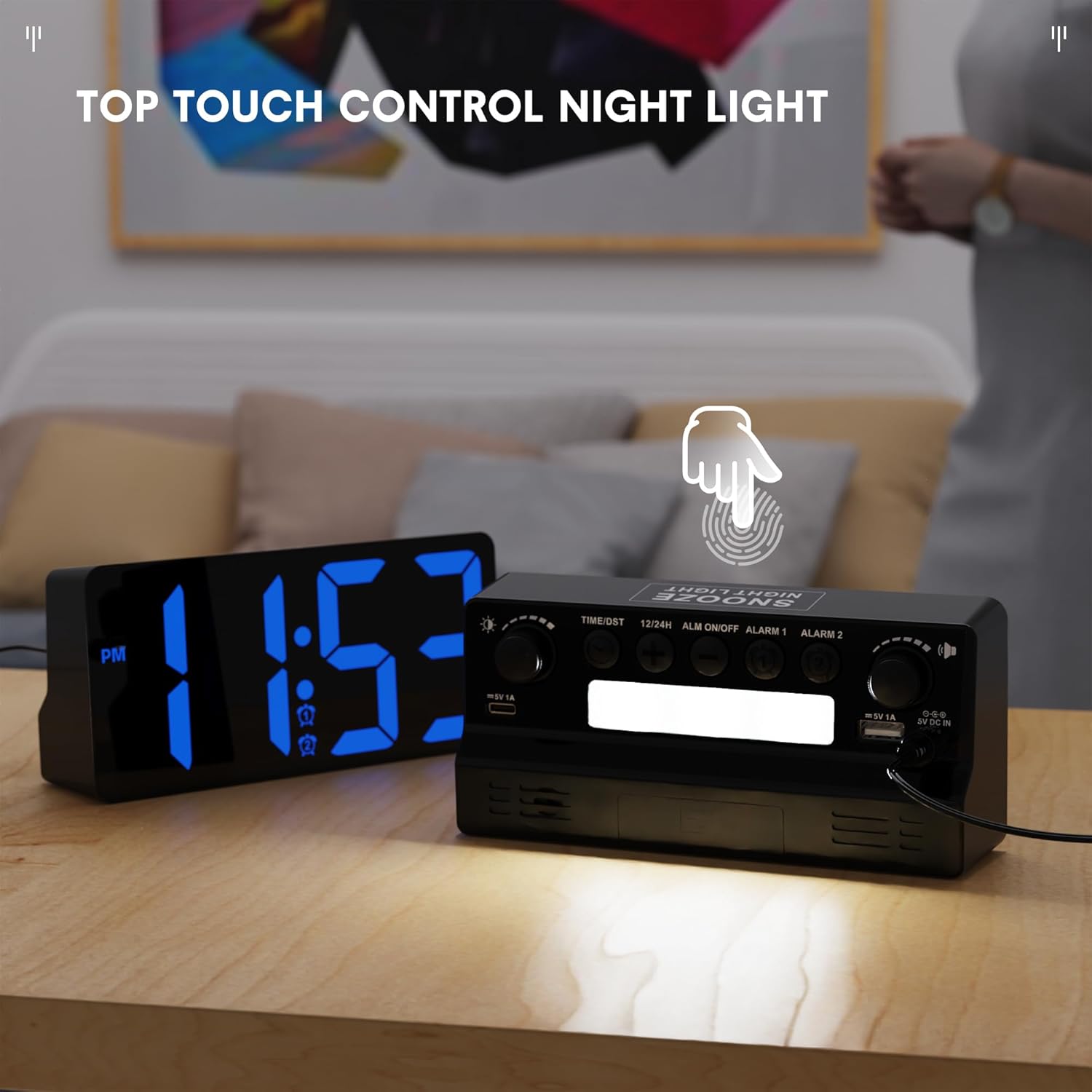
The integrated night light can be activated and controlled via a touch-sensitive area on the top of the clock, providing soft illumination.
7. 12/24 Hour Format and DST
- Briefly press the 12/24H button on the back to switch between 12-hour and 24-hour time formats.
- Briefly press the TIME/DST button to activate or deactivate Daylight Saving Time (DST). An indicator will appear on the display when DST is active.

Users can easily switch between 12-hour and 24-hour time formats, and activate Daylight Saving Time (DST) mode as needed.
Using the USB and Type-C Charging Ports
The ROCAM CR1023 features both a standard USB-A port and a Type-C port (5V, 1A output) for charging your mobile devices.
- Connect your device's charging cable to either the USB-A or Type-C port on the back of the clock.
- Ensure the clock is powered via the AC adapter for the charging ports to function.
- The charging ports are for convenience and provide standard 5V/1A output. Charging speed may vary depending on your device.

The clock provides convenient charging for mobile devices through its integrated USB and Type-C ports, as shown with two smartphones connected.
Specifications
| Feature | Detail |
|---|---|
| Model | CR1023 |
| Display | 7-inch LED HD Display |
| AC Adapter Input | AC 100-240V |
| Display Dimmer | 0-100% adjustable |
| USB Charging Ports | Type C & USB (5V, 1A) |
| Backup Battery | 2 x 1.5V AAA batteries (not included) |
| Product Weight | Approx. 0.23 kg (0.5 lbs) |
| Product Dimensions | Approx. 16.5 x 7.6 x 4.5 cm (6.5 x 3 x 1.77 inches) |
Maintenance
- Cleaning: Wipe the clock with a soft, dry cloth. Do not use abrasive cleaners or solvents.
- Placement: Place the clock on a stable, flat surface away from direct sunlight, heat sources, and moisture.
- Battery Replacement: If using battery backup, replace AAA batteries annually or when they are depleted to ensure settings are retained during power interruptions.
Troubleshooting
- Clock display is blank:
- Ensure the power adapter is securely plugged into both the clock and a working wall outlet. If using battery backup during a power outage, the display will be blank, but settings are retained.
- Alarm does not sound:
- Check if the alarm is activated (alarm icon visible on display). Ensure the alarm volume is not set to minimum. Verify the alarm time is set correctly.
- USB/Type-C charging not working:
- Confirm the clock is connected to AC power. Check if the charging cable is properly connected to both the clock and your device. Ensure your device is compatible with 5V/1A charging.
- Time is incorrect after power outage:
- If backup batteries were not installed or were depleted, the time may reset. Re-set the time manually. Ensure fresh AAA batteries are installed for future backup.
Warranty and Support
For warranty information or technical support, please refer to the contact details provided with your purchase or visit the official ROCAM website. Keep your purchase receipt as proof of purchase for warranty claims.
Related documentsCR1023


Ask a question about this manual
Ask about setup, troubleshooting, compatibility, parts, safety, or missing instructions. Manuals+ will review the question and use this page’s manual context to help answer it.