
Tesvor S5 Max
Tesvor Robot Vacuum S5 Max User Manual
Model: S5 Max (YCD-S8)
Brand: Tesvor
1. Product Overview
The Tesvor Robot Vacuum S5 Max is an intelligent cleaning device designed to automate floor maintenance in your home. It features powerful suction, smart navigation, and multiple cleaning modes to ensure thorough cleaning of various floor types.
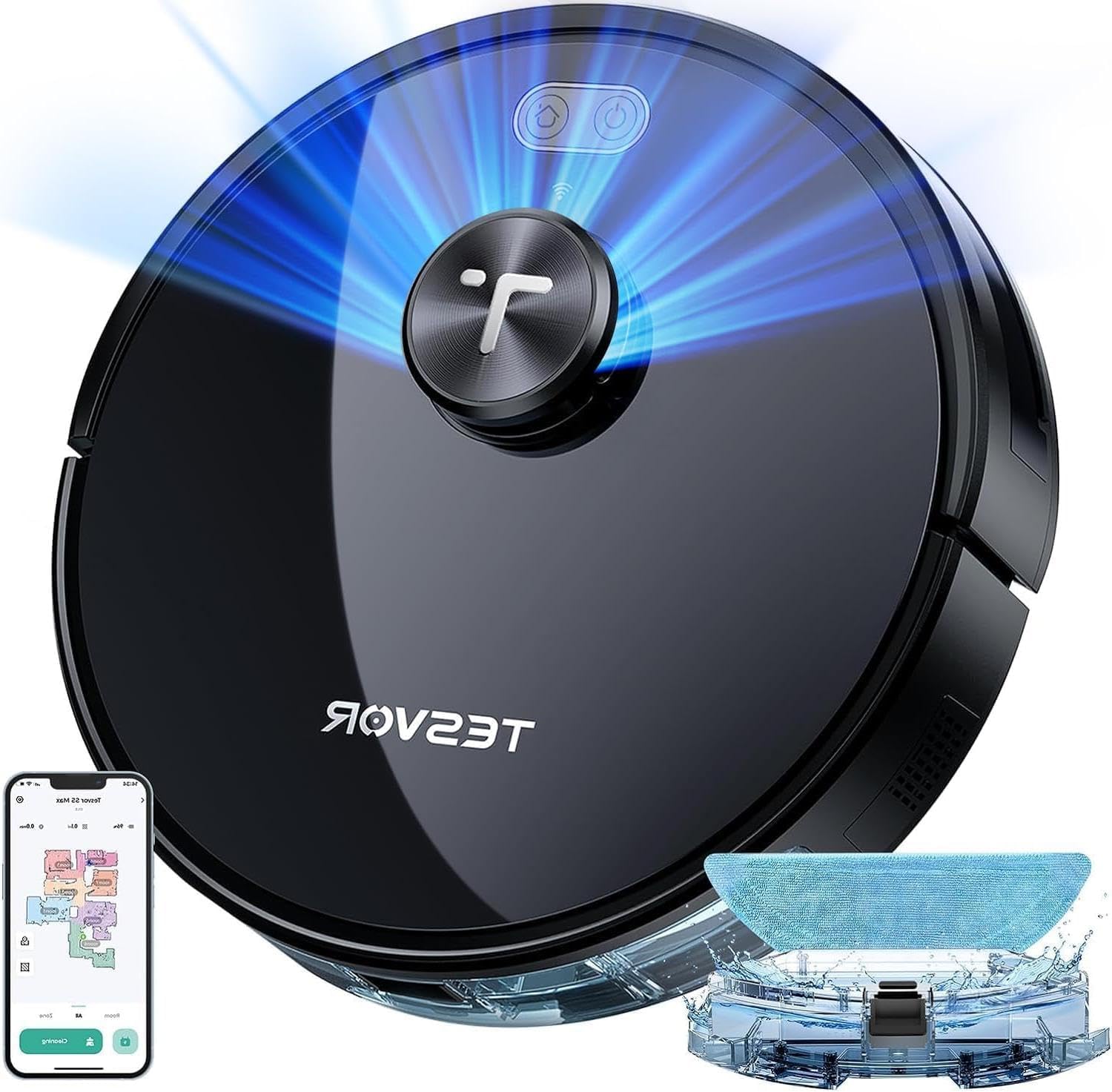
Figure 1.1: Tesvor Robot Vacuum S5 Max
This image shows the Tesvor Robot Vacuum S5 Max from a top-down perspective, highlighting its sleek black design and central control button. The blue light emanating from the top indicates its active state or mapping function.

Figure 1.2: Included Components
This image displays the various components included with the Tesvor Robot Vacuum S5 Max, laid out on a wooden surface. These include the vacuum robot itself, power adapter, mop pad, charging station, 2-in-1 water tank and dustbin, side brushes, user manual, HEPA filter, cleaning tools, remote control, and roller brush.
2. Setup Guide
2.1 Unboxing and Initial Inspection
Carefully remove all components from the packaging. Verify that all items listed in Figure 1.2 are present and undamaged. Keep the original packaging for future storage or transport.

Figure 2.1: Tesvor S5 Max Retail Packaging
This image shows the front of the Tesvor S5 Max retail box, featuring the product name and an image of the robot vacuum. The box indicates it is a "Smart Robot Vacuum".
2.2 Charging Station Placement
Place the charging station against a wall in an open, uncluttered area. Ensure there is at least 0.5 meters (1.6 feet) of clear space on both sides and 1.5 meters (4.9 feet) in front of the charging station. This allows the robot to easily locate and dock for recharging.
2.3 Initial Charging
Connect the power adapter to the charging station and plug it into a wall outlet. Place the robot vacuum onto the charging station, ensuring the charging contacts align. The robot will begin charging automatically. For first use, fully charge the robot, which may take several hours.
2.4 App Installation and Connection
Download the official Tesvor app from your smartphone's app store. Follow the in-app instructions to connect your Tesvor S5 Max to your home Wi-Fi network (2.4GHz only). The app provides advanced control, scheduling, and mapping features.

Figure 2.2: App and Voice Control Features
This image illustrates the Tesvor S5 Max's compatibility with app control (via a smartphone) and voice control through Amazon Alexa and Google Home. A child is shown interacting with the robot, demonstrating ease of use.
3. Operating Instructions
3.1 Cleaning Modes
The Tesvor S5 Max offers versatile cleaning options:
- Auto Cleaning: The robot intelligently navigates and cleans the entire accessible area.
- Edge Cleaning: The robot cleans along walls and furniture edges.
- Zone Cleaning: Use the app to define specific areas for the robot to clean.
- S-shape Cleaning: The robot follows an efficient S-shaped path for comprehensive coverage.
- Relocation Cleaning: If the robot is moved, it can re-orient itself and continue cleaning.
The robot also supports both sweeping and mopping functions. For mopping, attach the water tank and mop pad. The water output can be adjusted via the app.
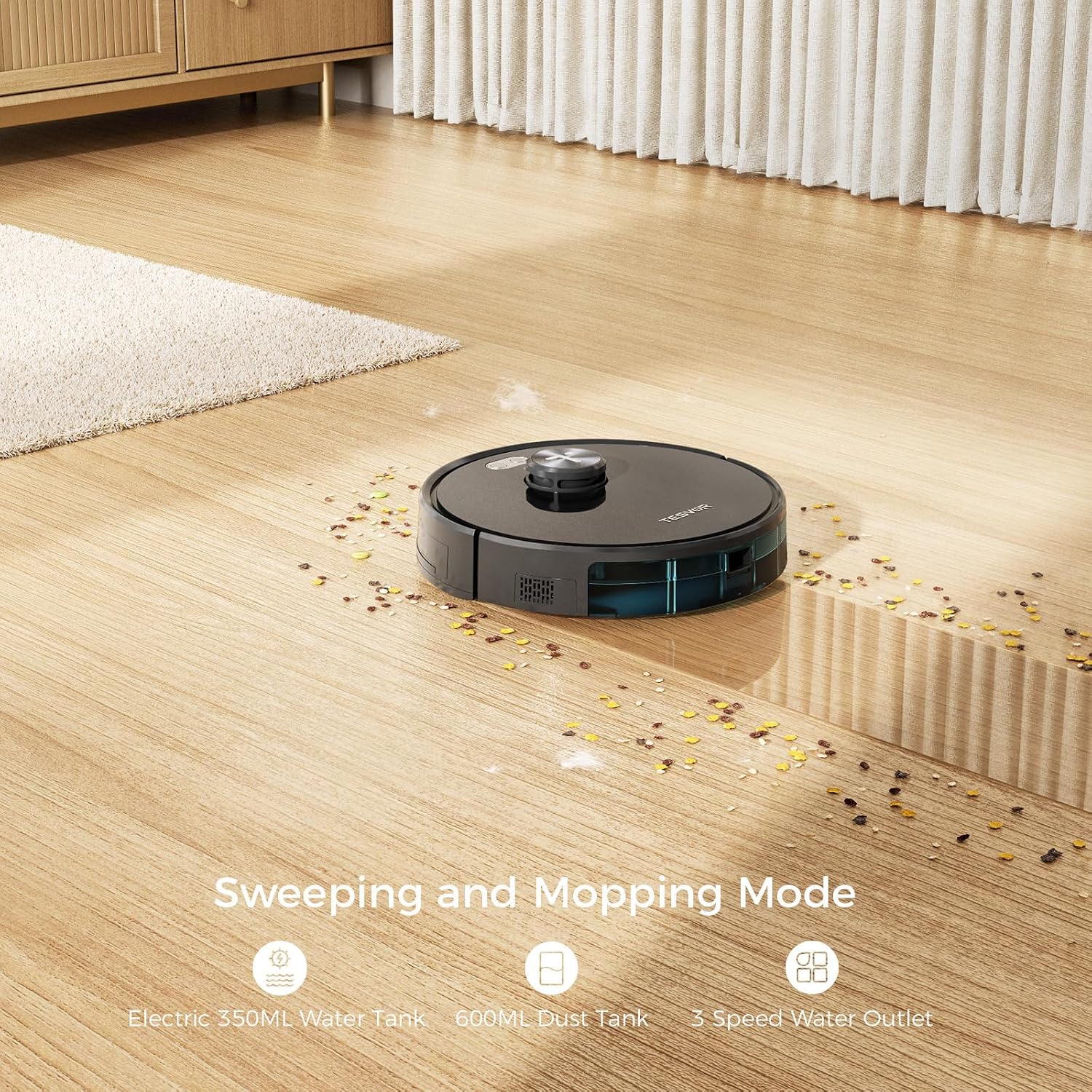
Figure 3.1: Sweeping and Mopping Capabilities
This image shows the Tesvor S5 Max in action, demonstrating its ability to sweep and mop. It highlights the electric 350ml water tank, 600ml dust tank, and 3-speed water outlet for effective cleaning.

Figure 3.2: Smart Mopping System
This image visually explains the various smart mopping system modes, including Auto Cleaning, Edge Cleaning, Zone Cleaning, S-shape Cleaning, and Relocation Cleaning, showing how the robot navigates and cleans different areas.
3.2 Suction Power Adjustment
The Tesvor S5 Max features up to 8000Pa of powerful suction, adjustable via the app with four levels: Quiet, Standard, Powerful, and Max. The robot can automatically adjust suction power when detecting carpets for deeper cleaning.

Figure 3.3: Adjustable Suction Power
This graphic illustrates the four adjustable suction levels (Quiet, Standard, Powerful, Max) of the Tesvor S5 Max, indicating suction power up to 8000Pa and its ability to clean up to 300m² on a single charge.
3.3 Navigation and Obstacle Avoidance
Equipped with Intelligent SLAM Radar Navigation and Reactive 3D Obstacle Avoidance, the S5 Max automatically maps your home and intelligently recognizes objects. It can easily evade obstacles and climb carpets up to 20mm (0.71 inches).

Figure 3.4: Reactive 3D Obstacle Avoidance
This image demonstrates the robot's ability to detect and avoid obstacles, showing it navigating around toys and furniture both day and night. It also highlights its 20° carpet climbing ability and 18mm (0.71 inches) obstacle clearance.

Figure 3.5: LIDAR Navigation
This image illustrates the LIDAR technology used by the Tesvor S5 Max to map its surroundings and avoid furniture, cords, and clutter, ensuring a smooth and efficient cleaning path.
3.4 Virtual Walls and No-Go Zones
Using the Tesvor app, you can set up virtual walls, no-go zones, and no-mop zones to restrict the robot's cleaning areas. This allows for precise control over where the robot operates.

Figure 3.6: Virtual Walls and Restricted Zones
This image demonstrates the app's capability to define "No-Go Zones" and "Virtual Walls," allowing users to prevent the robot from entering specific areas or crossing certain boundaries.
3.5 Battery Life and Auto-Recharging
The Tesvor S5 Max is equipped with a high-capacity battery, providing up to 260 minutes of cleaning time on a full charge. When the battery level is low, the robot will automatically return to its charging station to recharge, ensuring it's always ready for the next cleaning cycle.

Figure 3.7: Auto Recharging Feature
This image illustrates the robot's auto-recharging capability, showing it returning to its charging base. While the image indicates a 120-minute runtime and 2600mAh battery, the product specifications state a battery life of up to 260 minutes.
4. Maintenance
Regular maintenance ensures optimal performance and extends the lifespan of your Tesvor S5 Max.
4.1 Dust Bin and Filter Cleaning
Empty the dust bin after each cleaning cycle. The dust bin and filters are washable. Remove the dust bin, discard debris, and rinse the bin and filters under running water. Allow them to air dry completely before reinserting. The product includes a second set of air filters for convenience.
4.2 Main Brush and Side Brush Cleaning
Periodically remove the main roller brush and side brushes to clean tangled hair and debris. Use the provided cleaning tool to cut and remove hair from the roller brush. Pay special attention to the ends of the roller brush, as hair can accumulate under the rubber caps, causing errors. Clean the side brushes by removing any tangled hair or debris.
4.3 Mopping Pad Cleaning
After mopping, remove the mop pad and wash it thoroughly. It can be hand-washed or machine-washed. Ensure it is completely dry before reattaching.
4.4 Sensor Cleaning
Wipe the cliff sensors, wall sensors, and charging contacts on the robot and charging station with a clean, dry cloth. Keeping these sensors clean ensures proper navigation and charging.
5. Troubleshooting
If you encounter issues with your Tesvor S5 Max, refer to the following common problems and solutions:
| Problem | Possible Cause | Solution |
|---|---|---|
| Robot does not start or respond. | Low battery; power switch off; robot stuck. | Ensure robot is fully charged. Check if the main power switch is on. Clear any obstructions around the robot. |
| Robot cannot find charging station. | Charging station obstructed; robot too far from station; dirty charging contacts. | Ensure clear space around the charging station. Place robot closer to the station. Clean charging contacts on both robot and station. |
| "Middle brush" error or brush stops. | Hair or debris tangled in main brush, especially under end caps. | Remove main brush and thoroughly clean it, including removing the rubber caps on the ends to clear tangled hair. |
| Robot gets stuck frequently. | Loose cables, small objects, or low furniture. | Clear the cleaning area of obstacles. Use virtual walls or no-go zones for problematic areas. |
| Poor cleaning performance. | Full dust bin; dirty filters; worn brushes. | Empty dust bin. Clean or replace filters. Inspect and clean brushes; replace if worn. |
| App connection issues. | Incorrect Wi-Fi password; 5GHz Wi-Fi network; router issues. | Ensure correct 2.4GHz Wi-Fi network and password. Restart router and robot. Re-pair the robot with the app. |
If the problem persists, please contact Tesvor customer support for further assistance.
6. Specifications
| Feature | Detail |
|---|---|
| Brand | Tesvor |
| Model Name | S5 Max |
| Item Model Number | YCD-S8 |
| Color | Black |
| Product Dimensions | 13"L x 13"W x 3.93"H |
| Filter Type | Sponge |
| Battery Life | 260 minutes |
| Voltage | 14.4 Volts |
| Capacity (Dustbin) | 0.6 Liters (600ml) |
| Power Source | Battery Powered |
| Item Weight | 6.6 pounds |
| Date First Available | October 10, 2023 |
7. Warranty and Support
Tesvor products are designed for reliability and performance. For warranty information, technical support, or service inquiries, please refer to the contact information provided in your product packaging or visit the official Tesvor website.
You can also visit the Tesvor Store on Amazon for additional product information and support resources.
Related documentsS5 Max


Ask a question about this manual
Ask about setup, troubleshooting, compatibility, parts, safety, or missing instructions. Manuals+ will review the question and use this page’s manual context to help answer it.