
Apple MQET3LL/A
Apple Watch Ultra GPS + Cellular 49mm Smart Watch User Manual
Model: MQET3LL/A
1. Introduction
The Apple Watch Ultra is a rugged and capable smart watch designed for endurance athletes, outdoor adventurers, and water sports enthusiasts. It features a 49mm corrosion-resistant titanium case, a brighter Always-On Retina display, and an extra-long battery life of up to 36 hours. This manual provides essential information for setting up, operating, and maintaining your device.

The Apple Watch Ultra features a large, bright display with customizable complications.
Key Features:
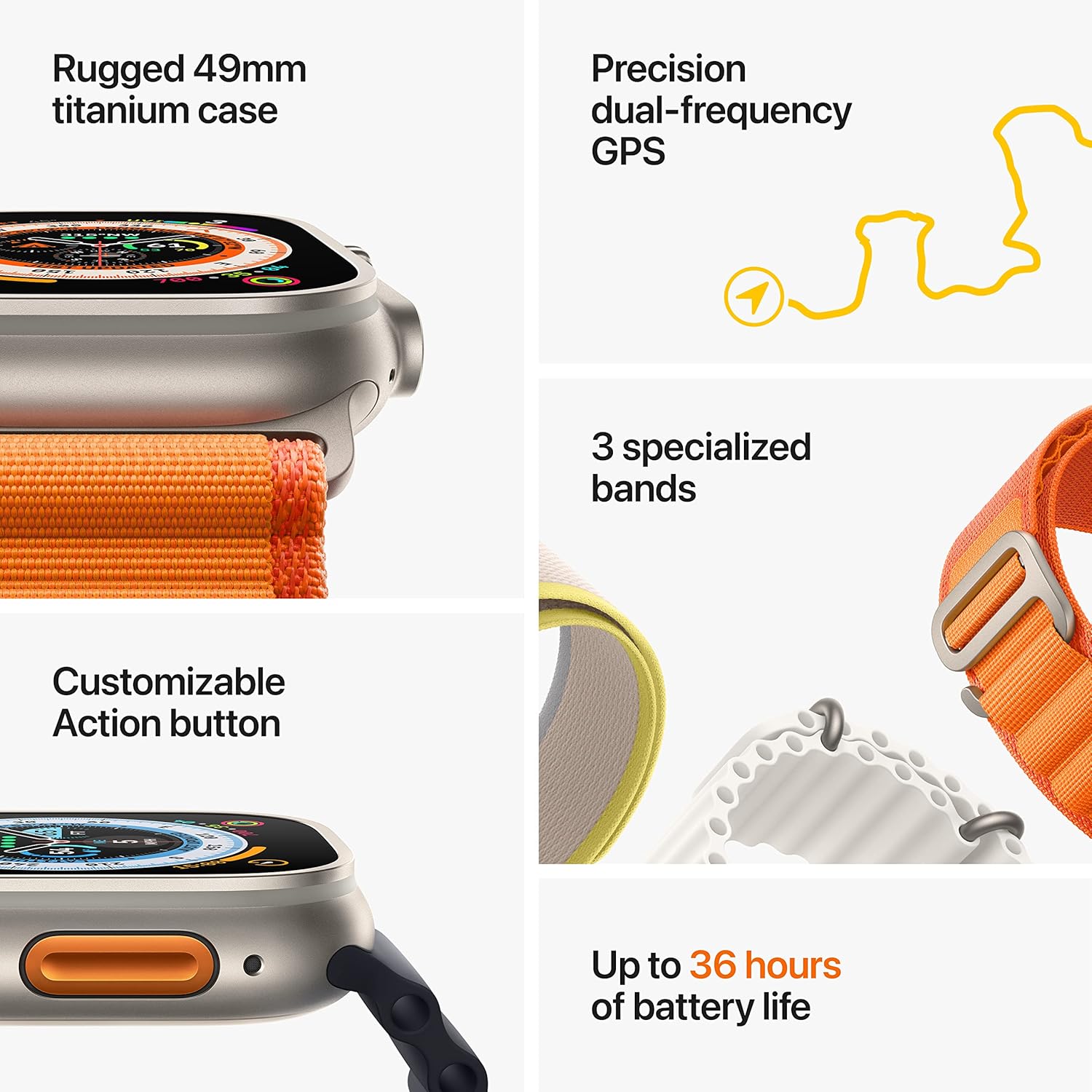
- Rugged Titanium Case: 49mm corrosion-resistant design for durability.
- Precision Dual-Frequency GPS: Enhanced accuracy for distance, route, and pace calculations.
- Customizable Action Button: Provides instant physical control over various functions.
- Extended Battery Life: Up to 36 hours on a single charge.
- Advanced Health and Safety Features: Includes Heart Rate Zones, Running Form, Fall Detection, Crash Detection, and a 600-foot siren.
- Water Resistance: Rated for 100m, suitable for high-impact water sports and diving (with Oceanic+ app).
- Cellular Connectivity: Call, text, stream music, and get directions without your iPhone.
Overview of the Apple Watch Ultra's robust features.
2. What's in the Box
Upon unboxing your Apple Watch Ultra, you should find the following items:
- Apple Watch Ultra Case (Titanium)
- Ocean Band (Midnight)
- USB-C Magnetic Fast Charging Cable
The Apple Watch Ultra comes with the watch case, a band, and a charging cable.
3. Setup
3.1 Charging Your Apple Watch Ultra
- Unroll the USB-C Magnetic Fast Charging Cable.
- Plug the USB-C end of the cable into a compatible USB-C power adapter (sold separately) or a USB-C port on a computer.
- Place the magnetic charging puck on the back of your Apple Watch Ultra. It will snap into place automatically.
- Ensure the watch displays the charging indicator. Allow it to charge until fully powered.
3.2 Pairing with Your iPhone
- Ensure your iPhone is updated to the latest iOS version and has Bluetooth and Wi-Fi enabled.
- Turn on your Apple Watch Ultra by pressing and holding the side button until the Apple logo appears.
- Bring your iPhone near your Apple Watch. A pairing screen will appear on your iPhone. Tap Continue.
- Position your iPhone so that your Apple Watch appears in the viewfinder of the Apple Watch app.
- Follow the on-screen instructions on both your iPhone and Apple Watch to complete the pairing process, including setting up cellular service if desired.
4. Operating Your Apple Watch Ultra
4.1 Controls Overview
- Digital Crown: Rotate to scroll, zoom, or adjust values. Press once to go to the watch face or app list. Double-press to switch between recently used apps. Press and hold for Siri.
- Side Button: Press to open the Dock (recently used apps). Press and hold for Emergency SOS, Medical ID, or to power off.
- Action Button: Customizable orange button on the left side. By default, it can be set to instantly start a workout, mark a Compass Waypoint, begin a dive, or activate the siren.
4.2 Key Functions and Apps
The Apple Watch Ultra offers a range of features tailored for various activities:
- Workout App: Access advanced metrics including Heart Rate Zones, Running Form, and precision GPS for accurate tracking.
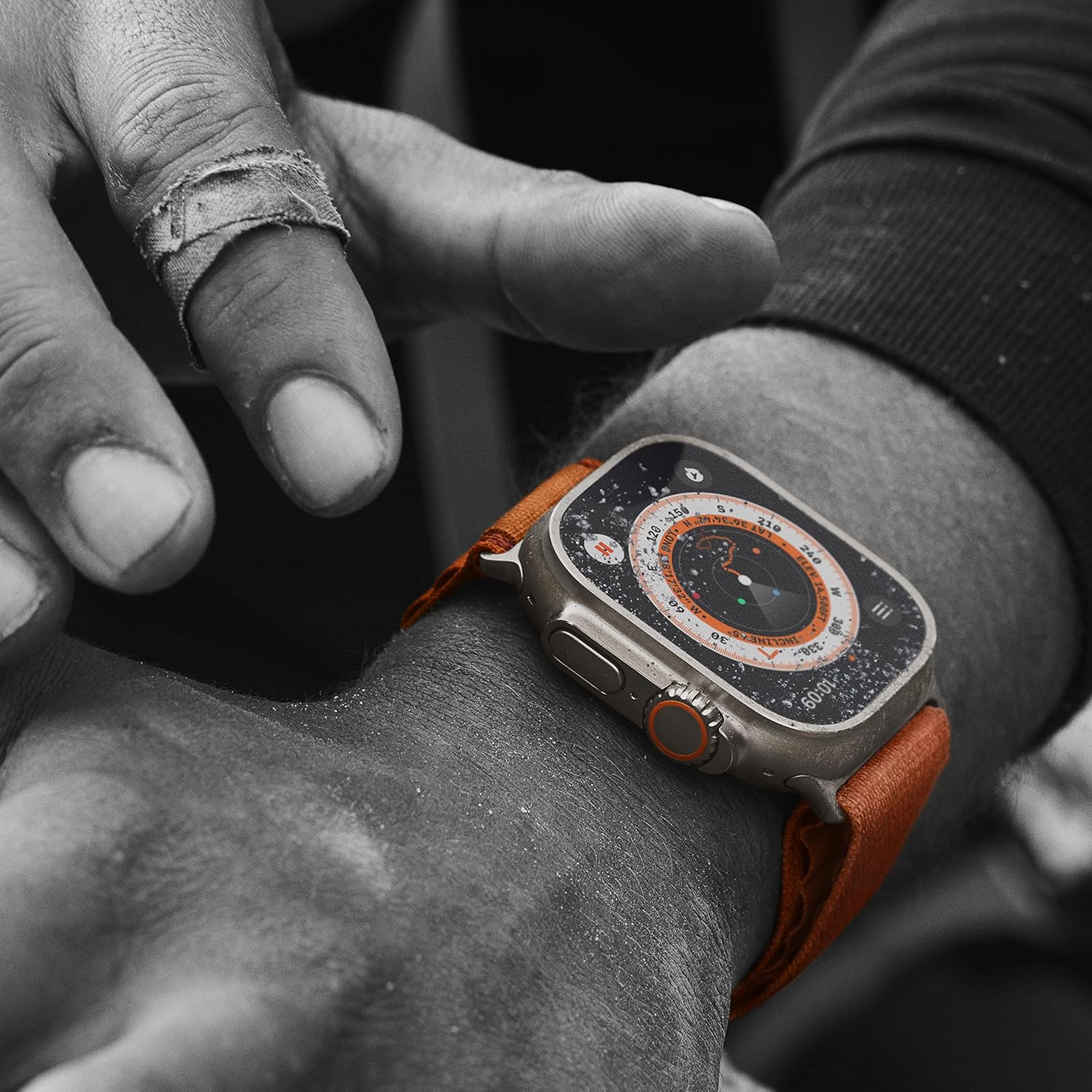
- Compass App: Redesigned with new views and functionality. Use it to mark Waypoints and utilize Backtrack to retrace your steps using GPS.
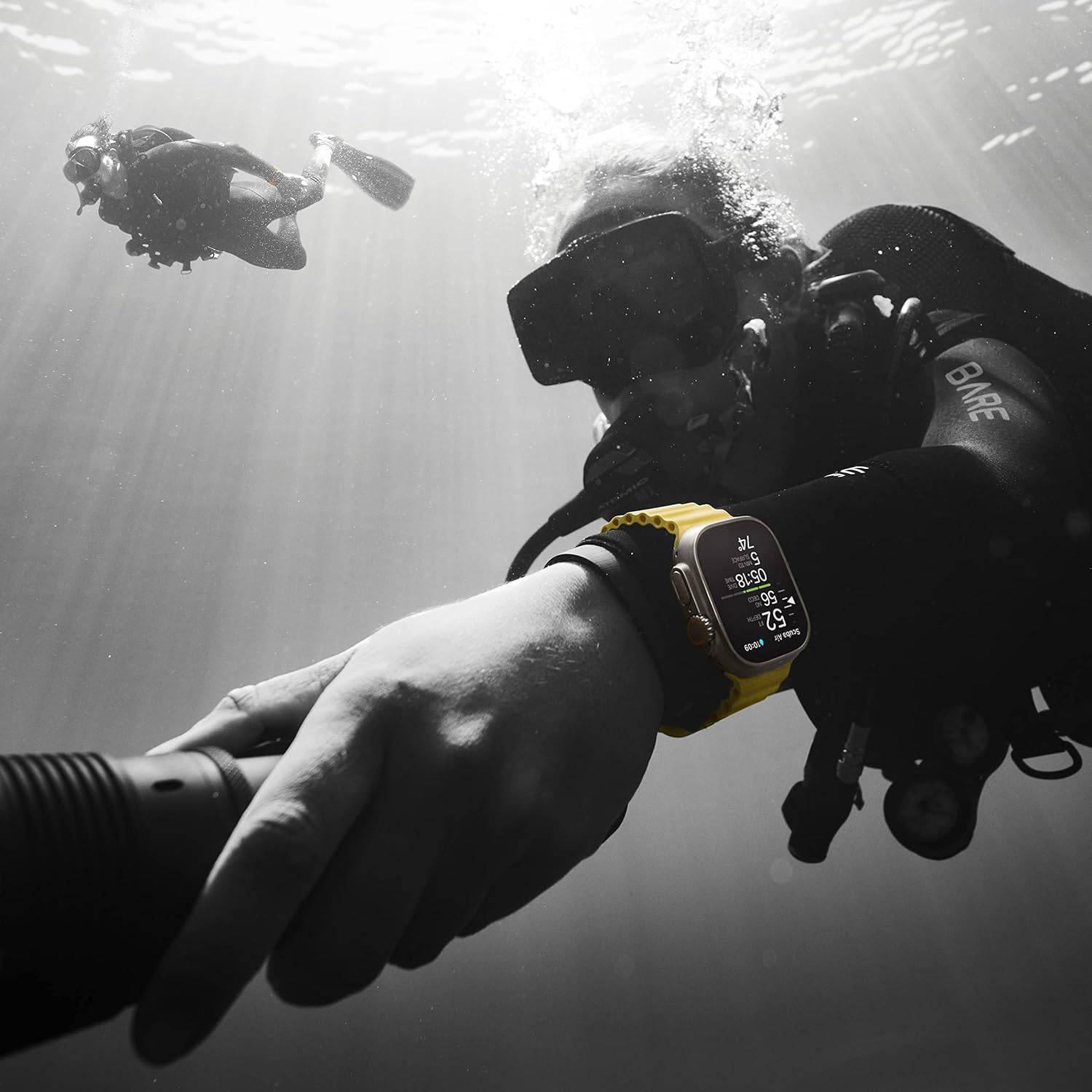
- Oceanic+ App: Transforms your watch into a dive computer, providing essential data for recreational diving up to 40 meters.
- Health Monitoring: Track heart rate, blood oxygen (SpO2), ECG, sleep patterns, and body temperature.
- Safety Features: Fall Detection and Crash Detection can automatically contact emergency services. The Action button can activate a siren audible up to 600 feet away.
- Cellular Connectivity: Make calls, send messages, stream music, and use Maps independently of your iPhone, even with international roaming.

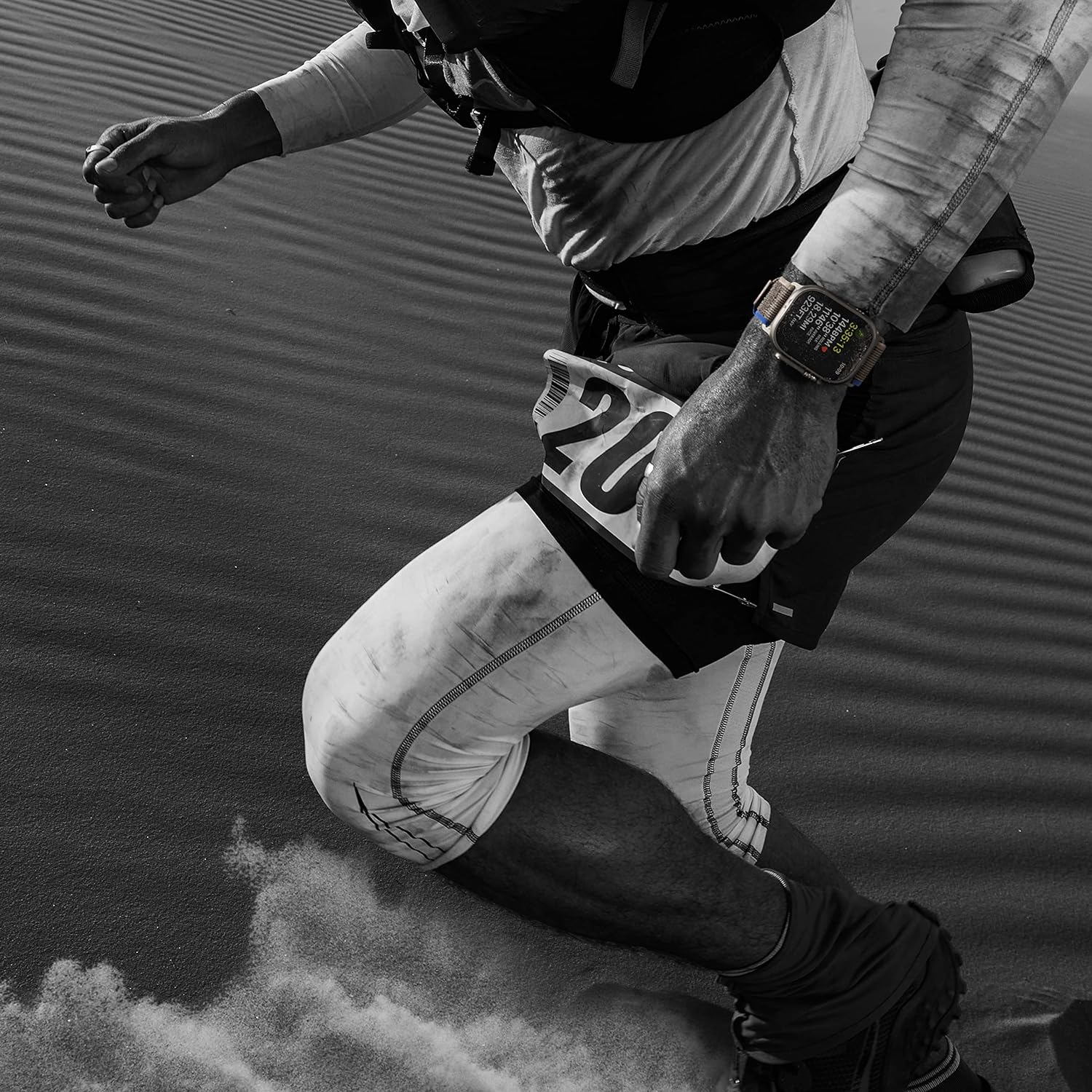
The Apple Watch Ultra is designed for endurance athletes, offering advanced workout metrics.
The redesigned Compass app assists outdoor adventurers with navigation and waypoints.
The Apple Watch Ultra is suitable for water sports and diving with the Oceanic+ app.
5. Maintenance
5.1 Cleaning Your Apple Watch Ultra
- Always power off your Apple Watch and disconnect the charging cable before cleaning.
- Wipe the watch and band with a soft, lint-free cloth. If necessary, lightly dampen the cloth with fresh water.
- For the Ocean Band, rinse it with fresh water after exposure to salt water or sweat, then dry thoroughly.
- Avoid using abrasive materials, harsh chemicals, or compressed air, as these can damage the watch.
5.2 Water Resistance
The Apple Watch Ultra has a water resistance rating of 100 meters (WR100) under ISO standard 22810:2010. It is suitable for high-speed water sports and recreational diving to 40 meters. However, water resistance is not a permanent condition and may diminish over time. To maintain water resistance:
- Avoid exposing Apple Watch Ultra to soap or soapy water (e.g., showering, bathing).
- Avoid exposing Apple Watch Ultra to perfume, solvents, detergents, acids or acidic foods, insect repellent, lotions, sunscreens, oil, or hair dye.
- Avoid exposing Apple Watch Ultra to high-velocity water (e.g., water skiing).
- Avoid dropping Apple Watch Ultra or subjecting it to other impacts.
6. Troubleshooting
6.1 Common Issues and Solutions
| Issue | Solution |
|---|---|
| Watch not turning on | Ensure the watch is fully charged. Connect it to the charging cable and allow it to charge for at least 30 minutes. |
| Watch not pairing with iPhone | Check that Bluetooth is enabled on your iPhone. Ensure both devices are close to each other. Restart both your iPhone and Apple Watch. |
| Cellular not working | Verify your cellular plan supports Apple Watch. Check for network coverage. Ensure cellular is enabled in the Apple Watch app on your iPhone. |
| Apps not responding | Force quit the app by double-pressing the Digital Crown, swiping to the app, and swiping it off the screen. Restart your Apple Watch if the issue persists. |
6.2 Restarting Your Apple Watch Ultra
If your Apple Watch is unresponsive, you can force restart it:
- Press and hold both the side button and the Digital Crown for at least 10 seconds.
- Release both buttons when you see the Apple logo.
7. Specifications
| Feature | Detail |
|---|---|
| Model Name | Apple Watch Ultra |
| Item Model Number | MQET3LL/A |
| ASIN | B0BDJ6CG5K |
| Brand | Apple |
| Screen Size | 49 millimeters |
| Shape | Square |
| GPS | Built-in GPS (Dual-frequency) |
| Battery Cell Composition | Lithium Ion |
| Connectivity Technology | USB-C, Cellular |
| Special Features | Activity Tracker, Heart Rate Monitor, Sleep Monitor, GPS, Fall Detection, Distance Tracker, ECG, Oxymeter (SpO2), Cycle Tracking, Body Temperature Monitor, Phone Call, Notification, SOS Button, Elevation Tracker, Accelerometer |
| Memory Storage Capacity | 32 GB |
| Operating System | WatchOS |
| Product Dimensions | 1.93 x 1.93 x 1.93 inches |
| Item Weight | 15.2 ounces |
| Manufacturer | Apple |
| Date First Available | September 7, 2022 |

The back of the Apple Watch Ultra features advanced sensors and durable materials.
8. Warranty and Support
8.1 Warranty Information
Your Apple Watch Ultra is covered by a one-year limited warranty from Apple against defects in materials and workmanship. This warranty is in addition to rights provided by consumer law. For full terms and conditions, please refer to the warranty documentation included with your product or visit the official Apple website.
8.2 Customer Support
For technical assistance, service, or additional information, please visit the official Apple Support website or contact Apple customer service directly. You can find detailed support resources, FAQs, and contact options at support.apple.com/watch.
Related documentsMQET3LL/A


Ask a question about this manual
Ask about setup, troubleshooting, compatibility, parts, safety, or missing instructions. Manuals+ will review the question and use this page’s manual context to help answer it.