
Introduction
This manual provides detailed instructions for the safe and efficient use of your Plimpton PlimPad P3 10.1-inch Android 12 Tablet. Please read this manual thoroughly before operating the device and keep it for future reference.
Product Overview
The Plimpton PlimPad P3 is a 10.1-inch tablet featuring the Android 12 operating system. It is designed for general use, offering a balance of performance and portability.
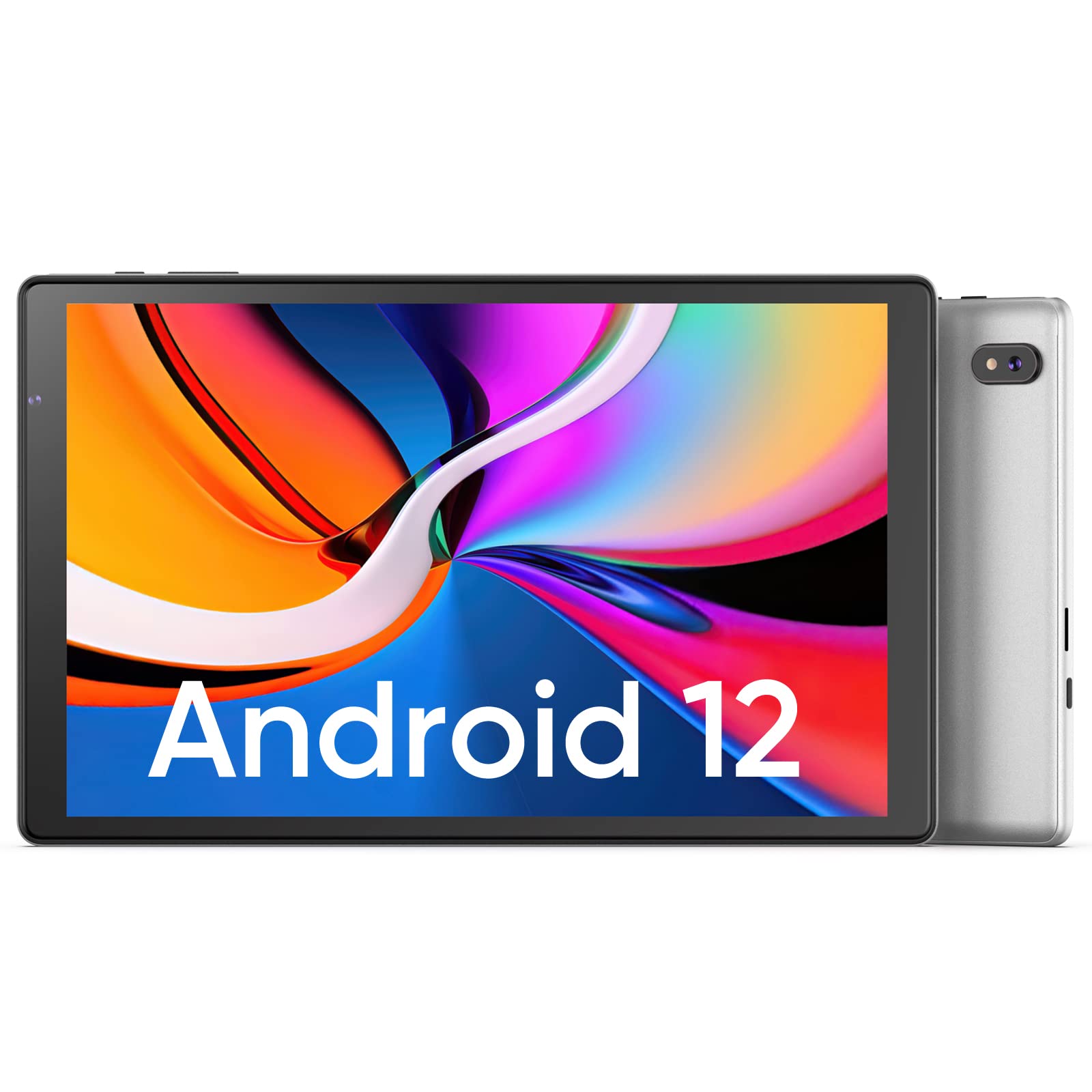
Image: Front and back view of the Plimpton PlimPad P3 Tablet.
Key Features:
- Operating System: Android 12 for a personalized and secure user experience.
- Display: 10.1-inch HD IPS LCD with 1280x800 resolution for clear visuals.
- Performance: Powered by an Allwinner A133 1.5GHz 4-core CPU with 4GB RAM for smooth operation.
- Storage: 64GB internal storage, expandable up to 1TB via microSD card.
- Connectivity: Dual-band Wi-Fi 6 (5GHz+2.4GHz) and Bluetooth 5.0.
- Audio: Dual speakers for an enhanced audio experience.
- Battery: 6000mAh battery for extended usage.
- Design: Premium silver metal body for efficient heat dissipation and a slim profile.

Image: Visual representation of key features including metal body, 10.1-inch screen, split screen functionality, and 6000mAh battery capacity.
Setup Guide
1. Initial Charging
Before first use, fully charge the tablet using the provided USB charger and 1.8M USB Type-C cable. Ensure the tablet is powered off during initial charging. Using non-original chargers may lead to compatibility issues.

Image: Details on battery capacity, charging port, and cable length.
2. Power On/Off
- To Power On: Press and hold the power button located on the side of the tablet until the screen lights up.
- To Power Off: Press and hold the power button, then select "Power off" from the options that appear on the screen.
3. Wi-Fi Connection
The tablet supports Wi-Fi 6 with dual-band (5GHz and 2.4GHz) connectivity for stable internet access. To connect to Wi-Fi:
- Go to Settings.
- Select Network & internet.
- Tap Wi-Fi and turn it on.
- Select your desired network from the list and enter the password if prompted.

Image: Overview of Wi-Fi 6, Bluetooth 5.0, and dual-band network support.
4. Bluetooth Connection
To connect Bluetooth devices:
- Ensure your Bluetooth device is in pairing mode.
- Go to Settings on your tablet.
- Select Connected devices, then Connection preferences, and tap Bluetooth.
- Turn Bluetooth on and select your device from the list to pair.
5. SD Card Installation and Initialization
The tablet supports microSD cards up to 1TB. Always insert or remove the SD card when the tablet is powered off to prevent data corruption.
- Power off the tablet.
- Locate the microSD card slot on the tablet.
- Insert the microSD card gently until it clicks into place.
- Power on the tablet.
- For the tablet to recognize a new SD card, it may require initialization. Refer to the on-screen prompts or the detailed instructions in the included Japanese manual for the initialization procedure.
6. Installing a Protective Case
To protect your tablet, you may wish to install a compatible protective case. The following video demonstrates how to install a tablet into a case and utilize its stand function.
Video: Demonstration of installing a tablet into a protective case and using the stand function.
Operating Instructions
1. Android 12 OS Features
The PlimPad P3 runs on Android 12, offering an optimized and user-friendly interface with enhanced privacy controls.
- Personalized UI: Customize your desktop display style with new UI designs.
- Privacy Management: New privacy features allow you to manage your data and permissions easily.
- Google Services & Apps: Access stable Google services and install popular third-party applications like LINE, YouTube Kids, Yahoo, and Twitter.
- Accessibility: Features include automatic text-to-speech and an eye protection mode.

Image: Highlights of Android 12 OS features such as improved UI, privacy management, and simplified data transfer.
2. Display Settings
- Resolution: The 10.1-inch IPS LCD offers a 1280x800 resolution for vivid colors and wide viewing angles.
- Eye Protection Mode: Activate this mode in settings to reduce eye strain during prolonged use.
3. Audio Settings
The tablet is equipped with dual speakers for surround sound. Adjust volume using the physical volume buttons or through the sound settings in the Android OS.

Image: Illustration of the tablet's dual stereo speakers and Bluetooth 5.0 connection for reduced interference.
4. Wireless Projection
The tablet supports wireless projection to compatible smart TVs. Refer to your smart TV's manual for instructions on enabling screen mirroring or casting, then initiate the connection from your tablet's display settings.
Maintenance
1. Battery Care
- To maximize battery life, close unnecessary applications running in the background.
- Avoid exposing the tablet to extreme temperatures.
- For optimal performance, use the original charger and cable.
2. Storage Management
- Regularly clear cache and unnecessary files to maintain smooth operation.
- While the tablet has 4GB RAM and 64GB ROM, it is not designed for memory-intensive applications such as high-end games or professional photo editing software (e.g., Photoshop).
- Utilize the microSD card slot for additional storage of media files and documents.
Troubleshooting
Common Issues and Solutions:
- Slow Performance:
- Close background applications.
- Clear app caches.
- Ensure sufficient free storage space.
- Note that this tablet is not optimized for demanding games or applications like Genshin Impact.
- Charging Problems:
- Use only the original Plimpton charger and USB Type-C cable.
- Ensure the charging port is clean and free of debris.
- Other Type-C chargers may not be compatible.
- SD Card Not Recognized:
- Ensure the tablet is powered off when inserting or removing the SD card.
- A new SD card may require initialization. Refer to the included manual for steps.
- Screen Damage:
- In case of a cracked or damaged screen, please contact customer support for the best resolution.
- Consider using a P3 Pro dedicated reinforced glass screen protector for added durability.
- No SIM Card Compatibility:
- This is a Wi-Fi model tablet and is not compatible with SIM cards for cellular data.
Specifications
| Feature | Detail |
|---|---|
| Brand | Plimpton |
| Model Name | PlimPad P3 |
| Operating System | Android 12 |
| CPU | Allwinner ARM Cortex A133, 1.8 GHz 4-core |
| RAM | 4 GB |
| Internal Storage | 64 GB |
| Expandable Storage | MicroSD up to 1 TB |
| Screen Size | 10.1 inches |
| Display Type | IPS LCD |
| Display Resolution | 1280x800 |
| Aspect Ratio | 16:10 |
| Touchscreen | Yes |
| Wi-Fi | Wi-Fi 6 (Dual-band 5GHz+2.4GHz) |
| Bluetooth | Bluetooth 5.0 |
| Front Camera | Yes |
| Rear Camera | 8 MP |
| Battery Capacity | 6000 mAh (Lithium Ion) |
| Weight | 520 grams |
| Color | Silver |
Warranty and Support
Warranty Information
Your Plimpton PlimPad P3 tablet comes with a 24-month free exchange warranty from the date of purchase. If any defects occur within this period, a new product exchange will be provided.
Customer Support
For any inquiries or support needs, please contact us through Amazon:
- On the product page, locate the store name "Plimpton Direct" below the "Add to Cart" button.
- Click on "Plimpton Direct".
- In the upper right corner of the store page, click on "Ask a question" to send a message.
Package Contents
The following items are included in your Plimpton PlimPad P3 package:
- PlimPad P3 Tablet
- USB Charger
- 1.8M USB Type-C Cable
- Japanese Instruction Manual
