
1. Introduction
The Deity TC-1 KIT Wireless Timecode Box is a professional solution for synchronizing audio and video across multiple devices. This kit includes three TC-1 units, offering advanced features such as long-range wireless control, frame-accurate timecode generation, and versatile mounting options. Designed for filmmakers and audio professionals, the TC-1 simplifies post-production workflows by ensuring precise timecode synchronization.

Image: The Deity TC-1 KIT, showcasing three timecode boxes and various cables and mounting accessories.
2. What's in the Box
Verify that all items are present in your package:
- 3x Deity TC-1 Wireless Timecode Boxes
- 3x Deity C15 TRS to BNC Cables (for timecode output)
- 1x Deity C13 TRS to TRS Cable
- 1x USB-C to USB-A Charging Cable (3-way splitter for simultaneous charging)
- 1x USB-C to USB-A Adapter
- 3x Cold Shoe Mounts
- Hook-n-loop pads
- User Manual (this document)

Image: A visual representation of all components included in the Deity TC-1 KIT.
3. Product Components and Controls
Familiarize yourself with the key parts and controls of the Deity TC-1 unit:

Image: Labeled diagram illustrating the various ports, buttons, and indicators on the Deity TC-1 timecode box.
- OLED Display: Shows timecode, battery status, and operational modes.
- Function Wheel: Used for navigating menus and adjusting settings.
- Power / Back Button: Powers the unit on/off and navigates back in menus.
- USB-C Charging Port: For charging the internal battery.
- Locking 3.5mm Timecode Port (I/O): Connects to cameras or audio recorders for timecode input/output.
- Built-In Microphone: Scratch microphone for reference audio.
- Removable Cold Shoe Mount: For attaching to cameras or rigs.
- LED Indicators: Power, Sync, and Bluetooth status.
4. Setup Guide
4.1 Charging the TC-1
Before initial use, fully charge all TC-1 units. Connect the provided USB-C charging cable to the USB-C port on each TC-1 unit and to a USB power source. The Power LED will indicate charging status.

Image: The USB-C charging port and 3.5mm timecode port on the Deity TC-1.
4.2 Mounting the TC-1
The TC-1 offers multiple mounting options:
- Cold Shoe Mount: Attach the removable cold shoe mount to the bottom of the TC-1, then slide it onto a camera's cold shoe or a rig.
- 1/4" or 3/8" Threaded Mount: Beneath the cold shoe mount, there are standard threaded mounts for direct attachment to tripods, arms, or other accessories.
- Hook-n-loop Pads: Use the included hook-n-loop pads for flexible attachment to various surfaces.

Image: The removable cold shoe mount and threaded attachment point on the Deity TC-1.
4.3 Initial Power On and Basic Settings
- Press and hold the Power / Back Button to turn on the TC-1.
- The OLED display will show the current timecode and battery status.
- Use the Function Wheel to navigate through the menu options.
- Adjust settings such as frame rate, timecode mode (e.g., Free Run, Record Run), and output level as required for your production.
5. Operating Instructions
5.1 Timecode Synchronization
The TC-1 offers multiple methods for precise timecode synchronization:
- Bit Connectify™ Wireless Control: Control up to 20 TC-1 units from a master unit up to 250 feet away. This proprietary technology ensures robust and long-range synchronization.
- Secondary RF Chip: For closer range synchronization (up to 30 feet) between TC-1 devices, a secondary RF chip provides reliable connectivity.
- Bluetooth 5.0 & Sidus Audio™ App: Connect your TC-1 units to a smartphone or laptop via Bluetooth and use the Sidus Audio™ app for comprehensive control, monitoring, and simultaneous syncing of all units.

Image: The Sidus Audio app controlling Deity TC-1 units, showing settings for timecode and frame rate.
To sync, designate one TC-1 as the master and the others as slaves. Initiate the sync process via the master unit's menu or the Sidus Audio™ app. The Sync LED will confirm successful synchronization.
5.2 Connecting to Devices (Cameras/Recorders)
Use the provided C15 TRS to BNC cables or other compatible 3.5mm TC cables to connect the TC-1 to your recording equipment. The locking 3.5mm port ensures a secure connection during operation.

Image: A Deity TC-1 connected to a recording device, displaying active timecode.
5.3 Using the Built-In Scratch Microphone
For cameras or action cameras that only feature a stereo mic input, the TC-1's built-in scratch microphone can provide a reference audio track. This is useful for quickly aligning audio in post-production, especially when a dedicated audio recorder is not used.
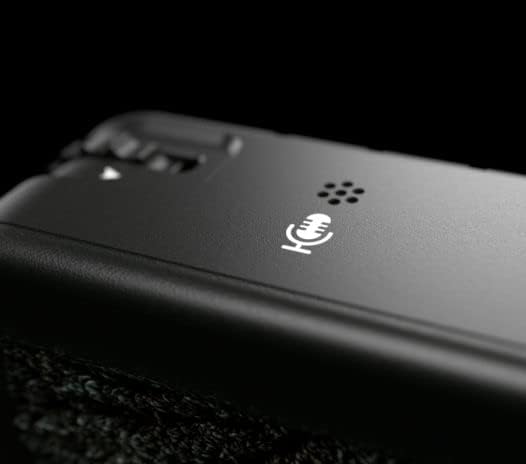
Image: The built-in scratch microphone on the Deity TC-1 unit.
6. Maintenance
- Cleaning: Use a soft, dry cloth to clean the exterior of the TC-1 units. Avoid using harsh chemicals or abrasive materials.
- Storage: Store the units in a cool, dry place away from direct sunlight and extreme temperatures.
- Battery Care: For optimal battery life, avoid fully discharging the units frequently. If storing for extended periods, charge the batteries to approximately 50%.
- Firmware Updates: Periodically check the Deity website or the Sidus Audio™ app for firmware updates to ensure optimal performance and access to new features.
7. Troubleshooting
| Problem | Possible Cause | Solution |
|---|---|---|
| Unit does not power on. | Low or depleted battery. | Charge the unit using the provided USB-C cable. |
| Timecode not syncing. | Units out of range; incorrect master/slave setup; interference. | Ensure units are within range (250ft for Bit Connectify, 30ft for RF). Verify master/slave settings. Check for sources of wireless interference. |
| Timecode drift. | Prolonged operation without re-sync; extreme temperature changes. | Re-sync units periodically, especially after long takes or significant environmental changes. The TC-1 is designed for minimal drift (less than 1 frame in 72 hours). |
| App control not working. | Bluetooth not enabled; app not updated; unit not discoverable. | Ensure Bluetooth is active on your device and the TC-1. Update the Sidus Audio™ app. Restart the TC-1 unit. |
| No timecode output to camera/recorder. | Incorrect cable; incorrect output settings on TC-1; camera input misconfigured. | Verify cable connection and type. Check TC-1 output settings. Ensure camera/recorder is set to receive external timecode. |
8. Specifications
| Feature | Detail |
|---|---|
| Model | Deity TC-1 |
| Timecode Accuracy | ±0.5ppm (less than 1 frame drift in 72 hours) |
| Wireless Control Range (Bit Connectify™) | Up to 250 feet (76 meters) |
| Wireless Sync Range (TC-1 to TC-1 RF) | Up to 30 feet (9 meters) |
| Bluetooth Version | 5.0 |
| Channels | 8 |
| Timecode Connection | Locking 3.5mm TRS (I/O) |
| Charging Port | USB-C |
| Mounting Options | Removable Cold Shoe, 1/4" and 3/8" Threaded Mounts, Hook-n-loop |
| Built-in Microphone | Yes (Scratch Mic) |
| Package Dimensions | 9.49 x 7.68 x 2.64 inches |
| Item Weight (per unit) | Approximately 0.43 pounds (1.3 pounds / 3 units) |
| Manufacturer | Deity |
9. Warranty and Support
For detailed warranty information, technical support, and service inquiries, please refer to the official Deity website or contact their customer support directly. Keep your proof of purchase for warranty claims.
Deity Official Website: www.deitymic.com