
1. Product Overview
The Keychron K5 SE is a 104-key ultra-slim mechanical keyboard designed for enhanced productivity and versatility. It features white LED backlighting, low-profile Gateron Red switches, and broad compatibility with Mac and Windows operating systems. The keyboard supports both wireless Bluetooth and wired USB Type-C connections, allowing for seamless multitasking across multiple devices.

Image: Keychron K5 SE keyboard connected to a Mac, highlighting its wireless Bluetooth and wired USB-C connectivity options.

Image: Keychron K5 SE keyboard shown with illustrations of both Mac and Windows computers, emphasizing its dual operating system compatibility.
2. Setup and Connectivity
2.1 Initial Setup
Before first use, ensure the keyboard is charged using the provided USB Type-C cable. Connect the cable to the keyboard's USB-C port and to a power source (e.g., computer USB port or wall adapter).
2.2 Operating System Compatibility
The K5 SE is compatible with Mac, Windows, Android, and iOS devices. Use the dedicated toggle switch on the side of the keyboard to select the appropriate operating system mode (Win/Android or Mac/iOS).
2.3 Bluetooth Connection
- Toggle the keyboard to 'Bluetooth' mode using the switch on the side.
- On your device (computer, smartphone, tablet), enable Bluetooth and search for available devices.
- Select 'Keychron K5 SE' from the list to pair.
- The keyboard can connect to up to 3 devices. Switch between paired devices using the Fn + 1/2/3 keys.
2.4 Wired Connection
To use the keyboard in wired mode, toggle the switch on the side to 'Cable'. Connect the provided USB Type-C cable from the keyboard to your device. The keyboard will function as a wired device and charge simultaneously.

Image: Side view of the Keychron K5 SE keyboard, illustrating the USB-C port and the toggle switches for selecting between Bluetooth/Off/Cable modes and Win/Android/Mac/iOS modes.
3. Operating Instructions
3.1 Key Layout and Functions
The K5 SE features a 104-key full-size layout, including a numeric keypad. It provides all essential multimedia and function keys. Dedicated keys include Screenshot, Siri (Cortana), and Screen Lock. Extra keycaps for both Mac and Windows are included for customization.
3.2 Backlight Control
The keyboard features white LED backlighting. Use the dedicated function keys to adjust brightness and switch between various lighting effects. Refer to the Quick Start Guide for specific key combinations to cycle through modes and adjust brightness/speed.

Image: The Keychron K5 SE keyboard with its white LED backlighting fully illuminated, showcasing the visibility of keys in low-light conditions.
3.3 Adjustable Typing Angle
The keyboard is equipped with two-level adjustable rubber feet, allowing you to customize the typing angle for ergonomic comfort.

Image: A side profile of the Keychron K5 SE keyboard, illustrating the two-level adjustable feet that can be extended to change the typing angle.
4. Maintenance
4.1 Cleaning
To clean the keyboard, power it off and disconnect any cables. Use a soft, lint-free cloth slightly dampened with water or a mild cleaning solution. Avoid excessive moisture. For keycaps, a soft brush or compressed air can remove debris.
4.2 Hot-Swappable Switches
The Keychron K5 SE features hot-swappable low-profile Gateron mechanical switches. This allows for easy replacement or customization of switches without soldering. Use the provided switch puller to carefully remove switches. Ensure replacement switches are correctly aligned before insertion to avoid damaging the pins.
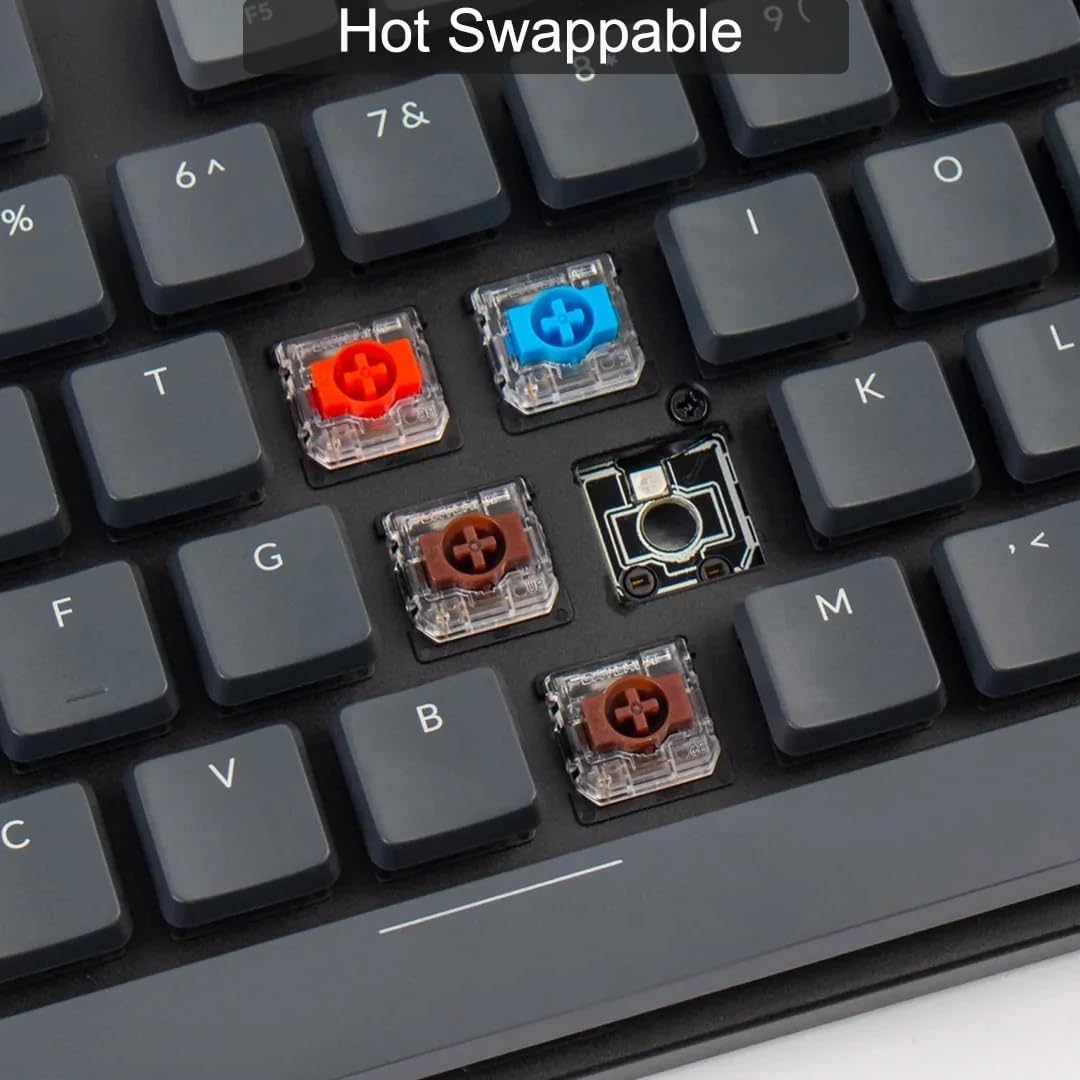
Image: A close-up view of the Keychron K5 SE keyboard with some keycaps removed, revealing the hot-swappable Gateron mechanical switches in various colors (red, blue, brown). This demonstrates the ease of customizing the typing experience.
4.3 Keycap Replacement
Extra keycaps for Mac and Windows layouts are included. Use the keycap puller to gently remove existing keycaps and replace them with the desired ones. Ensure the new keycaps are pressed firmly onto the switch stems.
5. Troubleshooting
5.1 Connectivity Issues
- Bluetooth not connecting: Ensure the keyboard is in Bluetooth mode and fully charged. Check your device's Bluetooth settings and try re-pairing.
- Wired connection not working: Ensure the keyboard is in 'Cable' mode and the USB-C cable is securely connected to both the keyboard and your device. Try a different USB port or cable.
5.2 Backlight Problems
- Backlight off: Press the function key combination to turn the backlight on (refer to Quick Start Guide).
- Backlight too dim/bright: Use the function key combinations to adjust brightness levels.
5.3 Key Responsiveness
- Keys not registering: Ensure the keyboard is properly connected. If a specific key is not working, consider replacing its hot-swappable switch.
6. Specifications
- Product Dimensions: 1.85 x 0.67 x 0.16 inches
- Item Weight: 3.3 pounds
- Manufacturer: Keychron
- ASIN: B0BD84LW7Z
- Item Model Number: Keychron K5 SE
- Batteries: 1 Lithium Polymer battery required (2000mAh capacity)
- Connectivity Technology: Bluetooth 5.1, USB Type-C
- Keyboard Description: Mechanical
- Recommended Uses: Gaming, Office
- Special Feature: Travel, Hot-swappable switches, Low-profile design
- Color: Gateron Red Switch
- Keyboard Backlighting: White LED (Single Color)
- Style: Modern
- Date First Available: September 6, 2022
7. Warranty and Support
For detailed warranty information and customer support, please visit the official Keychron website or contact their customer service directly. Keep your purchase receipt for warranty claims.
8. Product Videos
Keychron K5 Pro Unboxing: A Closer Look!
Video: An unboxing and detailed look at the Keychron K5 Pro mechanical keyboard, showcasing its features, accessories, and build quality. While this video features the K5 Pro, many aspects of its design and functionality are similar to the K5 SE model.


