

Image: The Keychron K5 SE Hot-swappable Wireless Mechanical Keyboard, showcasing its full-size layout.
1. Introduction
The Keychron K5 SE is an ultra-slim, full-size 104-key wireless mechanical keyboard designed for both Mac and Windows operating systems. It features hot-swappable low-profile Gateron mechanical switches, white LED backlighting, and versatile connectivity options including Bluetooth 5.1 and USB Type-C wired mode. This manual provides essential information for setting up, operating, and maintaining your keyboard to ensure optimal performance and user experience.
2. Package Contents
Upon unboxing your Keychron K5 SE keyboard, please verify that all the following items are included:
- Keychron K5 SE Mechanical Keyboard
- USB Type-C to Type-A Cable
- Keycap Puller Tool
- Switch Puller Tool
- Additional Keycaps for Mac and Windows operating systems
- User Manual (this document)
3. Setup Guide
3.1 Connectivity Modes (Bluetooth / Wired)
The K5 SE offers flexible connectivity, supporting both wireless Bluetooth 5.1 and wired USB Type-C connections to suit various setups.

Image: The Keychron K5 SE keyboard on a desk, demonstrating its ability to connect wirelessly via Bluetooth or through a wired USB-C connection, shown alongside a computer setup.
- Wired Mode:
Connect the provided USB Type-C cable from the keyboard's port to an available USB port on your computer. Ensure the "Wireless/Wired" toggle switch, located on the side of the keyboard, is set to the "Cable" position.
- Bluetooth Mode:
- Set the "Wireless/Wired" toggle switch on the side of the keyboard to "Bluetooth".
- To initiate pairing, press and hold the Fn + 1 key combination for approximately 4 seconds. The keyboard's backlight will begin to flash rapidly, indicating it is in pairing mode.
- On your host device (computer, smartphone, or tablet), navigate to the Bluetooth settings and search for available devices. Select "Keychron K5 SE" from the list.
- Once successfully connected, the keyboard's backlight will stop flashing and remain steadily lit.
- The K5 SE can store up to three Bluetooth device profiles. To pair additional devices, repeat the process using Fn + 2 and Fn + 3.
- To switch between paired devices, briefly press Fn + 1, Fn + 2, or Fn + 3.
3.2 Operating System Switch (Mac / Windows)
The keyboard features a dedicated toggle switch to optimize key functions and layout for either macOS/iOS or Windows/Android operating systems.

Image: The Keychron K5 SE keyboard positioned below two monitors, one displaying macOS and the other Windows, highlighting its dual operating system compatibility.
- Locate the "Win/Android Mac/iOS" toggle switch on the side of the keyboard.
- For Apple devices (Mac, iPad, iPhone), set the switch to the "Mac/iOS" position.
- For Windows or Android devices, set the switch to the "Win/Android" position.
3.3 Charging the Keyboard
When the keyboard's battery level is low, the dedicated indicator light will flash red. To charge, connect the provided USB Type-C cable to the keyboard and a power source, such as a computer's USB port or a USB wall adapter. The indicator light will turn green once the keyboard is fully charged.
4. Operating Instructions
4.1 Backlight Control
The K5 SE features a white LED backlight with various effects and brightness levels to enhance your typing experience.

Image: A close-up of the Keychron K5 SE keyboard with its white LED backlight active, illuminating the keycaps for visibility in low-light conditions.
- Press the light bulb key (often located on the F5 key or a dedicated key) to cycle through different backlight effects.
- To adjust backlight brightness, use the key combinations Fn + F5 (decrease brightness) and Fn + F6 (increase brightness).
4.2 Multimedia and Function Keys
The keyboard includes a full set of multimedia and function keys. The behavior of the F1-F12 keys can be toggled between standard function keys and multimedia controls using the Fn key.
- F1-F12: By default, these keys perform multimedia functions on Mac (e.g., screen brightness, Mission Control, media playback, volume control) and standard F-key functions on Windows.
- Fn + F-keys: Pressing the Fn key in combination with an F-key will activate its secondary function. For example, on Mac, Fn + F1 might activate the standard F1 function, while on Windows, Fn + F11 might decrease volume.
- Dedicated Keys: The keyboard also features dedicated keys for specific functions such as Screenshot, Siri (or Cortana on Windows), and Screen Lock, enhancing productivity.
4.3 Hot-Swappable Switches
The Keychron K5 SE is equipped with hot-swappable low-profile Gateron mechanical switches, allowing you to easily change switches without soldering to customize your typing feel or replace faulty switches.
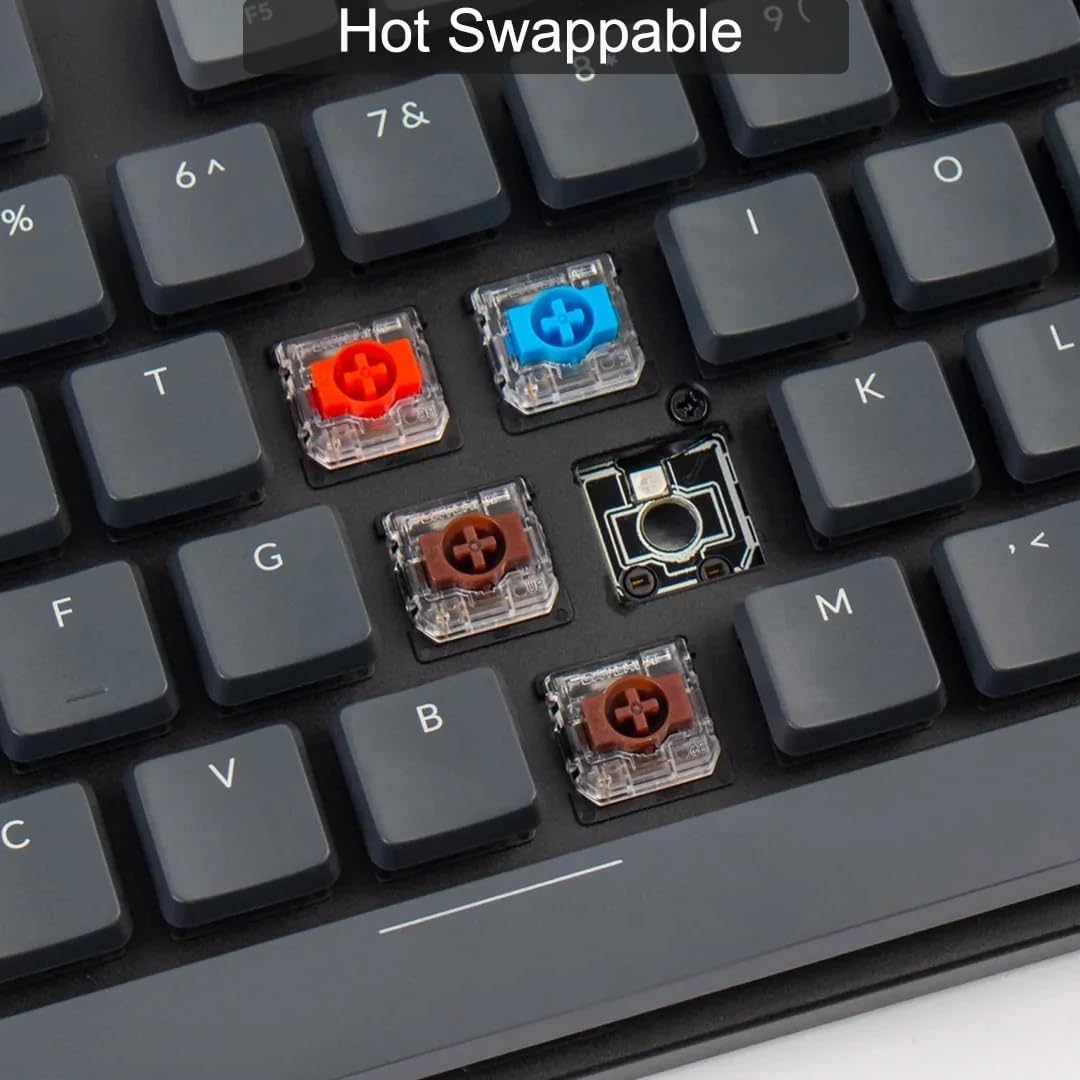
Image: A detailed view of the Keychron K5 SE keyboard's hot-swappable switch sockets, with several keycaps and switches removed to illustrate the ease of customization.
- Remove Keycap: Use the provided keycap puller tool to gently lift and remove the desired keycap straight upwards.
- Remove Switch: Use the provided switch puller tool to carefully grip the switch from its top and bottom clips. Pull the switch straight up from the PCB.
- Install New Switch: Align the two metal pins on the bottom of the new switch with the corresponding holes on the keyboard's PCB. Gently but firmly press the switch down until it clicks securely into place. Ensure the pins are not bent during insertion.
- Reattach Keycap: Place the keycap back onto the new switch stem.
4.4 Adjustable Feet
The keyboard is designed with two-level adjustable feet, allowing you to customize the typing angle for improved ergonomics and comfort.

Image: The Keychron K5 SE keyboard viewed from the front, with its adjustable feet deployed to elevate the rear, providing an angled typing surface.
Simply flip out the integrated feet on the underside of the keyboard to select your preferred typing angle (options typically include a flat position, a lower angle, and a higher angle, such as 6° or 9°).
5. Maintenance
Proper maintenance ensures the longevity and optimal performance of your Keychron K5 SE keyboard.
5.1 Cleaning
- Keycaps: For thorough cleaning, use the provided keycap puller to remove the keycaps. They can be cleaned with a mild soap solution and a soft cloth. Ensure keycaps are completely dry before reattaching them to prevent damage to the switches.
- Keyboard Body: Wipe the keyboard's aluminum frame and plastic base with a soft, lint-free cloth. If necessary, slightly dampen the cloth with water or a gentle, non-abrasive cleaning solution. Avoid spraying liquids directly onto the keyboard.
- Between Keys: Use compressed air to dislodge and remove dust, crumbs, and other debris that may accumulate between the keys and switches.
5.2 Switch and Keycap Replacement
Thanks to its hot-swappable design, individual switches and keycaps can be easily replaced. Refer to Section 4.3, "Hot-Swappable Switches," for detailed instructions on how to safely remove and install switches. When replacing, ensure you use compatible low-profile Gateron mechanical switches and keycaps to maintain functionality and fit.
6. Troubleshooting
This section addresses common issues you might encounter with your Keychron K5 SE keyboard.
- Keyboard not connecting via Bluetooth:
- Verify that the "Wireless/Wired" toggle switch on the keyboard's side is set to "Bluetooth".
- Ensure the keyboard has sufficient battery charge. Connect it via USB-C cable to charge if needed.
- Re-enter Bluetooth pairing mode by pressing and holding Fn + 1 (or Fn + 2 / Fn + 3 for other profiles) for 4 seconds until the backlight flashes.
- On your device, remove any existing "Keychron K5 SE" entries from your Bluetooth device list and attempt to pair again.
- Test the keyboard's functionality by connecting it in wired mode using the USB Type-C cable to rule out a hardware issue.
- Keys not responding or experiencing double-typing:
- Confirm the keyboard is fully charged or operating reliably in wired mode.
- If a specific key is consistently problematic, utilize the hot-swappable feature to replace its switch. You can temporarily swap it with a switch from a less frequently used key (e.g., Num Lock) to determine if the issue lies with the switch itself or the keyboard's PCB.
- Clean around the affected key to ensure no debris is obstructing the switch mechanism.
- Backlight not working or appears dim:
- Check the keyboard's battery level; low battery can affect backlight performance.
- Adjust the backlight brightness using the key combinations Fn + F5 (decrease) and Fn + F6 (increase).
- Cycle through different backlight effects by pressing the dedicated light bulb key to ensure it's not set to an 'off' or minimal effect.
- Incorrect key functions (Mac/Windows layout issues):
- Verify that the "Win/Android Mac/iOS" toggle switch on the side of the keyboard is correctly set for your operating system.
7. Specifications
Detailed technical specifications for the Keychron K5 SE Hot-swappable Wireless Mechanical Keyboard:
| Feature | Detail |
|---|---|
| Model Number | K5SE-G3 |
| Key Count | 104 Keys (Full Size) |
| Switch Type | Low Profile Gateron Mechanical (Hot-swappable) |
| Backlight Type | White LED |
| Connectivity | Bluetooth 5.1, USB Type-C (Wired) |
| Compatible Operating Systems | Mac, Windows, Android, iOS |
| Frame Material | Aluminum |
| Product Dimensions | 17.72 x 6.3 x 1.57 inches (45 x 16 x 4 cm) |
| Item Weight | 2.25 pounds (1.02 kg) |
| Battery Type | Lithium Polymer (1 required) |
| Date First Available | September 6, 2022 |
8. Warranty and Support
Keychron products are typically covered by a manufacturer's warranty. For precise details regarding the warranty period, terms, and conditions applicable to your Keychron K5 SE keyboard, please consult the warranty information provided with your product packaging or visit the official Keychron website.
For technical assistance, advanced troubleshooting not covered in this manual, or to initiate a warranty claim, please contact Keychron customer support directly. Their official support channels can be found on their website.
Additional resources and product information may also be available on the Keychron Store on Amazon.


