
MARVO B0BD6MZV95
MARVO Wireless Keyboard and Mouse Combo User Manual
Model: B0BD6MZV95
1. Introduction
Thank you for choosing the MARVO Wireless Keyboard and Mouse Combo. This product is designed to provide a comfortable and efficient computing experience with its ergonomic design, silent operation, and convenient features like a built-in phone/tablet holder. This manual will guide you through the setup, operation, maintenance, and troubleshooting of your new wireless combo.

Image 1.1: The MARVO Wireless Keyboard and Mouse Combo, featuring a tablet securely placed in the integrated holder.
2. Product Overview
2.1 Keyboard Features
- Full-size Layout: Standard QWERTY layout with a numeric keypad.
- Multimedia Keys: Dedicated keys for media control (play, pause, volume, etc.).
- Integrated Phone/Tablet Holder: A 9.84-inch slot designed to securely hold smartphones and tablets, providing an optimal viewing angle.
- On/Off Switch: Located on the top right for power management.
- Battery Indicator: A light that blinks red for 5-8 seconds upon connection and when battery is low.
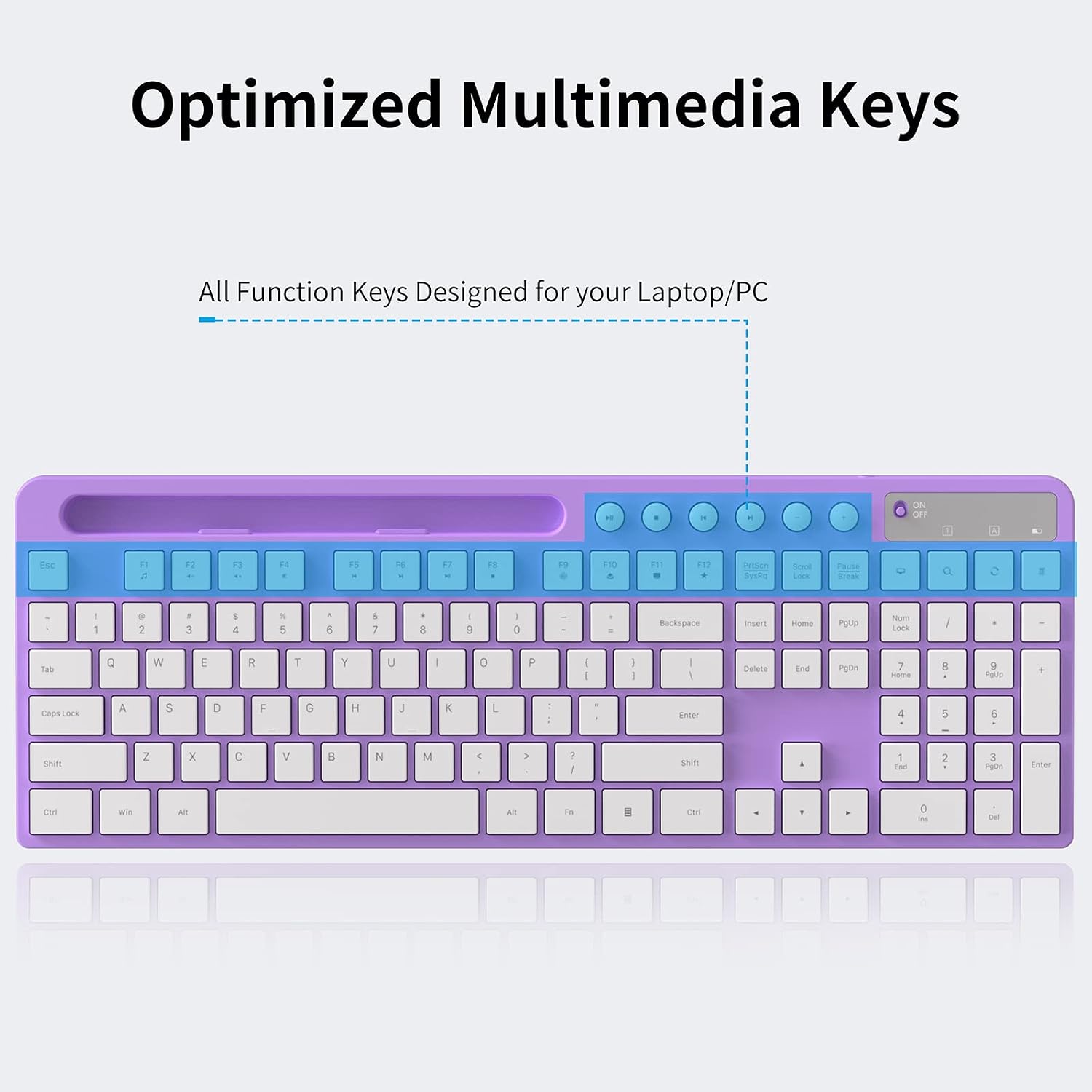
Image 2.1: Overview of the keyboard highlighting the optimized multimedia keys for quick access to functions.

Image 2.2: The keyboard's built-in holder accommodating both a smartphone and a tablet simultaneously.
2.2 Mouse Features
- Silent Click Design: Reduces click noise for a quiet working environment.
- 6 Buttons: Standard left/right click, scroll wheel, DPI adjustment button, and two side buttons (Page Up/Page Down).
- Adjustable DPI: Cycle through 800, 1200, and 1600 DPI settings for customized cursor sensitivity.
- Ergonomic Design: Contoured shape for comfortable grip.
- On/Off Switch: Located on the underside of the mouse to conserve battery.
- USB Receiver Storage: A dedicated slot on the underside for secure storage of the 2.4G USB receiver.

Image 2.3: A detailed diagram of the mouse, indicating the scroll wheel, buttons, LED indicator, battery slot, and USB receiver storage.
3. Setup Guide
3.1 Battery Installation
The MARVO Wireless Keyboard and Mouse Combo requires batteries (not included).
- For the Keyboard: Locate the battery compartment on the underside of the keyboard. Insert two AAA batteries, ensuring correct polarity (+/-).
- For the Mouse: Locate the battery compartment on the underside of the mouse. Insert one AA battery, ensuring correct polarity (+/-).
3.2 Connecting the USB Receiver
The combo uses a single 2.4G USB Nano Receiver for both the keyboard and mouse.
- Remove the USB receiver from its storage slot on the underside of the mouse.
- Plug the USB receiver into an available USB port on your computer (laptop or desktop).

Image 3.1: The 2-in-1 USB Nano Receiver connected to a laptop, illustrating the 2.4G wireless connection.
3.3 Powering On
- Keyboard: Slide the ON/OFF switch on the top right of the keyboard to the "ON" position. The red power light will blink for 5-8 seconds and then turn off. This is normal behavior.
- Mouse: Slide the ON/OFF switch on the underside of the mouse to the "ON" position.
Your keyboard and mouse should now be connected and ready for use. No additional drivers are typically required.
4. Operating Instructions
4.1 Keyboard Usage
- Typing: Use the standard QWERTY layout for typing.
- Multimedia Control: Utilize the dedicated multimedia keys for quick access to audio and video playback controls.
- Phone/Tablet Holder: Place your smartphone or tablet (5.8 to 12.9 inches) into the integrated slot for convenient viewing while working.

Image 4.1: A user demonstrating the keyboard in use, with a smartphone positioned in the built-in holder.
4.2 Mouse Usage
- Left/Right Click: Standard mouse functions.
- Scroll Wheel: For vertical scrolling.
- DPI Adjustment: Press the DPI switch button (located above the scroll wheel) to cycle through 800, 1200, and 1600 DPI settings.
- Side Buttons: The two side buttons typically function as Page Up and Page Down, or can be customized in your operating system settings.
4.3 Compatibility
The MARVO Wireless Keyboard and Mouse Combo is compatible with the following operating systems:
- Windows XP
- Windows Vista
- Windows 7
- Windows 8
- Windows 10
- macOS
5. Maintenance
To ensure the longevity and optimal performance of your MARVO Wireless Keyboard and Mouse Combo, follow these maintenance guidelines:
- Cleaning: Use a soft, dry cloth to wipe down the surfaces of the keyboard and mouse. For stubborn dirt, slightly dampen the cloth with water or a mild cleaning solution. Avoid harsh chemicals or abrasive materials.
- Battery Replacement: Replace batteries when the low battery indicator on the keyboard blinks during use, or if the mouse responsiveness decreases. Always use fresh batteries of the specified type (AAA for keyboard, AA for mouse).
- Storage: When not in use for extended periods, turn off both the keyboard and mouse using their respective ON/OFF switches to conserve battery life. Store the USB receiver in its dedicated slot on the mouse to prevent loss.
- Avoid Liquids: Keep the devices away from liquids to prevent damage to internal components.
- Handle with Care: Avoid dropping or subjecting the devices to strong impacts.
6. Troubleshooting
If you encounter issues with your MARVO Wireless Keyboard and Mouse Combo, please refer to the following common solutions:
| Problem | Possible Cause | Solution |
|---|---|---|
| Keyboard/Mouse not responding | Low or dead batteries | Replace batteries in both keyboard and mouse. |
| Keyboard/Mouse not responding | Devices are turned off | Ensure both keyboard and mouse are switched to the "ON" position. |
| Keyboard/Mouse not responding | USB receiver not properly connected | Unplug the USB receiver and plug it back into a different USB port on your computer. |
| Lag or intermittent connection | Interference from other wireless devices | Move the keyboard and mouse closer to the USB receiver. Avoid placing the receiver near large metal objects or other wireless devices. |
| Mouse cursor erratic or not moving smoothly | Dirty optical sensor or unsuitable surface | Clean the optical sensor on the underside of the mouse. Use the mouse on a clean, non-reflective surface or a mouse pad. Adjust DPI settings. |
| Red light on keyboard blinks for 5-8 seconds then turns off | Normal startup behavior | This is normal and indicates the keyboard is powering on. No action required unless it continues to blink during active use (indicating low battery). |
7. Specifications
- Brand: MARVO
- Model: B0BD6MZV95
- Color: Purple
- Connectivity Technology: 2.4G Radio Frequency (Wireless)
- Keyboard Features: Ergonomic design, 9.84-inch Phone/Tablet Holder, Multimedia Keys
- Mouse Features: Silent Click, 6 Buttons, 800/1200/1600 DPI Adjustable
- Compatible Devices: Laptop, Personal Computer, Smartphone
- Operating Systems: Windows XP / Vista / 7 / 8 / 10, macOS
- Keyboard Battery: 2 x AAA (not included)
- Mouse Battery: 1 x AA (not included)
- Item Weight: 1.65 pounds
- Package Dimensions: 17.2 x 8.7 x 1.85 inches
- Country of Origin: China
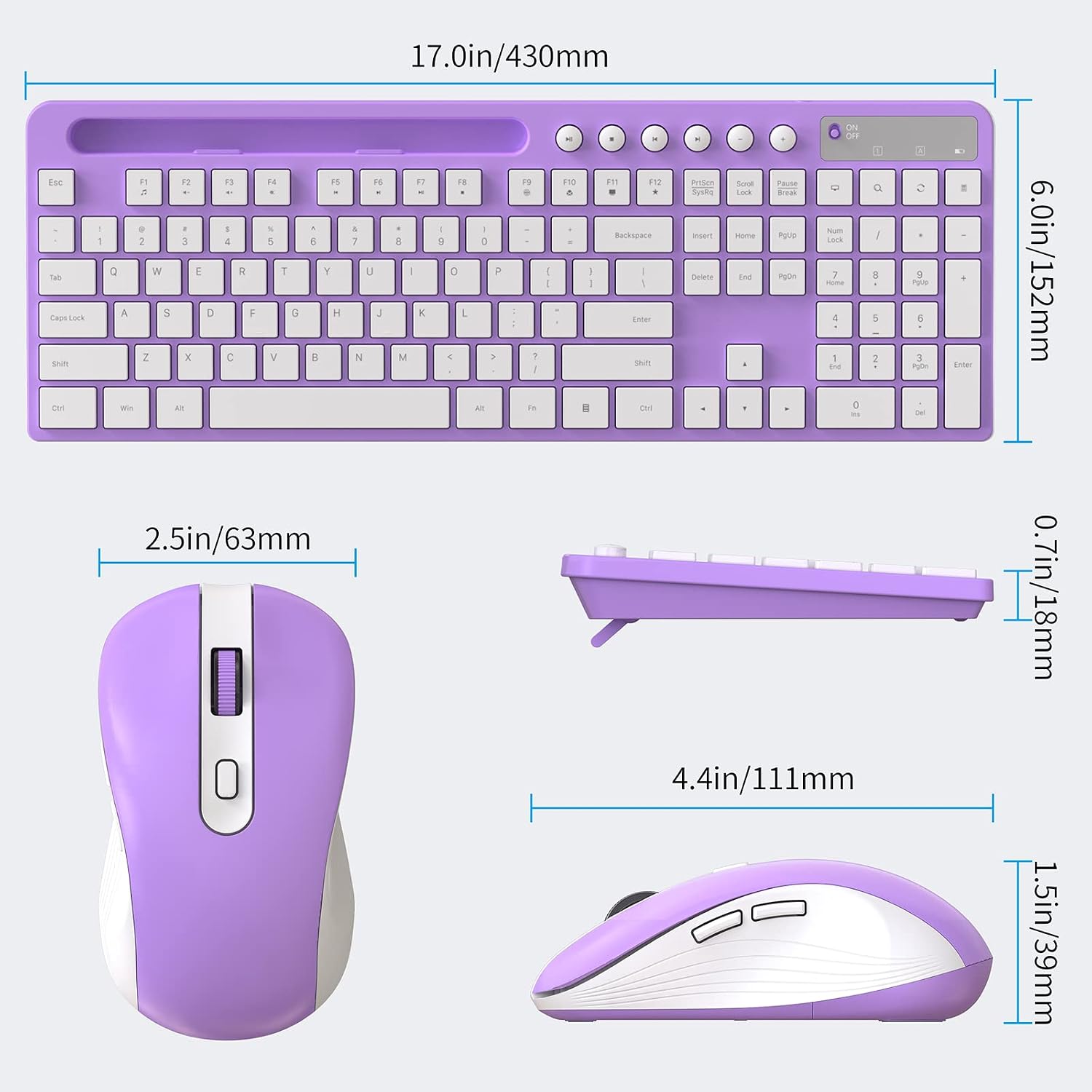
Image 7.1: Detailed dimensions of both the MARVO keyboard and mouse.
8. Warranty and Support
MARVO provides a 12-month worry-free warranty for this product. If you experience any issues or have questions regarding your Wireless Keyboard and Mouse Combo, please contact MARVO customer service for friendly support.
For further assistance, please visit the official MARVO store or contact their customer support channels as provided with your product packaging.
MARVO USA
Seller ID: A7YQS7NBNYGT
Related documentsB0BD6MZV95


Ask a question about this manual
Ask about setup, troubleshooting, compatibility, parts, safety, or missing instructions. Manuals+ will review the question and use this page’s manual context to help answer it.