
1. Introduction
Thank you for purchasing the Astrum KW340 Wireless Keyboard and Mouse Combo. This product is designed to provide a comfortable and efficient wireless input solution for your computer. It features a reliable 2.4GHz wireless connection, a low-profile keyboard with multimedia keys, and a precise optical mouse. This manual will guide you through the setup, operation, and maintenance of your new device.
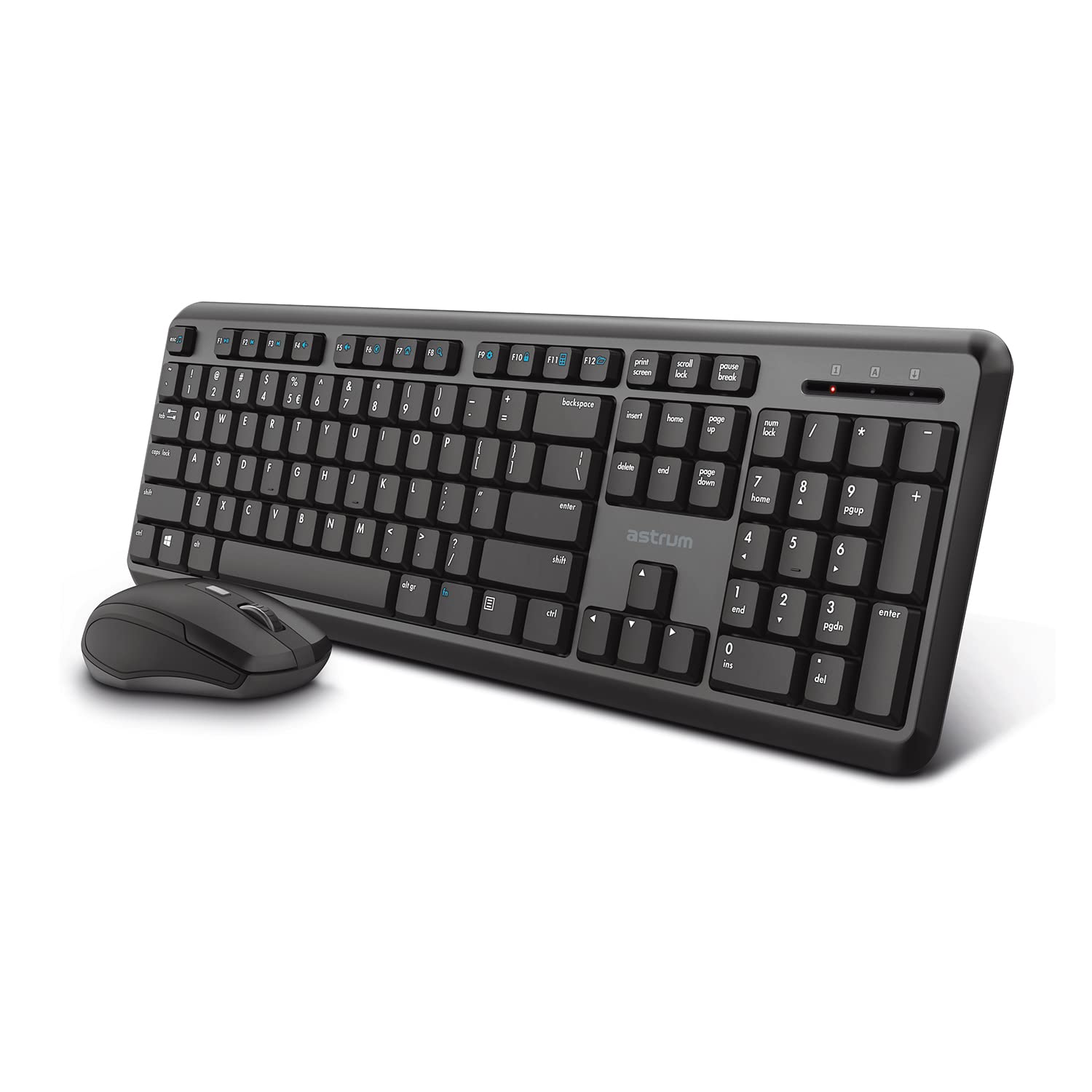
Image 1.1: The Astrum KW340 Wireless Keyboard and Mouse Combo. This image displays the full keyboard and mouse set, highlighting their compact and ergonomic design.
2. Package Contents
Please check the package contents carefully. If any items are missing or damaged, please contact your retailer.
- 1 x Astrum KW340 Wireless Keyboard
- 1 x Astrum Wireless Optical Mouse
- 1 x USB Nano Receiver (for both keyboard and mouse)
- 1 x User Manual (this document)
- Note: Batteries are not included and must be purchased separately (typically AA for keyboard, AAA for mouse, or as specified by the device).

Image 2.1: The Astrum Wireless Mouse and USB Nano Receiver. This image shows the ergonomic wireless mouse and the compact USB receiver, which enables wireless connectivity for both devices.
3. Setup Guide
- Install Batteries:
- Keyboard: Open the battery compartment on the underside of the keyboard. Insert the required batteries (e.g., 2 x AAA, not included) ensuring correct polarity (+/-). Close the compartment.
- Mouse: Open the battery compartment on the underside of the mouse. Insert the required batteries (e.g., 1 x AA, not included) ensuring correct polarity (+/-). Close the compartment.
- Connect the USB Nano Receiver: Locate the USB Nano receiver, usually stored within the mouse's battery compartment or packaged separately. Plug the receiver into an available USB port on your computer.
- Power On: Turn on the keyboard and mouse using their respective power switches (if available, usually on the underside). The devices should automatically connect to your computer.
- Driver Installation: Your operating system (Windows, Chrome OS, Linux) should automatically detect and install the necessary drivers. No manual driver installation is typically required.
- Test Functionality: Open a text editor or browser to test the keyboard and move the mouse to check cursor movement.
4. Operating Instructions
4.1 Keyboard Functions
The Astrum KW340 keyboard features a standard 104-key QWERTY layout along with 13 multimedia keys for enhanced control.
- Standard Keys: All standard alphanumeric and symbol keys function as expected.
- Multimedia Keys: Located at the top of the keyboard (F1-F12, etc.), these keys provide quick access to functions such as volume control, media playback, web browser, email, and more. Refer to the key legends for specific functions.
- Adjustable Angle: The keyboard includes sturdy tilt legs on the underside. Flip these out to adjust the typing angle for improved comfort.
- Silent Keystrokes: Designed for quiet operation, minimizing typing noise.
- Spill-Resistant Design: The keyboard features a spill-resistant design to help protect against accidental liquid spills. In case of a spill, immediately disconnect the keyboard and allow it to dry completely before reuse.

Image 4.1.1: Close-up of the Slim Wireless Keyboard. This image highlights the 104 classic QWERTY keys and 13 multimedia keys, emphasizing the slim profile.

Image 4.1.2: Ultra Silent Keystrokes feature. This image shows a finger pressing a key, illustrating the quiet operation of the keyboard.

Image 4.1.3: Spill-resistant design of the keyboard. This image depicts water splashing on the keyboard, demonstrating its resistance to accidental liquid spills.

Image 4.1.4: Adjustable angle and multi-OS support. This image shows the keyboard's tilt legs for ergonomic adjustment and icons for Windows, Linux, and Chrome OS compatibility.
4.2 Mouse Functions
- Left Click: Primary button for selection and activation.
- Right Click: Secondary button for context menus and additional options.
- Scroll Wheel: Used for scrolling through documents and web pages. Can also function as a middle click button.
- Optical Sensor: Provides precise tracking with 1200 DPI resolution, suitable for both left and right-handed users.
5. Maintenance
- Cleaning: Use a soft, dry cloth to clean the surfaces of the keyboard and mouse. For stubborn dirt, a slightly damp cloth with mild soap can be used, ensuring no liquid enters the device.
- Battery Replacement: Replace batteries when performance degrades or the low battery indicator (if present) illuminates. Always use fresh batteries of the specified type.
- Storage: When not in use for extended periods, turn off the devices and store them in a cool, dry place.
- Spill Management: In case of liquid spills, immediately power off the device, remove batteries, and allow it to dry completely before attempting to use it again.
6. Troubleshooting
| Problem | Possible Cause | Solution |
|---|---|---|
| Keyboard/Mouse not responding |
|
|
| Lagging or erratic cursor movement |
|
|
| Multimedia keys not working |
|
|
7. Specifications
| Brand | Astrum |
| Model Number | KW340 (Internal Model: KB350) |
| Connectivity | 2.4GHz Wireless (USB Nano Receiver) |
| Wireless Range | Up to 10 meters |
| Keyboard Layout | 104 QWERTY Standard Keys + 13 Multimedia Keys |
| Mouse DPI | 1200 DPI Optical |
| Power Source | Battery Powered (Batteries not included) |
| Compatible OS | Windows, Chrome OS, Linux |
| Special Features | Spill-resistant design, Ergonomic, Silent Keystrokes, Adjustable Angle |
| Item Weight | 568 g (approximate, for the combo) |
| Package Dimensions | 44.2 x 14.2 x 1.75 cm (approximate) |
8. Warranty and Support
The Astrum KW340 Wireless Keyboard and Mouse Combo comes with a 1-Year Limited Warranty from the date of purchase. This warranty covers manufacturing defects and workmanship under normal use.
The warranty does not cover:
- Damage caused by accident, abuse, misuse, flood, fire, earthquake, or other external causes.
- Damage caused by operating the product outside the permitted or intended uses described by Astrum.
- Damage caused by service performed by anyone who is not an authorized representative of Astrum.
- Products or parts that have been modified to alter functionality or capability without the written permission of Astrum.
- Consumable parts, such as batteries, unless damage has occurred due to a defect in materials or workmanship.
For technical support or warranty claims, please contact Astrum customer service through their official website or the retailer where the product was purchased. Please have your proof of purchase ready.
