
1. Introduction
This manual provides comprehensive instructions for the setup, operation, and maintenance of your NPET K611 Wireless Mechanical Keyboard. Please read this manual thoroughly before using the product to ensure optimal performance and longevity.
2. Product Overview
The NPET K611 is a compact 60% mechanical keyboard featuring 68 keys, designed for efficiency and portability. It supports triple-mode connectivity: Bluetooth 5.0, 2.4G wireless, and wired USB-C, offering versatile compatibility across various operating systems.

Figure 2.1: Front view of the NPET K611 Mechanical Keyboard, showcasing its compact 60% layout and vibrant RGB backlighting.
3. Key Features
- 60% Compact Layout: Features 68 keys, providing a minimalist design while retaining essential functions.
- Triple-Mode Connectivity: Seamlessly switch between Bluetooth 5.0, 2.4G wireless, and wired USB-C connections.
- Hot-Swappable PCB Design: Easily replace mechanical switches (compatible with 3-pin and 5-pin switches) to customize your typing experience. Comes with Red Switches.
- Dynamic RGB Backlight: Over 18 RGB backlight modes, 8 monochrome modes, and 1 full-color backlight mode for personalized aesthetics.
- N-Key Rollover: Ensures every keypress is registered accurately, preventing ghosting and jamming during rapid input.
- Long-Lasting Battery Life: Equipped with a 2200 mAh rechargeable battery, offering up to 1000 hours of use with backlight off, and 480 hours with backlight on.
- Wide Compatibility: Supports Windows, macOS, iOS, and Android operating systems.
- Double-Gasket Structure: Enhances typing sound and feel by reducing resonance.
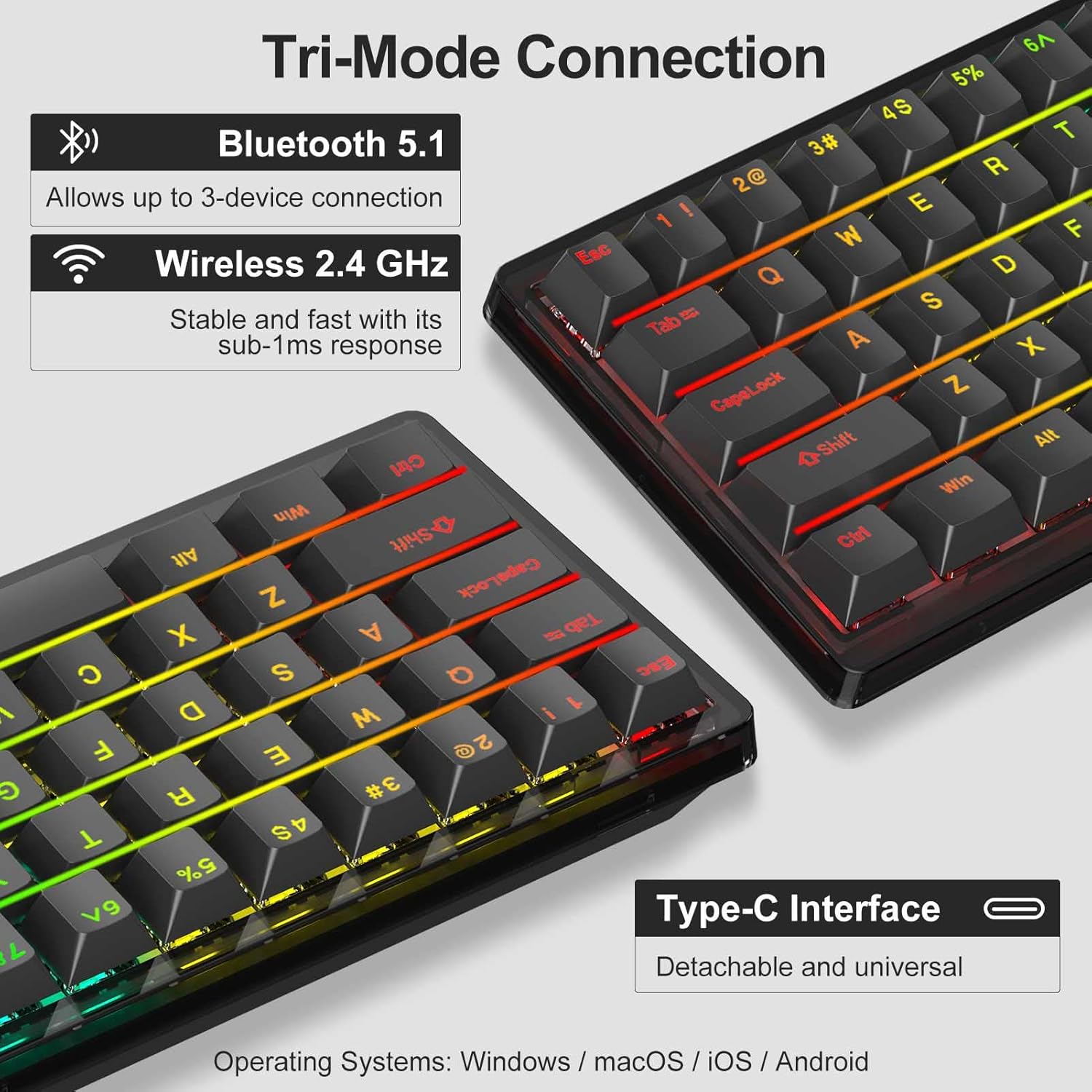
Figure 3.1: Illustration of the keyboard's tri-mode connectivity options: Bluetooth 5.1, Wireless 2.4 GHz, and Type-C Interface.

Figure 3.2: Close-up view demonstrating the hot-swappable nature of the switches, allowing for easy customization.

Figure 3.3: Battery life specifications, indicating charging time and working hours with and without backlight.
4. Setup
4.1 Package Contents
- NPET K611 Mechanical Keyboard
- USB-C Cable
- 2.4G Wireless Receiver
- Keycap Puller / Switch Puller (for hot-swapping)
- User Manual (this document)
4.2 Charging the Keyboard
Before first use, it is recommended to fully charge the keyboard. Connect the provided USB-C cable to the keyboard's USB-C port and the other end to a powered USB port (e.g., computer, wall adapter). The charging indicator light will show charging status.
4.3 Connecting the Keyboard
The NPET K611 offers three connection modes:
- Wired USB-C Connection:
Connect the USB-C cable directly from the keyboard to your computer's USB port. The keyboard will automatically switch to wired mode. This mode also charges the keyboard.
- 2.4G Wireless Connection:
Locate the 2.4G wireless receiver stored in the dedicated slot on the bottom of the keyboard. Plug the receiver into an available USB port on your computer. Switch the mode selector on the back of the keyboard to the "2.4G" position. The keyboard should connect automatically.

Figure 4.1: Location of the 2.4G wireless receiver storage slot on the underside of the keyboard.
- Bluetooth 5.0 Connection:
Switch the mode selector on the back of the keyboard to the "BT" position. The keyboard can store up to 3 Bluetooth devices. To pair, press and hold Fn + Q, Fn + W, or Fn + E for 3 seconds until the corresponding key (Q, W, or E) flashes rapidly, indicating pairing mode. On your device, search for "NPET K611" in Bluetooth settings and connect. Once connected, the key will stop flashing.
To switch between paired Bluetooth devices, simply press Fn + Q, Fn + W, or Fn + E (short press) for the desired device.
4.4 Operating System Compatibility Switch
On the back of the keyboard, there is a switch to select between Windows (WIN) and macOS (MAC) layouts. Ensure this switch is set correctly for your operating system to ensure proper function key mapping.

Figure 4.2: Visual representation of the keyboard's compatibility with both macOS and Windows operating systems.
5. Operating Instructions
5.1 Function Key Combinations (Fn Key)
The Fn key (Function key) is used in combination with other keys to access multimedia controls, lighting effects, and other special functions. Refer to the keycaps for specific Fn combinations.
- Fn + Left Arrow: Cycle through RGB lighting modes.
- Fn + Right Arrow: Cycle through RGB lighting colors.
- Fn + Up Arrow: Increase backlight brightness.
- Fn + Down Arrow: Decrease backlight brightness.
- Fn + Other Keys: Refer to the secondary legends on the keycaps for multimedia controls (e.g., volume, play/pause) and other functions.

Figure 5.1: The keyboard displaying its dynamic RGB backlight, highlighting the customizable lighting effects.
5.2 Hot-Swapping Switches
The NPET K611 features hot-swappable switches, allowing you to change them without soldering. Use the provided switch puller to gently remove the existing switch. Align the pins of the new switch with the holes on the PCB and press firmly until it clicks into place. Ensure the keyboard is disconnected or powered off before hot-swapping.

Figure 5.2: Exploded view illustrating the double-gasket structure, keycaps, switches, plate, gaskets, PCB, sound absorbing foam, and case foam components.
6. Maintenance
6.1 Cleaning
- Disconnect the keyboard from all power sources before cleaning.
- Use a soft, lint-free cloth slightly dampened with water or a mild cleaning solution to wipe the keycaps and chassis.
- For deeper cleaning, use the keycap puller to remove keycaps and use compressed air to clear debris from beneath.
- Avoid using harsh chemicals or abrasive materials.
6.2 Storage
Store the keyboard in a cool, dry place away from direct sunlight and extreme temperatures. If storing for an extended period, ensure the keyboard is fully charged to maintain battery health.
7. Troubleshooting
- Keyboard not responding:
- Ensure the keyboard is charged.
- Check the connection mode switch (USB, 2.4G, BT) on the back of the keyboard.
- For wired mode, ensure the USB-C cable is securely connected.
- For 2.4G wireless, ensure the receiver is properly plugged in and the mode switch is set to 2.4G.
- For Bluetooth, ensure the keyboard is paired correctly and selected on your device. Try re-pairing if necessary.
- Backlight not working or dim:
- Increase brightness using Fn + Up Arrow.
- Ensure the keyboard has sufficient battery charge.
- The backlight may turn off automatically after a period of inactivity to save power. Press any key to reactivate.
- Keys not registering or double-typing:
- Ensure switches are fully seated in their sockets. Gently press down on the affected keycap.
- If a specific switch is faulty, consider hot-swapping it with a new one.
- Bluetooth connectivity issues:
- Ensure your device's Bluetooth is enabled.
- Delete the keyboard from your device's Bluetooth list and re-pair.
- Ensure the keyboard is within range of your device.
8. Specifications
| Feature | Detail |
|---|---|
| Model Name | K611 |
| Connectivity Technology | Bluetooth 5.0, Wireless 2.4G, USB-C |
| Number of Keys | 68 |
| Switch Type | Red Mechanical Switches (Hot-Swappable) |
| Backlighting | RGB (18+ modes) |
| Battery Capacity | 2200 mAh Lithium Ion |
| Material | Acrylonitrile Butadiene Styrene |
| Item Weight | 2.09 pounds |
| Package Dimensions | 14.21 x 6.18 x 1.93 inches |
| Compatibility | Windows, macOS, Android, iOS |
9. Warranty and Support
NPET offers a 2-year guarantee on this product. This warranty covers manufacturing defects and ensures hassle-free return and replacement for all NPETtech electronic devices.
For any questions, concerns, or technical assistance, please contact our fast and friendly customer service team. Refer to the product packaging or the official NPET website for contact information.