
Introduction
This manual provides essential instructions for the setup, operation, and maintenance of your Ejoyous 4G LTE USB Network Adapter. This device functions as both a USB modem and a portable Wi-Fi hotspot, allowing up to 10 users to connect simultaneously. Please read this manual thoroughly before using the product to ensure optimal performance and longevity.
Product Overview
The Ejoyous 4G LTE USB Network Adapter is designed for portable internet access. It features a compact USB design, an integrated 4G/3G+ Wi-Fi antenna, and supports a standard 6-pin SIM card interface. It also includes a slot for a small memory card (up to 32GB, not included) for expanded storage.
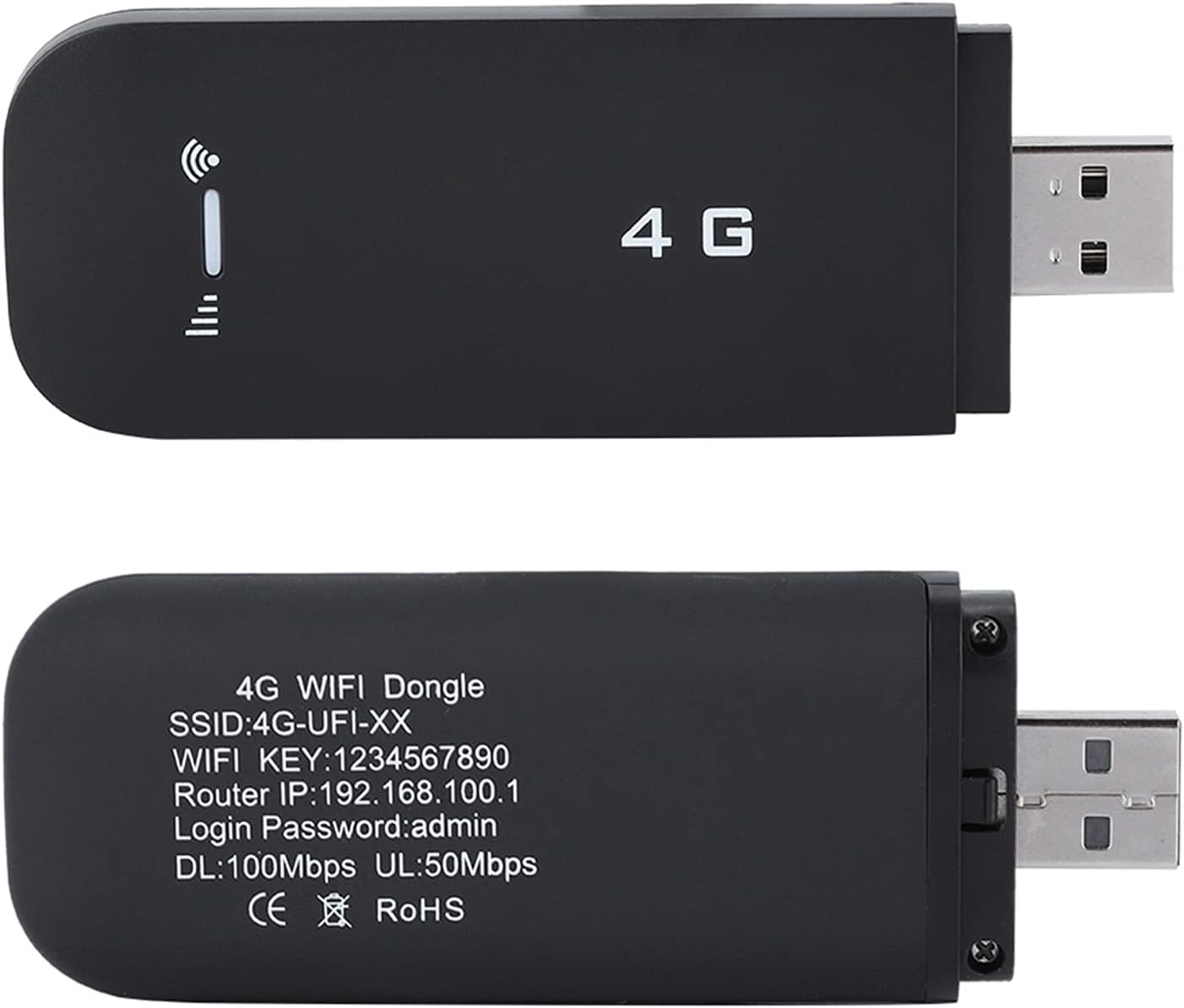
Figure 1: Device Overview. This image shows the front and back of the Ejoyous 4G LTE USB Network Adapter, highlighting its compact design and the USB connector.

Figure 2: Card Port Design. This image illustrates the SIM card slot and the memory card connector on the device. Note that the SIM card and memory card are not included.
Setup
- Insert SIM Card: Open the device cover and carefully insert a standard 6-pin SIM card into the designated slot. Ensure it is correctly oriented. The device requires a SIM card for operation.
- Connect to USB Port: Plug the USB Network Adapter directly into an available USB port on your laptop or computer.
- Driver and Software Installation: Upon first connection to a computer, the system will automatically detect the device and may prompt for driver and software installation. Follow the on-screen instructions to complete the installation. The device supports 32/64 bit operating systems including Windows 2000/2003/XP/Vista/7/10, OS 10.4 or later, and Linux.
- Launch Software: After installation, launch the installed software to connect to the internet.

Figure 3: Easy Connection. The device is shown plugged into a laptop's USB port, ready for use.

Figure 4: Model Variations. This image displays two versions of the device, labeled "New Type" and "Old Type," indicating that models may vary in appearance.
Operating Instructions
- Internet Connection: Once the software is launched and connected, the device will establish a 4G LTE internet connection.
- Wi-Fi Hotspot Function: The device automatically functions as a Wi-Fi hotspot, allowing up to 10 users to connect simultaneously. The Wi-Fi network name (SSID) and password (WIFI KEY) are typically printed on the device itself or can be found within the installed software interface.
- High-Speed Connectivity: The device offers connection speeds of up to 100Mbps for browsing, chatting, and online activities. The built-in 4G/3G+ antenna provides optimal coverage and signal strength.
- Memory Card Expansion: If desired, insert a small memory card (up to 32GB) into the dedicated slot for additional storage.

Figure 5: High-Speed Connection. This image shows the device in use with a laptop, demonstrating its capability for high-speed internet activities like video conferencing.

Figure 6: Optimal Coverage. The device is depicted providing internet access to a desktop computer, emphasizing its built-in antenna for reliable signal.

Figure 7: Multi-User Sharing. This diagram illustrates the device's ability to share its internet connection with up to 10 Wi-Fi enabled devices simultaneously.
Maintenance
- Cleaning: Use a soft, dry cloth to clean the exterior of the device. Avoid using liquid cleaners or solvents.
- Storage: When not in use, store the device in a cool, dry place away from direct sunlight and extreme temperatures.
- Handling: Handle the device with care. Avoid dropping it or subjecting it to strong impacts.
Troubleshooting
- Device not connecting to the internet:
- Ensure a valid and active SIM card is correctly inserted. The device requires a SIM card for operation.
- If the device was unplugged and re-plugged into the same USB port, you must click the installed software again to connect.
- If connected to a different USB port on the same computer, the computer may automatically re-download the driver and software. You will need to re-enter the software to connect.
- Verify that your SIM card is compatible with the device's supported frequency bands (FDD: B1/B3, WCDMA: 2100MHz).
- Check your network provider's APN settings and ensure they are correctly configured in the device's software, if applicable.
- No Wi-Fi signal or devices cannot connect to Wi-Fi:
- Ensure the device is powered on and connected to a computer or USB power source.
- Verify the Wi-Fi network name (SSID) and password (WIFI KEY) are correct. These are usually found on the device itself or in the software.
- Check if the maximum number of connected users (up to 10) has been reached.
- Slow connection speed:
- Ensure you are in an area with good 4G LTE network coverage.
- Reduce the number of connected devices if multiple users are sharing the connection.
- Check for any background applications or downloads consuming bandwidth.
Specifications
| Feature | Detail |
|---|---|
| Brand | Ejoyous |
| Model Name | Ejoyousqif79uvsph7958-01 |
| Connectivity Technology | USB, Wi-Fi |
| Wireless Communication Standard | 802.11b |
| Data Transfer Rate | Up to 100 Megabits Per Second (Mbps) |
| Frequency Band Class | Dual-Band (2.4 GHz) |
| Compatible Devices | Personal Computer, Smartphone, Tablet |
| Operating System Support | Windows 2000/2003/XP/Vista/7/10 (32/64 bit), OS 10.4 or later, Linux |
| SIM Card Interface | Standard 6-pin SIM card interface |
| Memory Card Expansion | Supports up to 32GB (small memory card, not included) |
| Security Protocol | WPS, WPA2 |
| Antenna Type | Internal (Built-in 4G/3G+ antenna) |
| Item Weight | 54.15 Grams |
Warranty Information
Specific warranty details for the Ejoyous 4G LTE USB Network Adapter are not provided in the product information. Please refer to the retailer's return policy or contact the seller directly for warranty inquiries.
Support
For technical assistance or further questions regarding your Ejoyous 4G LTE USB Network Adapter, please contact the seller or refer to the support resources provided by your point of purchase. No direct manufacturer support contact information is available in the product details.