
Introduction
This manual provides instructions for the setup, operation, and maintenance of your Xidehuy MP3 Player. Please read this manual thoroughly before using the device to ensure proper function and longevity.
Important Note: This MP3 player does not support iTunes synchronization and is not an Apple iPod device.
Package Contents
Verify that all items are present in the package:
- 1 x Xidehuy MP3/MP4 Player
- 1 x 32GB Memory Card (pre-installed or separate)
- 1 x HiFi Bass Earphone
- 1 x USB Cable
- 1 x User Manual (this document)
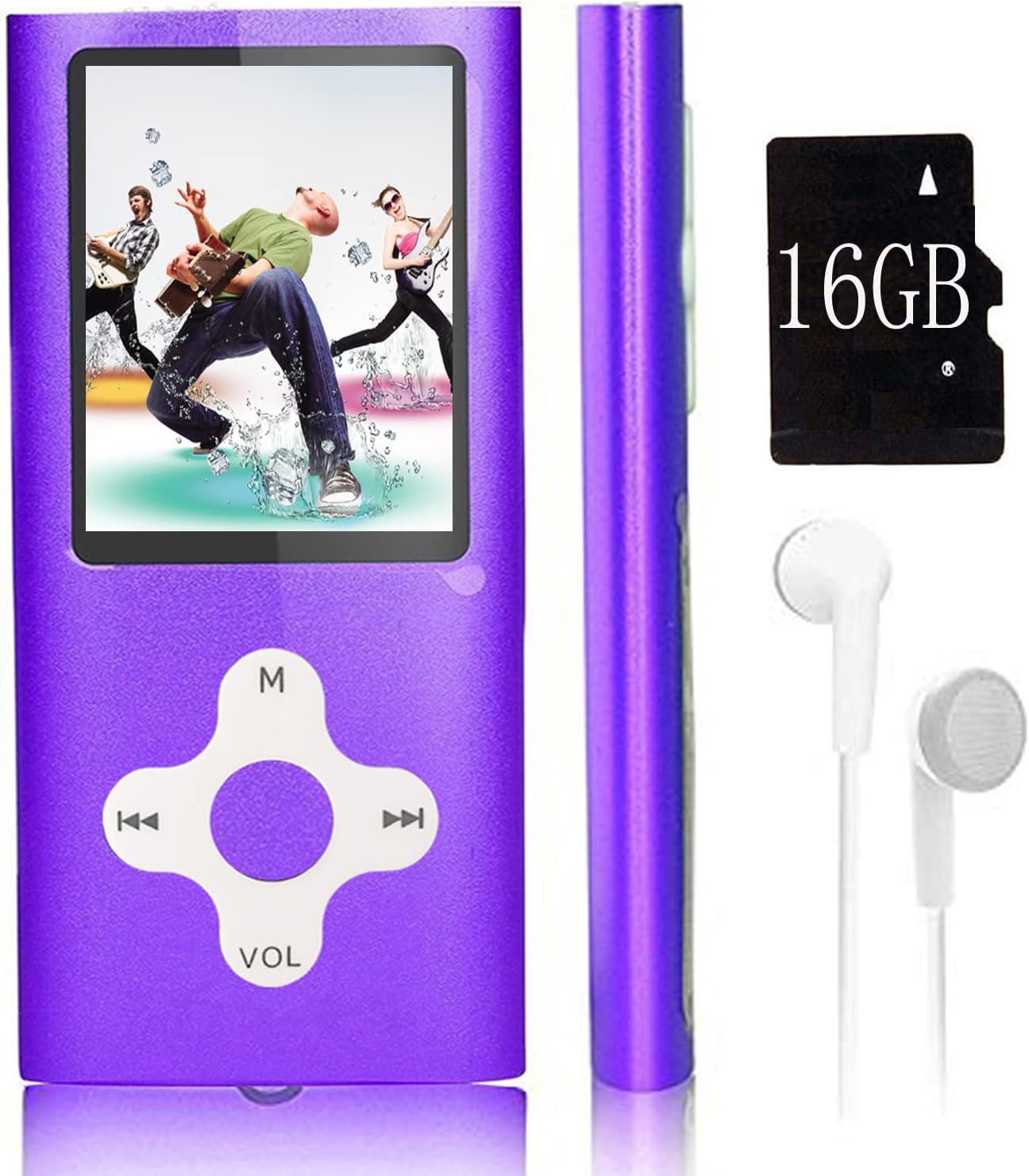
Image: The Xidehuy MP3 Player in violet, shown with a memory card (note: product includes 32GB, image shows 16GB) and white earphones. The player features a 1.8-inch LCD screen and circular navigation buttons.
Product Overview
Controls and Ports
The MP3 player features a 1.8-inch LCD screen and a circular control pad. The control pad typically includes:
- M (Menu/Mode): Accesses menus or changes modes.
- Play/Pause/Confirm: Central button for playback control and selection.
- Previous/Rewind: Navigates to the previous track or rewinds.
- Next/Fast Forward: Navigates to the next track or fast forwards.
- VOL (Volume): Adjusts the volume level.
Side ports typically include a Mini USB port for charging and data transfer, and a 3.5mm audio jack for earphones.
Setup
1. Charging the Device
- Connect the provided USB cable to the MP3 player's Mini USB port.
- Connect the other end of the USB cable to a computer's USB port or a compatible USB wall adapter (not included).
- The device will begin charging. It is recommended to turn on the player before charging.
- A full charge typically takes approximately 1 hour.
2. Connecting to a Computer and Transferring Files
- Ensure the MP3 player is powered on.
- Connect the MP3 player to your computer using the USB cable.
- The player will appear as an external storage device (e.g., a removable disk) on your computer.
- Open the device folder. You can drag and drop music files (MP3), video files (AMV), photo files (JPEG), or e-book files (TXT) directly into the player's storage.
- Once files are transferred, safely eject the device from your computer before disconnecting the USB cable.
Operating Instructions
Power On/Off
- To power on, press and hold the Power button (usually on the side or top) until the screen illuminates.
- To power off, press and hold the Power button until the device shuts down.
Screen Lock/Unlock
- Press the dedicated lock/unlock button (if available) or a specific combination (refer to on-screen prompts) to lock or unlock the screen and controls.
Basic Navigation
- Use the directional buttons on the control pad to navigate through menus.
- Press the central Play/Pause/Confirm button to select an option.
- Press the 'M' (Menu) button to go back to the previous menu or access main menu options.
Music Playback
- From the main menu, select "Music".
- Browse your music files or folders.
- Select a song to begin playback.
- Use the Play/Pause button to pause or resume.
- Use the Previous/Next buttons to skip tracks.
- Adjust volume using the VOL buttons.
- Playback modes include Normal, Repeat Once, Repeat All, and Random. These can usually be accessed via the 'M' button during playback.
Video Playback
The player supports AMV video format.
- From the main menu, select "Video".
- Browse and select an AMV video file to play.
- Use the control buttons for playback control.
FM Radio
- Ensure earphones are connected as they act as the antenna.
- From the main menu, select "FM Radio".
- Use the menu options to auto-scan for stations or manually tune.
Voice Recording
- From the main menu, select "Voice Record".
- Press the Play/Pause button to start recording.
- Press it again to stop and save the recording.
E-Book Reader
The player supports TXT format e-books.
- From the main menu, select "E-Book".
- Browse and select a TXT file to read.
- Use the directional buttons to scroll through pages.
Photo Viewer
The player supports JPEG format photos.
- From the main menu, select "Photo Viewer".
- Browse and select a JPEG image to view.
- Use the directional buttons to navigate between images.
Maintenance
- Keep the device dry. Moisture can damage the internal circuits.
- Avoid extreme temperatures. High temperatures can shorten the life of electronic devices.
- Do not drop or subject the device to strong impacts.
- Clean the screen and body with a soft, dry cloth. Do not use harsh chemicals or cleaning solvents.
- Store the device in a clean, dust-free environment when not in use.
Troubleshooting
| Problem | Solution |
|---|---|
| Device does not power on. | Ensure the device is fully charged. Connect to a power source and try again. |
| Cannot transfer files to the device. | Verify the USB cable is securely connected. Ensure the device is recognized by the computer. Try a different USB port or cable. |
| Music/Video files do not play. | Check if the file format is supported (MP3 for music, AMV for video). Ensure files are not corrupted. |
| FM Radio not working. | Ensure earphones are properly plugged in, as they function as the antenna. |
| Screen is unresponsive or frozen. | Perform a soft reset by pressing and holding the Power button for 10-15 seconds until the device restarts. If a reset button is available (small pinhole), use a thin object to press it. |
Specifications
- Screen Size: 1.8 inches High Resolution Real Color LCD
- Internal Memory: 32 GB (with included memory card)
- Expandable Memory: Supports up to 64 GB MicroSD card
- Battery: Built-in Li-ion battery
- Charging Time: Approximately 1 hour
- Playing Time: Approximately 5-7 hours
- Supported Audio Formats: MP3, FLAC
- Supported Video Formats: AMV
- Supported Photo Formats: JPEG
- Supported E-Book Formats: TXT
- Connectivity: Mini USB 2.0
- Special Features: FM Radio, Voice Recorder, E-Book Reader, Photo Viewer
- Languages: Simplified Chinese, English, Traditional Chinese, Japanese, Korean, Italian, etc.
- Dimensions: 10.49 x 5.41 x 3.71 cm
- Weight: Approximately 68 g (package not included)
Warranty and Support
This Xidehuy MP3 Player comes with a One Year Manufacturer's Warranty from the date of purchase.
For any concerns regarding after-sale support, technical assistance, or warranty claims, please contact Xidehuy customer service through your purchase platform or the contact information provided with your product documentation.