
1. Product Overview
The TECHNOVIEW Spy HD WiFi Hidden 1080P Bulb Holder Camera is a discreet security device designed for indoor surveillance. It integrates a high-definition camera into a standard bulb holder, allowing for continuous monitoring of your home, office, or other personal spaces.
Key features include:
- 2-in-1 Design: Functions as both a bulb holder and a surveillance camera.
- HD 1080P Video: Provides clear image and video quality with remote viewing capabilities.
- Night Vision: Offers clear visibility in low-light or dark conditions.
- Loop Recording: Automatically overwrites older files when the memory card is full, ensuring continuous recording.
- Wi-Fi Connectivity: Enables remote viewing and control via a smartphone application.
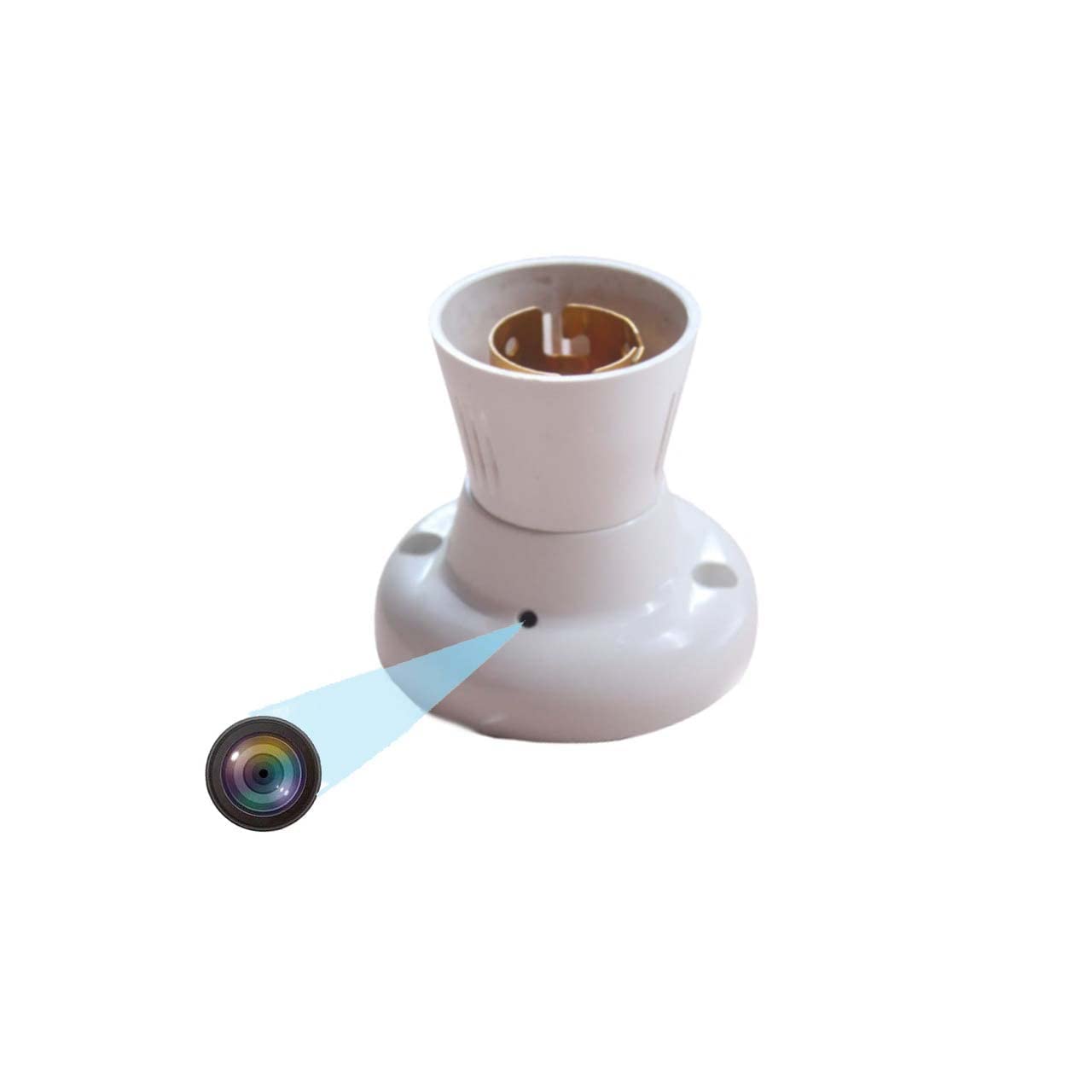
Figure 1.1: TECHNOVIEW Bulb Holder Camera. This image shows the overall design of the bulb holder with the discreetly integrated camera lens.
2. Setup Instructions
Follow these steps to set up your TECHNOVIEW Bulb Holder Camera:
- Power Connection: Ensure the camera is connected to a 220 Volt AC power supply. This device operates directly from the mains power.
- Micro SD Card Insertion: Locate the Micro SD card slot on the device. Gently insert a Micro SD card (up to 128 GB capacity) for video storage. Ensure it is inserted correctly until it clicks into place.
- App Installation: Download and install the LOOKCAM PRO APP on your smartphone. This app is available for Android devices.
- Device Pairing: Open the LOOKCAM PRO APP and follow the in-app instructions to connect your camera to your home or office Wi-Fi network. This typically involves scanning a QR code or connecting to the camera's temporary Wi-Fi hotspot.
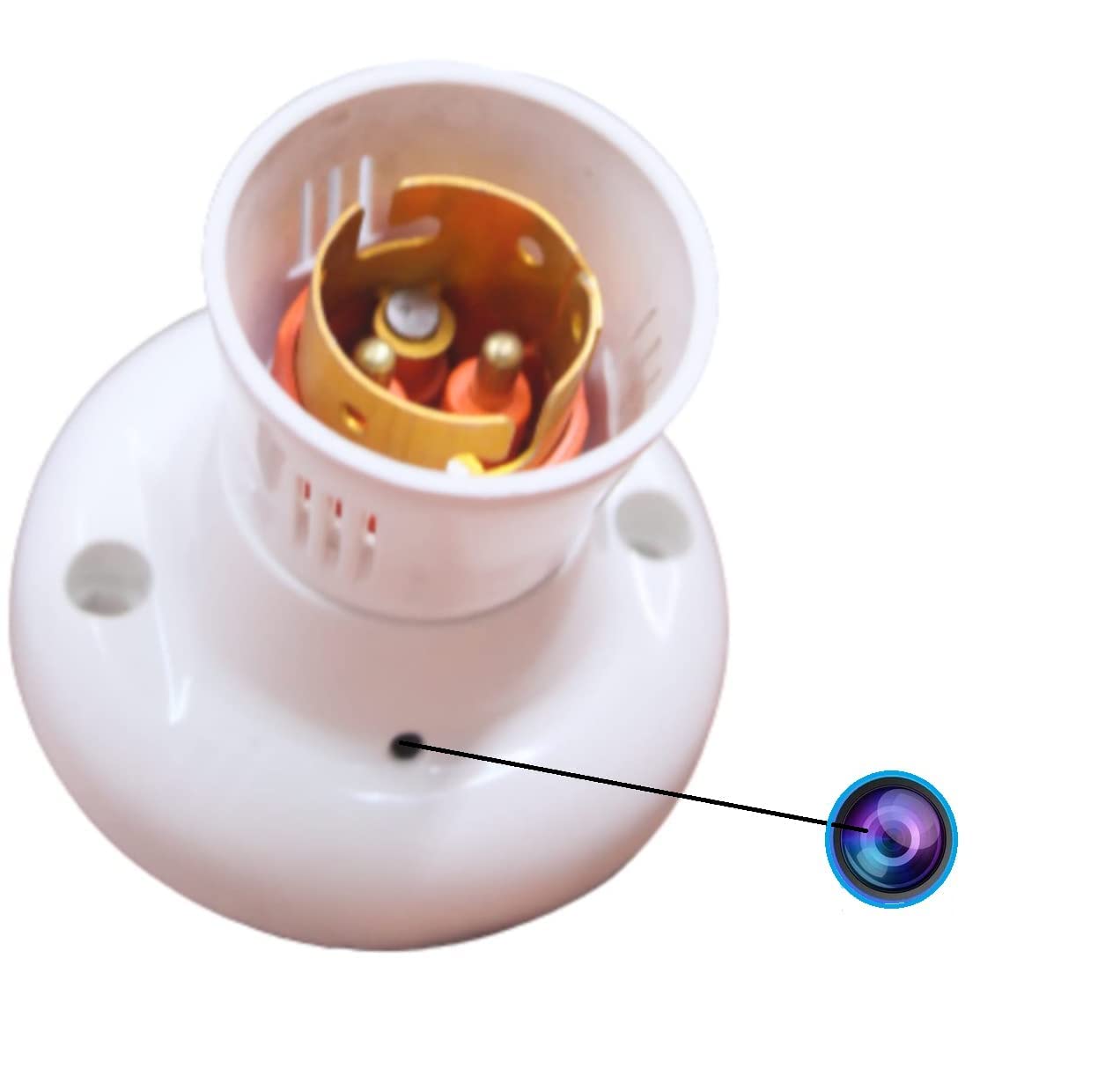
Figure 2.1: Close-up view of the camera lens on the bulb holder, indicating the discreet placement.
3. Operating Instructions
Once set up, you can operate your camera using the LOOKCAM PRO APP:
- Live View: Open the LOOKCAM PRO APP to access the live video feed from your camera. You can switch between 1080P and 720P resolution as needed.
- Video Recording: The camera supports continuous loop recording. When the Micro SD card is full, the newest files will automatically overwrite the oldest files. Video files are saved in 10-minute segments.
- Night Vision: The camera is equipped with night vision technology, providing clear surveillance even in complete darkness.
- Photo Capture: Use the app to take still photos from the live video feed.
- Playback: Access recorded videos and photos directly through the LOOKCAM PRO APP. Files can also be downloaded to your phone or computer for review.
- Multi-User Sharing: The app allows you to share camera access with authorized users, enabling multiple individuals to view the feed.

Figure 3.1: Remote viewing of the camera feed on a smartphone, accessible anytime, anywhere.

Figure 3.2: Visual representation of the camera's core functionalities, including HD video, Wi-Fi connectivity, and loop recording.

Figure 3.3: Illustration of how multiple family members or authorized users can access and share the camera's live feed through the app.
4. Maintenance
To ensure optimal performance and longevity of your TECHNOVIEW Bulb Holder Camera, consider the following maintenance tips:
- Cleaning: Gently wipe the camera lens and exterior with a soft, dry cloth. Avoid using harsh chemicals or abrasive materials that could damage the device.
- Power Supply: Ensure a stable 220V AC power supply. Fluctuations can affect performance.
- Memory Card Management: While the camera features loop recording, it is advisable to periodically back up important footage from the Micro SD card to another storage device.
- Firmware Updates: Check the LOOKCAM PRO APP regularly for any available firmware updates for your camera. Updates can improve performance and add new features.
5. Troubleshooting
If you encounter issues with your TECHNOVIEW Bulb Holder Camera, refer to the following common problems and solutions:
| Problem | Possible Cause / Solution |
|---|---|
| Camera not powering on / Not working |
|
| Interrupted recording / Wireless connection issues |
|
| Not covering full area / Limited view |
|
| App not connecting to camera |
|
6. Specifications
| Feature | Detail |
|---|---|
| Model | Holder-Camera |
| Mounting Type | Embedded |
| Video Capture Resolution | 4K, 1080p |
| Colour | White |
| Wireless Communication Technology | Wi-Fi |
| Form Factor | Dome |
| Viewing Angle | 90 degrees |
| Voltage | 220 Volts (AC) |
| Wattage | 5 Watts |
| Item Dimensions (L x W x H) | 9 x 3 x 3 Centimeters |
| Item Weight | 35 Grams |
| Flash Memory Type | Micro SD |
| Memory Storage Capacity | Up to 128 GB |
| Operating System (App) | Android |
| Special Features | HD Camera Resolution, Wifi |
| Indoor/Outdoor Usage | Indoor |
| International Protection Rating | IP54 |
7. Warranty and Support
For technical assistance or product support, please contact TECHNOVIEW customer service:
- WhatsApp Support: +91 98106 01293
- Operating Hours: Monday to Saturday, 11:30 AM to 6:30 PM (IST)
- Please drop your query or message on WhatsApp. Contact only after purchasing the product.

Figure 7.1: Technical support contact information for TECHNOVIEW products.
For more information about TECHNOVIEW products, visit the official TECHNOVIEW Store on Amazon.