
1. Introduction
The Black Box Boxilla KVM Manager, model BXAMGR-R2-ULT, is a robust and TAA-compliant KVM management solution designed to streamline network operations. This device allows for efficient management and control of an unlimited number of devices within your KVM infrastructure, eliminating the need for multiple licenses. It ensures compliance with government and public sector standards, providing a secure and reliable platform for KVM management.
This manual provides comprehensive instructions for the setup, operation, maintenance, and troubleshooting of your Boxilla KVM Manager.
2. Safety Information
Please read and understand all safety instructions before operating this device. Failure to follow these instructions may result in electric shock, fire, or damage to the product.
- Ensure the device is connected to a grounded power outlet.
- Do not expose the device to water or excessive moisture.
- Do not open the device casing. Refer all servicing to qualified personnel.
- Operate the device within the specified temperature and humidity ranges.
- Disconnect power before cleaning or moving the device.
3. Package Contents
Verify that all items are present in the package:
- Black Box Boxilla KVM Manager (BXAMGR-R2-ULT)
- Power Adapter
- Quick Start Guide
- Mounting Hardware (if applicable)
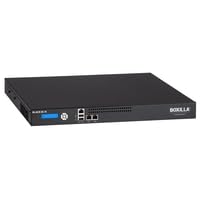
Image of the Black Box Boxilla KVM Manager, model BXAMGR-R2-ULT, showing its front panel and compact design.
4. Setup
Follow these steps for initial setup of your Boxilla KVM Manager:
- Unpack the Device: Carefully remove the KVM manager and all accessories from its packaging.
- Placement: Place the device on a stable, flat surface or mount it in a rack using the provided hardware. Ensure adequate ventilation around the unit.
- Connect Network Cables: Connect the KVM manager to your network infrastructure using standard Ethernet cables. Refer to your network topology for specific port connections.
- Connect Power: Plug the power adapter into the KVM manager's power input, then connect it to a grounded electrical outlet. The device will power on automatically.
- Initial Configuration: Access the device's web interface via a web browser using its default IP address (refer to the Quick Start Guide for default IP and login credentials). Follow the on-screen prompts to configure network settings, user accounts, and initial KVM device discovery.
5. Operating Instructions
Once the Boxilla KVM Manager is set up, you can begin managing your KVM devices. The primary interface for operation is the web-based management console.
- Logging In: Open a web browser and navigate to the IP address or hostname of your Boxilla KVM Manager. Enter your username and password.
- Device Discovery: Use the discovery tools within the interface to find and add KVM transmitters and receivers to your management system.
- User Management: Create and manage user accounts, assigning appropriate access levels and permissions for KVM control.
- Session Management: Initiate, monitor, and terminate KVM sessions to connected devices.
- System Monitoring: Review system logs, device status, and network performance metrics through the dashboard.
- Firmware Updates: Regularly check for and apply firmware updates to ensure optimal performance and security.
6. Maintenance
Regular maintenance ensures the longevity and optimal performance of your Boxilla KVM Manager.
- Cleaning: Use a soft, dry cloth to clean the exterior of the device. Do not use liquid cleaners or aerosols.
- Ventilation: Ensure that ventilation openings are clear of dust and obstructions to prevent overheating.
- Firmware: Keep the device firmware updated to the latest version. Refer to the Black Box support website for updates and instructions.
- Backup Configuration: Periodically back up your device configuration settings to prevent data loss in case of an unforeseen issue.
7. Troubleshooting
This section addresses common issues you might encounter with the Boxilla KVM Manager.
| Problem | Possible Cause | Solution |
|---|---|---|
| Device does not power on. | No power supply, faulty power adapter, or power outlet issue. | Check power cable connection. Verify power outlet functionality. Try a different power adapter if available. |
| Cannot access web interface. | Incorrect IP address, network connectivity issue, or firewall blocking access. | Verify the device's IP address. Check network cable connections. Ensure your computer is on the same network segment. Temporarily disable firewall for testing. |
| KVM devices not discovered. | Network configuration issues, KVM devices not powered on, or incorrect discovery settings. | Ensure KVM transmitters/receivers are powered and connected. Verify network settings on Boxilla and KVM devices. Check discovery range settings in the web interface. |
| Slow performance. | Network congestion, outdated firmware, or high CPU/memory usage. | Check network bandwidth. Update firmware to the latest version. Monitor system resources via the web interface. |
8. Specifications
Detailed specifications for the Black Box Boxilla KVM Manager BXAMGR-R2-ULT:
- Model Number: BXAMGR-R2-ULT
- ASIN: B0BCX8GNRR
- Product Dimensions: 11 x 10 x 6 inches
- Manufacturer: Black Box Network
- First Available: May 30, 2023
- License: Unlimited Device License
- Compliance: TAA Compliant
9. Warranty and Support
For warranty information and technical support, please refer to the official Black Box Network website or contact their customer service department. Keep your purchase receipt for warranty claims.
Black Box Network Official Website: www.blackbox.com


