
Introduction
The Leapiture H400G is a Head-Up Display (HUD) designed to project essential driving information onto your car's windshield. This device enhances driving safety by allowing you to view data such as speed, time, and mileage without diverting your eyes from the road. It utilizes a high-frequency GPS Beidou dual-mode chip for precise data acquisition and is compatible with all car models via USB power.
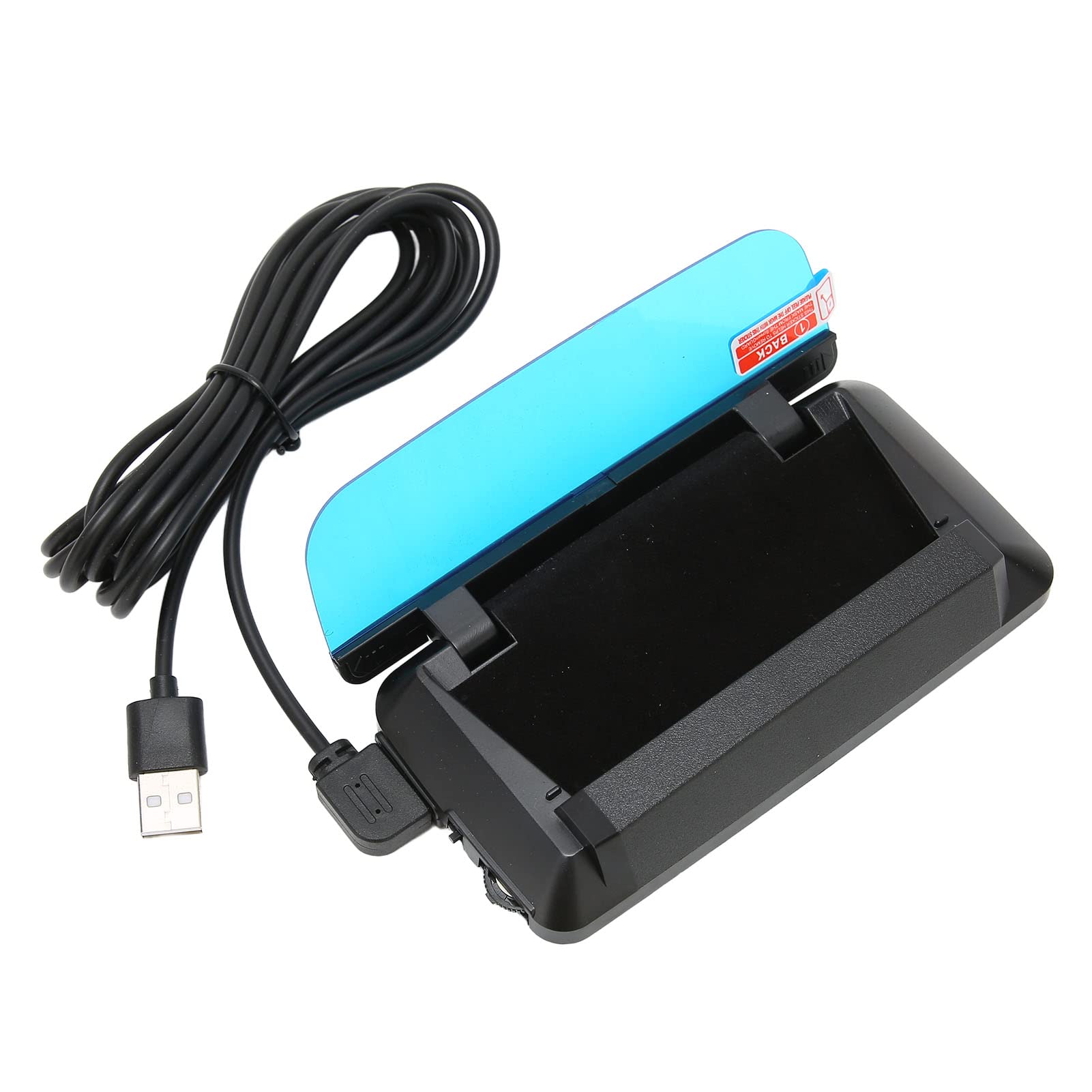
Image: The Leapiture H400G HUD installed in a car, displaying information on the windshield.
Product Features
- Dual-Mode GPS BEIDOU Chip: Utilizes a high-frequency 10 Hz dual-mode chip for rapid data refresh (10 M/s), ensuring no delay in vehicle speed updates.
- Multi-function Display: Displays speed, time, mileage, altitude, satellite count, and travel time. Offers 6 customizable interface combinations and 2 types of speed alarm functions.
- No Ghosting 3D Imaging: Features a built-in display chip, eliminating the need for external film. Uses semi-transparent, semi-reflective lenses for a clear, suspended 3D information display.
- Accurate Speed Display: Includes a speed calibration function to match the car's dashboard display. GPS speed is highly accurate due to satellite signal recognition.
- USB Power Supply: Powered by a 5V car USB port or cigarette lighter to USB adapter, ensuring low power consumption. Compatible with all car models.

Image: The H400G HUD highlighting its no-ghosting three-dimensional imaging feature.
Package Contents
Verify that all items are present in the package:
- 1 x H400G HUD Unit
- 1 x USB Power Cable
- 1 x Cable Spudger (for installation)
- 1 x Anti-slip Pad
- 2 x Carabiners (for cable management)
- 4 x Line Cards (cable clips)
- 1 x User Manual (this document)

Image: All items included in the Leapiture H400G product package.
Setup Instructions
- Choose Placement: Select a suitable location on your car's dashboard, typically near the windshield, ensuring a clear and unobstructed view for the projected display.
- Secure Device: Place the provided anti-slip pad on the chosen dashboard location. Then, firmly place the H400G HUD unit onto the anti-slip pad to prevent movement during driving.
- Connect Power: Connect the small end of the provided USB cable to the USB port on the side of the H400G unit. Connect the larger end of the USB cable to a 5V USB power source in your vehicle (e.g., a car USB port or a USB car charger, not included).
- Manage Cables: Use the cable spudger to tuck the USB cable neatly along dashboard seams. Secure the cable with the provided line cards (cable clips) to prevent it from interfering with driving controls or obstructing your view.
- Initial Power On: Once connected, the HUD will power on automatically. It will begin searching for GPS/Beidou satellite signals. This may take a few moments, especially during the first use.

Image: Side view of the H400G HUD, illustrating the USB power connection point and control dial.
Operating Instructions
- Power On/Off: The device powers on automatically when your vehicle's ignition is turned on (if connected to a switched USB port) and powers off when the ignition is turned off.
- Satellite Signal Acquisition: After powering on, the HUD will search for GPS/Beidou satellite signals. Ensure your vehicle is outdoors with a clear view of the sky for optimal signal reception. Once signals are acquired, data will be displayed.
- Display Modes: The H400G offers 6 types of combined interfaces. Use the adjustment wheel or button (located on the side of the unit, as shown in setup images) to cycle through and select your preferred display mode.
- Speed Alarm: The device includes two types of speed alarm functions. To set or adjust the alarm thresholds, refer to the device's on-screen menu (accessed via the adjustment wheel/button) and follow the prompts.
- Data Display: The HUD will display real-time driving data including current speed, time, trip mileage, altitude, and the number of connected satellites.

Image: The H400G HUD displaying driving information.
Speed Calibration
The H400G features a speed calibration function to allow you to match the displayed speed with your car's dashboard speedometer, if desired. While GPS speed is highly accurate, this feature provides user flexibility.
- Access Calibration: With the HUD powered on and displaying speed, use the adjustment wheel/button to navigate to the calibration settings.
- Adjust Speed: Follow the on-screen instructions to increase or decrease the displayed speed value until it matches your vehicle's dashboard speedometer.
- Save Settings: Confirm and save your calibration settings as prompted by the device.
Maintenance
- Cleaning: Use a soft, dry, lint-free cloth to clean the device's exterior and display surface. Avoid using abrasive cleaners, solvents, or chemical sprays, as these can damage the unit.
- Storage: When the device is not in use for extended periods, disconnect it from the power source and store it in a cool, dry environment, away from direct sunlight and extreme temperatures.
- Environmental Conditions: Protect the device from excessive moisture, rain, or direct water exposure. Avoid placing it in areas subject to high heat, such as direct sunlight on the dashboard for prolonged durations, which could affect its performance and lifespan.
Troubleshooting
| Problem | Possible Cause | Solution |
|---|---|---|
| HUD does not power on / No display | Loose power connection; Faulty USB port/cable | Ensure USB cable is securely connected to both the HUD and a working 5V USB power source. Test the USB port with another device or try a different USB power source. |
| No GPS signal / No data displayed | Vehicle indoors or obstructed view of sky; Initial signal acquisition delay | Move the vehicle outdoors to an open area. Allow several minutes for the device to acquire satellite signals, especially during first use or after a long period of inactivity. Avoid placing the device under metallic objects that might block signals. |
| Inaccurate speed display | Needs calibration; Weak GPS signal | Perform the speed calibration as described in the 'Speed Calibration' section. Ensure the device has a stable GPS signal. |
| Ghosting or unclear projection | Windshield dirt; Device misaligned | Ensure the windshield area where the image is projected is clean. Slightly adjust the device's position or angle to optimize projection clarity. The H400G is designed to minimize ghosting without additional film. |
Specifications
| Project Type | Automotive HUD |
| Model | H400G |
| Material | PC, ABS |
| Color | Black (Default) |
| Data Collection Method | GPS (Satellite signal data collection) |
| Virtual Image Size | 90 x 20 mm |
| Display Type | Reflective |
| Mirror Type | LED |
| Mirror Dimensions | 5 inches |
| Resolution | 720P |
| Mirror Transmission | 90% |
| Virtual Image Distance (VID) | 55 mm |
| Horizontal Viewing Angle | 60° |
| Vertical Viewing Angle | 15° |
| Power Mode | USB 5V power supply |
| Compatible Models | Suitable for all car models |
Warranty and Support
For specific warranty information, return policies, or technical assistance, please refer to the documentation included with your original purchase or contact Leapiture customer service directly through their official website or the retailer where the product was purchased.