
Insta360 INSAAQ/B
Insta360 X3 Action Camera User Manual
Model: INSAAQ/B
Introduction to Insta360 X3
The Insta360 X3 is a versatile pocket-sized 360 action camera designed for capturing immersive 360-degree content and traditional flat videos with exceptional stability. Featuring a new 1/2" sensor, it delivers stunning 5.7K 360 video, 72MP 360 photos, and an upgraded 4K Single Lens Mode. Its robust design is waterproof up to 10 meters, making it suitable for various environments. The X3 integrates advanced AI-powered reframing tools and FlowState Stabilization to ensure smooth, professional-looking footage.

Figure 1: Front and back view of the Insta360 X3 Action Camera.
1. Setup and First Use
1.1. What's in the Box
Upon unboxing your Insta360 X3, verify that all standard components are present:
- Insta360 X3 Camera
- Charge Cable (USB Type-C)
- Protective Pouch
- Lens Cloth
1.2. Charging the Battery
Before first use, fully charge the camera's internal Lithium Polymer battery. Connect the provided USB Type-C cable to the camera's charging port and a compatible USB power adapter (not included). The indicator light will show charging status and turn off when fully charged.
1.3. Inserting a MicroSD Card
The Insta360 X3 requires a microSD card (UHS-I V30 speed class or above, exFAT format recommended) for storing photos and videos. Locate the microSD card slot on the side of the camera, open the cover, and insert the card with the gold contacts facing the front of the camera until it clicks into place. Close the cover securely to maintain waterproofing.
1.4. Powering On/Off
- Power On: Press and hold the Power button until the screen lights up.
- Power Off: Press and hold the Power button until the camera shuts down.
1.5. Initial App Pairing
For full functionality and editing capabilities, download the Insta360 app on your smartphone. Enable Bluetooth and Wi-Fi on your phone, then open the app and follow the on-screen instructions to connect to your X3 camera. This allows for remote control, live preview, and advanced editing.
2. Operating the Insta360 X3
2.1. Basic Controls and Touchscreen Navigation
The Insta360 X3 features a large touchscreen for intuitive control and a few physical buttons for quick actions.
- Power Button: Powers the camera on/off, short press to switch modes.
- Shutter Button: Starts/stops recording or takes a photo.
- Quick Menu Button: Accesses frequently used settings.
- Touchscreen: Swipe to navigate menus, tap to select options, pinch to zoom.

Figure 2: The large touchscreen display of the Insta360 X3 for easy navigation.
2.2. Capture Modes
The X3 offers diverse capture modes to suit various scenarios:
- 5.7K 360° Capture: Records everything around you, allowing for reframing and creative edits in post-production.
- 72 MP 360 Photo: Captures high-resolution 360-degree still images with enhanced detail.
- 4K Single Lens Mode: Shoots traditional wide-angle video at 4K resolution (up to 30fps) or 2.7K with an ultra-wide 170° MaxView. Ideal for first-person perspectives without reframing.

Figure 3: Capturing a wide 360-degree scene with the Insta360 X3.
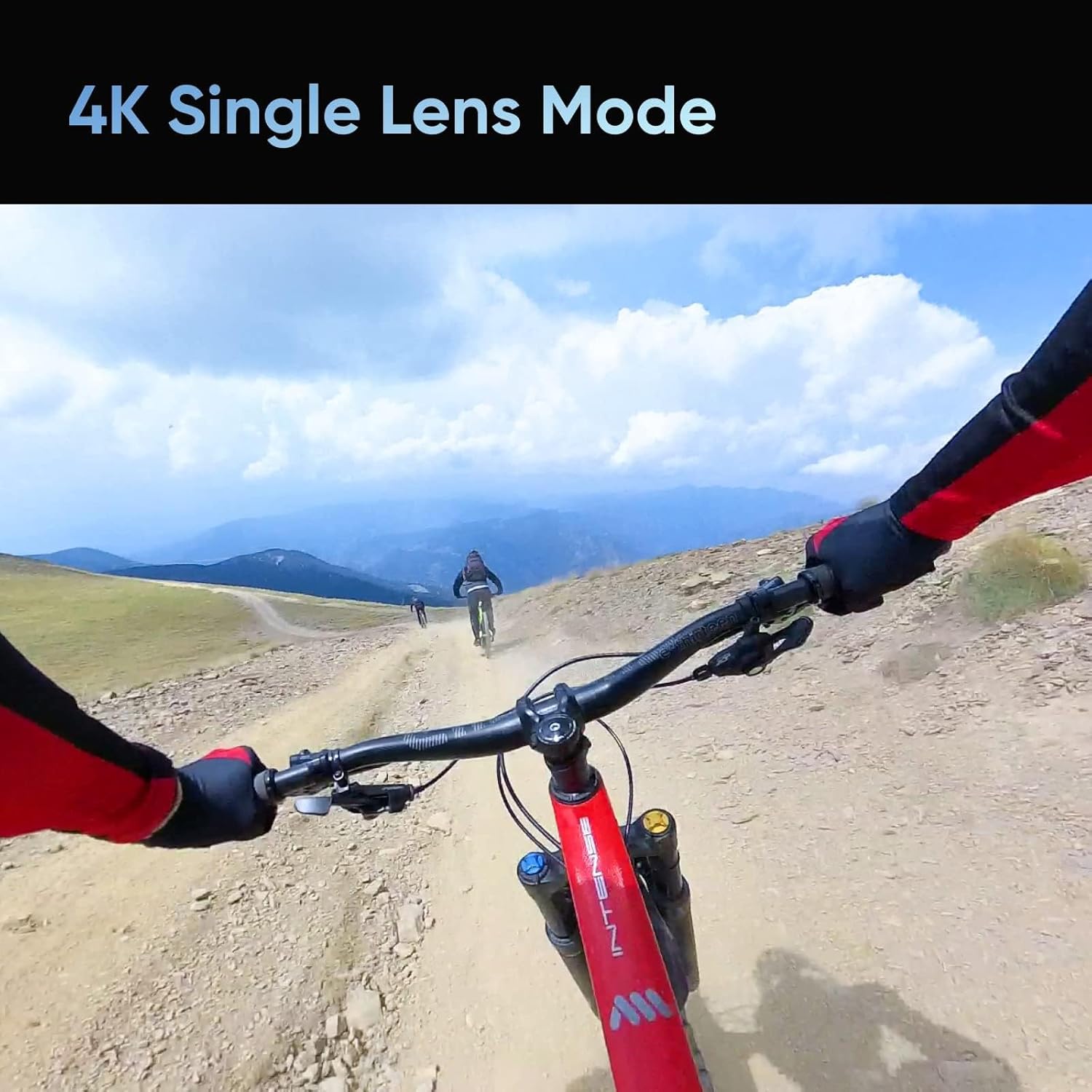
Figure 4: Using the 4K Single Lens Mode for a traditional wide-angle shot.
2.3. Advanced Features
- FlowState Stabilization: Provides gimbal-like stabilization for incredibly smooth footage, even in action-packed scenarios.
- Invisible Selfie Stick: When shooting in 360 mode, the camera's software automatically removes the selfie stick from your footage, creating a "third-person" perspective.
- IPX8 Waterproof: The X3 is waterproof to a depth of 10 meters (33 feet) without a dive case, making it suitable for water sports and underwater capture.
- Loop Recording: Continuously records video but only saves the last few minutes based on your set interval, saving memory card space.
- Timelapse: Create stunning time-lapse videos in 8K quality.
- Pre-recording: Saves 15 or 30 seconds of footage before you even press the shutter button, ensuring you never miss a crucial moment.
- Starlapse: Optimized for low-light photography, allowing you to capture detailed star trails.
- Shot Lab & Snap Wizard: AI-powered editing tools within the Insta360 app that simplify complex edits and reframing.

Figure 5: Key features including Invisible Selfie Stick, Active HDR, and FlowState Stabilization.

Figure 6: Creative modes available on the Insta360 X3.
3. Maintenance and Care
Proper maintenance ensures the longevity and optimal performance of your Insta360 X3.
- Lens and Screen Cleaning: Use the provided lens cloth or a soft, lint-free cloth to gently wipe the lenses and touchscreen. Avoid abrasive materials or harsh chemicals.
- Battery Care: Store the camera with a partially charged battery (around 50%) if not used for extended periods. Avoid extreme temperatures.
- Storage: Store the camera in its protective pouch or a dedicated case to prevent scratches and impacts.
- Firmware Updates: Regularly check for and install firmware updates via the Insta360 app. Updates often include performance improvements, bug fixes, and new features.
- Waterproofing: Ensure all port covers are securely closed before exposing the camera to water. After use in saltwater, rinse the camera with fresh water and dry thoroughly.
4. Troubleshooting
Here are solutions to common issues you might encounter:
| Issue | Possible Cause / Solution |
|---|---|
| Camera overheating | High-resolution recording (5.7K) or prolonged use can cause heating. This is normal. If it becomes excessively hot or shuts down, allow it to cool down. Ensure good airflow. Firmware updates often address heating optimizations. |
| Short battery life | High-resolution recording, Wi-Fi/Bluetooth usage, and cold environments consume more power. Reduce recording resolution, turn off unnecessary features, or carry spare batteries. |
| Connectivity issues with app | Ensure Wi-Fi and Bluetooth are enabled on both devices. Restart the camera and the app. Check for app and camera firmware updates. |
| Poor image/video quality | Clean lenses. Ensure adequate lighting. Use a high-speed microSD card. Check camera settings (resolution, frame rate). |
For more detailed troubleshooting or specific technical support, please refer to the official Insta360 support website or contact their customer service.
5. Technical Specifications
Key technical specifications for the Insta360 X3 Action Camera:
| Feature | Specification |
|---|---|
| Sensor Size | 1/2" |
| Video Capture Resolution | 5.7K (360), 4K (Single Lens) |
| Photo Resolution | 72 MP (360) |
| Screen Size | 2.29 Inches |
| Connectivity | Bluetooth, Wi-Fi |
| Waterproofing | IPX8, up to 10 meters (33 feet) |
| Battery Type | Lithium Polymer (1800mAh) |
| Dimensions (LxWxH) | 29 x 5.8 x 11.7 Centimeters |
| Weight | 180 g |
| Country of Origin | China |
6. Warranty and Support
Insta360 products are covered by a manufacturer's warranty. For specific warranty terms and conditions, please refer to the warranty card included with your product or visit the official Insta360 website.
Customer Support:
For technical assistance, troubleshooting, or warranty claims, please contact Insta360 customer support through their official channels. You can typically find contact information on their website or within the Insta360 app.
Manufacturer: INSTA360, Shenzhen Arashi Vision Company Limited Floor 6, Block A Logan Century Center, Shenzhen China 518000
Importer (India): Digital Controlz And Technologies, D-83, Sector- 6, Noida, Gautam Budhha Nagar, Uttar Pradesh, 201301
Contact: +91 120-4486843, Whatsapp: +91 8826874846
Email: support@digitalcontrolztech.com
Related documentsINSAAQ/B


Ask a question about this manual
Ask about setup, troubleshooting, compatibility, parts, safety, or missing instructions. Manuals+ will review the question and use this page’s manual context to help answer it.