
Introduction
This manual provides detailed instructions for the installation, operation, and maintenance of your UNITOPSCI Android 13 Car Stereo Radio. Designed specifically for Honda Odyssey models from 2005 to 2010, this 10.1-inch touch screen unit integrates advanced features such as Bluetooth, GPS navigation, Mirror Link, and backup camera support to enhance your driving experience. Please read this manual thoroughly before use to ensure proper functionality and safety.

Figure 1: UNITOPSCI Android 13 Car Stereo Radio with accessories.
Safety Information
- Professional Installation Recommended: Due to the complexity of vehicle electrical systems, professional installation is highly recommended to prevent damage to the unit or your vehicle.
- Power Supply: Ensure the unit is connected to a 12V DC power supply with a negative ground. Incorrect voltage can cause damage.
- Wiring: Do not modify or cut the wiring harness. Refer to the wiring diagram for correct connections.
- Operating Temperature: The unit is designed to operate within a temperature range of -40℃ to 80℃.
- Driving Safety: Do not operate the unit or view videos that may distract you while driving. Always prioritize road safety.
- Ventilation: Ensure adequate ventilation around the unit to prevent overheating.
Package Contents
Verify that all items listed below are included in your package:
- 1 x Android Car Stereo (pre-installed with trim)
- 1 x Backup Camera
- 1 x Power Cable
- 1 x GPS Antenna
- 1 x Camera Input Cable
- 1 x RCA Input and Output Cable
- 2 x USB Cables
- 1 x Instruction Manual
- 1 x Installation Tool Set
- 1 x External Microphone
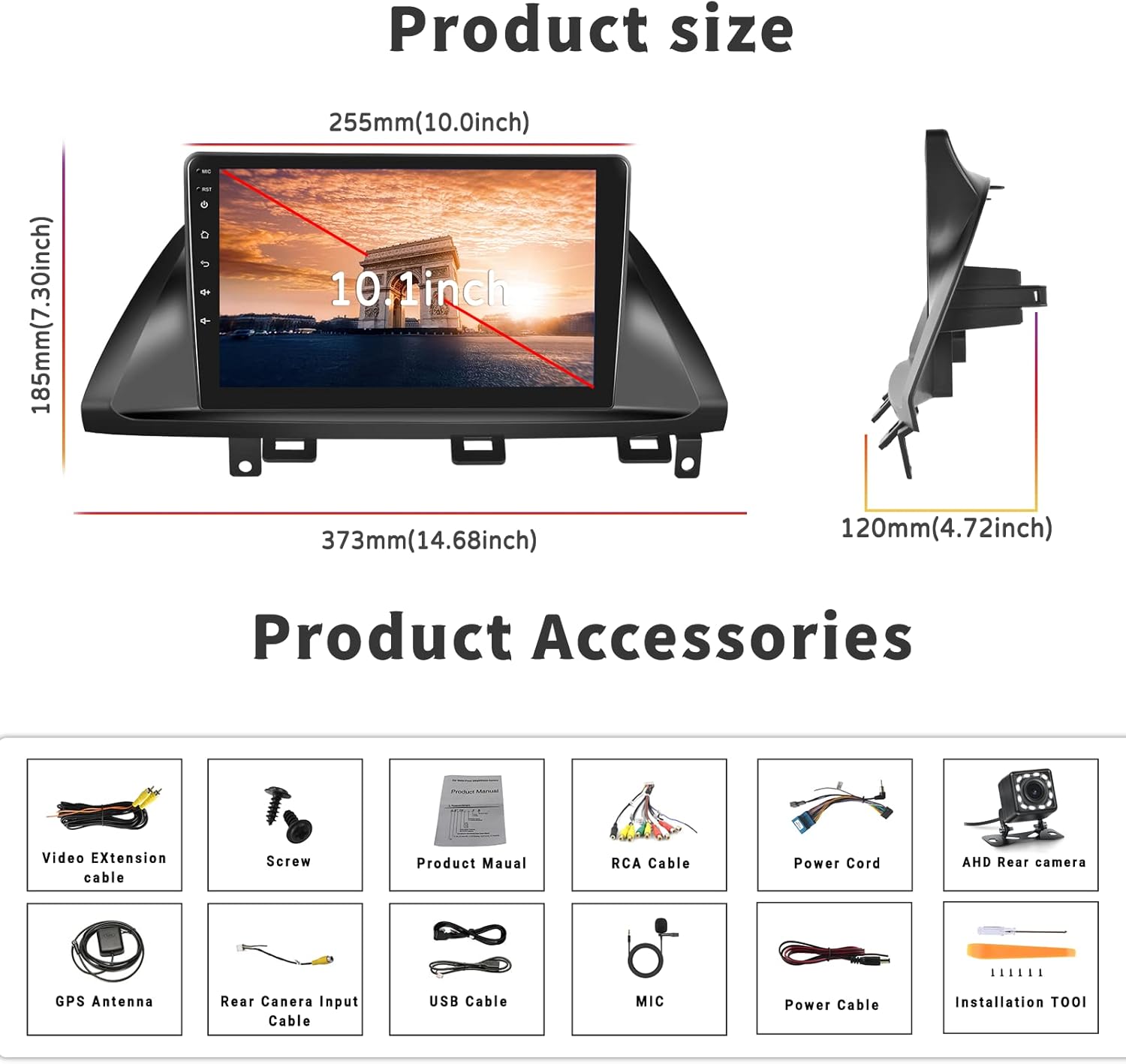
Figure 2: Product dimensions and included accessories.
Setup and Installation
Compatibility
This car stereo is designed for Honda Odyssey models from 2005 to 2010. It is compatible with vehicles that have an original car radio with a DVD player. It is not compatible with original car radios that have a factory screen or GPS. In such cases, an additional wire harness may be required. Please verify your car's center console size and wire harness details before installation.

Figure 3: Car compatibility and wiring harness details.
Wiring Diagram for Backup Camera
Proper connection of the backup camera is crucial for its automatic activation. Follow these steps:
- Power Cable Connection: Connect the red wire of the backup camera's power cable to the positive reversing light, and the black wire to the negative reversing light.
- RCA Cable Connection: Insert the yellow RCA cable from the camera into the 'CAM-IN' (yellow) port on the back of the radio unit.
- Reverse Trigger Wire: Ensure the 'reverse (+)' wire connection (typically a pink wire on the power wire harness labeled 'back') is securely connected to the positive wire of the reversing light. This enables the unit to automatically display the rear view image when the vehicle is in reverse.
Note 1: The short red wires next to the RCA port do not require connection in this wiring setup.
Note 2: When the device is in parking mode (displaying the rear view), other functions will temporarily pause.

Figure 4: Rear view camera wiring diagram.
General Installation Steps
While specific steps may vary by vehicle, the general installation process involves:
- Disconnect Battery: Before starting, disconnect the vehicle's negative battery terminal to prevent electrical shorts.
- Remove Old Unit: Carefully remove the existing car stereo and trim.
- Connect Wiring: Connect the new stereo's power harness, speaker wires, antenna, and other necessary cables according to the provided wiring diagram.
- Install GPS Antenna: Mount the GPS antenna in a location with a clear view of the sky, typically on the dashboard or under the windshield.
- Install Backup Camera: Route the backup camera cable from the rear of the vehicle to the head unit, connecting it as described in the wiring section.
- Test Connections: Before fully securing the unit, reconnect the battery and perform a quick test of all functions (power, audio, radio, GPS, camera, etc.).
- Secure Unit: Once tested, carefully slide the new stereo into the dash opening and secure it with screws. Reinstall the trim.
- Final Check: Perform a comprehensive test of all features to ensure proper operation.
Operating Instructions
Bluetooth & FM/RDS Radio Function
The unit features built-in Bluetooth 4.2 and an FM/RDS radio. The integrated microphone supports hands-free calling, Bluetooth music streaming, and automatic phone book download. The FM radio includes 18 preset stations for news, music, and weather broadcasts. You can also adjust sound settings with the EQ balance function and connect to a subwoofer.

Figure 5: Bluetooth and FM Radio interface.
GPS Navigation & WiFi
The head unit comes with preloaded offline maps and supports both online and offline navigation. With a WiFi connection, you can access online maps and download additional maps as needed. To download maps, connect to WiFi, open the 'Here We Go' app, click the 'folder' icon, select 'download maps', and choose the appropriate region. WiFi connectivity also allows you to surf the internet and download various applications.

Figure 6: GPS Navigation and WiFi features.
Mirror Link for Android and iOS Phones
The unit supports mirror link functionality for both Android and iOS mobile phones. For iOS devices, it supports one-way projection via WiFi. For Android phones, it supports two-way connection via WiFi or the original USB phone cable, allowing you to control your phone's apps directly from the 10.1-inch screen. This feature is convenient for displaying videos or navigation maps from your phone. Note: Not compatible with Samsung phones for two-way control.

Figure 7: Mirror Link functionality.
Backup Camera Input
A backup camera is included with the unit. When the vehicle is shifted into reverse gear, the screen will automatically switch to display the reversing image, providing a clear view of the area behind your car. The camera features waterproof design, night vision, and a 170° wide-angle view for enhanced safety.

Figure 8: Backup Camera Input display.
Video Output & Split Screen
The unit supports video output, allowing you to share entertainment with a backseat monitor. Additionally, the split-screen function enables you to display two applications side-by-side simultaneously, such as navigation and music playback, for improved multitasking.

Figure 9: Video Output and Split Screen functionality.
Steering Wheel Control (SWC)
The unit supports steering wheel control functions, allowing you to manage various features directly from your vehicle's steering wheel buttons. Please note that a steering wheel controller may need to be ordered separately if your vehicle does not have compatible controls or if the existing system works with a CANbus (this unit does not support CANbus). Refer to the unit's settings to map your steering wheel buttons.
Maintenance
- Cleaning the Screen: Use a soft, lint-free cloth to gently wipe the touch screen. For stubborn smudges, slightly dampen the cloth with water or a screen cleaner designed for electronics. Avoid harsh chemicals or abrasive materials.
- General Cleaning: Keep the unit and surrounding area free from dust and debris. Use a soft brush or compressed air to clean vents and ports.
- Software Updates: Periodically check for software updates from the manufacturer's official channels to ensure optimal performance and access to new features.
- Avoid Extreme Temperatures: While the unit is designed for a wide temperature range, prolonged exposure to extreme heat or cold can affect its lifespan.
Troubleshooting
This section addresses common issues you might encounter. If the problem persists, please contact customer support.
| Problem | Possible Cause | Solution |
|---|---|---|
| Unit does not power on. | Incorrect wiring; Blown fuse; Loose connection. | Check power cable connections (red and yellow wires); Inspect vehicle's fuse box; Ensure all harnesses are securely plugged in. |
| No sound from speakers. | Speaker wires incorrectly connected; Volume too low; Mute function active. | Verify speaker wire connections; Increase volume; Check if unit is muted. |
| GPS signal weak or unavailable. | GPS antenna not properly installed or obstructed. | Ensure GPS antenna is mounted in a clear, unobstructed location; Check antenna connection to the unit. |
| Backup camera not displaying. | Incorrect camera wiring; 'Reverse' trigger wire not connected. | Review the 'Wiring Diagram for Backup Camera' section; Ensure the camera's power and RCA cables are correctly connected, and the 'reverse' trigger wire is properly linked to the vehicle's reversing light positive. If the camera has an LED light, check if it illuminates when reverse is engaged. |
| Mirror Link not connecting. | Incorrect connection method; Incompatible phone model; App issues. | For iOS, use WiFi only. For Android, try both WiFi and USB (original phone cable). Ensure your phone is not a Samsung model (known compatibility issue). Restart both phone and head unit. |
| Unit lags or freezes. | Too many apps running; Low memory. | Close unnecessary applications; Restart the unit. |
Specifications
| Feature | Specification |
|---|---|
| System | Android 13.0 |
| Chipset | 8227L-DEMO |
| Screen Size | 10.1 inches |
| Screen Resolution | 1024 x 600 |
| Memory (RAM+ROM) | 1GB RAM + 32GB ROM |
| Mirror Link | Android/iOS (Android two-way, iOS one-way) |
| Video Output/WiFi | Supported |
| Radio Band | FM |
| Radio Chip | NXP6851 |
| Power Amplifier Chip | AC7315 |
| Power Output | 4*45W |
| Work Temperature | -40℃ to 80℃ |
| Steering Wheel Control | Supported (controller may be separate) |
| Bluetooth Version | 4.2 |
| Maps | Built-in offline maps |
| USB Interface | Double USB |
| Audio Format Support | APE/FLAC/WAV/MP3/WMA etc. |
| Video Format Support | MKV/RMVB/AVI/MP4/MDV etc. |
| Picture Format Support | PNG/JPEG/JPG/GIF/WBMP/BNP etc. |
| Product Dimensions | 0.39 x 0.39 x 0.39 inches |
| Item Weight | 3.27 pounds |
Warranty and Support
UNITOPSCI is committed to providing high-quality products and satisfactory services. We offer the following support:
- Replacement Availability: Replacements are available within 24 months of purchase.
- Quick Response: Expect a response to inquiries within 16 hours.
- Lifetime After-Sales Support: We provide lifetime after-sales consultation and technical support.
- Return Policy: Enjoy a 60-day no-worry return period.
For any questions, technical assistance, or warranty claims, please contact us directly via email:
Email: UNITOPSCI@126.com

Figure 10: UNITOPSCI Customer Support Information.