
Introduction
This manual provides comprehensive instructions for the setup, operation, and maintenance of your Yealink W78P DECT IP Phone System. Please read this manual thoroughly before using the device to ensure proper functionality and to prevent damage. Keep this manual for future reference.
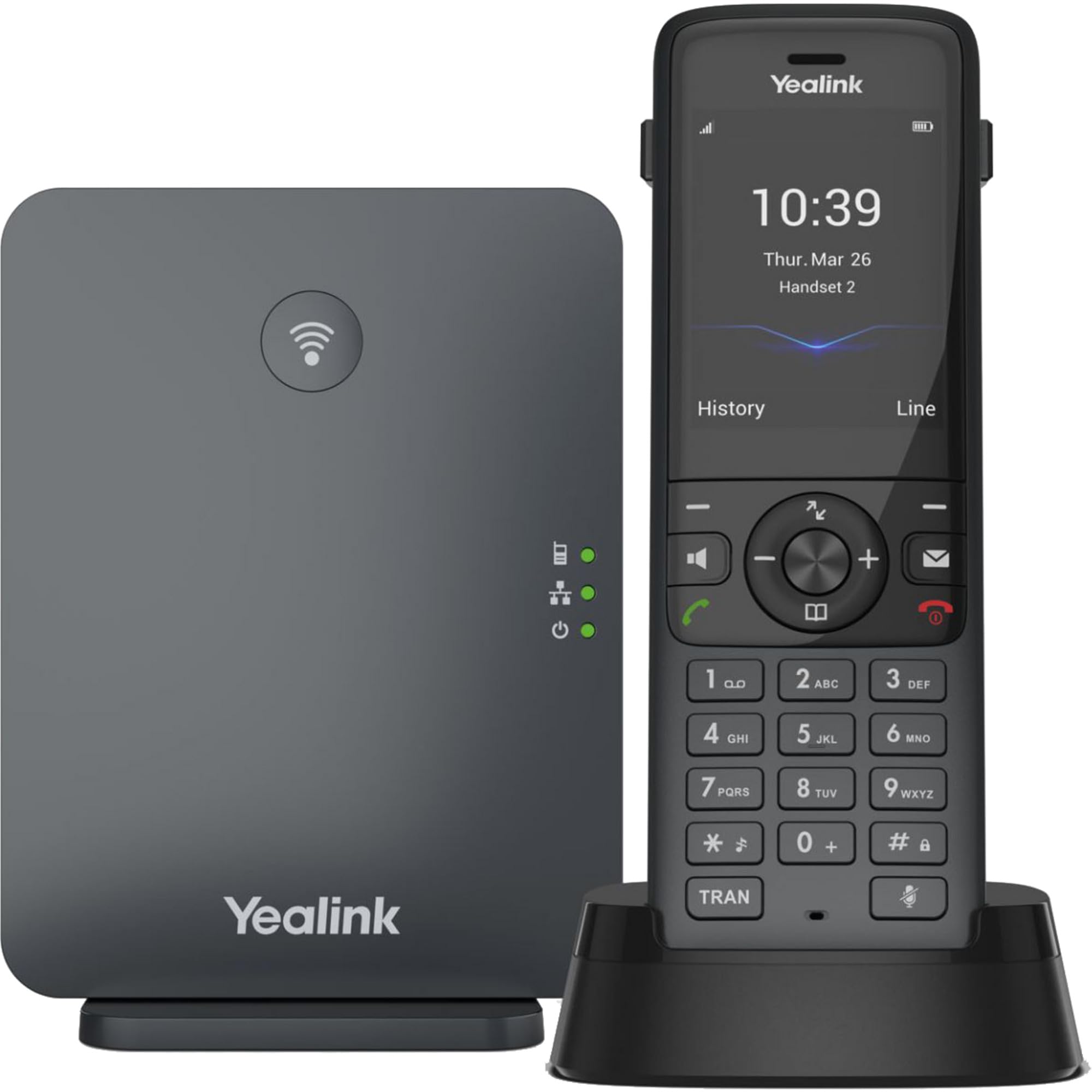
Image: The Yealink W78P system, featuring the W70B base station and the W78H cordless handset in its charging cradle.
What's in the Box
Verify that all items are present in your package:
- W78H Handset
- W70B Base Station
- Handset Charging Cradle
- Power Adapter for Handset Charging Cradle and Base Station
- Network Cable
Setup Guide
1. Connecting the Base Station (W70B)
- Power Connection: Connect the power adapter to the W70B base station and plug it into a power outlet. Alternatively, if your network supports Power over Ethernet (PoE), connect the base station to a PoE-enabled network switch using the provided network cable.
- Network Connection: Connect one end of the network cable to the LAN port on the W70B base station and the other end to your router or network switch.
- Wait for the base station to power on and obtain an IP address. The network indicator LED on the base station will illuminate steadily when connected.
2. Charging the Handset (W78H)
- Connect the power adapter to the handset charging cradle and plug it into a power outlet.
- Place the W78H handset into the charging cradle. The battery icon on the handset display will indicate charging status. Allow the handset to charge fully before initial use.
3. Initial Handset Registration
The W78H handset typically comes pre-registered to the W70B base station in a W78P package. If registration is required or if you are adding a new handset:
- On the W70B base station, press and hold the registration button until the registration LED flashes.
- On the W78H handset, navigate to Menu > Settings > Registration > Register Handset.
- Select the desired base station (if multiple are detected) and enter the base station PIN (default is 0000).
- The handset will display "Handset Subscribed" upon successful registration.
Operating Instructions
Making and Receiving Calls
- To Make a Call: Dial the number and press the Call key (green phone icon).
- To Answer a Call: Press the Call key or the Speakerphone key.
- To End a Call: Press the End Call key (red phone icon).
- Redial: Press the Call key to access the call history and select a number to redial.
Advanced Call Features
- Hold: During a call, press the Hold soft key. Press it again to resume the call.
- Transfer: During a call, press the Transfer soft key, dial the new number, and press Transfer again.
- Conference: During a call, press the Conf soft key, dial the second party's number, and once connected, press Conf again to join all parties.
Headset Connection
- Bluetooth Headset: The W78H handset supports Bluetooth connectivity. Navigate to Menu > Settings > Bluetooth to enable Bluetooth and pair with your headset.
- 3.5mm Jack Headset: Connect a compatible 3.5mm headset to the headset jack on the side of the W78H handset.
DECT Radio Coverage
The W78P system offers a radio coverage of up to 50 meters indoors and up to 300 meters outdoors, under ideal conditions. Environmental factors may affect actual range.
Maintenance
Cleaning
- Wipe the handset and base station with a soft, damp cloth.
- Do not use abrasive cleaners or solvents.
- Ensure the device is powered off and unplugged before cleaning.
Battery Care
- The W78H handset provides up to 21 hours of talk time and 166 hours of standby time under ideal conditions.
- For optimal battery life, avoid extreme temperatures.
- Charge the handset regularly. A 10-minute charge provides approximately 2 hours of talk time.
Troubleshooting
If you encounter issues with your Yealink W78P system, refer to the table below for common problems and solutions.
| Problem | Possible Cause | Solution |
|---|---|---|
| No dial tone | Base station not powered or not connected to network. | Check power and network cable connections to the W70B base station. Ensure network indicator LED is steady. |
| Handset displays "Unregistered" | Handset lost registration with base station. | Re-register the handset to the base station following the steps in the "Initial Handset Registration" section. |
| Poor audio quality | Out of DECT range, interference, or network issues. | Move closer to the base station. Check for sources of interference (e.g., Wi-Fi routers, microwaves). Verify network stability. |
| Handset not charging | Charging cradle not powered or handset not seated correctly. | Ensure the charging cradle's power adapter is connected. Re-seat the handset firmly in the cradle. |
Technical Specifications
| Feature | Detail |
|---|---|
| Brand | Yealink |
| Model Number | W78P |
| Color | Black |
| Material | Acrylonitrile Butadiene Styrene (ABS) |
| Item Dimensions (L x W x H) | 24 x 51 x 157 millimeters |
| Item Weight | 500 Grams |
| Power Source | Battery Powered |
| Number of Batteries | 1 Lithium-ion |
| Phone Talk Time | 21 Hours |
| Phone Standby Time | 166 Hours |
| Compatible Devices | Yealink W56H, Yealink W57R, Yealink W59R, Yealink W73H, Yealink W78H |
| Caller ID | Yes |
| Multi-line Operation | Yes |
| Country of Origin | USA |
| UPC | 841885125675, 841885109125 |
Warranty Information
The Yealink W78P DECT IP Phone System comes with a 2-year manufacturer's warranty. Please retain your proof of purchase for warranty claims. For detailed terms and conditions, refer to the warranty documentation included with your product or visit the official Yealink website.
Customer Support
For technical assistance, troubleshooting beyond this manual, or service inquiries, please contact Yealink customer support. You can find contact information on the official Yealink website or through your product vendor.


