1. Introduction
Thank you for choosing the Aigostar Mini Smart Wifi Plug. This device allows you to control your home appliances remotely, set schedules, and use voice commands for a more convenient and energy-efficient lifestyle. Please read this manual carefully before use to ensure proper operation and safety.
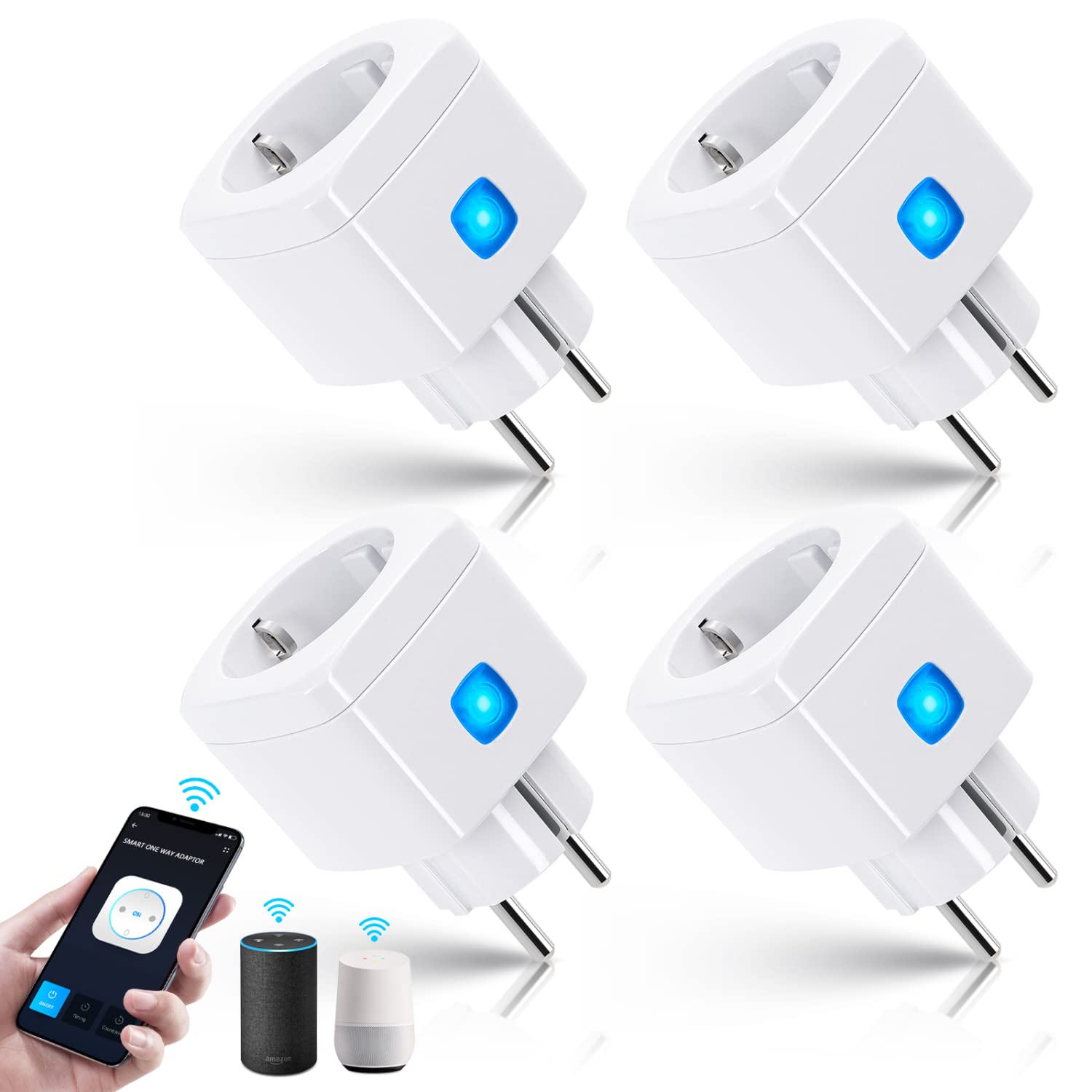
Image: A set of four Aigostar Mini Smart Wifi Plugs, demonstrating their compact design and compatibility with smart home ecosystems like Alexa and Google Home via a smartphone app.
2. Important Safety Information
To prevent injury or damage, always follow basic safety precautions:
- Do not exceed the maximum load of 10A / 2300W.
- Do not disassemble or modify the device.
- Keep away from water and high humidity environments.
- This product is for indoor use only.
- Ensure the plug is fully inserted into the wall socket.
- Unplug the device from the power outlet before cleaning.
- The smart plug is made of ABS flame-retardant material and features overcurrent and overload protection.
3. Package Contents
Your Aigostar Mini Smart Wifi Plug package typically includes:
- Aigostar Mini Smart Wifi Plug(s) (quantity as purchased, e.g., 4 pieces)
- User Manual
4. Product Specifications
| Model | KS-621 |
| Rated Current | 10 Amperes |
| Operating Voltage | 250 Volts (AC) |
| Maximum Load | 2300W |
| Wireless Type | Wi-Fi 2.4GHz (IEEE 802.11 b/g/n) - 5GHz Wi-Fi is not supported |
| Dimensions (LxWxH) | 5.3 x 5.3 x 8 cm |
| Weight | Approximately 400 grams (for 4 pieces) |
| Material | ABS Flame-retardant |
| Operating Mode | Off-none-on |
| Certifications | CE, RoHS |

Image: A detailed diagram illustrating the physical dimensions of the Aigostar Smart Plug (5.3mm x 5.3mm x 8.2mm) and its key features, including 2.4GHz WLAN, Bluetooth quick links, 2300W 10A capacity, WiFi connection, APP control, voice control, remote control, timer setting, and easy setup.
5. Setup Instructions
Follow these steps to set up your Aigostar Mini Smart Wifi Plug:
- Download the AigoSmart App: Search for "AigoSmart" in the Apple App Store or Google Play Store, or scan the QR code provided in the product packaging.
- Plug In: Insert the Aigostar Smart Plug into a standard wall outlet.
- Enter Pairing Mode: Press and hold the power button on the smart plug for approximately 5 seconds until the indicator light starts blinking rapidly. This indicates it is in pairing mode.
- Add Device in App: Open the AigoSmart app, register or log in, and tap "Add Device" or the "+" icon.
- Select Device Type: Choose "Socket" or "Smart Plug" from the list of available devices.
- Confirm Blinking Indicator: Confirm that the indicator light on the plug is blinking rapidly within the app.
- Connect to Wi-Fi: Enter your 2.4GHz Wi-Fi network name and password. Note: The Aigostar Smart Plug only supports 2.4GHz Wi-Fi networks. 5GHz networks are not compatible.
- Pairing: The app will begin connecting to the smart plug. Once connected, the indicator light on the plug will stop blinking and remain solid.
- Rename Device: You can rename your smart plug (e.g., "Living Room Lamp," "Coffee Maker") for easier identification and voice control.

Image: A visual guide demonstrating the 7 steps to connect the Aigostar Smart Plug to your home Wi-Fi network using the AigoSmart app, including downloading the app, pressing the plug button, adding the device, and entering Wi-Fi credentials.
6. Operating Instructions
6.1 Remote Control via AigoSmart App
Once connected, you can control your smart plug from anywhere using the AigoSmart app:
- On/Off Control: Tap the power icon next to your device in the app to turn it on or off.
- Scheduling: Set daily or weekly schedules for your appliances to turn on or off automatically.
- Timer/Countdown: Use the timer function to automatically turn off a device after a set period, or the countdown function for specific events.
- Group Control: Create groups of smart plugs to control multiple devices simultaneously with a single command.
- Device Sharing: Share control of your smart plugs with family members through the app.

Image: A woman using her smartphone to remotely control various home appliances, such as an iron, kettle, and air conditioner, demonstrating the convenience of the Aigostar Smart Plug's remote control feature.

Image: A smartphone screen displaying the scheduling and timer settings within the AigoSmart app, allowing users to program their smart plugs for automatic operation at specific times, such as 9:30 PM or 8:30 AM.
6.2 Voice Control with Alexa and Google Home
Integrate your Aigostar Smart Plug with Amazon Alexa or Google Home for hands-free control:
- Link Accounts: In the Alexa or Google Home app, navigate to the "Skills" or "Works with Google" section and search for "AigoSmart." Link your AigoSmart account.
- Discover Devices: Once linked, ask your voice assistant to "Discover devices" or manually initiate device discovery in the app.
- Voice Commands: Use simple commands to control your devices. For example:
- "Alexa, turn on the coffee machine."
- "Hey Google, turn off the living room lamp."
- "Alexa, set the bedroom fan to 50%." (If supported by the connected appliance)

Image: A kitchen scene where a person is using an Amazon Alexa device to voice control a coffee machine plugged into an Aigostar Smart Plug, demonstrating the command "Hi, Alexa, turn on the Coffee machine" and the response "OK".
7. Maintenance
To ensure the longevity and optimal performance of your Aigostar Mini Smart Wifi Plug:
- Clean the device with a dry, soft cloth. Do not use liquid cleaners or aerosols.
- Avoid exposing the plug to extreme temperatures or direct sunlight.
- Regularly check for any signs of damage or wear. If damaged, discontinue use immediately.
8. Troubleshooting
If you encounter issues with your Aigostar Mini Smart Wifi Plug, refer to the following common solutions:
- Plug not connecting to Wi-Fi:
- Ensure your Wi-Fi network is 2.4GHz. 5GHz networks are not supported.
- Check if the Wi-Fi signal is strong enough at the plug's location.
- Verify that you have entered the correct Wi-Fi password.
- Restart your Wi-Fi router and try pairing again.
- Make sure the plug is in pairing mode (indicator light blinking rapidly).
- Voice control not working:
- Confirm that your AigoSmart account is correctly linked to Alexa or Google Home.
- Ensure the device name in the AigoSmart app matches the name you are using for voice commands.
- Try rediscovering devices in your Alexa or Google Home app.
- Plug is unresponsive:
- Unplug the smart plug from the wall outlet, wait 10 seconds, and plug it back in.
- Check if the connected appliance is working correctly when plugged directly into a wall outlet.
- Verify that your home Wi-Fi network is active and has internet access.
9. Warranty and Support
Aigostar products are designed for reliability and performance. For specific warranty information, please refer to the warranty card included with your product or visit the official Aigostar website. For general return and refund policies, please consult the retailer where you purchased the product (e.g., Amazon's return policy).
If you require further assistance or have questions not covered in this manual, please contact Aigostar customer support through their official channels or the retailer's support services.


