
IROK FE104
IROK FE104 RGB Mechanical Keyboard User Manual
Model: FE104
1. Introduction
Thank you for choosing the IROK FE104 RGB Mechanical Keyboard. This manual provides detailed instructions for setting up, operating, maintaining, and troubleshooting your new keyboard. Please read this manual thoroughly to ensure optimal performance and longevity of your device.

Figure 1: IROK FE104 RGB Mechanical Keyboard showcasing its full layout and vibrant RGB backlighting.
2. Key Features
- Hot-Swappable Switches: High-quality mechanical switches with hot-swappable functionality, supporting both 3-pin and 5-pin switches for personalized typing feel.

Figure 2: Detail of the hot-swappable mechanical switches, allowing for easy customization.
- Anti-Ghosting/N-Key Rollover: Ensures reliable and accurate key input, crucial for gaming and fast typing.
- Comfortable Ergonomic Ladder Keycaps: ABS keycaps designed for enhanced backlight effects and an ergonomic stepped profile with two-stage support legs for comfortable typing.

Figure 3: User interacting with the keyboard, demonstrating the comfortable keycap design.
- Detachable Magnetic Adsorption Upper Cover: Provides dust protection when installed and allows for easy cleaning and switch replacement when removed.

Figure 4: The magnetic upper cover detached from the keyboard body.
- Multi-function Type-C Interface: Utilizes a popular Type-C interface for easy connection and charging. The detachable cable enhances portability.

Figure 5: The Type-C interface and broad operating system compatibility (Windows XP, Vista, Windows 7, Vista 64, Windows 8, Windows 10, iOS MAC).
- Customizable RGB Lighting: Powerful chip enables highly customized RGB lighting effects and functions.

Figure 6: Visual summary of the keyboard's main features, including 16.8 million color RGB lighting.
3. Setup Guide
3.1 Package Contents
Before you begin, ensure all items are present in the package:
- IROK FE104 RGB Mechanical Keyboard
- USB-C Cable
- User Manual (this document)
- Keycap Puller (usually included)
- Switch Puller (usually included)
3.2 Connecting the Keyboard
- Locate the USB-C port on the IROK FE104 keyboard, typically on the top edge.

Figure 7: The USB-C port for connecting the keyboard.
- Connect one end of the provided USB-C cable to the keyboard.
- Connect the other end of the USB-A connector to an available USB port on your computer (PC or Mac).
- The keyboard will be automatically recognized by your operating system. No additional drivers are typically needed for basic functionality.
3.3 Adjusting Keyboard Angle
The IROK FE104 features a two-stage mounting foot, allowing you to adjust the keyboard to three different angles for ergonomic comfort.
- Flip the keyboard over to access the feet on the underside.
- Extend the smaller foot for a slight incline, or extend both the smaller and larger feet for a steeper incline.
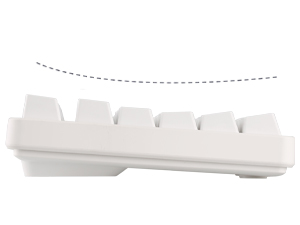
Figure 8: The adjustable feet providing ergonomic tilt options.
4. Operating Instructions
4.1 Multimedia and Function Keys
The IROK FE104 keyboard features dedicated multimedia and function keys accessible via the FN key combination. Refer to the table below for common shortcuts:

Figure 9: FN Multimedia Shortcut Buttons and Office Function Buttons.
| Key Combination | Function |
|---|---|
| FN + ESC | Open IROK Driver directly (driver download page opens automatically on first use if not installed) |
| FN + F1 | Mute |
| FN + F2 | Volume Down |
| FN + F3 | Volume Up |
| FN + F4 | Turn off the light |
| FN + F5 | Increase brightness |
| FN + F6 | Decrease brightness |
| FN + F7 | Slow down the speed (of lighting effects) |
| FN + F8 | Speed up (of lighting effects) |
| FN + F9 | Lock WIN and APP keys (not locked by default) |
| FN + F10 | Open web page |
| FN + F11 | My Computer |
| FN + F12 | Adjust backlight effect |
4.2 RGB Lighting Customization
The IROK FE104 offers extensive RGB lighting customization. While basic effects can be cycled using FN+F12, for full customization, it is recommended to install the IROK Driver software.
- To access the driver, short press FN+ESC. If the driver is not installed, the official download page will open.
- The driver software allows you to:
- Select from various preset lighting effects.
- Adjust brightness and speed of lighting effects.
- Customize individual key lighting.
- Create and save custom lighting profiles.
Video 1: Demonstration of the IROK FE104 RGB Mechanical Keyboard's lighting effects and features. This video highlights the customizable RGB lighting and hot-swappable switches.
5. Maintenance
5.1 Cleaning the Keyboard
Regular cleaning helps maintain the keyboard's appearance and functionality.
- Disconnect the keyboard from your computer.
- Use a soft, lint-free cloth slightly dampened with water or a mild cleaning solution to wipe down the keycaps and frame. Avoid excessive moisture.
- For dust and debris between keycaps, use compressed air.
- The detachable magnetic upper cover can be removed for easier cleaning of the keyboard base.
5.2 Replacing Keycaps and Switches
The IROK FE104 supports hot-swappable switches, allowing for easy replacement without soldering.
- Removing Keycaps: Use the provided keycap puller. Gently pull straight up on the keycap until it detaches from the switch stem.
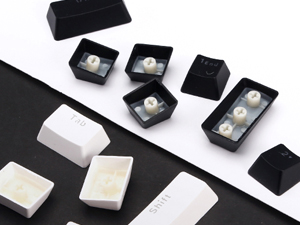
Figure 10: Individual keycaps and the keycap puller tool.
- Removing Switches: Use the provided switch puller. Align the prongs of the switch puller with the two clips on the top and bottom of the switch. Squeeze the clips and gently pull the switch straight up.
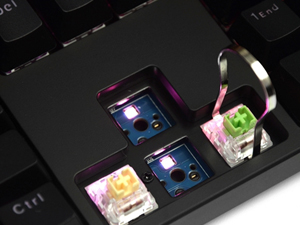
Figure 11: Using the switch puller to remove a switch from the PCB.
- Installing Switches: Align the pins of the new switch with the holes on the PCB. Gently push the switch down until it clicks into place. Ensure the pins are straight to avoid bending.
- Installing Keycaps: Align the keycap with the switch stem and press down firmly until it is seated.
6. Troubleshooting
- Keyboard not responding:
- Ensure the USB-C cable is securely connected to both the keyboard and the computer.
- Try connecting the keyboard to a different USB port on your computer.
- Restart your computer.
- Test the keyboard on another computer if possible to rule out a computer-specific issue.
- RGB lighting not working or incorrect:
- Press FN+F4 to ensure the lighting is not turned off.
- Press FN+F12 to cycle through different lighting effects.
- Ensure the IROK Driver software is installed and updated. Use FN+ESC to open the driver.
- Check driver settings for any specific lighting configurations.
- Specific keys not working:
- Remove the keycap and switch for the affected key.
- Inspect the switch pins for any bends or damage. Straighten gently if bent.
- Reinsert the switch firmly. If the issue persists, try replacing the switch with a known working one.
- Ensure the keycap is properly seated.
- Keyboard input lag or ghosting:
- Ensure no background applications are consuming excessive system resources.
- Verify the keyboard is connected directly to a USB port, not through an unpowered USB hub.
- Update your computer's USB drivers.
7. Specifications
| Feature | Detail |
|---|---|
| Model | FE104 |
| Brand | IROK |
| Connectivity Technology | USB-C (Wired) |
| Keyboard Description | Mechanical Gaming Keyboard |
| Switch Type | Hot-Swappable (3-pin/5-pin compatible) |
| Number of Keys | 104 |
| Backlighting | RGB (16.8 million colors) |
| Keycap Material | ABS |
| Special Features | Backlit, Ergonomic, Hotkeys and Media Keys, Detachable Magnetic Upper Cover, N-Key Rollover |
| Compatible Devices | Laptop, PC (Windows XP, Vista, 7, 8, 10; Mac OS) |
| Product Dimensions | 17.34 x 5.18 x 1.45 inches |
| Item Weight | 2.7 pounds |
| Manufacturer | IROK |
8. Warranty and Support
For warranty information and technical support, please refer to the official IROK website or contact their customer service directly. Keep your purchase receipt as proof of purchase for warranty claims.
Official IROK Store: IROK Amazon Store
Related Documents - FE104
 |
IROK MG75 Mechanical Keyboard User Manual Official user manual for the IROK MG75 75% layout full-aluminum CNC magnetic-axis mechanical keyboard. Includes setup, hotkey guides, driver installation, and maintenance instructions. |
 |
IROK MG75 PRO MAX 8K Magnetic Switch Gaming Keyboard Manual User manual and product overview for the IROK MG75 PRO MAX 8K Magnetic Switch Gaming Keyboard, featuring hot-swap switches, waterproof design, and rapid response times. |
 |
IROK MG63 Mechanical Keyboard User Manual Comprehensive user manual for the IROK MG63 mechanical keyboard. Includes installation instructions, system requirements, lighting control, shortcut keys, and factory reset procedures. |
 |
IROK MG75 V2 Mechanical Keyboard User Manual User manual for the IROK MG75 V2 mechanical keyboard, covering system requirements, installation, backlight controls, system mode switching, and shortcut keys for Windows and macOS. |
 |
Irok RA68 Magnetic Switch Keyboard User Manual User manual and safety instructions for the Irok RA68 magnetic switch RGB e-sports keyboard. Includes setup, usage, and battery safety guidelines. |
 |
IROK Keyboard Product Manual (MG68 Series) Product manual and safety information for IROK mechanical keyboards, including models MG68, MG68MAX, MG68PLUS, MG68ACE, and MG68 ACE W. |
Ask a question about this manual
Ask about setup, troubleshooting, compatibility, parts, safety, or missing instructions. Manuals+ will review the question and use this page’s manual context to help answer it.