
Introduction
The EPOMAKER FEKER JJK21 is a versatile 20-key mechanical numeric keypad kit designed for enhanced productivity and gaming. It features a gasket mount design, hot-swappable PCB for 3/5-pin switches, and offers triple connectivity modes: Bluetooth 5.0, 2.4GHz wireless, and wired Type-C. This numpad also includes a programmable rotary knob and vibrant RGB backlighting. This manual provides detailed instructions for setup, operation, maintenance, and troubleshooting to ensure optimal performance of your device.

Image: The EPOMAKER FEKER JJK21 Numpad Kit in a typical desktop setup, demonstrating its compact size and compatibility with other devices.
Package Contents
Before proceeding with the setup, please ensure all items are present in the package:
- EPOMAKER FEKER JJK21 Numpad Kit
- USB Type-C Cable
- 2.4GHz Wireless Receiver (typically located in a slot on the numpad)
- User Manual (this document)

Image: Contents of the EPOMAKER FEKER JJK21 Numpad Kit package, including the numpad, USB cable, and 2.4GHz receiver.
Setup Guide
1. Installing Switches and Keycaps
The FEKER JJK21 features a hot-swappable PCB, allowing for easy installation and removal of 3-pin or 5-pin mechanical switches without soldering. Keycaps can then be placed on top of the installed switches.
- Align the pins of your desired mechanical switch with the holes on the PCB.
- Gently press the switch into place until it clicks securely. Ensure the pins are straight to avoid bending.
- Repeat for all 20 keys.
- Place your preferred keycaps onto the installed switches.

Image: A mechanical switch being inserted into the hot-swappable PCB of the EPOMAKER FEKER JJK21 Numpad.
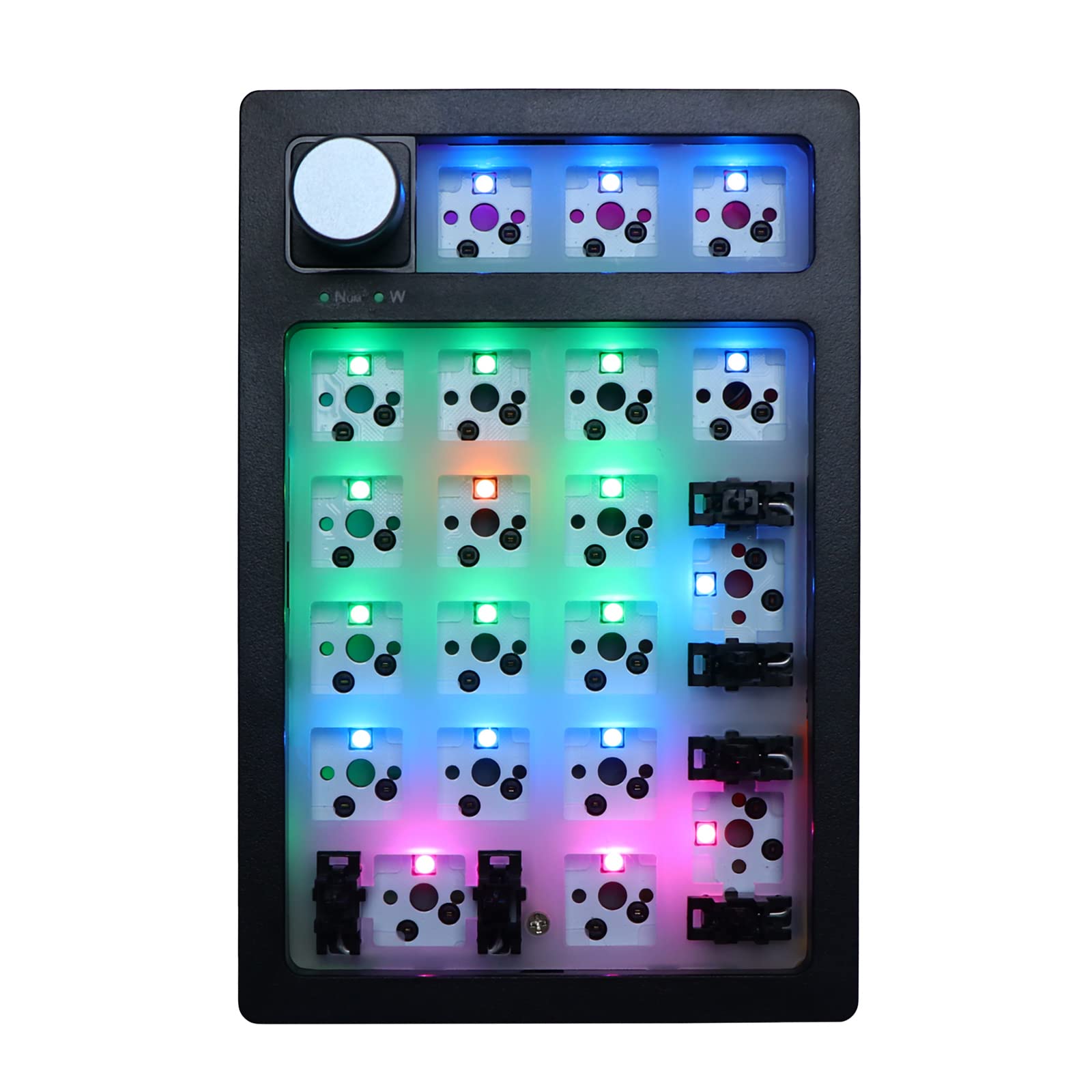
Image: The EPOMAKER FEKER JJK21 Numpad Kit displaying its RGB lighting, awaiting switch and keycap installation.
2. Charging the Numpad
Before first use, it is recommended to fully charge the numpad. Connect the provided USB Type-C cable to the numpad's Type-C port and the other end to a USB power source (e.g., computer, wall adapter). The numpad has a 1500mAh battery.

Image: Detail of the numpad's side, highlighting the Type-C charging port and the On/Off switch.
3. Connecting the Numpad
The FEKER JJK21 supports three connection modes:
- Wired Mode: Connect the numpad to your computer using the provided USB Type-C cable. The numpad will automatically switch to wired mode.
- 2.4GHz Wireless Mode:
- Locate the 2.4GHz wireless receiver, typically stored in a slot on the numpad.
- Plug the receiver into an available USB port on your computer.
- Ensure the numpad's mode switch (usually on the side) is set to the 2.4GHz position (often indicated by 'W' or a wireless icon).
- Press FN + 4 on the numpad to activate 2.4GHz pairing.
- Bluetooth 5.0 Mode:
- Ensure the numpad's mode switch is set to the Bluetooth position (often indicated by 'BT' or a Bluetooth icon).
- Press and hold FN + 1, FN + 2, or FN + 3 for 3-5 seconds to enter pairing mode for one of the three available Bluetooth channels. The indicator light will flash rapidly.
- On your computer or device, search for Bluetooth devices and select "FEKER JJK21" (or similar) to connect.
- Once connected, the indicator light will stop flashing. You can switch between paired Bluetooth devices using FN + 1/2/3.

Image: Overview of key features including Tri-Mode Connection, Hot Swappable PCB, 4-Device Connectivity, and the Detachable Rotary Knob.
Operating Instructions
Rotary Knob Functionality
The rotary knob provides convenient media control:
- Rotate Left/Right: Adjusts system volume down/up.
- Press: Mutes/unmutes audio.
RGB Backlight Control
The numpad features customizable RGB backlighting. Use the following hotkeys to control the lighting effects:
- FN + . (period): Switch RGB Backlight Color
- FN + Backspace: Toggle Backlight Effect
- FN + 9: Increase RGB Backlight Speed
- FN + 7: Decrease RGB Backlight Speed
- FN + +: Increase Backlight Brightness
- FN + Enter: Decrease Backlight Brightness
- FN + Num Lock: Turn On/Off RGB Backlight
Other Hotkey Functions
- FN + ESC: Opens Calculator

Image: Visual guide to the hotkey combinations for various functions on the numpad.
Programmable Software (Windows Only)
The FEKER JJK21 supports programmable software for Windows operating systems. This software allows for customization of key assignments and RGB lighting effects. The manufacturer states that previous malware issues with the driver have been fixed.
To download the software, visit the official EPOMAKER website and search for the FEKER JJK21 model. Follow the on-screen instructions for installation. The software can be used in both wired and wireless modes (Bluetooth and 2.4G).

Image: Screenshots demonstrating the user interface of the programmable software for the numpad, showing options for light settings, button settings, and macro management.
Maintenance
Cleaning
To maintain the appearance and functionality of your numpad:
- Disconnect the numpad from all power sources before cleaning.
- Use a soft, lint-free cloth slightly dampened with water or a mild cleaning solution to wipe the surface.
- For cleaning between keycaps, use compressed air or a small brush.
- Avoid using harsh chemicals or abrasive materials.
Switch and Keycap Replacement
Thanks to the hot-swappable PCB, switches and keycaps can be easily replaced:
- Use a switch puller tool to carefully remove existing switches. Grip the switch firmly and pull straight up.
- Use a keycap puller tool to remove keycaps.
- Install new switches and keycaps as described in the "Setup Guide" section.
Troubleshooting
- Numpad not responding:
- Ensure the numpad is charged.
- Check the connection mode (wired, 2.4GHz, Bluetooth) and ensure it matches your device's connection.
- For 2.4GHz, ensure the receiver is properly plugged in and the numpad is in 2.4GHz mode (FN + 4).
- For Bluetooth, ensure it's paired correctly and selected (FN + 1/2/3).
- Try restarting your computer or device.
- Keys not registering or bent pins during switch installation:
- Carefully remove the affected switch using a switch puller.
- Inspect the switch pins. If bent, gently straighten them with tweezers.
- Re-insert the switch, ensuring pins align perfectly with the PCB sockets. Apply even, gentle pressure.
- Some users have reported plate interference; ensure switches are fully seated without excessive force.
- Software issues (Windows security warning, limited customization):
- Download the latest software version from the official EPOMAKER website. The manufacturer has addressed previous malware concerns.
- If Windows security flags the software, you may need to temporarily disable your antivirus during installation or add an exception. Proceed with caution.
- Note that key remapping capabilities might be limited to certain keys, and the FN key is often fixed. The rotary knob's function is also typically fixed to volume control.
- Numpad goes to sleep too quickly:
- The numpad has an automatic standby mode to conserve battery. There may not be an option to adjust this setting via hotkeys or software.
- Press any key to wake the numpad from standby.
Specifications
| Feature | Detail |
|---|---|
| Model | FEKER JJK21 |
| Number of Keys | 20 |
| Connectivity | Bluetooth 5.0, 2.4GHz Wireless, USB Type-C Wired |
| Battery Capacity | 1500mAh |
| Mounting Style | Gasket Mount |
| PCB | Hot-swappable (compatible with 3/5-pin switches) |
| Backlighting | RGB |
| Rotary Knob | Included, for media control |
| Compatible Devices | PC (Windows, macOS) |
| Material | Polycarbonate |
Warranty and Support
Warranty: The EPOMAKER FEKER JJK21 Numpad Kit comes with a 1-year warranty from the manufacturer.
Support: For technical assistance, software downloads, or warranty claims, please visit the official EPOMAKER website or contact their customer support directly. Keep your purchase receipt for warranty validation.
Manufacturer: EPOMAKER