
Niyama BT-801
Niyama BT-801 Wireless Bluetooth Thermal Printer User Manual
Model: BT-801
1. Introduction
The Niyama BT-801 is a portable, wireless thermal printer designed for efficient label and receipt printing. It features Bluetooth and USB connectivity, making it compatible with Android, iOS, and various desktop operating systems. Its compact size and battery backup make it ideal for mobile and on-the-go printing needs.
2. Package Contents
Please verify that all items listed below are included in your package:
- Niyama BT-801 Thermal Printer
- Power Adaptor
- Type-C USB Cable
- User Manual (this document)
- Thermal Paper Roll
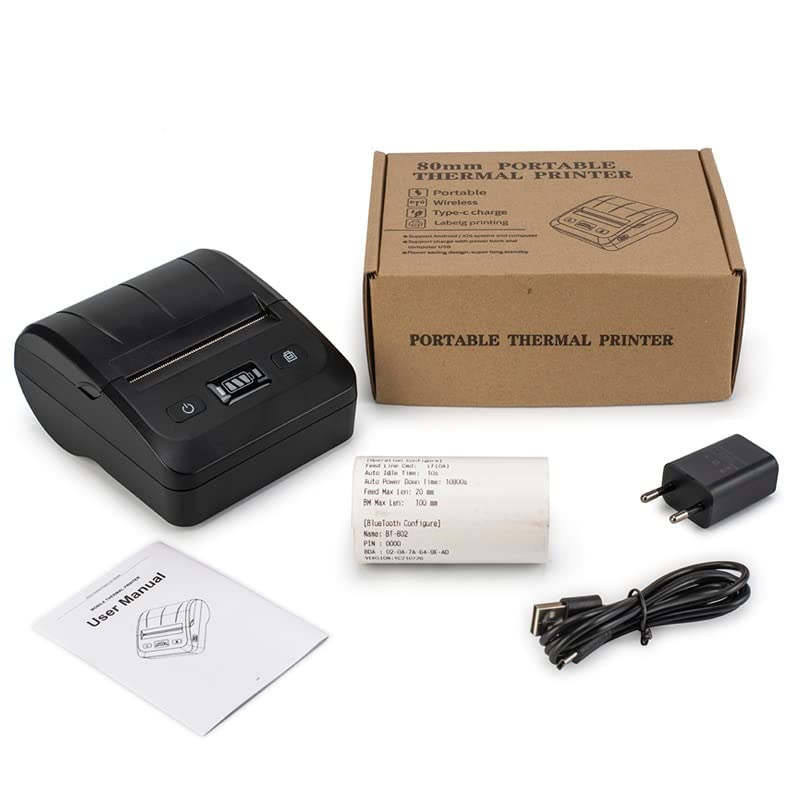
Figure 2.1: Contents of the Niyama BT-801 package, including the printer, power adapter, USB cable, user manual, and a thermal paper roll.
3. Product Features
- Wireless Connectivity: Supports Bluetooth BT3.4/BLE4.0 for seamless connection with Android and iOS devices.
- Wired Connectivity: USB interface for connection to computers and other devices.
- Thermal Printing: Utilizes thermal line printing technology, eliminating the need for ink cartridges or ribbons.
- High Speed: Prints at a speed of up to 90mm/s.
- Portable Design: Lightweight (400 grams) and compact, making it easy to carry.
- Long Battery Life: Equipped with a 2000mAh/7.4V rechargeable lithium battery for extended use.
- Durable Print Head: Print head life cycle of up to 50 kilometers.
- Wide Compatibility: Supports ESC/POS printing commands and comes with DLL, SDK, and App demo for development.

Figure 3.1: The Niyama BT-801 Wireless Bluetooth Thermal Printer, showcasing its compact design and control buttons.
4. Setup Guide
4.1 Charging the Battery
Before initial use, fully charge the printer's battery. Connect the provided power adaptor to the printer's charging port and plug it into a power outlet. The charging time is approximately 3 hours. The battery status indicator on the printer will show charging progress.
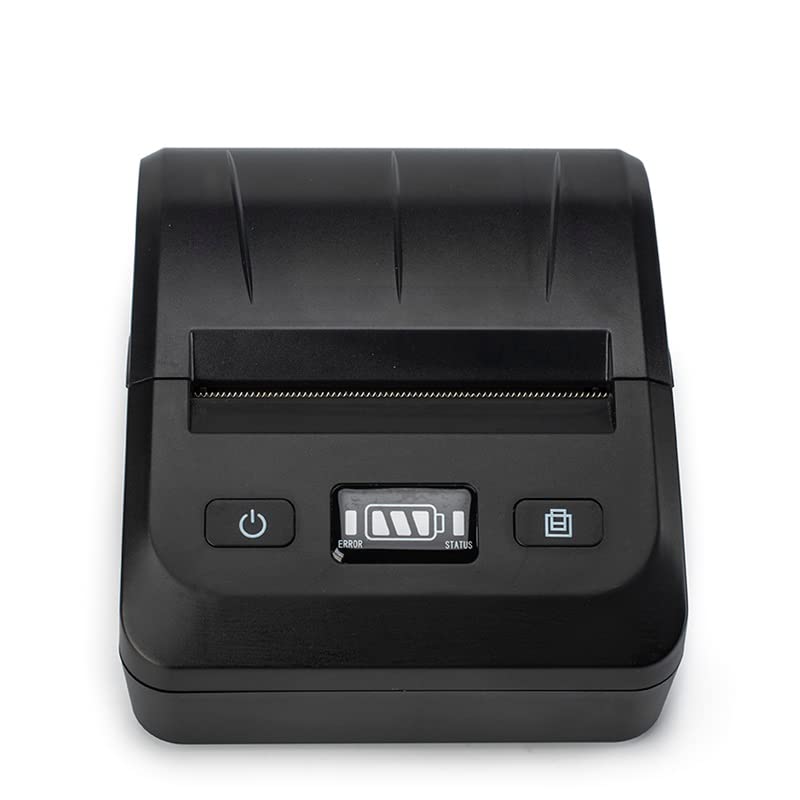
Figure 4.1: Front panel of the printer with power, error, and battery status indicators.
4.2 Loading Thermal Paper
- Gently open the paper compartment cover on the top of the printer.
- Insert the thermal paper roll into the compartment, ensuring the printing side of the paper faces the print head. The paper should feed smoothly from the bottom of the roll.
- Pull a small length of paper out beyond the print head.
- Close the paper compartment cover firmly until it clicks into place. Ensure the paper protrudes slightly from the paper exit slot.
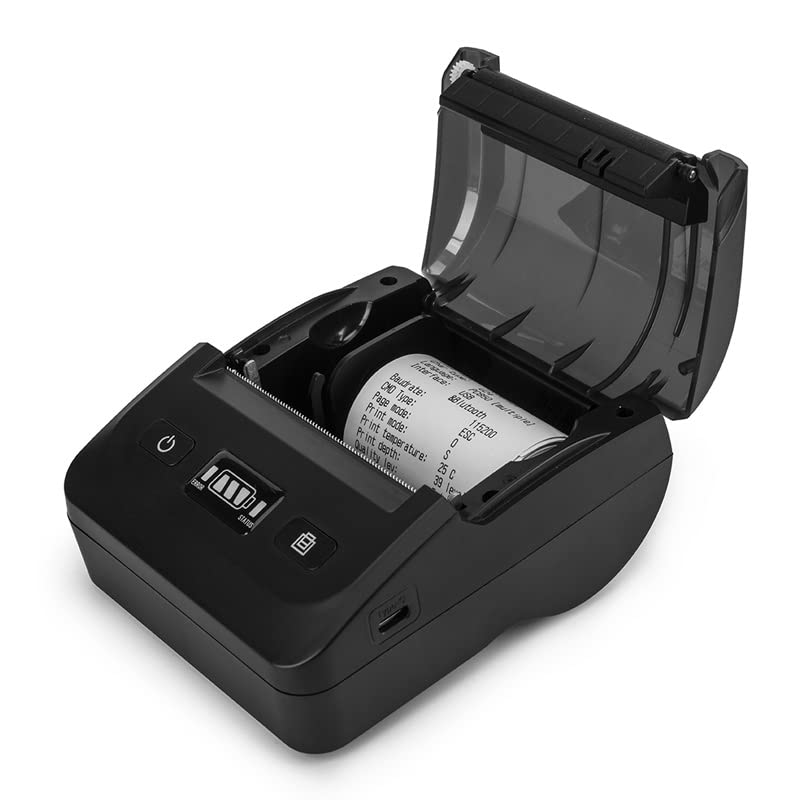
Figure 4.2: The printer with the paper compartment open, showing how to insert the thermal paper roll.
4.3 Connecting via Bluetooth (Android/iOS)
The Niyama BT-801 printer connects wirelessly via Bluetooth. Please note: This product requires software development skills to integrate with Android and iOS applications. A Programming Guide, DLL, SDK, and App demo are provided to assist with customer application development.
- Ensure the printer is powered on.
- Enable Bluetooth on your Android or iOS device.
- Search for available Bluetooth devices. The printer will typically appear as "BT-801" or a similar name.
- Select the printer to pair. If prompted for a PIN, enter "0000" (default).
- Once paired, your custom application can send print commands to the printer.
4.4 Connecting via USB (Windows/Linux)
For wired connection to a computer:
- Connect one end of the provided Type-C USB cable to the printer's USB port and the other end to your computer's USB port.
- The printer should be recognized by your operating system (Win9X, WinME, Win2000, WinNT, WinXP, WinVista, Win7, Win8, Linux).
- Install the necessary printer drivers if not automatically detected. Refer to the SDK for driver installation instructions.
5. Operating Instructions
The Niyama BT-801 printer operates by receiving ESC/POS print commands from a connected device. Printing functionality is primarily driven by the software application you develop or integrate with the printer.
- Ensure the printer is powered on and has sufficient paper and battery charge.
- Verify that the printer is successfully paired via Bluetooth or connected via USB to your device.
- From your custom application, send the desired print data and commands (e.g., text, images, barcodes) to the printer.
- The printer will process the commands and print the content onto the thermal paper.
- Tear off the printed receipt or label along the serrated edge.
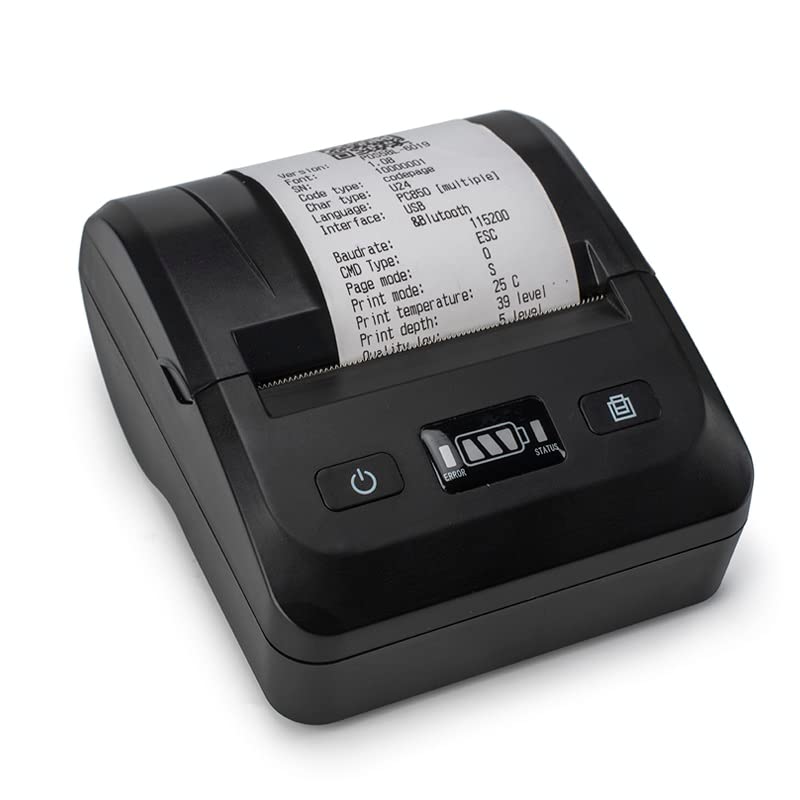
Figure 5.1: The Niyama BT-801 printer in operation, demonstrating its ability to print detailed receipts.
6. Maintenance
- Cleaning: Regularly clean the exterior of the printer with a soft, dry cloth. For the print head, use a lint-free cloth lightly dampened with isopropyl alcohol. Ensure the printer is off and disconnected from power before cleaning. Allow to dry completely before use.
- Paper Storage: Store thermal paper in a cool, dry place away from direct sunlight and heat to preserve its print quality and longevity.
- Battery Care: To prolong battery life, avoid fully discharging the battery frequently. If storing the printer for an extended period, charge the battery to about 50% and recharge every few months.
- Print Head Life: The print head has a life cycle of approximately 50 kilometers. Proper use and maintenance will help achieve this lifespan.
7. Troubleshooting
If you encounter issues with your Niyama BT-801 printer, please refer to the following common troubleshooting steps:
- Printer Not Powering On:
- Ensure the battery is charged. Connect the power adaptor and try again.
- Verify the power button is pressed firmly.
- No Print Output:
- Check if thermal paper is loaded correctly and that the paper compartment cover is closed.
- Ensure the printer is connected via Bluetooth or USB and that the connection is stable.
- Verify that your application is sending correct ESC/POS commands and data.
- Check the printer's error indicator (refer to Figure 4.1). If an error is indicated, consult your application's logs or the SDK documentation for specific error codes.
- Bluetooth Connection Issues:
- Ensure the printer is within range of your device.
- Turn off and on Bluetooth on both the printer and your device.
- Forget the device in your Bluetooth settings and try pairing again.
- Confirm that your application is correctly handling the Bluetooth communication and pairing process, as software development is required for integration.
- Poor Print Quality:
- Ensure you are using high-quality thermal paper.
- Clean the print head as described in the Maintenance section.
- Check the print density settings within your application, if adjustable.
For advanced troubleshooting or specific integration issues, please refer to the provided SDK and Programming Guide, or contact Niyama customer support.
8. Specifications
| Feature | Specification |
|---|---|
| Printing Method | Thermal Line Printing |
| Print Width | 70mm |
| Print Density | 384 dot/line |
| Print Speed | 90mm/s |
| Interface | USB + Bluetooth (BT3.4/BLE4.0) |
| Paper Width | 80mm |
| Roll Diameter | 80mm |
| Paper Thickness | 0.06-0.08mm |
| Print Command | ESC/POS |
| Character Size | 24*24 point |
| Bar Code Type | CODE39, CODE128 |
| Input Buffer | 25K bytes |
| Power Adapter Input | AC220V |
| Power Adapter Output | DC9V/2A |
| Lithium Battery | 2000mAh/7.4V |
| Charging Time | 3 hours |
| Working Environment Temperature | -10°C ~ 50°C |
| Working Environment Humidity | 20%~85% |
| Storage Environment Temperature | -20°C ~ 70°C |
| Storage Environment Humidity | 5% ~ 95% |
| Mechanical Properties | 50KM (Print Head Life) |
| Operating System Compatibility | Android, iOS, Win9X, WinME, Win2000, WinNT, WinXP, WinVista, Win7, Win8, Linux |
| Item Weight | 400 Grams |
9. Warranty and Support
The Niyama BT-801 Wireless Bluetooth Thermal Printer comes with a 1-Year Warranty from the date of purchase. This warranty covers manufacturing defects and malfunctions under normal use.
For warranty claims, technical support, or further assistance with software integration, please contact Niyama customer support. Keep your purchase receipt as proof of purchase.
Important Note: As stated previously, this product requires software development skills for integration with Android and iOS applications. Niyama provides DLL, SDK, and App demo resources to aid in this development. Support for custom application development beyond the provided resources may be limited.
Ask a question about this manual
Ask about setup, troubleshooting, compatibility, parts, safety, or missing instructions. Manuals+ will review the question and use this page’s manual context to help answer it.