
1. Product Overview
The VANTRUE E2 Dual Dash Cam is designed to provide comprehensive front and rear vehicle recording with advanced features for enhanced safety and convenience. This manual provides instructions for proper installation, operation, and maintenance of your device.

Figure 1: VANTRUE E2 Dual Dash Cam Main Unit
2. Package Contents
Verify that all items listed below are included in your package. If any items are missing or damaged, please contact customer support.

Figure 2: Included Components
- VANTRUE E2 Main Dash Cam Unit
- Rear Camera
- Magnetic GPS Mount
- Wireless Remote Control
- Car Charger
- Rear Camera Cable (Standard 6m)
- Type-C USB Cable (1m)
- Installation Tool
- 3M Adhesive Tape
- Electrostatic Film
- Quick Start Guide
3. Setup and Installation
Follow these steps to properly install your VANTRUE E2 Dual Dash Cam.
3.1 Mounting the Dash Cam
The compact design and magnetic mount allow for flexible installation on the front windshield, dashboard, or rear window.

Figure 3: Mounting Options (Front Glass, Dashboard, Rear Window)

Figure 4: Easy Installation Diagram
- Clean the desired mounting area on your windshield or dashboard.
- Attach the electrostatic film to the windshield first, then attach the magnetic mount to the film.
- Secure the main dash cam unit to the magnetic mount.
- Connect the rear camera to the main unit using the provided rear camera cable.
- Route the cables neatly using the installation tool to hide them along the vehicle's interior trim.
- Connect the car charger to your vehicle's cigarette lighter socket and the dash cam.
3.2 SD Card Insertion and Formatting
Insert a high-speed Micro SD card (Class 10 or higher, up to 1TB, sold separately) into the dash cam. It is crucial to format the SD card within the dash cam before its first use and periodically thereafter to ensure optimal performance and prevent recording errors.
4. Operating Instructions
The VANTRUE E2 offers various operating modes and control methods.
4.1 Power On/Off
The dash cam will automatically power on and begin recording when your vehicle's ignition is turned on. It will power off automatically when the ignition is turned off.
4.2 Recording Modes
The E2 records simultaneously from both front and rear cameras at 1944P (2.7K) resolution, utilizing STARVIS IMX335 sensors for clear footage.

Figure 5: Front and Rear 2.7K Recording
4.3 Night Vision and WDR
Equipped with STARVIS night vision and WDR technology, the E2 captures clear images in low-light conditions and balances exposure in high-contrast environments.
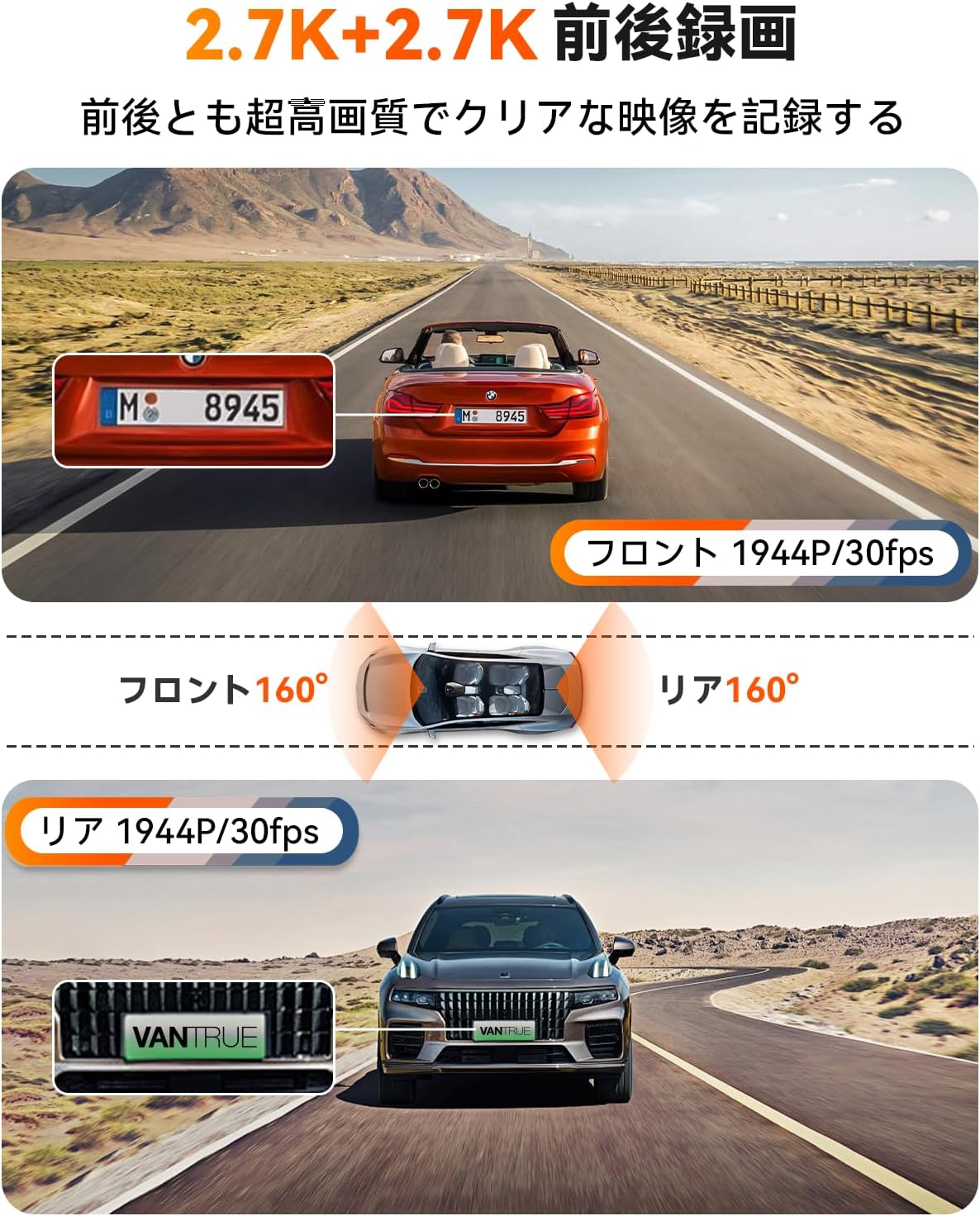
Figure 6: Enhanced Night Vision and WDR

Figure 7: WDR in Action
4.4 GPS Functionality
The built-in GPS module records your vehicle's speed, location (latitude and longitude), and driving route, embedding this data into the video files. This information can be viewed using the dedicated VANTRUE app or desktop viewer.
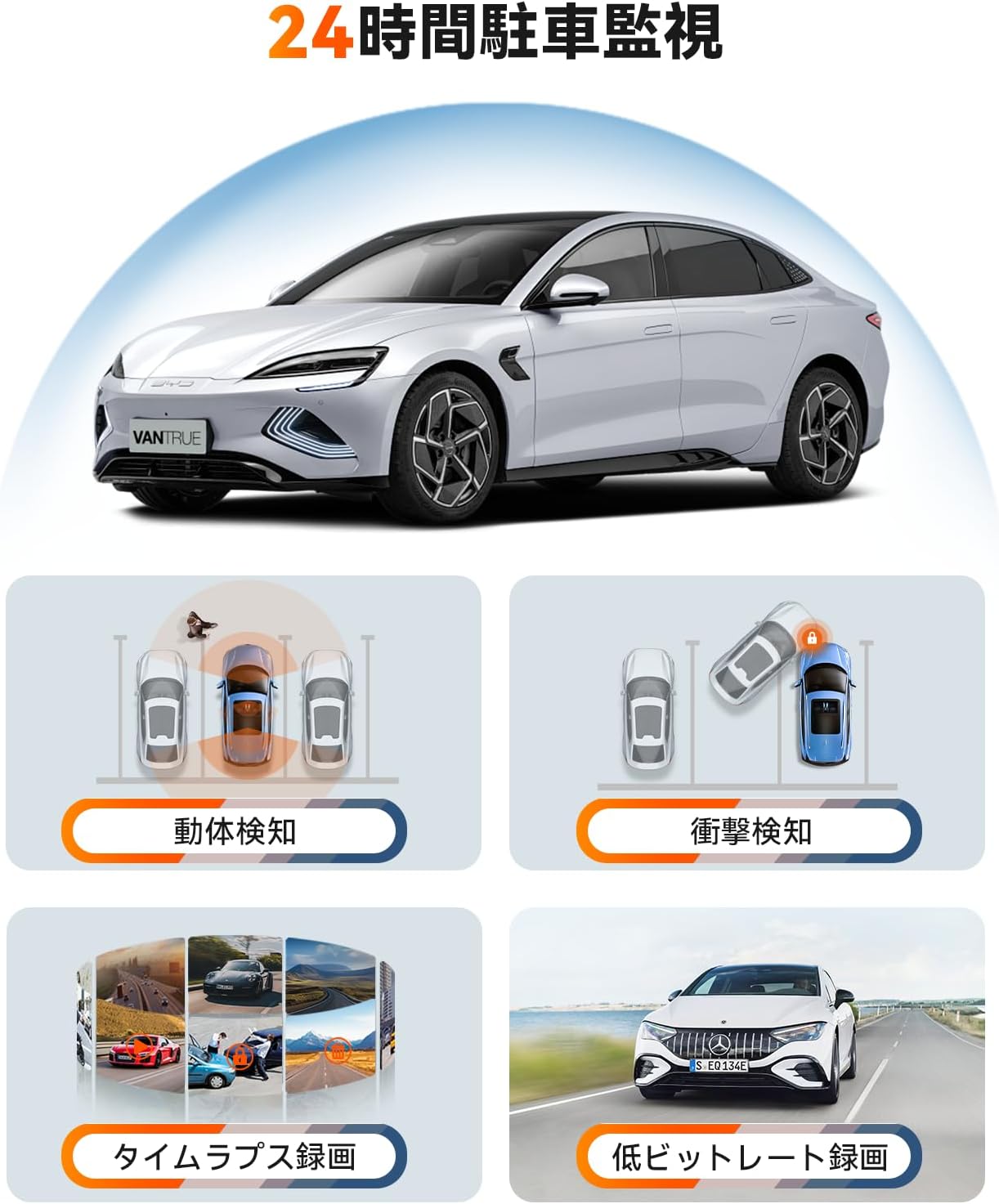
Figure 8: GPS Tracking
4.5 Voice Control
Control your dash cam hands-free using simple voice commands. This allows you to perform actions like taking photos, locking videos, or toggling audio recording without diverting your attention from the road.
Video 1: Demonstration of Voice Commands for VANTRUE E2.

Figure 9: Voice Control Features
4.6 Wireless Remote Control
The included wireless remote allows for quick actions such as capturing photos or locking important video segments with a single press.

Figure 10: Remote Control Functions
4.7 5.8GHz WiFi and App Control
Connect your smartphone to the dash cam via high-speed 5.8GHz WiFi using the VANTRUE app. This enables live streaming, video playback, downloading, editing, and sharing of recorded footage, as well as adjusting device settings.

Figure 11: WiFi App Control Interface
Video 2: Overview of VANTRUE E2 features including wide-angle, resolution, night vision, GPS, G-sensor, remote, 5GHz WiFi, parking modes, and CPL filter.
4.8 Parking Surveillance Modes
The E2 offers four distinct parking surveillance modes to protect your vehicle when parked. Note: A separately sold direct-wire power cable (ASIN: B094882TJC) is required to enable these functions.

Figure 12: 24-Hour Parking Surveillance
- Motion Detection: Records 15 seconds before and 30 seconds after motion is detected, saving the footage to a normal folder.
- Impact Detection (Low Power Consumption): Automatically starts recording when an impact is detected while the vehicle is parked (power off).
- Low Bitrate Recording (Space Saving): Records at 1080P@15FPS or 720P@15FPS, optimizing storage space.
- Time-Lapse Recording (Space Saving): Captures images at a low frame rate and stitches them into a time-lapse video, condensing long periods into short, viewable clips.
5. Maintenance
Regular maintenance ensures the longevity and optimal performance of your dash cam.
5.1 SD Card Care
To prevent data corruption and ensure continuous recording, format your Micro SD card within the dash cam at least once a month. Use a high-quality, reputable brand of Micro SD card (Class 10 or higher).
5.2 Cleaning the Device
Use a soft, dry cloth to clean the dash cam's lens and screen. Avoid using abrasive cleaners or solvents that could damage the device.
6. Troubleshooting
If you encounter issues with your VANTRUE E2, refer to the following common solutions:
- Dash Cam Not Powering On: Check the power connection to the car charger and ensure the vehicle's ignition is on. Verify the car charger is functioning correctly.
- Recording Errors: Format the SD card within the dash cam. Ensure you are using a compatible high-speed SD card. Replace the SD card if errors persist.
- Poor Video Quality: Clean the camera lenses. Ensure the protective film has been removed from the lenses. Check that the resolution settings are appropriate.
- WiFi Connection Issues: Ensure the dash cam's WiFi is enabled. Restart both the dash cam and your smartphone. Reinstall the VANTRUE app if necessary.
- Parking Mode Not Working: Confirm that the optional direct-wire power cable (ASIN: B094882TJC) is correctly installed and connected.
For further assistance, please contact VANTRUE customer support.
7. Specifications
Detailed technical specifications for the VANTRUE E2 Dual Dash Cam.
| Feature | Specification |
|---|---|
| Brand | VANTRUE |
| Model Number | Element 2 (E2) |
| Video Resolution | Front: 1944P (2.7K), Rear: 1944P (2.7K) |
| Field of View | 160 degrees (Front & Rear) |
| Aperture | F1.8 |
| Display Type | LCD |
| Screen Size | 2.45 inches |
| Connectivity | 5.8GHz Wi-Fi |
| GPS | Built-in GPS Module |
| G-Sensor | Yes |
| Parking Modes | Motion Detection, Impact Detection, Low Bitrate, Time-Lapse |
| Control Methods | App, Push Button, Voice, Wireless Remote |
| Storage | Micro SD card (up to 1TB, sold separately) |
| Dimensions (D x W x H) | 2.9 x 7.4 x 4.4 cm |
| Weight | 0.88 kg |
| Country of Origin | China |
8. Warranty and Support
The VANTRUE E2 Dual Dash Cam comes with a standard 12-month warranty. You can extend this warranty to 18 months by registering your product on the official VANTRUE website within 6 months of purchase.
For any questions, concerns, or technical support, please contact VANTRUE customer service through Amazon or visit our official website.


