
TECURS MK204
TECURS MK204 Mechanical Gaming Keyboard User Manual
Model: MK204
Introduction
Thank you for choosing the TECURS MK204 Mechanical Gaming Keyboard. This manual provides essential information for setting up, operating, and maintaining your keyboard. Please read it carefully to ensure optimal performance and longevity of your device.
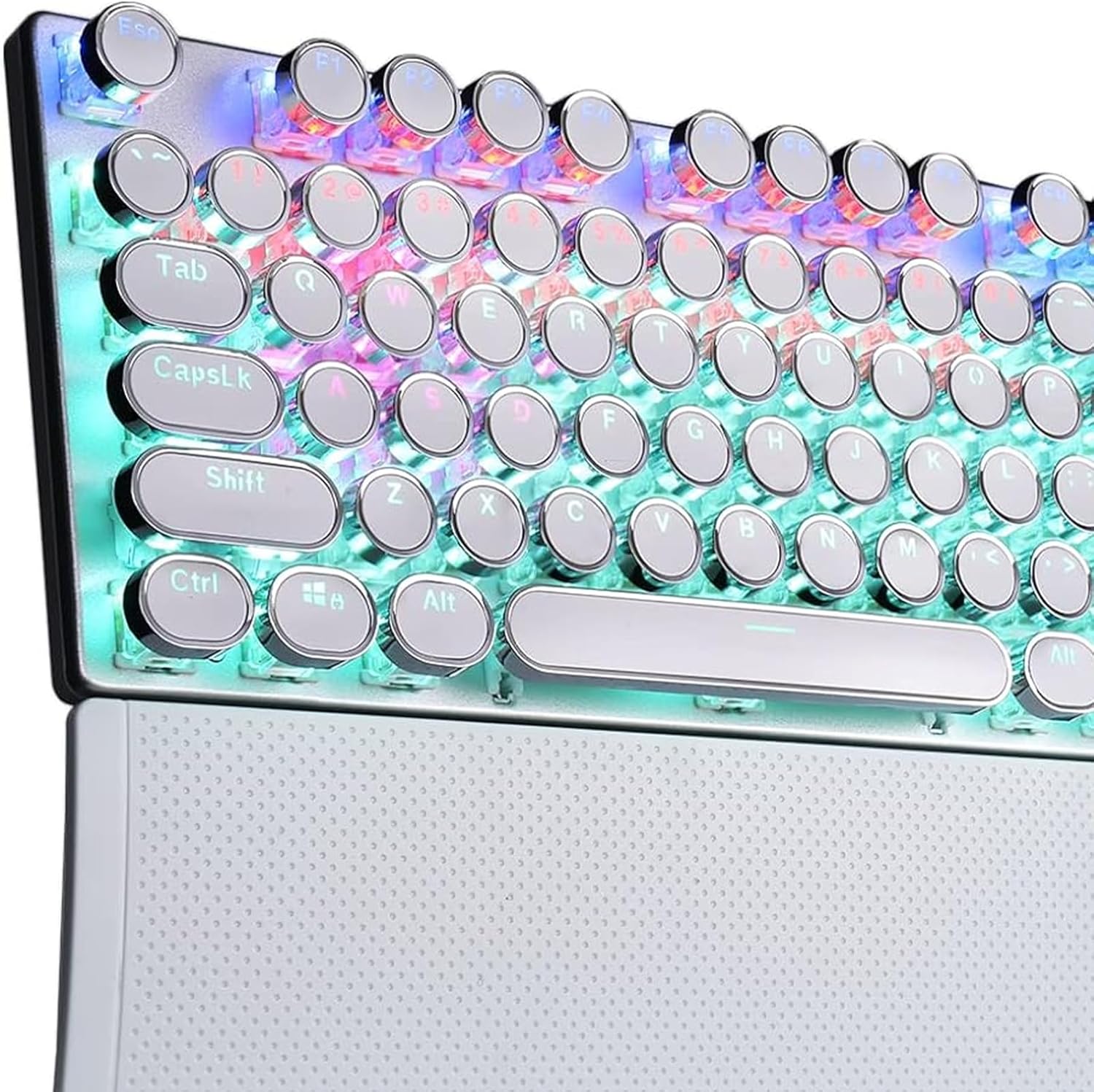
Image 1: The TECURS MK204 Mechanical Gaming Keyboard, showcasing its QWERTZ layout and vibrant RGB backlighting.
Setup Instructions
- Unpacking: Carefully remove the keyboard from its packaging. Ensure all components are present: the TECURS MK204 keyboard and the USB cable.
- Connecting the USB Cable:
The keyboard features a Micro USB port. Connect one end of the provided USB cable to the keyboard's Micro USB port. The cable can be routed in three directions (left, center, or right) from the keyboard's underside for cable management.

Image 2: The TECURS MK204 keyboard integrated into a typical computer setup, illustrating its wired connection.
- Connecting to Your Device: Connect the other end of the USB cable to an available USB port on your computer (PC, Mac, Laptop) or gaming console (PS4, PS5, Xbox).
- Driver Installation (Plug & Play): The TECURS MK204 keyboard is a Plug & Play device. Your operating system should automatically detect and install the necessary drivers. No additional software installation is typically required.
- Initial Test: Once connected, the keyboard's RGB lighting should illuminate. Test basic key functions by typing in a text editor.
Operating Instructions
RGB Lighting Modes
The keyboard features eight programmable RGB lighting modes. These modes can be adjusted to suit your preferences, enhancing your gaming or typing experience, especially in low-light environments.
- Switching Modes: Refer to the keyboard's function keys (Fn combinations) for specific commands to cycle through the available RGB modes.
- Adjusting Brightness/Speed: Certain key combinations may also allow you to adjust the brightness level or the speed of dynamic lighting effects.
Macro Definition
The TECURS MK204 supports macro definition, allowing you to customize key functions for complex commands or sequences.
- Programming Macros: Macro programming typically involves using a dedicated software (if available) or specific key combinations on the keyboard itself. Consult the manufacturer's website for any available software or detailed instructions on macro setup.
- Benefits: Macros can streamline repetitive tasks or execute complex in-game actions with a single key press.
Anti-Ghosting Technology
The keyboard incorporates anti-ghosting technology, ensuring that multiple simultaneous key presses are registered accurately. This is particularly beneficial for fast-paced gaming where many keys might be pressed at once.

Image 3: A user engaged in gaming, demonstrating the keyboard's application in a high-performance environment.
Maintenance
Regular maintenance helps preserve the keyboard's functionality and appearance.
- Cleaning the Keycaps: The interchangeable ABS keycaps are designed for easy cleaning.
- Disconnect the keyboard from your device.
- Gently remove keycaps using a keycap puller (if provided, or a suitable tool).
- Clean keycaps with a soft, damp cloth and mild soap solution. Ensure they are completely dry before reattaching.
- Use compressed air to remove dust and debris from underneath the keycaps.
- Cleaning the Frame: Wipe the aluminum frame with a soft, dry, or slightly damp cloth. Avoid abrasive cleaners.
- Storage: When not in use for extended periods, store the keyboard in a dry, dust-free environment.
Troubleshooting
| Problem | Possible Solution |
|---|---|
| Keyboard not responding |
|
| RGB lighting not working |
|
| Keys are sticky or unresponsive |
|
Specifications
| Feature | Detail |
|---|---|
| Brand | TECURS |
| Model Number | MK204 |
| Layout | QWERTZ (German) |
| Key Count | 88 keys (80% TKL) |
| Switch Type | Mechanical (Classic Blue Switches) |
| Connectivity | Wired (Micro USB) |
| Backlighting | RGB (8 programmable modes) |
| Material | Aluminum frame, ABS keycaps |
| Special Features | Ergonomic design, Macro definition support, Anti-ghosting technology, 3-way cable routing |
| Compatible Devices | PC, Laptop, Mac, Game Consoles (PS4, PS5, Xbox) |
Warranty and Support
For warranty information and technical support, please refer to the documentation included with your purchase or visit the official TECURS website.
Manufacturer: TECURS
ASIN: B0BC8KSNVT
Ask a question about this manual
Ask about setup, troubleshooting, compatibility, parts, safety, or missing instructions. Manuals+ will review the question and use this page’s manual context to help answer it.