

1. Introduction
This manual provides detailed instructions for the installation, operation, and maintenance of your Soundstream VRCPAA-106M Double DIN Car Stereo. Please read this manual thoroughly before using the product to ensure proper operation and to prevent damage.
The Soundstream VRCPAA-106M is a versatile car stereo featuring a 10.6-inch floating touchscreen, Apple CarPlay, Android Auto, Bluetooth connectivity, and multiple media input options. It is designed to enhance your in-car entertainment and connectivity experience.
2. Safety Information
- Do not operate the unit in a manner that distracts you from driving safely. Always prioritize road safety.
- Ensure proper wiring and connections to prevent electrical shorts or damage to the vehicle's electrical system.
- Avoid exposing the unit to extreme temperatures, direct sunlight for prolonged periods, or excessive moisture.
- For installation, it is recommended to consult a qualified professional to ensure correct setup and functionality.
- Do not attempt to disassemble or modify the unit. This may void the warranty and could lead to malfunction or injury.
3. Package Contents
Upon opening the package, verify that all components are present:
- Soundstream VRCPAA-106M Head Unit
- Mounting Hardware
- Wiring Harness
- GPS Antenna (if applicable)
- User Manual
4. Setup and Installation
The VRCPAA-106M is designed for Double DIN installation. Due to the complexity of vehicle electrical systems and the specific requirements for car stereo installation, professional installation is highly recommended.
4.1 Wiring Connections
Refer to the included wiring diagram for specific connections. Key connections typically include:
- Power: Constant 12V (Yellow), Accessory 12V (Red), Ground (Black).
- Speakers: Connect to appropriate speaker outputs (Front L/R, Rear L/R).
- Antenna: Connect the vehicle's radio antenna.
- Camera Inputs: Connect front and rear cameras to their designated RCA inputs.
- USB/AUX: Connect external devices as needed.
4.2 Mounting the Unit
Secure the head unit into the vehicle's Double DIN opening using the provided mounting brackets and screws. Ensure the floating display is adjusted to a comfortable viewing angle and securely fastened.
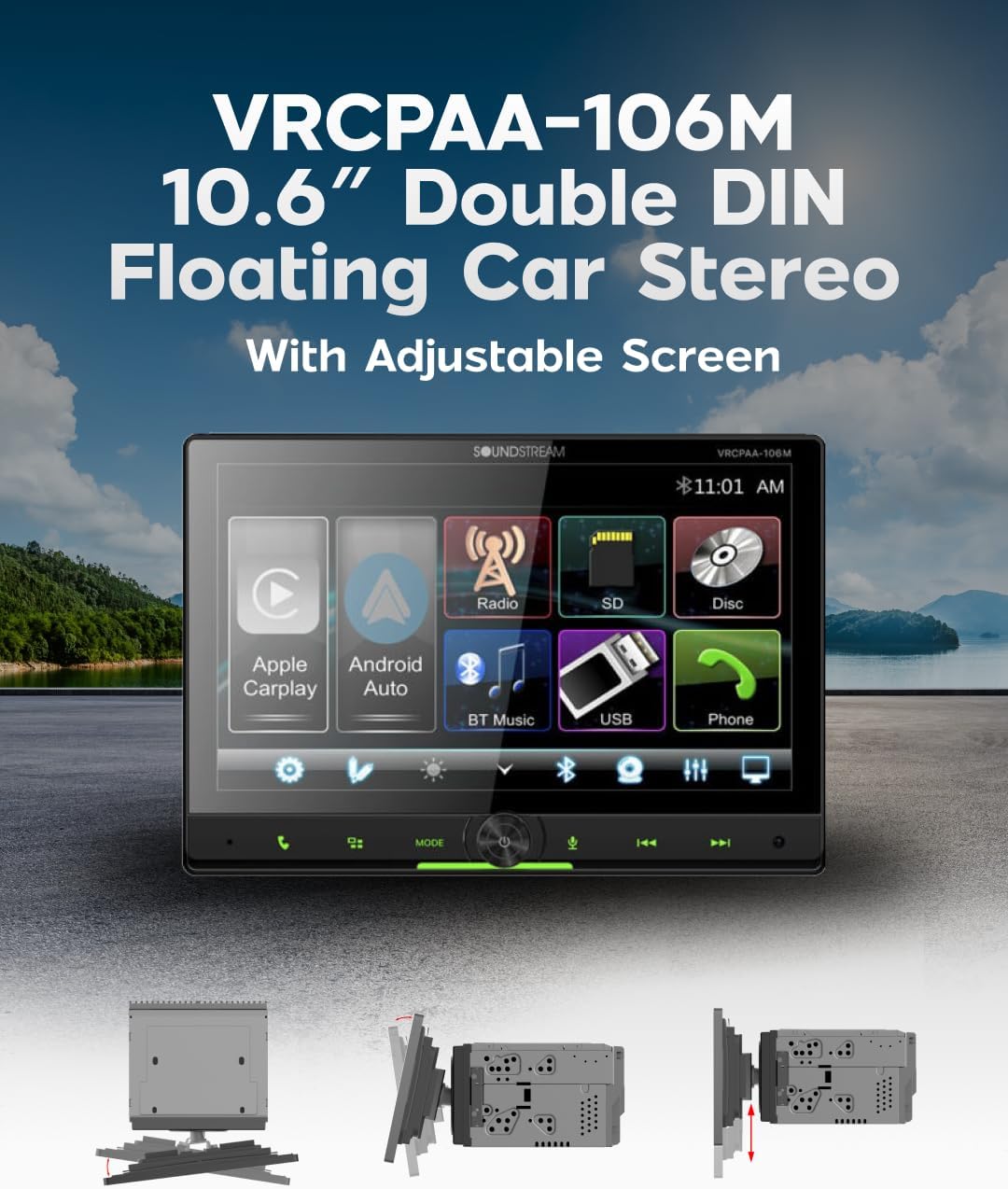
Image: The VRCPAA-106M features a 10.6-inch floating touchscreen with adjustable positioning for optimal viewing.
5. Operating Instructions
5.1 Basic Operation
- Power On/Off: Press and hold the power button (usually a rotary knob) to turn the unit on or off.
- Volume Control: Rotate the knob or use the touchscreen controls to adjust the volume.
- Home Screen: Tap the 'Home' icon on the touchscreen to return to the main menu.
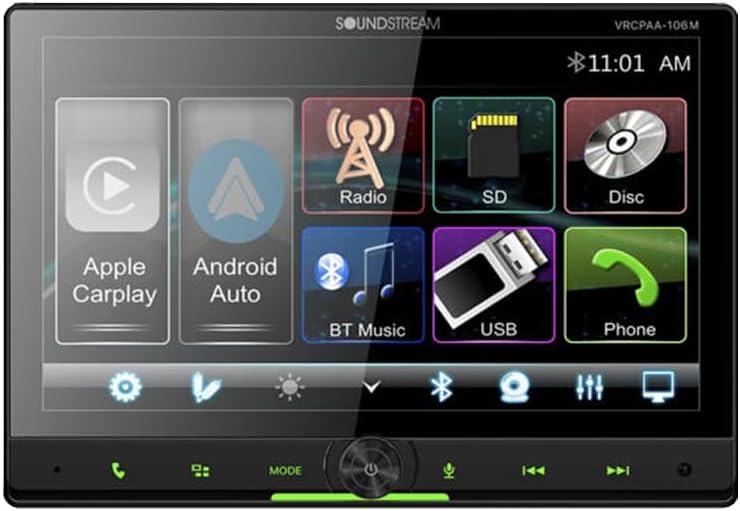
Image: The main user interface of the Soundstream VRCPAA-106M, showing icons for Apple CarPlay, Android Auto, Radio, SD, Disc, BT Music, USB, and Phone.
5.2 Apple CarPlay & Android Auto
Connect your compatible iPhone or Android smartphone via USB to access Apple CarPlay or Android Auto. This allows you to use navigation, make calls, send messages, and listen to music through the stereo's interface.
- Connection: Plug your smartphone into the USB port. The unit will automatically detect and launch CarPlay or Android Auto.
- Voice Control: Use Siri (for CarPlay) or Google Assistant (for Android Auto) for hands-free control by pressing the voice command button on the unit or steering wheel (if connected).
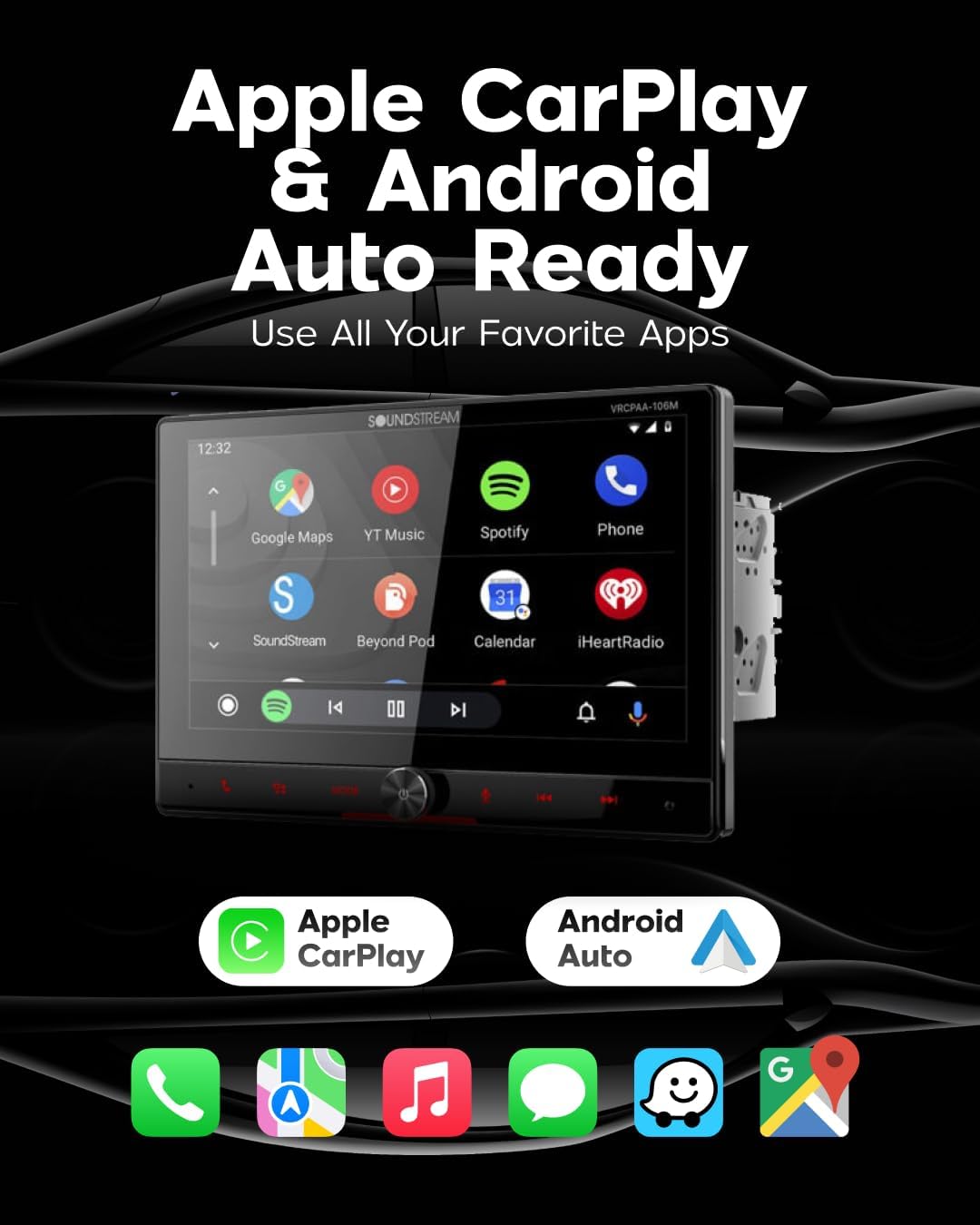
Image: The VRCPAA-106M is ready for Apple CarPlay and Android Auto, allowing access to smartphone applications directly on the stereo's display.
5.3 Bluetooth Connectivity
The unit supports Bluetooth for hands-free calling and wireless audio streaming.
- Pairing: Go to the Bluetooth menu on the stereo. Enable Bluetooth on your phone and search for 'Soundstream VRCPAA-106M'. Select it and confirm the pairing code.
- Hands-Free Calling: Once paired, you can make and receive calls directly from the stereo. Your phonebook can be synced for easy access.
- Audio Streaming: Play music from your phone wirelessly through the car stereo. Use the touchscreen to control playback (play/pause, skip tracks).

Image: Hands-free calling is enabled via Bluetooth, allowing users to answer and make calls wirelessly, with support for voice assistants like Siri and Google Assistant.
5.4 Media Playback Options
The VRCPAA-106M offers various inputs for media playback:
- USB Input: Connect USB drives for audio and video playback.
- AUX Input: Use a 3.5mm audio cable to connect external audio devices.
- MicroSD Input: Insert a microSD card containing media files.
- Radio: Access AM/FM radio stations.

Image: The stereo supports multiple media playback options including USB, AUX input, and MicroSD cards for expanded entertainment choices.
5.5 Camera Inputs
The unit supports both front and rear view camera inputs for enhanced safety and parking assistance. Cameras are sold separately.
- Rear Camera: Automatically displays the rear view when the vehicle is shifted into reverse, triggered by a 12V signal.
- Front Camera: Can be accessed manually or configured for automatic display in certain scenarios (refer to system settings).

Image: The VRCPAA-106M includes RCA inputs for both front and rear parking cameras, with an on-screen auto-trigger for convenience.
6. Maintenance
- Screen Cleaning: Use a soft, lint-free cloth to gently wipe the touchscreen. For stubborn smudges, slightly dampen the cloth with water or a screen-safe cleaner. Avoid harsh chemicals.
- General Care: Keep the unit free from dust and debris. Ensure all connections are secure.
- Software Updates: Periodically check the Soundstream website for any available firmware updates to ensure optimal performance and access to new features.
7. Troubleshooting
| Problem | Possible Cause | Solution |
|---|---|---|
| No Power | Incorrect wiring; Blown fuse; Vehicle battery issue. | Check power and ground connections. Inspect vehicle fuses. Verify battery voltage. |
| No Sound | Speaker wires disconnected; Volume too low; Mute function active; Incorrect audio source. | Check speaker connections. Increase volume. Disable mute. Select correct audio source. |
| Bluetooth Not Connecting | Bluetooth not enabled on phone/stereo; Device not in pairing mode; Interference. | Ensure Bluetooth is on for both devices. Put stereo in pairing mode. Try pairing again. Move closer to the unit. |
| CarPlay/Android Auto Not Launching | Faulty USB cable; Phone not compatible; Software issue on phone/stereo. | Use a high-quality USB cable. Ensure phone OS is up-to-date. Restart phone and stereo. |
| Touchscreen Unresponsive | Temporary software glitch; Screen damage. | Restart the unit. If issue persists, contact support. |
8. Specifications
| Feature | Detail |
|---|---|
| Product Dimensions | 10.6 x 10.6 x 6 inches |
| Item Weight | 6.49 pounds |
| Model Number | VRCPAA-106M |
| Brand | Soundstream |
| Connectivity Technology | Auxiliary, Bluetooth, USB |
| Controller Type | Android, iOS |
| Special Features | Android Auto, Apple CarPlay, Built-In Bluetooth, Front View Camera Input, Rear View Camera Input |
| Compatible Devices | Smartphone, Tablet |
| Connector Type | USB / Bluetooth |
| Audio Output Mode | Stereo |
| Surround Sound Channel Configuration | 4 |
| Video Encoding | MP4 & H264 |
| Color | Black |
9. Warranty and Support
For warranty information, please refer to the warranty card included with your product or visit the official Soundstream website. Keep your proof of purchase for warranty claims.
If you encounter any issues not covered in this manual or require further assistance, please contact Soundstream customer support through their official channels.


