
1. Introduction
This manual provides essential information for setting up, operating, and maintaining your Insignia 24-inch 1080p FHD LED Smart TV (Model: NS-24F202CA23) with Fire TV Edition. This television offers a 1080P display with 1920 x 1080 native resolution for clear, high-definition images. The LED-backlit LCD screen delivers a diverse range of colors and dynamic contrast. The integrated Fire TV operating system provides access to thousands of channels and applications, complemented by Alexa voice controls for convenient operation. Enjoy immersive audio through the built-in TV speakers with DTS TruSurround technology.

Image 1.1: Front view of the Insignia 24-inch Fire TV Edition Smart TV. The screen displays the 'INSIGNIA' logo on a blue background, with the TV resting on two black stand feet.
2. Important Safety Information
Please read all safety instructions before using your new television to prevent damage and ensure safe operation. Keep this manual for future reference.
- Power Source: Connect the TV only to the specified power supply.
- Ventilation: Ensure adequate ventilation around the TV. Do not block ventilation openings.
- Water and Moisture: Do not expose the TV to rain or moisture. Do not place objects filled with liquids on the TV.
- Cleaning: Unplug the TV before cleaning. Use a soft, dry cloth. Do not use liquid cleaners or aerosol cleaners.
- Placement: Place the TV on a stable, level surface. Avoid placing it in direct sunlight or near heat sources.
- Servicing: Do not attempt to service this product yourself. Refer all servicing to qualified service personnel.
3. Package Contents
Verify that your package contains the following items:
- Insignia 24-inch 1080p FHD LED Smart TV
- TV Stand (2 pieces)
- Remote Control with Batteries
- Power Cord
- Quick Setup Guide (not included in this digital manual)
4. Setup
4.1 Unpacking
Carefully remove the TV and all accessories from the packaging. Retain the packaging materials for potential future transport or service needs.
4.2 Installing the TV Stand
- Place the TV face-down on a soft, clean surface to prevent screen damage.
- Align each stand base with the corresponding screw holes on the bottom of the TV.
- Secure the stand bases using the provided screws. Ensure they are firmly attached.
4.3 Making Connections
Before connecting any cables, ensure the TV and all external devices are powered off.

Image 4.1: Rear view of the Insignia TV displaying various input ports. These include HDMI, USB, Digital Optical Audio Out, and the power input.
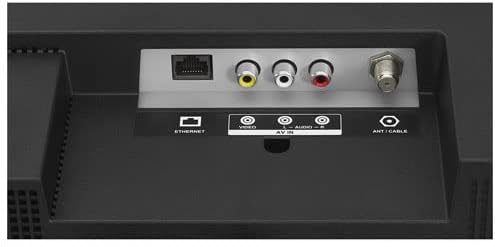
Image 4.2: Close-up of the bottom rear ports on the Insignia TV. This section shows the Ethernet port, AV IN (Video, L-Audio, R-Audio), and ANT/CABLE input.
- HDMI (ARC): Connect to a soundbar or AV receiver for audio return channel functionality.
- HDMI 1, HDMI 2, HDMI 3: Connect Blu-ray players, game consoles, cable/satellite boxes, or other HDMI devices.
- USB (5V 0.5A): Connect USB storage devices for media playback or software updates.
- DIGITAL OPTICAL OUTPUT: Connect to a digital audio receiver or soundbar for high-quality audio.
- AUDIO OUT: Connect to external speakers or headphones.
- ETHERNET: Connect an Ethernet cable for a wired internet connection.
- AV IN (Video, L-Audio, R-Audio): Connect older devices using composite video and stereo audio cables.
- ANT/CABLE: Connect an antenna or cable TV coaxial cable for over-the-air or cable channels.
4.4 Power On and Initial Setup
- Plug the power cord into the TV's power input and then into a wall outlet.
- Press the power button on the TV or the remote control to turn on the TV.
- Follow the on-screen instructions to complete the initial setup, including language selection, network connection (Wi-Fi or Ethernet), and Amazon account login.
4.5 Remote Control Pairing
Your Fire TV Edition remote control should pair automatically. If it does not, or if you encounter issues:
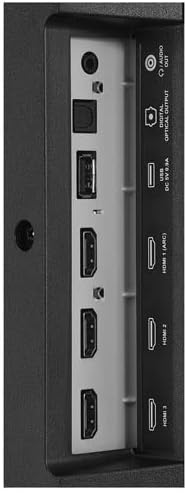
Image 4.3: The Insignia Fire TV Edition remote control. It features a power button, microphone button for Alexa, navigation ring, and dedicated buttons for streaming services like Prime Video and Netflix.
- Ensure the batteries in the remote are fresh and correctly inserted.
- Point the remote at the TV and press and hold the Home button () for approximately 10 seconds.
- The remote's LED indicator should flash, and the TV should display a message confirming successful pairing.
- If pairing fails, try moving closer to the TV or restarting the TV by unplugging it from the power outlet for 30 seconds and plugging it back in.
5. Operating Your TV
5.1 Fire TV Interface Navigation
Use the navigation ring and select button on your remote to browse the Fire TV home screen. The home screen provides access to your installed apps, live TV, and recommended content.
5.2 Streaming Applications
Access popular streaming services such as Apple TV+, Disney+, Hulu, Netflix, and Prime Video directly from the home screen. You may need subscriptions for certain services.
5.3 Voice Control with Alexa
Press and hold the microphone button on your remote and speak commands to Alexa. You can search for movies, launch apps, control playback, check weather, and more.
5.4 Input Selection
To switch between connected devices (e.g., game console, cable box), press the Input button on your remote or navigate to the 'Inputs' section on the Fire TV home screen.
6. Maintenance
6.1 Cleaning the TV
- Unplug the TV from the power outlet before cleaning.
- Use a soft, dry, lint-free cloth to gently wipe the screen and cabinet.
- For stubborn marks, lightly dampen the cloth with water or a mild, non-abrasive screen cleaner. Never spray cleaner directly onto the screen.
- Avoid using harsh chemicals, abrasive pads, or solvents.
6.2 Software Updates
Your Fire TV Edition TV will automatically check for and install software updates when connected to the internet. Ensure your TV remains connected to the internet for optimal performance and security updates.
7. Troubleshooting
If you encounter issues with your TV, refer to the following common solutions:
| Problem | Possible Solution |
|---|---|
| TV does not turn on. | Ensure the power cord is securely plugged into both the TV and a working electrical outlet. Try a different outlet. |
| Remote control is not responding or pairing. | Check batteries and replace if necessary. Press and hold the Home button on the remote for 10 seconds to re-pair. Ensure no obstructions between remote and TV. Restart TV by unplugging it for 30 seconds. |
| No picture or sound. | Verify correct input source is selected. Check all cable connections (HDMI, AV, etc.). Ensure external devices are powered on. |
| Cannot connect to Wi-Fi. | Ensure Wi-Fi is enabled on the TV. Check your router/modem. Try restarting your router/modem. Re-enter Wi-Fi password carefully. |
| Picture is distorted or blurry. | Check the resolution settings of the TV and the connected device. Ensure cables are securely connected. Try a different HDMI cable. |
| No sound from external speakers/soundbar. | Check audio output settings on the TV. Ensure external audio device is powered on and correctly connected. |
8. Specifications
| Feature | Detail |
|---|---|
| Model Number | NS-24F202CA23 |
| Screen Size | 24 Inches |
| Display Technology | 1080p LED |
| Resolution | 1920 x 1080 Pixels (1080p) |
| Refresh Rate | 60 Hz |
| Operating System | FireOS |
| Connectivity | Wi-Fi, Bluetooth |
| HDMI Ports | 3 (1 with ARC) |
| USB Ports | 1 |
| Audio Output | Digital Optical, Audio Out (3.5mm) |
| Dimensions (D x W x H) | 8.22 x 55.74 x 37.39 cm (with stand) |
| Weight | 4.33 kg |
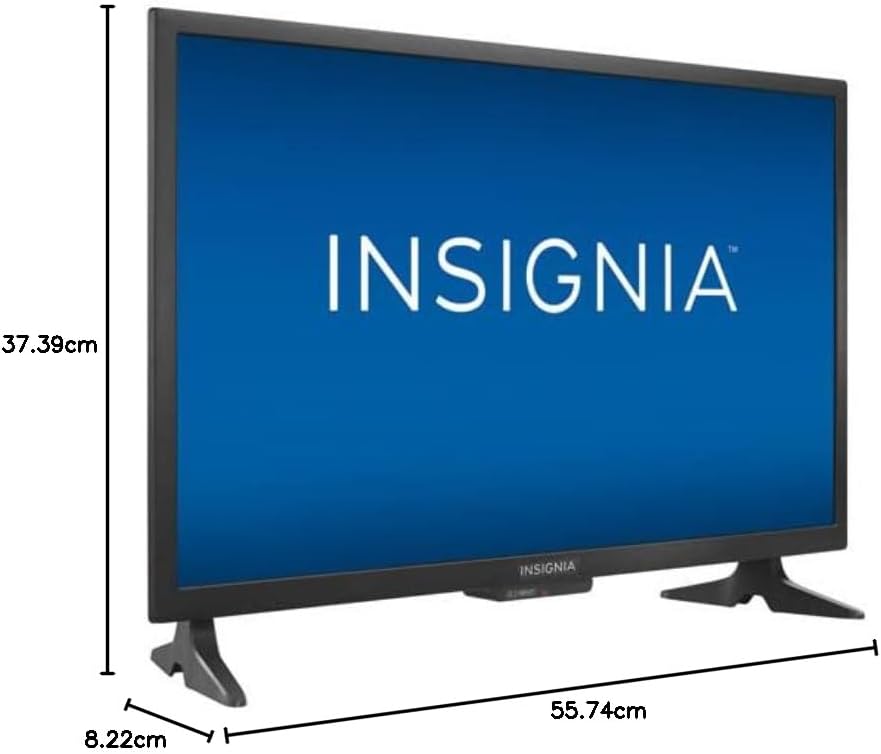
Image 8.1: Diagram illustrating the dimensions of the Insignia 24-inch TV. The image shows the height (37.39cm), width (55.74cm), and depth (8.22cm) of the television with its stand.
9. Warranty and Support
Your Insignia TV is covered by a manufacturer's warranty. For specific warranty terms and conditions, please refer to the documentation included with your purchase or visit the official Best Buy support website. For technical assistance, troubleshooting, or service inquiries, please contact Best Buy customer support.
Online Support: Visit Best Buy Canada Help & Customer Service


