
PJYUBVOR 756166966499
PJYUBVOR Smart Watch User Manual
Model: 756166966499
Introduction
This manual provides detailed instructions for the setup, operation, and maintenance of your PJYUBVOR Smart Watch. Please read this guide thoroughly to ensure proper use and to maximize the features of your device.
Package Contents
- PJYUBVOR Smart Watch
- Charging Cable
- User Manual (this document)
Setup Guide
1. Charging the Device
Before first use, fully charge your smart watch. Connect the provided charging cable to the charging port on the back of the watch and to a USB power source. The watch display will indicate charging status.

Image: The PJYUBVOR Smart Watch, illustrating its design and the charging connection point.
2. App Download and Pairing
- Download the App: Search for the "Dafit" app in your smartphone's app store (compatible with iOS 9.0/Android OS 4.4 or above).
- Enable Bluetooth: Ensure Bluetooth is enabled on your smartphone.
- Connect the Device: Open the Dafit app, navigate to the device section, and search for your watch (often identified as "T49" or similar). Follow the in-app instructions to pair.
- Enable Bluetooth Calling: After initial pairing, go to your phone's Bluetooth settings and connect to "T49_Phone" to enable call functionality directly from the watch.

Image: Visual guide for connecting the smartwatch via Bluetooth for calls, showing the watch's dial pad and contact list, alongside steps for Bluetooth pairing.
3. Customizing the Watch Face
Your smart watch features a 1.9-inch HD full touch screen with multiple pre-installed watch faces. You can also customize the watch face by uploading a picture from your phone through the Dafit app.
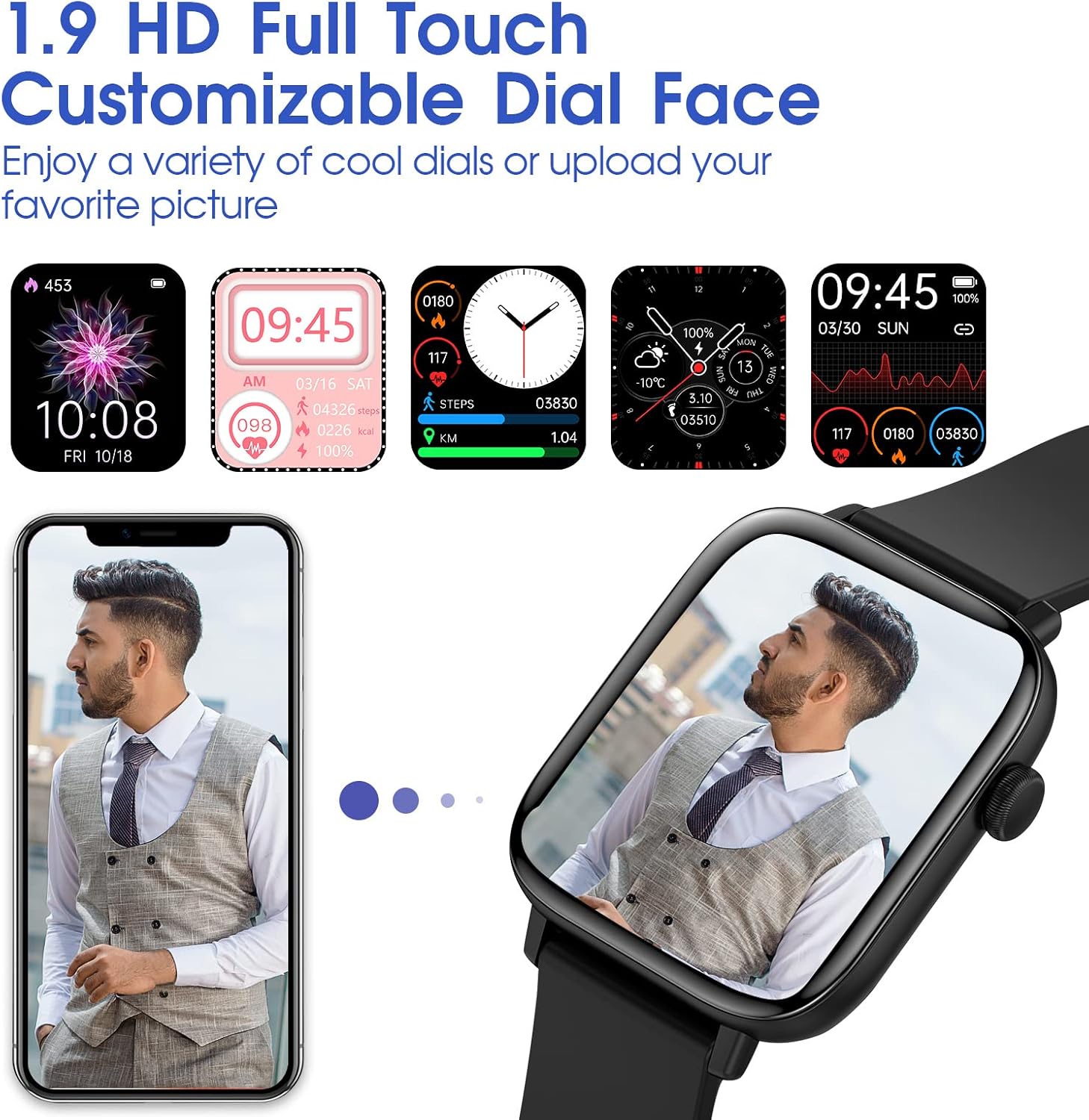
Image: The smartwatch displaying several customizable dial face options, including a personalized photo background, highlighting the 1.9-inch HD display.
Operating Instructions
1. Basic Navigation
- Touch Screen: Swipe left, right, up, or down to navigate through menus and features. Tap to select.
- Side Button: Typically used to return to the home screen or activate/deactivate the display.
2. Call and Message Functions
- Incoming Calls: The watch will vibrate and display caller ID. You can answer or reject calls directly from the watch.
- Making Calls: Use the dial pad or access your synced contacts on the watch to initiate calls.
- Message Notifications: Receive SMS and app notifications (e.g., Facebook, WhatsApp, Instagram) on your watch. You can view messages but cannot reply directly.

Image: The smartwatch screen showing an incoming call notification and a numeric dial pad for making calls.

Image: A user wearing the smartwatch, with icons for various social media and messaging apps floating around, indicating smart notification capabilities.
3. Health Monitoring
- Heart Rate Monitor: Continuously monitors your heart rate. View real-time data on the watch or in the app.
- Blood Oxygen (SpO2) Monitor: Measures blood oxygen levels.
- Sleep Tracker: Automatically records sleep patterns (awake, light, deep sleep) to help analyze sleep quality.
- Blood Pressure Measurement: Provides blood pressure readings. Note: This feature is for reference only and should not be used for medical diagnosis.
- Sedentary Reminder: Alerts you to move after periods of inactivity.
- Drink Water Reminder: Prompts you to stay hydrated.

Image: The smartwatch interface showing sleep tracking data, blood oxygen saturation (SpO2) levels, and current weather information.
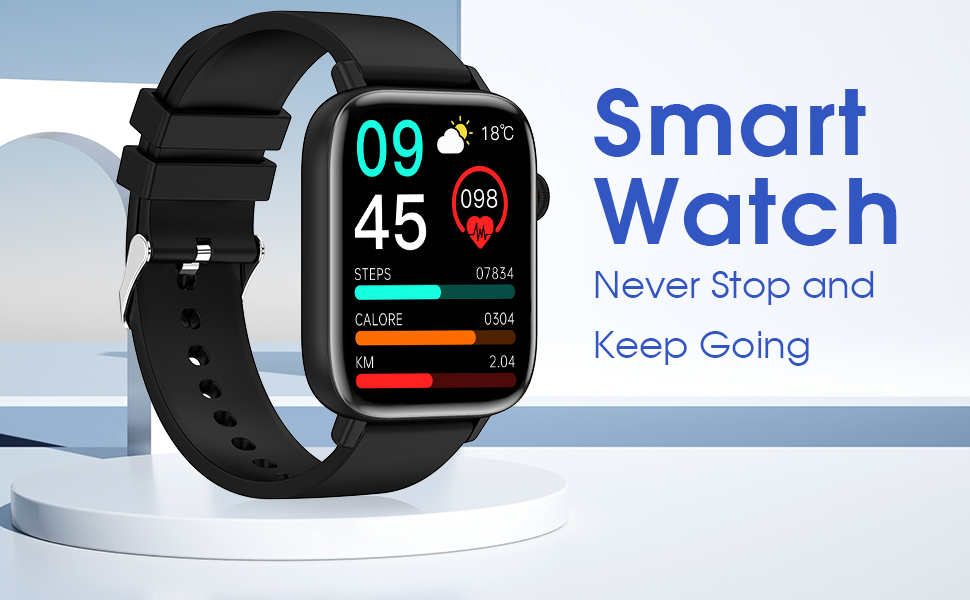
Image: A composite image showing the smartwatch displaying detailed graphs for SpO2, blood pressure, and heart rate, emphasizing its health tracking capabilities.
4. Sports Modes and Activity Tracking
The watch supports 28 indoor and outdoor sport modes, including running, cycling, and yoga. It records real-time data such as steps, distance, calories burned, and activity time. When connected to your smartphone's GPS, you can view map routes for outdoor activities in the Dafit app.
- Pedometer: Tracks your daily step count.
- Calorie Counter: Estimates calories burned based on activity.
- Distance Tracker: Records distance covered.

Image: The smartwatch showing a summary of daily activity including calories, steps, heart rate, and distance, surrounded by icons representing 28 different sports modes.
5. Other Functions
- Music Control: Control music playback on your smartphone (play, pause, skip tracks).
- Camera Control: Use the watch as a remote shutter for your smartphone camera.
- Weather Forecast: Displays current weather conditions.
- Alarm Clocks: Set multiple alarms.
- Stopwatch & Timer: Basic timekeeping functions.
- Find Phone/Watch: Helps locate your paired device.
Maintenance
1. Cleaning Your Smart Watch
Regularly clean your watch and strap with a soft, damp cloth. Avoid using harsh chemicals or abrasive materials. Ensure the charging contacts are clean and dry before charging.
2. Water Resistance (IP67)
The watch is IP67 waterproof, meaning it is resistant to splashes and brief immersion in water. However, it is important to avoid using the fitness tracker watch in diving, saunas, or hot water, as extreme temperatures and prolonged submersion can damage the device.
3. Battery Care
To prolong battery life, avoid fully discharging the watch frequently. Charge the device when the battery level is low. Store the watch in a cool, dry place when not in use for extended periods.
Troubleshooting
1. Watch Not Turning On or Charging
- Ensure the charging cable is securely connected to both the watch and the power source.
- Check if the charging contacts on the watch and cable are clean and free of debris.
- Try using a different USB power adapter or port.
- If the issue persists, the charging cable may be faulty.
2. Connectivity Issues (Bluetooth)
- Ensure Bluetooth is enabled on your smartphone and the watch.
- Make sure the watch is within the Bluetooth range of your phone.
- Restart both your smartphone and the smart watch.
- Unpair the device from the Dafit app and your phone's Bluetooth settings, then re-pair it following the setup instructions.
3. Inaccurate Health Data
- Ensure the watch is worn snugly on your wrist, about one finger's width above the wrist bone.
- Keep the sensor area on the back of the watch clean.
- For blood pressure readings, remember these are for reference and not medical-grade.
Specifications
| Model Number | 756166966499 |
| Screen Size | 1.9 Inches |
| Resolution | 240 x 295 |
| Battery Capacity | 290 Milliamp Hours (Lithium Polymer) |
| Connectivity | Bluetooth 5.0 |
| Operating System Compatibility | iOS 9.0/Android OS 4.4 or above |
| Water Resistance | IP67 |
| Item Weight | 2.47 ounces |
| Memory Storage Capacity | 128 MB |
Support Information
For further assistance, please refer to the official PJYUBVOR support channels or contact your retailer. Keep your purchase receipt for any warranty claims.
Optional protection plans may be available for extended coverage. Please check with your point of purchase for details.
Ask a question about this manual
Ask about setup, troubleshooting, compatibility, parts, safety, or missing instructions. Manuals+ will review the question and use this page’s manual context to help answer it.