
1. Product Overview
The Ecoey Digital Thermometer Hygrometer (Model FJ147W) is designed to monitor indoor temperature and humidity levels. It features a large LCD display for local readings and can connect to a mobile application via 2.4GHz WiFi for remote monitoring and alerts.

The device's main display shows current temperature and humidity readings, along with icons indicating various features like temperature monitoring, humidity monitoring, comfort indicator, WiFi connection, 8-second refresh rate, app monitoring, and notifications.
2. Package Contents
- Ecoey Digital Thermometer Hygrometer (FJ147W)
- User Manual
- AAA Batteries (3x) - May be pre-installed or included separately.
3. Setup Instructions
3.1. Battery Installation
- Locate the battery compartment cover on the back of the device.
- Slide or gently pry open the cover.
- Insert three (3) AAA batteries, ensuring correct polarity (+/-).
- Replace the battery compartment cover.

The device is powered by three AAA batteries, visible in the open battery compartment. It features a low battery warning and is designed for long battery life with a low standby current.
3.2. App Download and WiFi Connection
- Download the compatible mobile application (e.g., Smart Life or Tuya Smart) from your smartphone's app store.
- Register or log in to your account within the app.
- Ensure your smartphone is connected to a 2.4GHz WiFi network. The device does not support 5GHz WiFi networks.
- Follow the in-app instructions to add a new device. This typically involves selecting the device type (e.g., 'Sensor' or 'Temperature/Humidity Sensor') and putting the device into pairing mode (refer to app for specific button press sequence, usually a long press on the device's button).
- Confirm the device is successfully connected to your WiFi network and appears in the app.

The image demonstrates the easy WiFi connection process, showing the device wirelessly linked to a smartphone displaying the monitoring application. Note that the device supports 2.4GHz WiFi only.
3.3. Placement and Mounting
The Ecoey Digital Thermometer Hygrometer offers flexible placement options:
- Tabletop: Use the integrated stand to place the device on any flat surface, such as a desk, shelf, or nightstand.
- Wall Mount: The device can be mounted on a wall using the provided mounting points and hardware (if included). Ensure the wall is suitable for mounting.
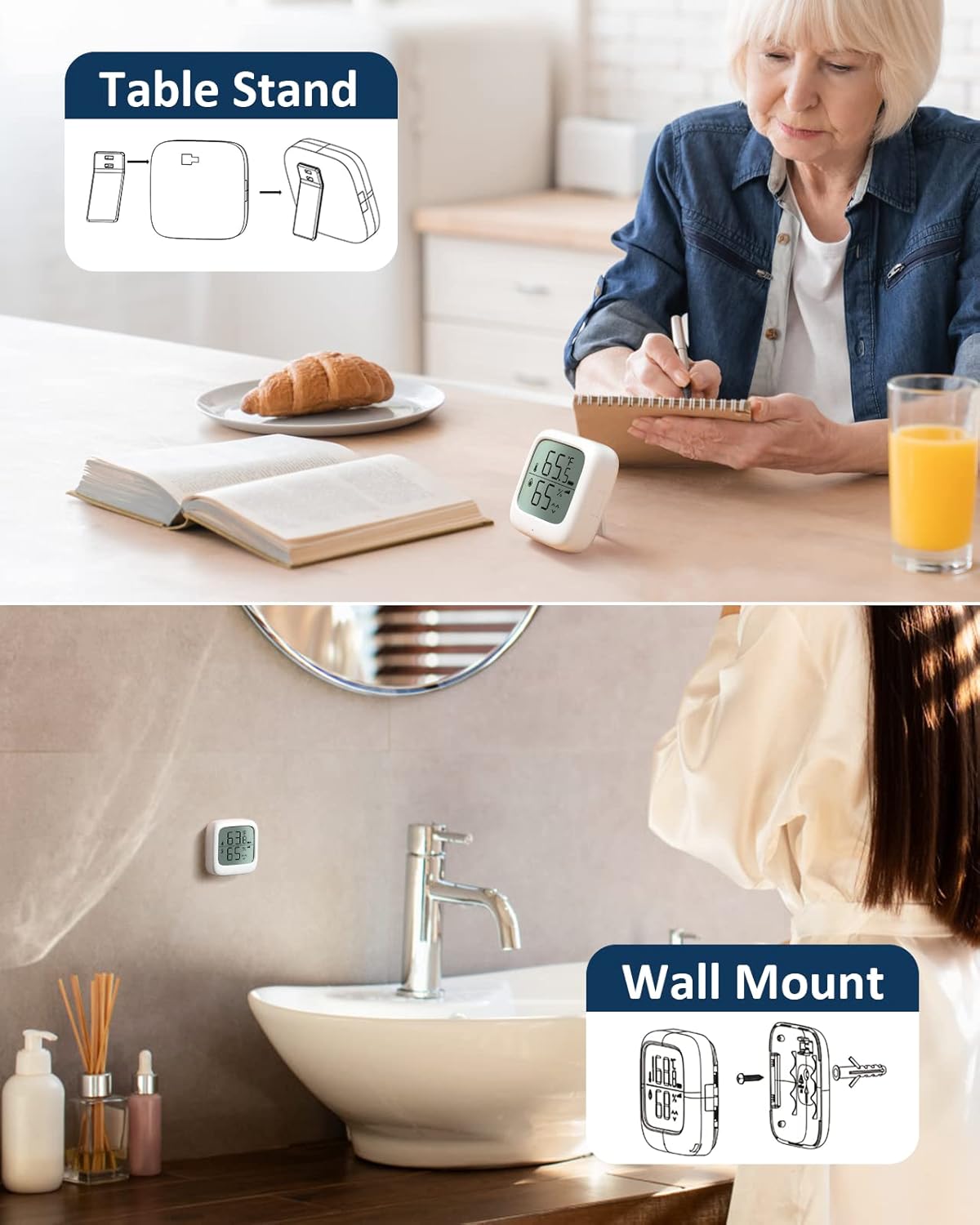
The device offers versatile placement options, including a built-in table stand for desktop use and a wall mount feature for secure attachment to vertical surfaces. Diagrams illustrate how to use both mounting methods.
4. Operating Instructions
4.1. LCD Display Overview
The large LCD display shows the following information:
- Temperature: Current temperature reading in Celsius (°C) or Fahrenheit (°F).
- Humidity: Current relative humidity reading (%).
- Comfort Indicator: A face icon indicating the comfort level (DRY, COMFORT, WET).
- Battery Level: An icon indicating the remaining battery life.
- WiFi Status: An icon indicating WiFi connection status.
The display refreshes every 8 seconds to provide up-to-date readings.
4.2. Comfort Level Indicator
The device uses face icons to visually represent the indoor comfort level based on temperature and humidity:
- DRY: Indicates low humidity.
- COMFORT: Indicates optimal temperature and humidity levels.
- WET: Indicates high humidity.

This image illustrates the comfort level indicators on the device, showing how different temperature and humidity ranges correspond to 'Very comfortable', 'Comfortable', and 'Uncomfortable' face emojis.
4.3. Temperature Unit Switching
To switch between Celsius (°C) and Fahrenheit (°F) temperature units:
- Press and hold the button on the device for more than 5 seconds. The temperature unit on the display will change.
4.4. App Monitoring and Alerts
Once connected to the mobile app, you can:
- View real-time temperature and humidity data remotely from anywhere.
- Set custom temperature and humidity ranges.
- Receive instant notifications (APP message, SMS, or phone notification) if readings exceed the set ranges.
- Access historical data (Max/Min records within one year).
- Potentially link with other smart home devices for automated control (e.g., turning on a heater or humidifier).

This image displays the smartphone application interface, demonstrating how users can set up alerts for temperature and humidity thresholds. It also shows the potential for intelligent linkage with other smart home devices like heaters or humidifiers.
5. Maintenance
5.1. Battery Replacement
When the low battery indicator appears on the display or in the app, replace the three AAA batteries following the instructions in Section 3.1.
5.2. Cleaning
To clean the device, gently wipe the surface with a soft, dry cloth. Do not use abrasive cleaners, solvents, or immerse the device in water.
6. Troubleshooting
- Device not connecting to WiFi:
- Ensure your WiFi network is 2.4GHz. The device does not support 5GHz networks.
- Check that the device is within range of your WiFi router.
- Verify your WiFi password is entered correctly in the app.
- Restart your WiFi router and the device, then attempt pairing again.
- Some users report intermittent WiFi disconnections. If this occurs frequently, try moving the device closer to your router or ensuring there are no strong interference sources.
- Inaccurate temperature/humidity readings:
- Ensure the device is not placed near heat sources (e.g., direct sunlight, heating vents) or sources of moisture (e.g., humidifiers, open windows during rain).
- Allow the device to stabilize for at least 30 minutes after initial setup or relocation.
- Compare readings with another calibrated thermometer/hygrometer if available.
- App not receiving alerts:
- Check your app's notification settings and your phone's system notification settings to ensure alerts are enabled.
- Verify that the alert thresholds are correctly set within the app.
- Ensure the device has a stable WiFi connection.
- Display is blank or unresponsive:
- Check the battery level and replace batteries if necessary.
- Ensure batteries are inserted with correct polarity.
- If the issue persists, contact customer support.
7. Specifications
| Model | FJ147W |
| Operating Voltage | DC 4.5V (3 x AAA batteries) |
| Temperature Range | 15.8°F to 140°F (-9°C to 60°C) |
| Temperature Accuracy | ±0.3°C |
| Humidity Range | 0% to 99% RH |
| Humidity Accuracy | ±3% RH |
| Refresh Rate | 8 seconds |
| Communication Frequency | 2.4GHz WiFi (IEEE 802.11 b/g/n) |
| Dimensions | 61mm × 61mm × 22.6mm |
| Mounting Type | Tabletop, Wall Mount |
| Manufacturer | SITERWELL ELECTRONICS CO.,LIMITED |

This image highlights the compact size of the thermometer hygrometer, showing its dimensions (61mm x 61mm x 22.6mm) and comparing it to common household items like a coffee cup and an egg for scale. The large digits on the display ensure clear readability.
8. Warranty and Support
Specific warranty information is not provided in the product details. For warranty claims, technical support, or further assistance, please refer to the contact information provided with your purchase or visit the official Ecoey website.